For the longest time, I used a Fire TV Stick 4K Max with my 4K LG TV, mainly because I’d always relied on Fire TV devices for streaming and knew they were dependable. Recently, though, I decided to switch to using a Roku Ultra as my primary streaming device. Part of the reason was that it had been a while since I’d spent any serious time with Roku OS, and I wanted to test it out properly again. The other reason is that the Roku Ultra packs in a surprisingly robust feature set that makes it a worthwhile upgrade if you’re after a more premium streaming experience — especially when it’s on sale, which can bring the price down to around $80.
So far, I’ve really enjoyed the switch. I’ve spent plenty of time watching free content on The Roku Channel, taking advantage of Headphone Mode with my AirPods, and streaming 4K movies with Dolby Vision and Dolby Atmos. But despite all that, there’s one feature I overlooked for far too long.
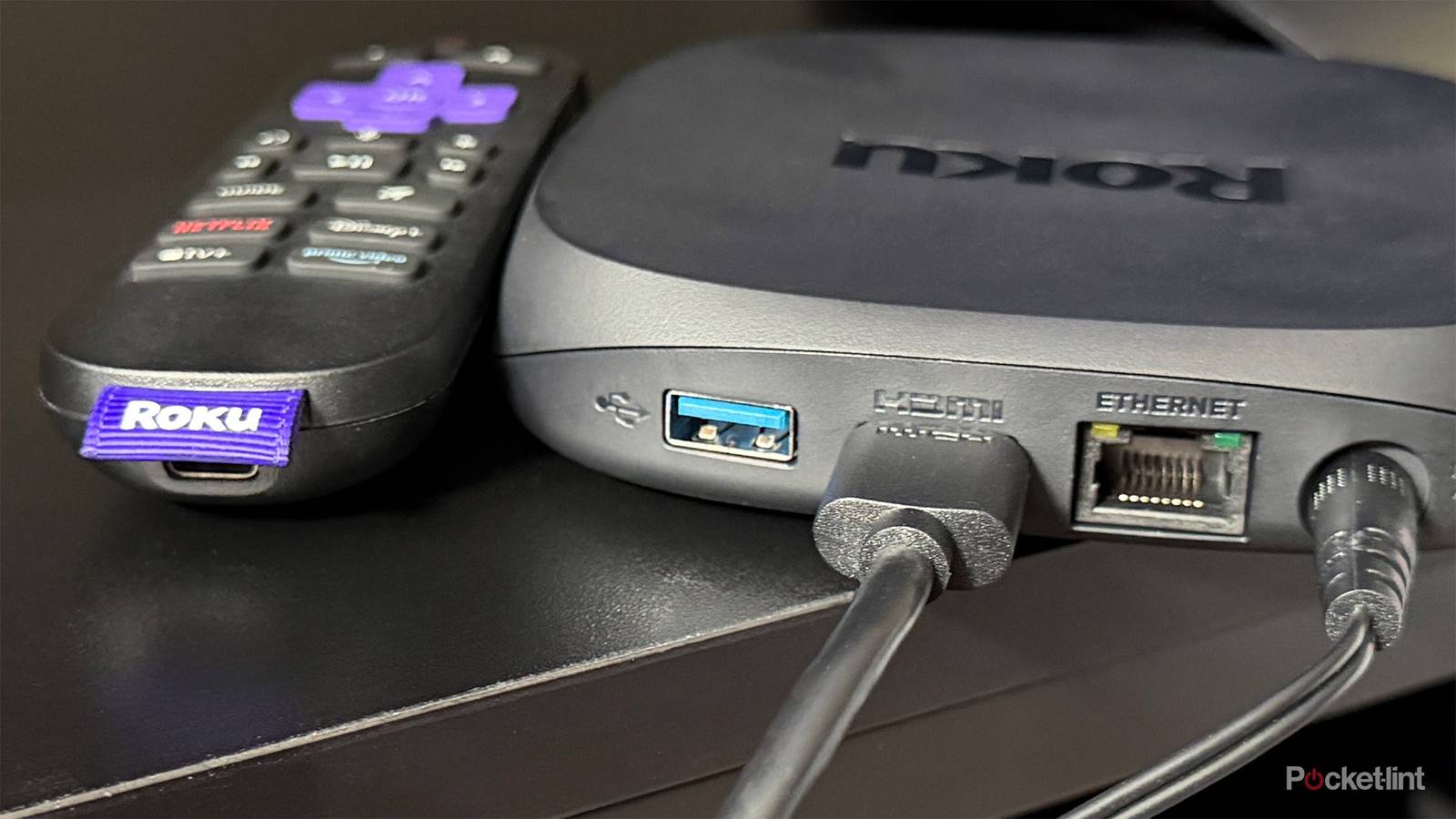
Because it’s a set-top box rather than a streaming stick, the Roku Ultra includes a couple of extra ports on the back that can enhance your streaming setup. The first is an Ethernet port, and the second is a USB port.
To be blunt, the Ethernet port isn’t particularly all that exciting. It’s limited to 10/100 Ethernet, meaning speeds are capped at 100 Mbps rather than Gigabit, so in many cases, your Wi-Fi is probably faster. The USB port, on the other hand, is far more useful. Plug in a USB stick, external hard drive, or SSD, and as I’ve recently come to appreciate, the Roku Ultra can double as a surprisingly capable local media player.
Roku has a reliable app for watching local media

I’ve used the USB port on my LG TV to watch local media before, and that experience was pretty solid, so I was curious to see how the Roku Ultra would compare. To test it out, I dug out an old external hard drive loaded with a handful of movies and TV shows and plugged it in.
As soon as I connected my 2TB portable hard drive to the USB port on the back of the Roku Ultra, a pop-up appeared asking for permission to access the drive’s contents. After I clicked “Allow,” Roku prompted me to download an app called Roku Media Player, which is what you’ll use to browse and play local media.
The Roku Media Player app is completely free, and once it was installed, I simply opened it, selected my hard drive, and started browsing my files. From there, I picked the movie I wanted to watch, a despecialized version of Return of the Jedi, and it started playing instantly. I could use the Roku remote to pause, fast-forward, and rewind, just like I would with any streaming app.
While I did this on my Roku Ultra, you can also do this on any Roku smart TV with a USB port.
From plugging in the drive to actually watching a movie, the entire process took less than a minute. What impressed me most was how straightforward everything felt. Even with a large 2TB drive connected, the Roku Media Player loaded all my files almost instantly, and its user interface made it simple to find what I was looking for.
I think this also serves as a reminder that if you have any local media you’d like to watch, you don’t necessarily need to set up a Plex or Jellyfin server or connect a PC to your TV. Just copy your videos to a USB drive, plug it into your Roku Ultra (or Roku TV), and you’ll be watching them in no time. Plus, it’s an experience made better largely thanks to Roku’s broad support for various drive formats and file types.
Compatibility isn’t a major issue for the Roku Ultra
It supports a wide range of USB drive formats and file types

Compared to the USB port on my LG C5 TV, the Roku Ultra’s is significantly more capable in terms of what it can actually read. LG TVs only support drives formatted as FAT32 or NTFS, while the Roku Ultra works with a much wider range of file systems, including FAT16, FAT32, NTFS, Ext2, Ext3, exFAT, and HFS+.
My 2TB portable hard drive is formatted as NTFS, so it worked perfectly on both the Roku Ultra and my LG TV. However, when I plugged in my portable SSD, which is formatted as exFAT, the difference became obvious. The drive wasn’t recognized by my LG TV at all, but the Roku Ultra detected it instantly and let me browse and play media files without any issues.
I was also impressed by how flexible the Roku Ultra is in terms of media playback. It supports all the major video container formats, including MKV, MP4, and MOV, along with both H.264/AVC and H.265/HEVC video codecs. So if you have a large collection of local media, such as old movies or home videos, there’s a good chance your Roku Ultra will play them without any extra work on your part. If you want to dig deeper into the specifics, Roku provides a full list of supported video, audio, and image formats on its website.
Ultimately, I’m glad I finally gave the USB port on my Roku Ultra a chance. What started as a simple test ended up showing me that it’s far more useful than the USB port on my LG TV, largely because it works with a wider variety of storage devices.
I also have to give credit to the Roku Media Player. The app is simple and responsive, and it played everything I threw at it without a hitch. Roku is best known for streaming, so I wasn’t expecting its local media experience to be this good. But after spending some time with it, I have to give credit where it’s due.

- Dimensions
-
4.9 x 5.0 x 1.0 inches
- Connective Technology
-
Bluetooth® streaming, 802.11ax dual-band MIMO Wi-Fi 6 (2.4 GHz / 5 GHz), 10/100 Base-T Ethernet
- Brand
-
Roku
The Roku Ultra has refreshed for the first time since 2021. A new backlit remote, faster performance, and Wi-Fi 6 support separate this 2024 edition from the past generation.