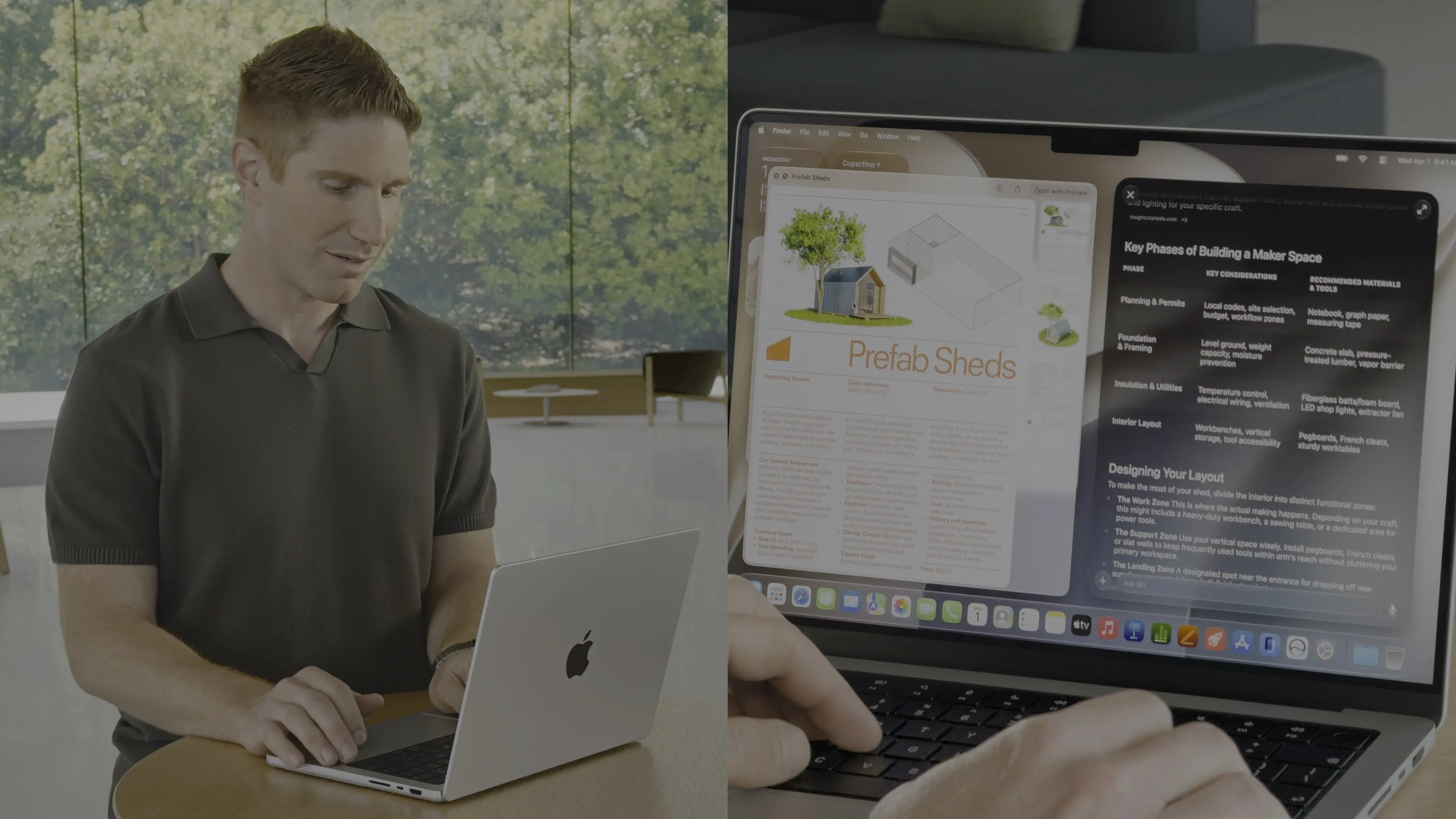
Even after updating all your devices to the OS 27 betas, you can’t get the new Siri AI right away. There’s a waitlist, and users are reporting that it can take days to get accepted. But on macOS Golden Gate, you can skip the waitlist with a little Terminal command.
First, you’ll need to install macOS Golden Gate. If you want to play it safe by installing it on an external volume, you’ll be disappointed — Apple Intelligence only works when macOS is running from your internal storage. So playing it safe is a little harder, unless you have enough free internal space to make a partition.
Whatever your approach, here’s how you can try out the new Siri on your Mac right now.
Skip the waitlist: Get the new Siri AI on macOS Golden Gate
The Siri AI waitlist appears to be tied to your Apple Account. Once I was accepted on my iPhone, I had it on my Mac and Vision Pro, after I updated those devices. (Alas, my Apple Watch Series 7 is too old.)
However, enabling Siri AI via the Terminal only enables it on that particular Mac. You aren’t technically getting invited, after all; you’re just changing a hidden setting. So if you want to try it on your other devices, you should still go to Settings > Siri, tap Try New Siri, then Join Waitlist.
Nonetheless, if you want a sneak peek, here’s what to do on your Mac.
Table of Contents: Skip the Siri waitlist on macOS Golden Gate
- Install macOS Golden Gate 27 Developer Beta
- Copy and paste this command into the Terminal
- Reboot your Mac to a enjoy smarter Siri
Install macOS Golden Gate 27 Developer Beta
Screenshot: D. Griffin Jones/Cult of Mac
First, you’ll need to install the macOS Golden Gate 27 developer beta. Be warned that installing an early beta can lead to compatibility problems with some of the apps you use. Golden Gate runs on all Apple silicon Macs.
The smart move is to install Golden Gate on a separate volume. However, be aware that this won’t work on an external drive. Apple Intelligence is only enabled when macOS is running on an internal hard drive, for security, probably. You may need to free up space on your internal disk, then partition your hard drive and install Golden Gate there using the Install Assistant, rather than System Settings.
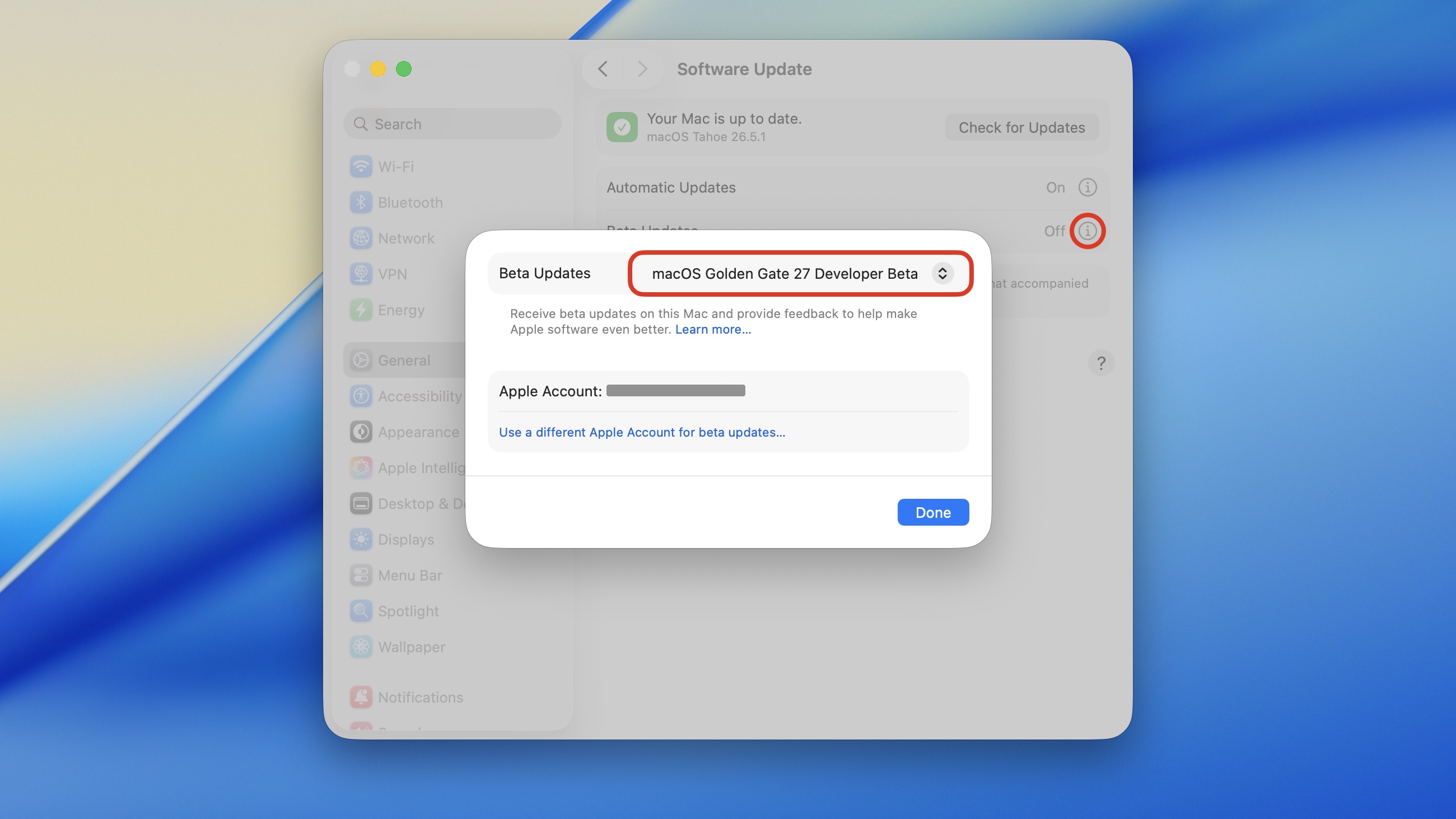
Or, if you want to throw caution to the wind, you can update Tahoe into Golden Gate directly. Go to System Settings > General > Software Update. Click the ⓘ next to Beta Updates, choose macOS Golden Gate 27 Developer Beta from the dropdown menu and click Done. Then, click Update Now download and install the update.
Copy and paste this command into the Terminal
Screenshot: D. Griffin Jones/Cult of Mac
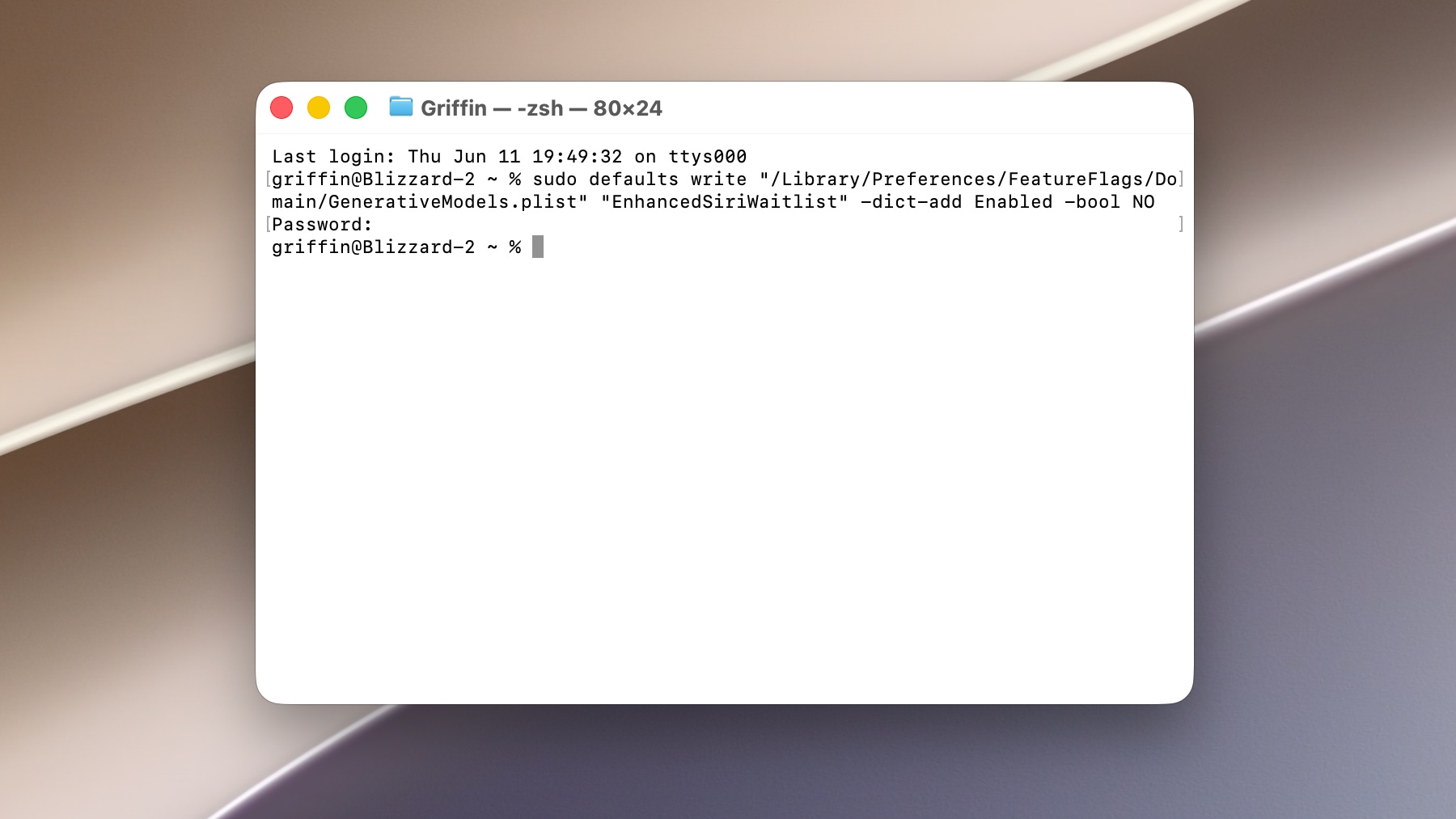
Open the Terminal app. You can launch it from Spotlight by hitting Command-Space, typing in “terminal” and hitting Return.
Copy the following line, paste it into the Terminal, and hit Return:
sudo defaults write "/Library/Preferences/FeatureFlags/Domain/GenerativeModels.plist" "EnhancedSiriWaitlist" -dict-add Enabled -bool NO
You’ll need to type in your user password, then hit Return again. After that, you can close the Terminal.
Reboot your Mac to a enjoy smarter Siri
After that, go to > Restart to reboot your Mac.
You should see the change right away. Siri is now unified with Spotlight, so hitting Command-Space lets you type to Siri. You can also continue previous conversations, and conversations started on other devices, from the new Siri app.
Not sure what to do? You can read more about what Siri AI can do, along with the 15 other new Apple Intelligence features.

D. Griffin Jones is a writer, podcaster and video producer for Cult of Mac. Griffin has been a passionate computer enthusiast since 2002, when he got his first PC — but since getting a Mac in 2008, he hasn’t turned back. His skills in graphic and web design, along with video and podcast editing, are self-taught over 20+ years. Griffin has a bachelor’s degree in computer science and has written several (unpublished) apps for Mac and iOS. His collection of old computers is made up of 40+ desktops, laptops, PDAs and devices, dating back to the early ’80s. He brings all of these creative and technical skills, along with a deep knowledge of Apple history, into his work for Cult of Mac.