Linear Camera Profiles are one of those things that have been floating around the Lightroom community forever, but only a few people seem to use them. And while there are a lot of video tutorials on how to make a linear camera profile for your camera, there is almost nothing on how to use them in your editing workflow.
So over the last month, I took it upon myself to figure this out, and I think I finally have an editing method worth sharing. And of course, all this comes from the world of video editing. Where data is often captured with S-Log or other similar flat-looking gamma curves, all the color grading and editing is done on that flat-looking image, and then an output gamma transform is applied to get the final look.
The same idea can be applied to photography. Instead of editing an image that already has a contrast curve baked in, we work on a flatter, more linear starting point and only apply the final contrast and tonal shaping at the end. This gives us more control and also has the potential to give us much better color grades because of the way color mixes with the contrast curve.
What are Linear Camera Profiles?
A linear camera profile in Adobe Lightroom is just an alternative to “Adobe Color” or “Camera Standard” camera profiles that removes the built-in gamma curve and shows our RAW data in a nearly “straight” (linear) tonal response, aka it makes our photos look mostly grey and under-exposed. But the point of shooting RAW is not really to have a nice preview. We want the data, and working with a linear camera profile will give us better access to the raw data our cameras have captured. Just that our cameras apply a gamma curve to that data, so we can have a better preview of how our images are going to look.
But when editing, we don’t have to use the same gamma curve, and we can make our own. And if that’s the plan, it is probably worth switching our cameras to a more neutral profile while shooting as well for a better preview, but more importantly, for a more accurate live histogram that is not strongly influenced by the baked-in gamma curve.

These curves mean overall brighter-looking images, rolled-off highlights, shadow lifting, and lots of contrast in the shadows. And they are fine if we want our photos to have a clean, contrasty digital look. But since I want my photos to have a more filmic, cinema-like look, they are in the way most of the time. And also because the usual gamma curve has that massive bump in the highlights, highlight recovery becomes a bit more difficult in digital photography, and we can get into ugly artifacting while fighting the gamma curve. Compared to this, a Linear Camera Profile with no predefined gamma curve can offer way more flexibility when editing. But the one thing that a linear profile won’t give us is more dynamic range. Our sensor can only capture a certain amount of dynamic range, and no matter what camera profile we use, that won’t change. Linear Camera Profiles can only offer us more control over the data that the sensor in our cameras has already captured.
But “with great power comes great responsibility,” and in our case, this means more time spent editing and more complex workflows, so let’s learn how to make one of these profiles.
How to Make a Linear Camera Profile
Now that you are hyped about linear camera profiles and want to try editing with them, I have some bad news for you. You will first have to create one for every camera that you own and use regularly. But don’t you worry; it’s pretty simple, and there are a ton of videos out there on how to do this.
- Download Adobe DNG Profile Editor
- Export a RAW file as DNG from Adobe Lightroom
- Open it in Adobe DNG Profile Editor
- Go to Tone Curve → set it to a linear
- Export the Linear profile you just created
- Import it into Lightroom using the + in the profile browser
- Restart Lightroom and mark it as a favorite camera profile
My New Workflow
Now comes the fun part. The new editing workflow that I developed tha is inspired by the way colorists use nodes in DaVinci Resolve. But before we start, keep in mind that video editing workflows are not linear.
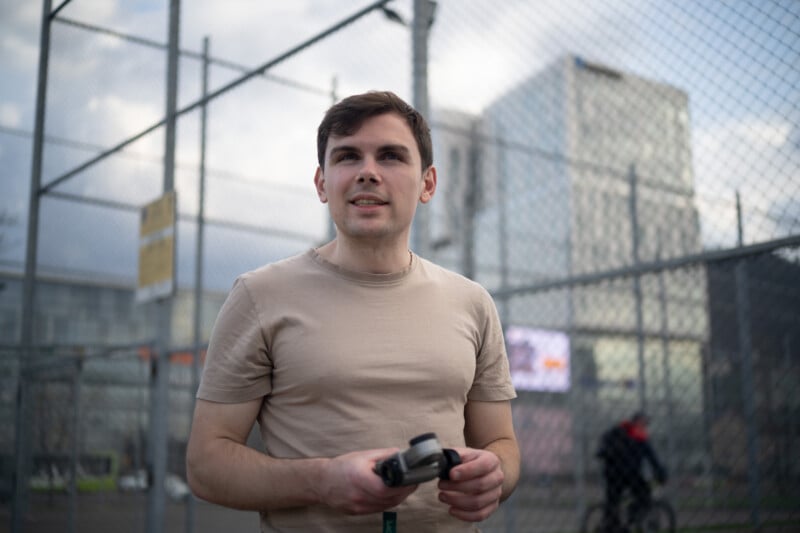
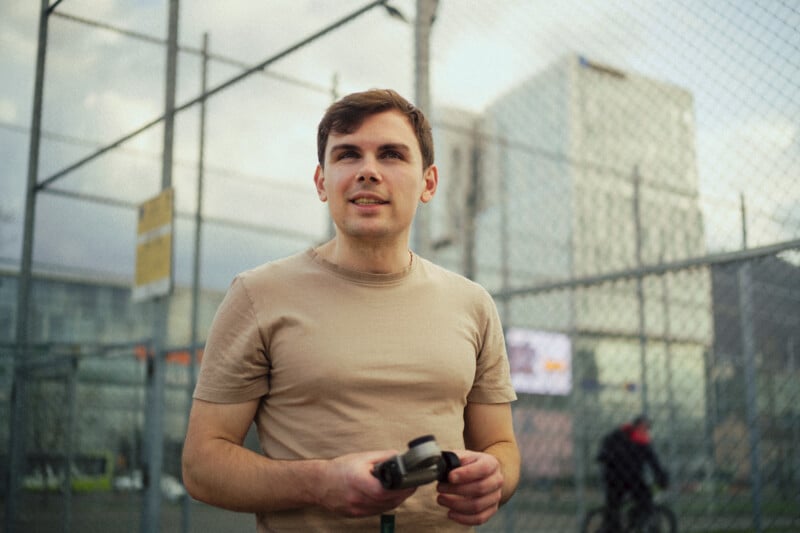
What matters more is understanding the order in which the software applies edits to the image, rather than the order in which we actually pull on the sliders. And the two can be quite different. In Lightroom, for example, the Tone Curve from the Curves panel is applied first, followed by the curve that’s built into the camera profile. After that, any curves created inside masks are applied on top of all the other edits we make in the standard editing panels in the order in which we create the masks (bottom to top).
I usually start by addressing local exposure problems in my photo using my False Color Camera profile to spot those, and a bunch of masks to address them. I also like to set a proper white balance before switching to the Linear Camera Profile, especially if the photo has any kind of strong color cast, but at this step in the edit, I won’t do any type of color grading work or massive exposure adjustments.
Next, I’ll switch to the Linear Camera Profile and then, based on the content of the image, I will use the Exposure, Blacks, and Whites sliders to get a balanced exposure based on the histogram. Usually, at this step, I’m looking to open up my image and get a somewhat-centered exposure on the histogram while making sure the black and white points sit reasonably close to the left and right edges without clipping. Also, if needed, I’ll use the Shadows and Highlights sliders to recover more detail from the image data, but I try not to push them too far to avoid an HDR-looking result.
And right afterwards, I will create a “select all” mask (a Luminance Range mask that will include the entire image). Here I use the tone curve tool in the mask to create my own gamma curve that will be the equivalent of an output CST in DaVinci Resolve. And the way this new gamma curve will look can vary drastically based on the content of the photo and the artistic direction in which I’m going with my edit. For example, when doing film emulation, I usually go for wide filmic shoulders with large filmic shoulders, or, by contrast, if I am going for a clean modern look, I will go for a more moderate S curve that has the pivot point closer to middle grey. But generally, I do try to keep the curve as smooth as possible by using as few points as possible for smoother gradients.
With the custom gamma curve set, I move on to my usual color grading. Most of the time, I start with Color Response Curves, adjust the white balance to match the mood I’m going for, and then build the look further using the color wheels and HSL panel. At this stage, I also add grain, introduce subtle effects like lens sharpness falloff, and use masks to reshape light and color across the image. If I end up using a lot of tone curve masks while doing so, I’ll often copy the gamma curve, remove the original masks that I created, and paste the same settings into a new “Select All” mask. This mask now sits on top of the entire stack, so Lightroom applies it as the final step in the processing pipeline. This might be a bit extra on my side, but I like to make sure that I’m not messing up my color gradients with local masking.
Pros and Cons of This Workflow
Using the proposed Linear Camera Profile workflow is sometimes cumbersome, and I truly hate that Lightroom does not allow us to reorder masks by dragging and dropping them. But after more than a month of using linear camera profiles daily, I feel that they truly opened up more possibilities for my edits. I no longer feel like I am fighting to keep my images from getting crunchy when adding contrast or playing around with aggressive S curves, and the resulting photos often feel like they have way more details in them.

In terms of color, I also feel like this method gives smoother results because all the grading is done on a much flatter image, and then the saturation shift from the gamma curve lifts everything in a more balanced way. I notice this especially with the color wheels, where normally pushing them too far can easily lead to muddy tones and ugly color contamination. But when they sit under the S curve in my mask-based gamma setup, the saturation and contrast are distributed more naturally, so the color grade ends up being more vibrant in the midtones instead of pumping lots of color into the extreme shadows or very bright highlights. And I truly believe this helps me achieve a more natural representation of color.

So, in conclusion, because of how time-consuming it is to work with a Linear Camera Profile, I can’t really recommend this approach for every one of your photos. For most images, Lightroom’s standard profiles already do a good enough job and will get you to a finished result much faster. And honestly, I suspect the experience will only get better over time. I’ve already started building a library of pre-made gamma masks that I can apply on the fly, which removes a lot of the friction.
But for those moments when I need maximum control over tonal response, highlight roll-off, color separation, and overall image rendering, Linear Camera Profiles will be my go-to approach. It takes longer, but it also gives me a level of flexibility that feels much closer to a professional color grading workflow than a traditional Lightroom edit.
About the author: Vlad Moldovean is a photographer and visual artist from Brasov, Romania. The opinions expressed in this article are solely those of the author. You can find more of his work on his website, Facebook, and Instagram. This article was also published here.