A few weeks back Wahoo announced a slate of new and expanded sensor connectivity options. Specifically, they greatly expanded the CORE temperature sensor integration to include far more data fields, and then they added support for FLOWBIO and hDrop hydration sensors, as well as Tymewear breathing sensors.
While Wahoo previously had CORE sensor integration (for many years), it was substantially less ‘integrated’ than Garmin or CORE’s native app. This integration puts it in roughly the same camp as Garmin’s integration (though Garmin does some things Wahoo doesn’t, and vice versa, more on that in a second).
The announcement for the firmware update was back on June 2nd, but it finally went live last week, and I’ve been playing with it on rides over the the weekend, notably with the CORE sensor…and on some steamy hot rides.
Note that all of these are for the V3 units only: Wahoo ELEMNT ROAM v3, Wahoo ELMENT BOLT V3, and Wahoo ELMENT ACE. It does not apply to older units.
The CORE Integration:
First up, I just want to briefly go through the CORE integration, since that’s the one I’ve spent the most time with. To begin, you’ll obviously need to update your unit. Once that’s done, you’ll go and pair to the CORE sensor in the event you’re not already paired. In my case, it was already paired to the CORE sensor, and thus, I didn’t need to do anything further from a sensor standpoint.
Next, you’ll want other create your own data page (or update an existing one), to add the data fields you want. There’s a boatload of them here that are now available, via the CORE sensor. Here’s a quick screenshot of them:
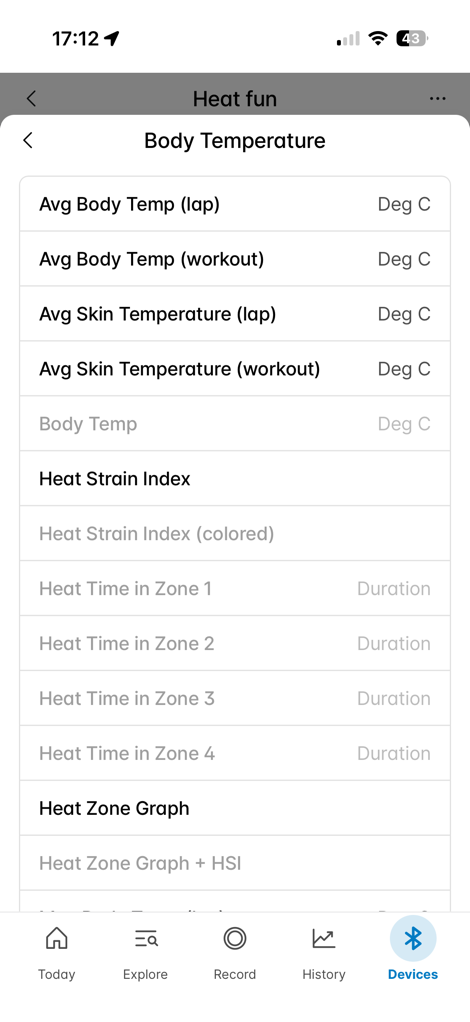
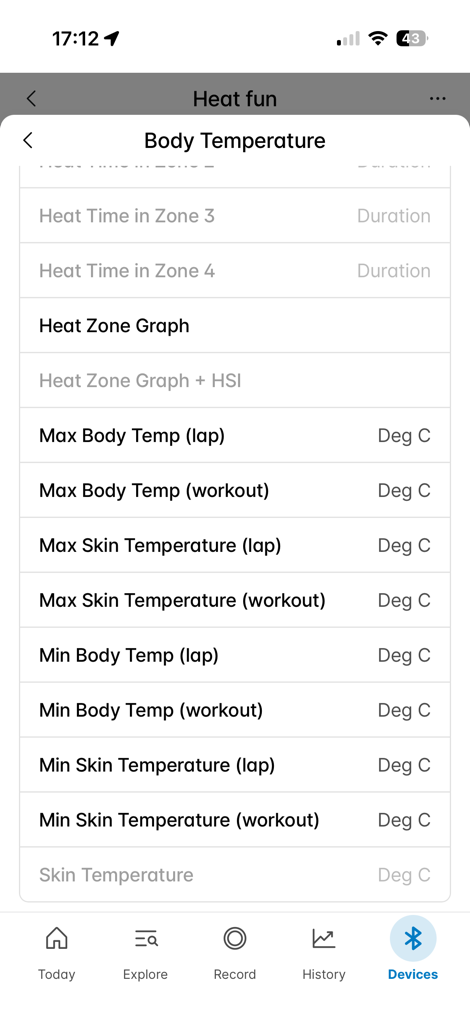
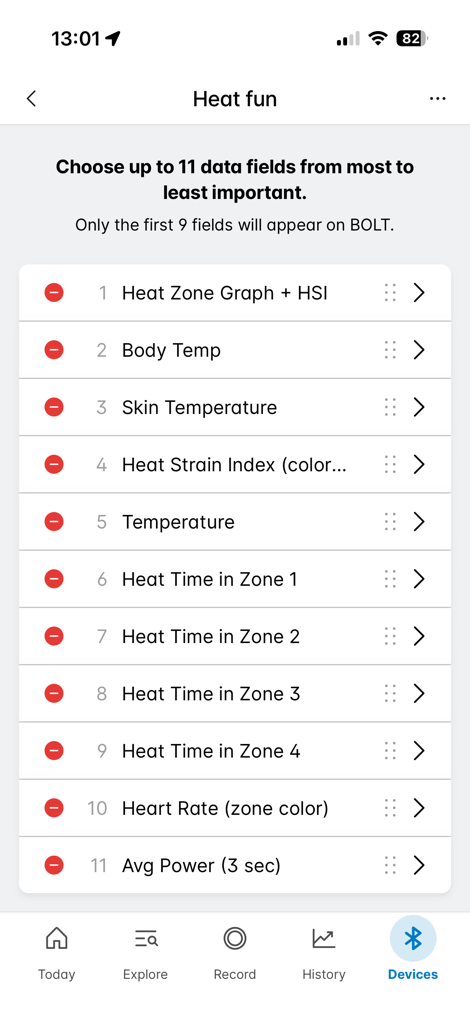
The ones in grey (above), are the ones I’ve selected already (as seen on the far right option), including other fields like 3-second power, heart rate, and outside temperature.
I kinda wish Wahoo had offered a simple toggle to create a ‘Hot AF Page’ with a mirror image of what they put in the support article, that had all of the data pages on there in one shot. It’s a good way of doing it. I ended up manually creating that layout, but a simple toggle would have been handy.
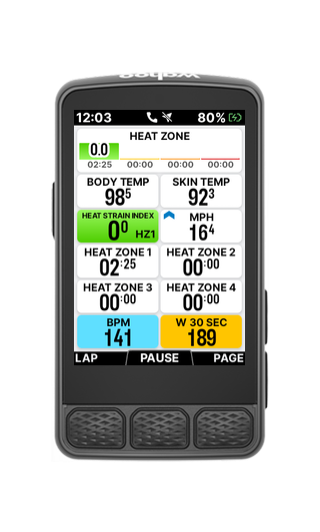
Now, I need to give someone at Wahoo some serious street cred here. However was responsible for the Wahoo support page on the CORE Body sensor integration needs a raise. This is the most thorough support page that it or any of its competitors have ever written on a topic. It’s mind-bogglingly good. This person needs a raise. Go read it, super detailed!
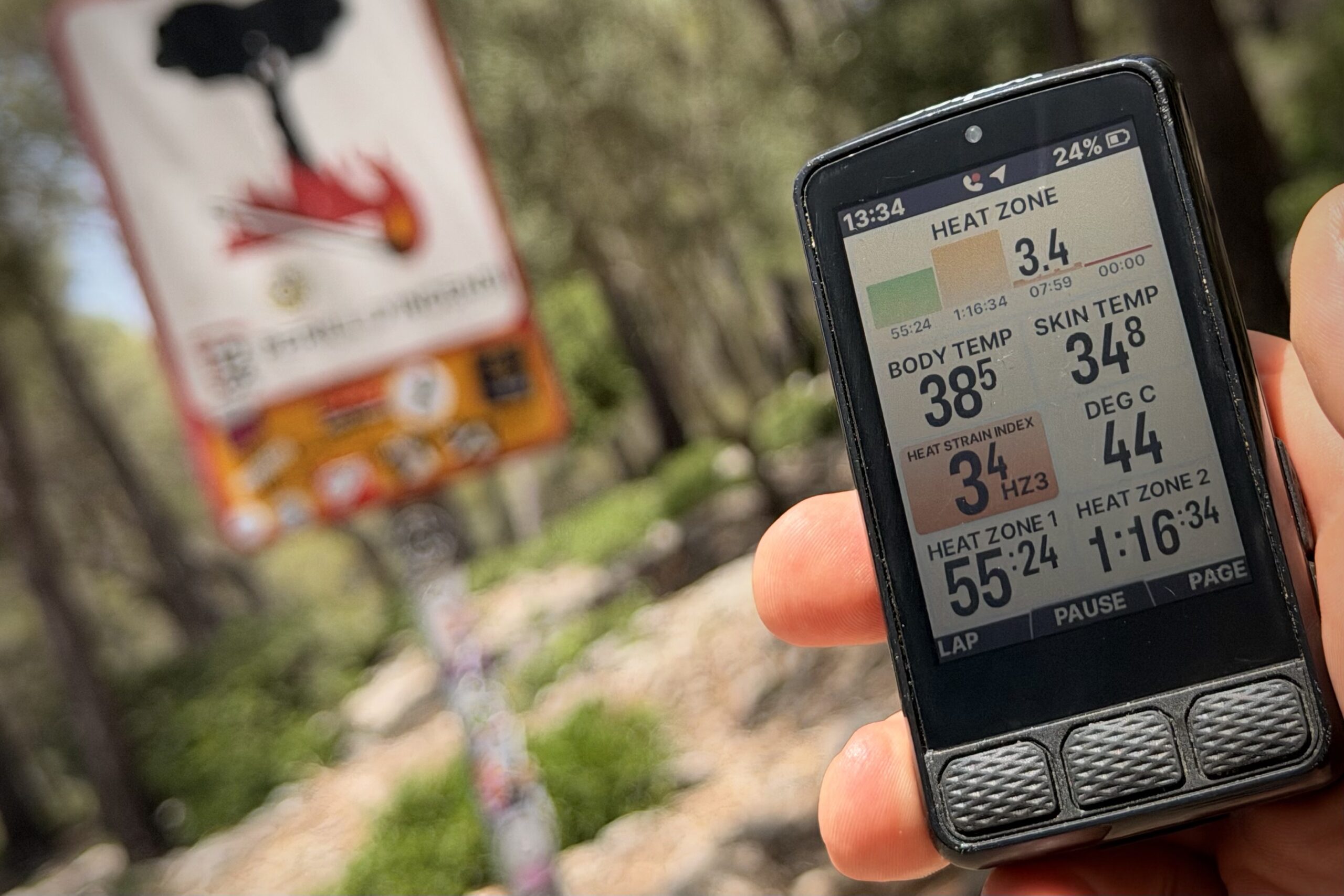
In any case, out on my ride I went. From here I’m able to see my CORE body temperature, skin temperature, heat zones, and everything else under the literal sun on one page. Obviously, you don’t need to put it on that page, but hey, I did.
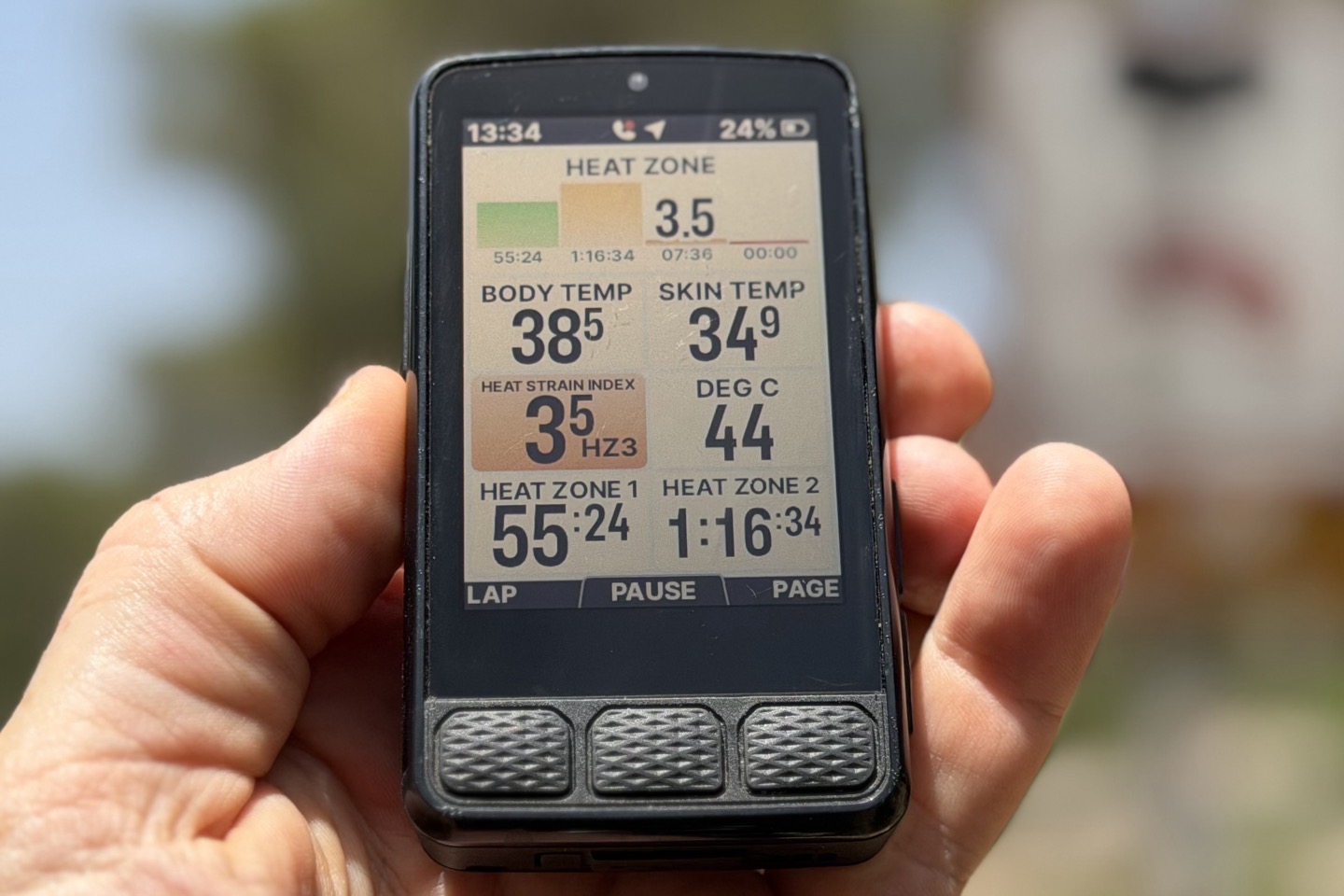
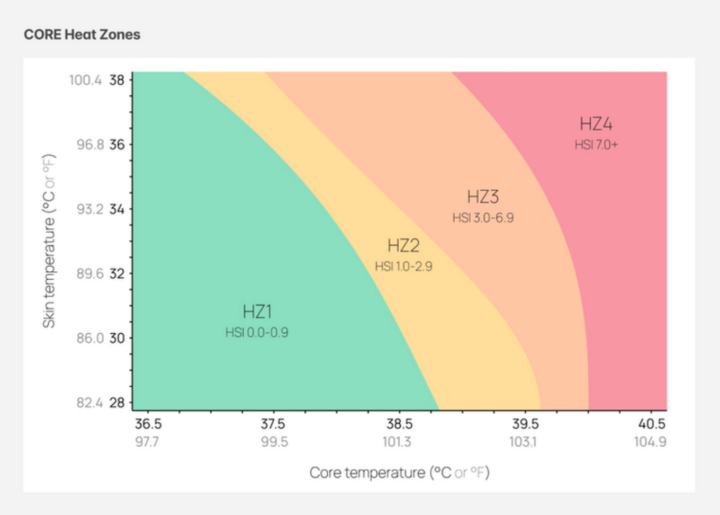
Despite using the CORE body temperature sensor on and off for more years than I can count, this was really the first time I was able to see (quickly and easily) the direct relationship between core body temperature, skin temperature, heat zones, and ascending/descending (on a bike). Obviously, as I’m ascending I’m working harder and my body temperature was slowly rising. But as I descended, my skin temperature would be the leading indicator dropping much faster than my core body temperature, but as it did that, it quickly shifted my heat zones downwards as well. After which, my core body temperature would decline later in the descent. Rinse/repeat. In fact, that very article included a handy little chart showing this a bit:
For example, you can see here after I was descending for a while, my heat strain index dropped pretty quickly (the photo above was then taken at the top of the next climb).
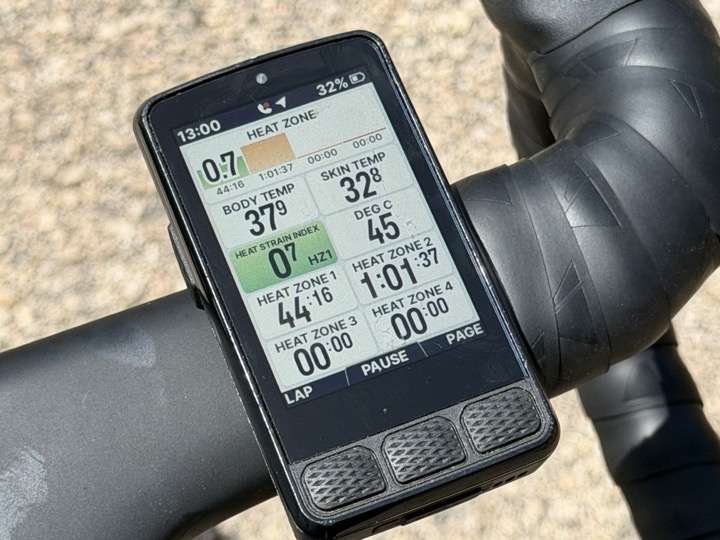
I never really noticed this as much before for a few reasons. First, I never really had all those data fields on a single page. And second, I would tend to run with it on hotter days more than ride with it, and the cooling trends there aren’t as obvious as they are riding (cause you work a heck of a lot more running downhill than coasting on a bike downhill).
Anyways, the only moderate downside here is that the data doesn’t sync back to CORE’s platform automatically. Wahoo writes the data to .FIT file, which is sent to partners, but CORE hasn’t completed any integration there Wahoo. Therefor, that data doesn’t get pushed to the CORE platform like it does for Garmin. Given how easy Wahoo’s made their API integration pieces (we added it last Friday to the DCR Analyzer, and it was by far the quickest API approval and integration we’ve done to date), hopefully CORE can do the same.
In any event, the on-device bits are cool stuff!
Flowbio, hDrop, Tymewear Integrations:
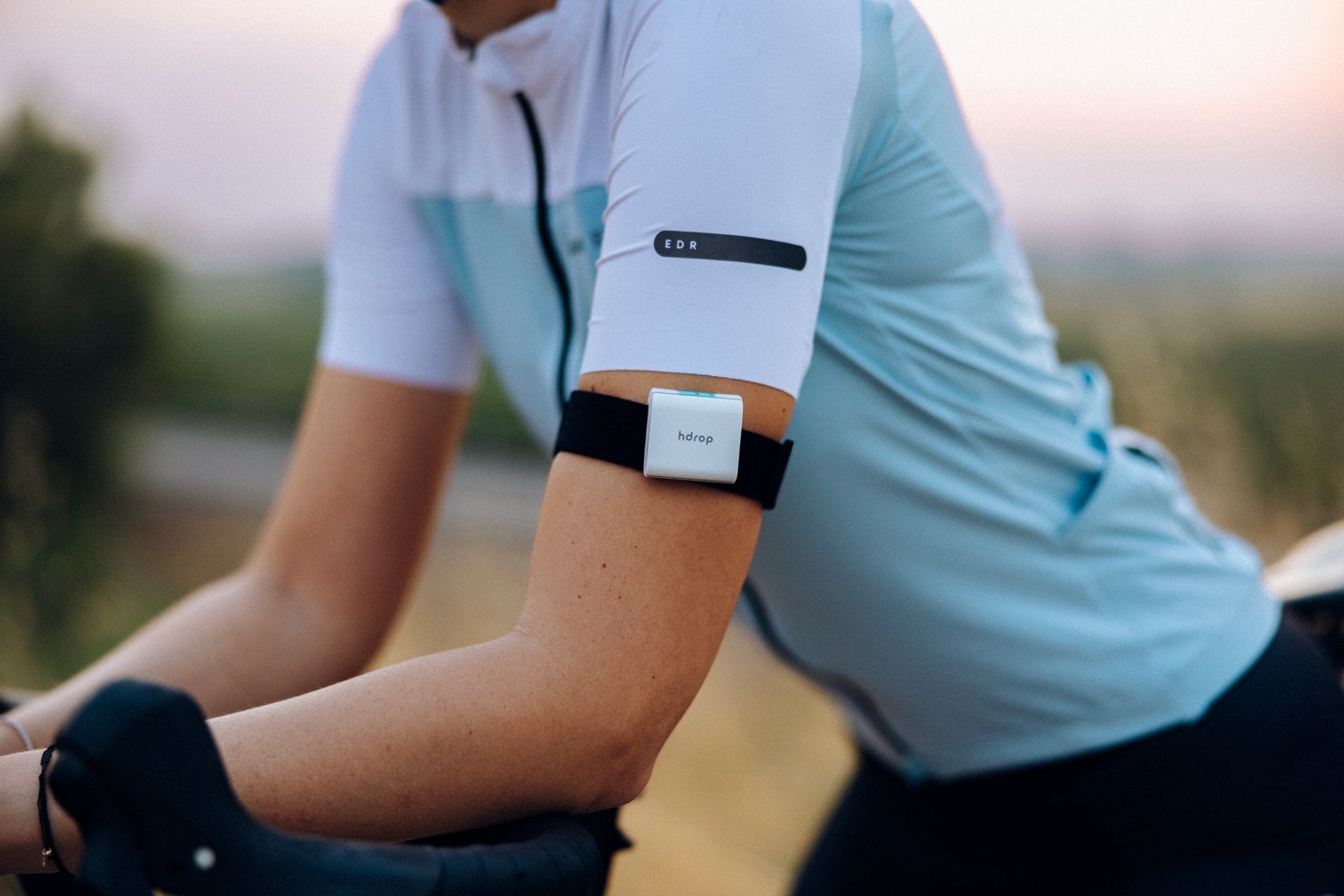
I don’t have either Flowbio or hDrop sensors on-hand, though both are designed to monitor fluid loss in slightly different ways. The general gist of it though, is to measure both fluid loss and sodium loss during your workouts, and then from there you can plan your hydration strategy accordingly. Both have reached out, so I suppose now is probably the time of year here in Spain to have fun testing some of these side-by-side with my wife (and by ‘have fun’, I mean getting naked, measuring yourself before/after, including all fluids/etc that you consume during the workouts).
I’ve previously tested the Nix Hydration sensors, and found it a hot mess of a product producing inaccurate results for myself, my wife, and another athlete – in a huge slate of 20+ very methodical and parameter-controlled hot-weather tests we did over months (but have been waaaay behind on writing up the full review). At the time, Nix confirmed there was nothing wrong with the protocol, nor my results, but simply that all three of us were apparently heavy-sweat outliers.
In any case, not to get distracted, here’s a quick look at the two sensors. Flowbio first:

And then hDrop:
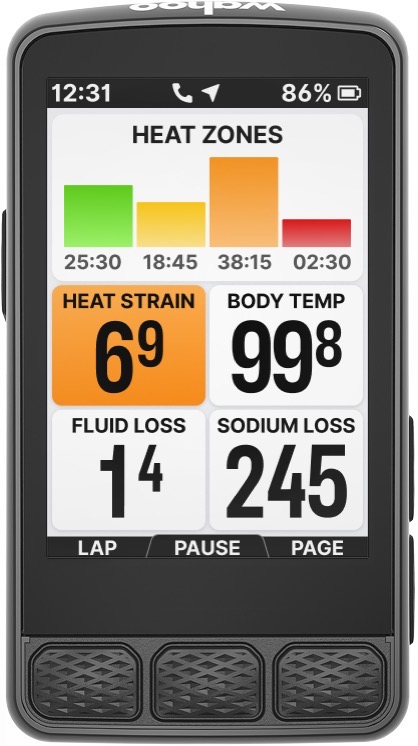
And then here’s what the data looks like on the Wahoo units for the hydration sensors (along bottom):
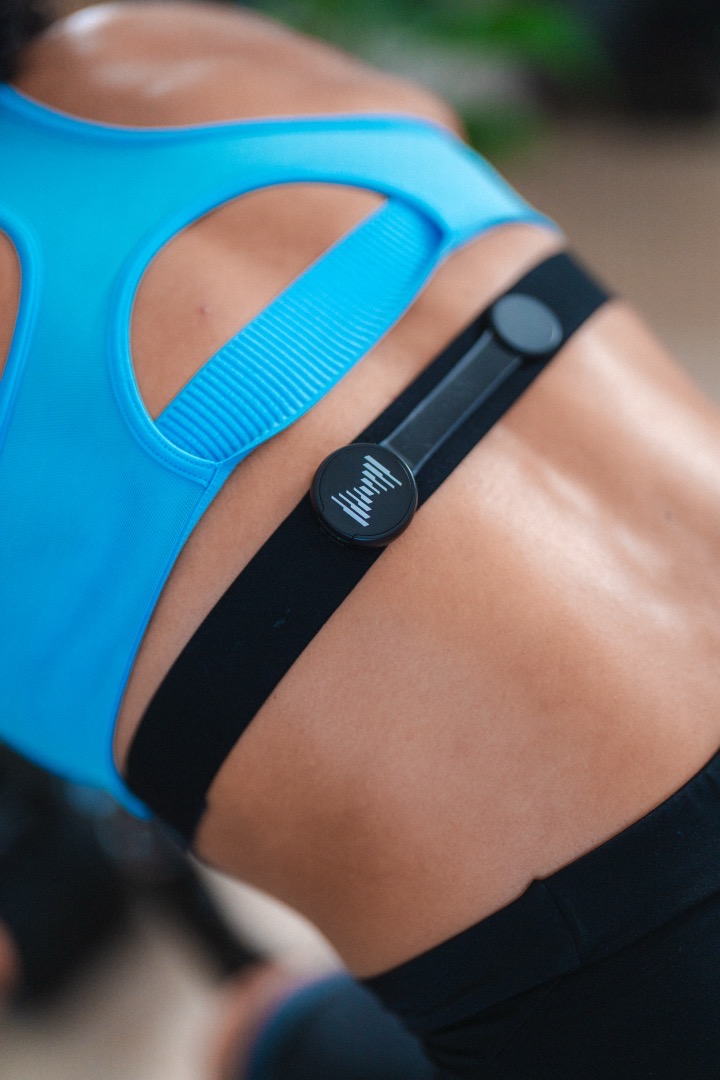
Next, here’s the Tymewear breathing sensor, which looks similar to a heart rate strap, but actually has tiny strain gauges inside it.
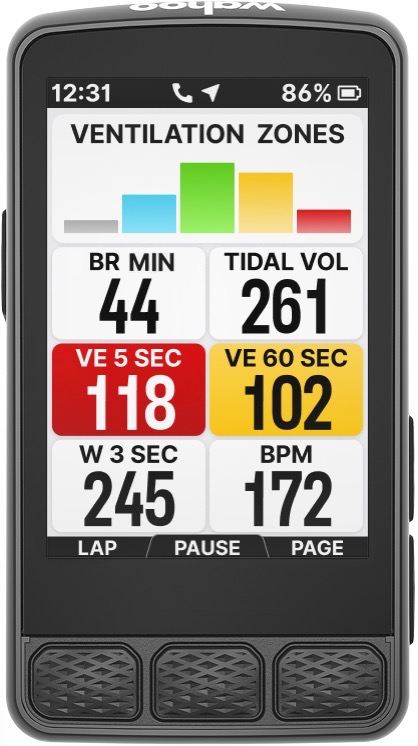
And then likewise, here’s what the data looks like on the Tymewear sensor:
Ultimately, it’s cool to see Wahoo not just adding native support for sensors (since they lack any sort of App Store for their platform), but frankly, it’s cool to see them adding anything at all to the now 1-year old Wahoo ELMENT v3 (+ACE) series of devices, which haven’t really seen any meaningful new feature updates since last summer (and even the summer updates were mostly just fixing all the launch issues). I really hope this trend continues though!
With that – thanks for reading!
Found This Post Useful? Support The Site!
Hopefully you found this review/post useful. At the end of the day, I’m an athlete just like you looking for the most detail possible on a new purchase – so my review is written from the standpoint of how I used the device. The reviews generally take a lot of hours to put together, so it’s a fair bit of work (and labor of love). As you probably noticed by looking below, I also take time to answer all the questions posted in the comments – and there’s quite a bit of detail in there as well.
If you’re shopping for the Wahoo BOLT V3, Wahoo ROAM V3 or Wahoo ELEMNT ACE or any other accessory items, please consider using the affiliate links below! As an Amazon Associate I earn from qualifying purchases. It doesn’t cost you anything extra, but your purchases help support this website a lot.
And of course – you can always sign-up to be a DCR Supporter! That gets you an ad-free DCR, access to the DCR Shed Talkin’ video series packed with behind the scenes tidbits…and it also makes you awesome. And being awesome is what it’s all about!
Thanks for reading! And as always, feel free to post comments or questions in the comments section below, I’ll be happy to try and answer them as quickly as possible. And lastly, if you felt this review was useful – I always appreciate feedback in the comments below. Thanks!