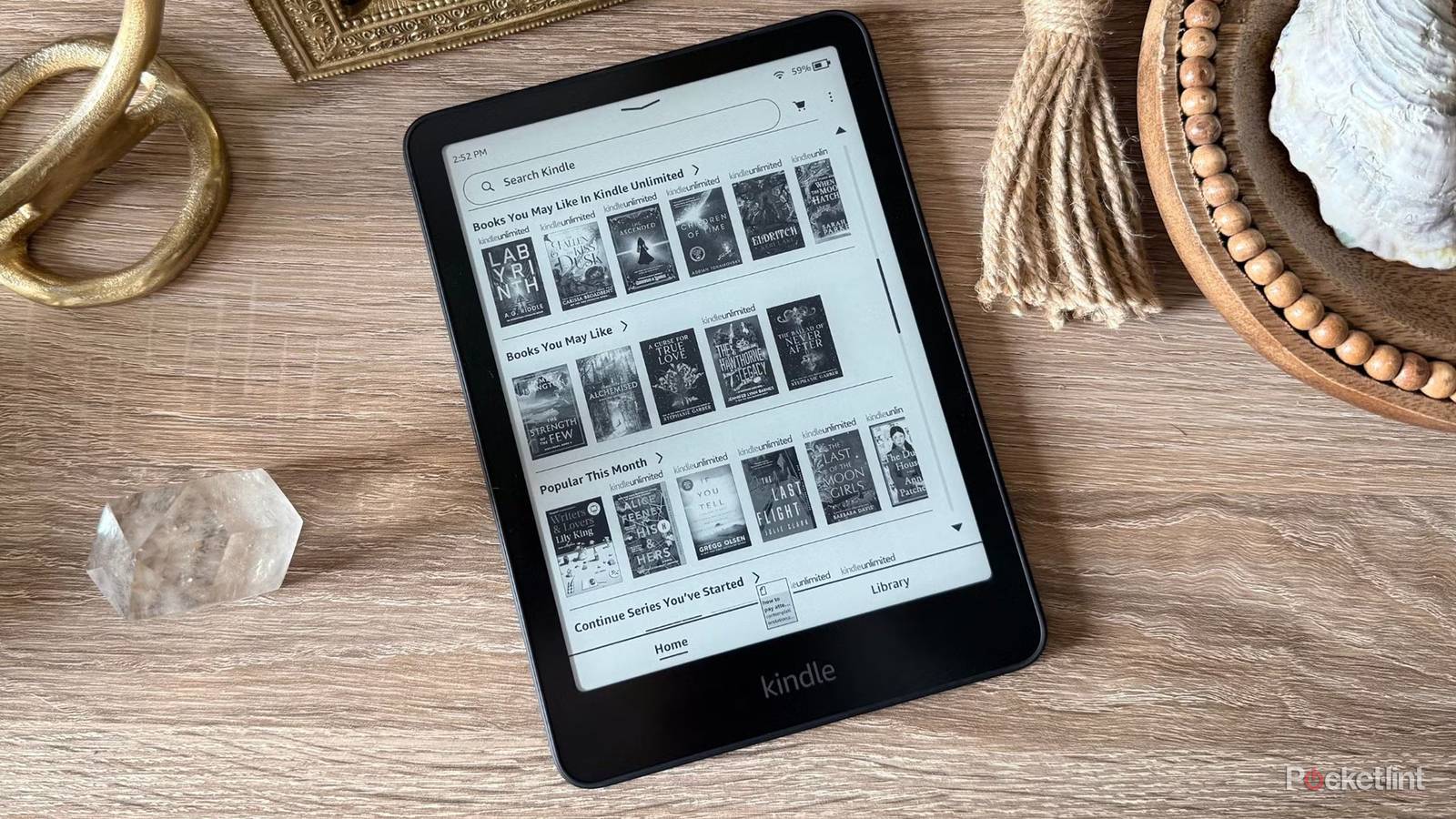
Amazon Kindles and other e-readers are unique in the tablet space in that most owners aren’t in a rush to upgrade. It’s no wonder — for the most part, text is text, so you don’t need a state-of-the-art processor, storage, or display to keep up with your library. Some people might pride themselves on holding onto old hardware, knowing how often we’re pressured into upgrading other devices, like our smartphones and laptops.
Eventually, though, a Kindle is going to start to show its age, particularly with newer models offering conspicuous advantages like notetaking or (gasp) color. There are a few tricks you can use to keep your Kindle feeling relevant, at least until you can justify spending a hundred or two on a replacement.
Checking for overdue software updates
When you’re freshly back from the dead

This tip probably doesn’t apply to you if you read every day or several times per month. Kindles default to updating their software automatically, so unless you’ve intentionally disabled Wi-Fi, you’ll never be that far behind the curve.
Some people choose to stay offline when they can, however. Moreover, if we’re talking about old Kindles, it’s possible that you’ve just dusted off something that’s been sitting in a drawer or closet for years, in which case you’ll have a better experience if you update first before cracking open 1984 or The Demon-Haunted World.
If you’re not willing to wait for an automatic download, Amazon offers a webpage with manual downloads, organized by Kindle type and generation. Once you’ve located the correct file, you’ll have to download it to a Mac or Windows PC, then connect your Kindle via USB. Drag-and-drop the update into the “Kindle” folder that appears. At that point, you can safely eject your tablet, then go to Menu -> Settings -> Menu (yes, you’re tapping the Menu icon twice). Select Update Your Kindle when prompted.
New software can potentially bring new features. If nothing else, you’ll get bugfixes, some of which might smooth out performance.
Performing a factory reset
Make sure your books are backed up

All tablets accumulate “junk” over time. This doesn’t just mean books you’ve never read, or will never read again. There’s the potential for bloated caches, outdated code, and/or disorganized file partitions that slow things down.
Admittedly, Kindles are simple enough that that is unlikely to be a serious problem. If you want your e-reader on its best behavior, however, a factory reset may be in order. You can get started by heading over to Menu -> Setting/All Settings) -> Device Settings/Menu and choosing the appropriate option, the exact labels depending on your Kindle model.
Be warned that your device will literally revert to the way it came out of the box. You’ll have to re-register it with Amazon, re-enable your settings, and resync all your books and other reading material. For that reason, you should be sure that any files you transferred outside the Kindle Store have a backup somewhere.
Adding custom fonts

Changing fonts might not seem like that big a deal, but as Marshall McLuhan said, the medium is the message. New fonts can have a subtle psychological impact, for instance improving the atmosphere of a fantasy or cyberpunk novel. In other cases, you might just find some fonts easier on the eyes than Amazon’s presets.
Spend time browsing samples on sites like DaFont or Google Fonts. Download TTF or OTF files for the font(s) you want to a computer, then connect your Kindle via USB. Open up the Kindle’s file folders, drilling down to fonts. At that point, all you need to do is drag the new fonts there, then safely eject your Kindle. Well, sort of — some users claim compatibility problems with different book formats, so you may need to experiment to see where your new options work.
One final tip: be selective. Fonts that look stylish or cute in a preview can be obnoxious or illegible in practice. Also, you don’t want to overwhelm your Kindle with options you’ll never use.

- Resolution
-
150ppi
- Storage
-
32GB, 64GB
- Brand
-
Amazon
- Screen Size
-
11-inch glare-free display


