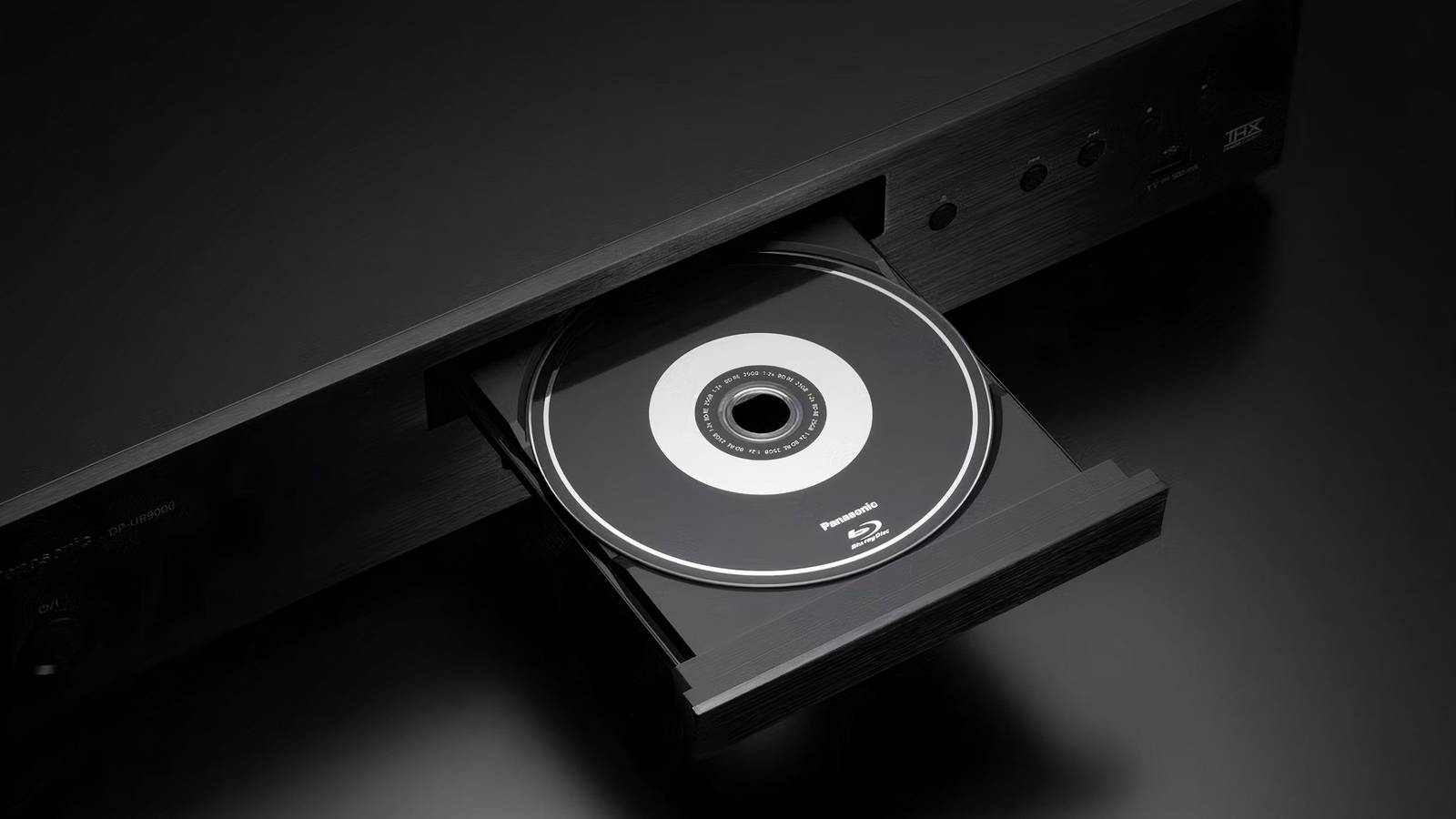
It’s an open secret that modern optical disc formats like Blu-ray and its 4K UHD successor provide better picture quality than contemporary streaming services. Streamers may be convenient, but they employ heavy-handed use of compression techniques to keep internet bandwidth in check and to reduce network congestion.
Local disc playback doesn’t suffer from this drawback. It provides a consistent picture quality baseline that isn’t impacted by internet connection stability, nor does it require ponying up for a higher-tier subscription package in order to benefit from higher resolutions, improved bit-rates, and other niceties.
Of course, even if you’re fully invested in optical disc-based media, the picture quality of your films and shows will vary greatly based on which display panel you’re interfacing with, as well as which settings you have enabled and disabled. Here are three TV settings I personally always tinker with in order to ensure the best quality results whenever I slot a new disc into my Blu-ray player.

- Brand
-
LG
- Display Size
-
42, 48, 55, 65, 77, or 83 inches
- Operating System
-
webOS
- Display Type
-
OLED
- Display Resolution
-
4K
- Refresh rate
-
165Hz (with VRR)
A premium mid-range 4K UHD OLED smart television set from LG that ships with the webOS operating system, HDR10/Dolby Vision/HLG support, and up to a 165Hz refresh rate.
Select the right picture mode
Calibrate your picture for improved visuals

Most modern television sets come with a variety of preset picture modes to choose from right out of the box. Many TVs are set to Vivid Mode or equivalent by default, which is designed to pop on a showroom floor, but which also reduces true-to-life colors when viewed in a living room environment. Thankfully, TVs usually offer a Natural Mode or a Filmmaker Mode as well, which can go a long way in making content look more realistic and closer to the filmmaker’s original artistic vision.
Dial back motion smoothing
Say goodbye to the soap opera effect

Motion smoothing is a feature found on most smart TVs that artificially inserts extra frames within content in order to create a smoother visual image. Unfortunately, motion smoothing is often heavy-handed from the get-go, creating the dreaded soap opera effect (uncannily smooth). On most models, it’s easy to disable motion smoothing altogether, or to reduce its impact via an intensity slider.
Turn off energy saving features
Unleash your flat panel’s full potential

Energy saving features are often enabled by default on television sets, which is a good thing for the environment, as well as for your wallet. However, such modes can also negatively impact picture quality, most notably when viewing high dynamic range (HDR) content. Energy saving often involves dimming the display panel, which dulls the impact of HDR on the whole. Luckily, it’s super easy to temporarily switch off energy saving measures when watching HDR films and shows, and to re-enable them after the fact.


