
I’ve tested a lot of AI tools over the past few years, and one thing that still drives me crazy is how quickly your workflow turns into a pile of different apps. One tool for research, another for presentations, another for images, another for video, and suddenly you’re paying for five subscriptions just to finish one project. Nobody wants that!
That’s the problem Runable is trying to solve. With more than 1.5 million customers, it takes a different approach: instead of making you pick the right tool first, you tell it what you want to accomplish and let its AI agent figure out the steps.
I put that to the test by having Runable research AI productivity tools, verify pricing, create a visual comparison, and turn everything into a downloadable report.
In this Runable AI review, I’ll show you exactly how it worked, where it impressed me, and where I think it still falls short. I’ll finish the article by comparing it to my top three alternatives (Lovable, Claude, and Cursor). By the end, you’ll know which tool is right for you!
Verdict
Overall, Runable AI is a great tool if you want one place to research, build, and create different types of content. It’s not a replacement for specialized tools, and credits can burn up quickly, but it can save you a lot of time by handling more of the work for you.
Pros and Cons
- Create websites, slides, reports, videos, images, audio, and more in one place.
- Runable researches, plans, builds, and delivers the final result for you.
- Describe what you need in plain English, with no technical skills required.
- Review the plan before Runable starts building to help save credits.
- Great for mixed-media projects that combine reports, presentations, visuals, videos, and audio.
- Great for prototypes, so you can quickly create an initial version of a website, pitch deck, campaign, report, or video.
- Built-in coding sandbox lets you run code and build projects without leaving Runable.
- Remembers preferences like your brand colors, tone, and style.
- Create Skills for tasks you do repeatedly.
- Keep more of your workflow in one place.
- Credits can disappear quickly, especially on bigger tasks that involve video generation.
- Less control than specialist tools like Canva, Figma, and Premiere.
- AI can make mistakes, so you still need to review facts, design, and technical details.
- Quality can vary, so complex projects may need several rounds of edits.
- Features like Agent Mode, Plan Mode, Canvas, Skills, and Memory can feel overwhelming at first.
- It doesn’t replace every tool, so you may still need specialized software for advanced work.
- You have less control because the agent decides how to approach the task.
- Not available on Windows.
What is Runable AI?
With over 1.5 million customers, Runable isn’t just an AI slide maker or video editor. It’s more of an all-purpose AI agent. You tell it what you want, and it figures out how to make it. That could be a website, slide deck, report, video, image set, or even an audio file.
Plan Mode
But don’t treat Runable like a chatbot by giving it something vague like “make me a landing page” and expecting it to just build something. Instead, let it plan first by turning on Plan Mode.
Before generating anything and consuming your credits, Runable will ask questions like, “What’s the page for?” “Who’s it for?” or “Do you have a specific style in mind?” That back-and-forth isn’t a bad thing. It’s the agent figuring out what you want before it starts building.
Once you stop treating it like a chatbot and start giving it more direction, the results get noticeably better.
Runable vs. Specialized AI Tools
The biggest difference between Runable and tools like Canva AI or Gamma is the scope. Canva is great for design, Gamma is great for presentations, and HeyGen is great for avatar videos.
Those are specialized tools. They’re built to do one thing really well.
Runable takes a different approach. Instead of focusing on one type of task, it can handle different parts of a project across multiple formats.
Runable 2.0
Runable 2.0 takes that idea even further by bringing a range of creative and productivity tools into one workspace.
You can use it to build websites, presentations, reports, spreadsheets, images, videos, audio, carousels, and more. There’s also an AI Canvas for hands-on visual work and AI Chat, where the agent can write code, run commands, search the web, and build projects inside a private sandbox.
You can also use features like Skills to give the agent specialized workflows. Memory lets it remember things like your brand colors, tone, and preferences so you don’t have to repeat them every time.
Focus: The Outcome, Not the Tool
Their whole pitch is basically “focus on the outcome, not the tool.” Instead of worrying about which app you need to open, you just tell Runable what you want to get done.
That’s especially useful for projects that need mixed-media output. You can have it research a topic, create a report, build a presentation, generate visuals, and package everything into downloadable files without jumping between multiple subscriptions and learning curves.
With Runable, you’re managing one conversation. That makes the whole process feel a lot simpler, which is huge.
But it’s not perfect. Credits can disappear faster than you expect, especially on heavier projects that involve things like video generation. And if you need really precise design control, you’ll probably still be faster in a dedicated design tool.
If you’re juggling different types of content and just want to get the work done, Runable’s approach can save you a lot of time. You give up some control, but in return, you get a much simpler workflow. That’s the tradeoff with Runable.
Who is Runable AI Best For?
Here’s who Runabale AI is best for:
- Founders & Entrepreneurs: Create pitch decks, landing pages, business reports, prototypes, and marketing materials when speed matters during the early stages of a project.
- Marketers & Content Teams: Turn one idea into multiple assets, like presentations, promotional videos, social media carousels, branded visuals, and campaign reports.
- Freelancers & Agencies: Create client deliverables faster by turning one research project into reports, presentations, visuals, and videos. Use specialized tools like Canva, Figma, or Premiere Pro when you need more precise editing.
- Solo Creators: Turn one topic into multiple formats, such as research reports, presentations, video drafts, supporting visuals, audio, and social media carousels.
- Students & Educators: Create presentations, reports, study materials, and visual explanations, while still fact-checking the results and following school requirements.
- Developers & Product Teams: Build websites, apps, internal tools, and database projects. For more complex coding work, you may still want a dedicated coding tool.
Runable AI Key Features
Here are Runable’s features:
- General-purpose AI agent: Describe what you want to create, and Runable researches, plans, builds, and delivers the finished result in one workspace.
- AI website builder: Create full-stack websites and apps with features such as databases, payments, custom domains, analytics, and live deployment.
- AI presentation maker: Generate slide decks from a prompt, then refine the content, layouts, and visuals through conversation. Presentations can be exported as PPTX or PDF.
- AI video creation and editing: Generate videos from text or images, control motion, add AI-generated audio, and edit existing videos.
- AI reports and documents: Research topics and generate structured reports with citations, data analysis, charts, and formatting.
- AI image generation: Create images from text prompts, remove backgrounds, upscale visuals, and make edits.
- AI audio and podcast tools: Generate voice clones, music, dubbed content, transcriptions, and podcasts.
- AI carousels: Create swipeable social media posts for platforms like Instagram, LinkedIn, and X, then export them for publishing.
- Spreadsheet generation and editing: Create or modify Excel and CSV files with formulas, charts, and formatting.
- Plan Mode: Have Runable research your request, ask clarifying questions, and create a plan before it begins building. Review the plan before execution starts.
- AI Canvas: Work with your generated images and videos in an infinite visual canvas, so you can arrange and edit everything in one place.
- AI Chat & Agent Mode: Use the agent to write code, search the web, execute commands, generate media, and build projects inside a private sandbox.
- Skills: Give the agent reusable workflows for specific tasks so you don’t have to start from scratch every time.
- Memory: Save preferences such as brand colors, tone, style, and other instructions for future conversations.
- App integrations: Connect Runable to thousands of services like Slack, Discord, Telegram, Google Workspace.
- Version history and chat branching: Go back to earlier versions of your work or explore alternative directions without losing the original project.
- Multiple export options: Download projects as formats such as PDF, PPTX, MP4, PNG, XLSX, or CSV, or deploy websites with a custom domain.
How to Use Runable AI
Here’s how I used Runable to research AI productivity tools and generate a report:
- Sign Up for Runable
- Tell Runable What to Build
- Tweak the Settings & Send the Prompt
- Answer Clarification Questions
- Verify & Approve the Plan
- View the Results
- Make Edits
- Export the Document
Step 1: Sign Up for Runable
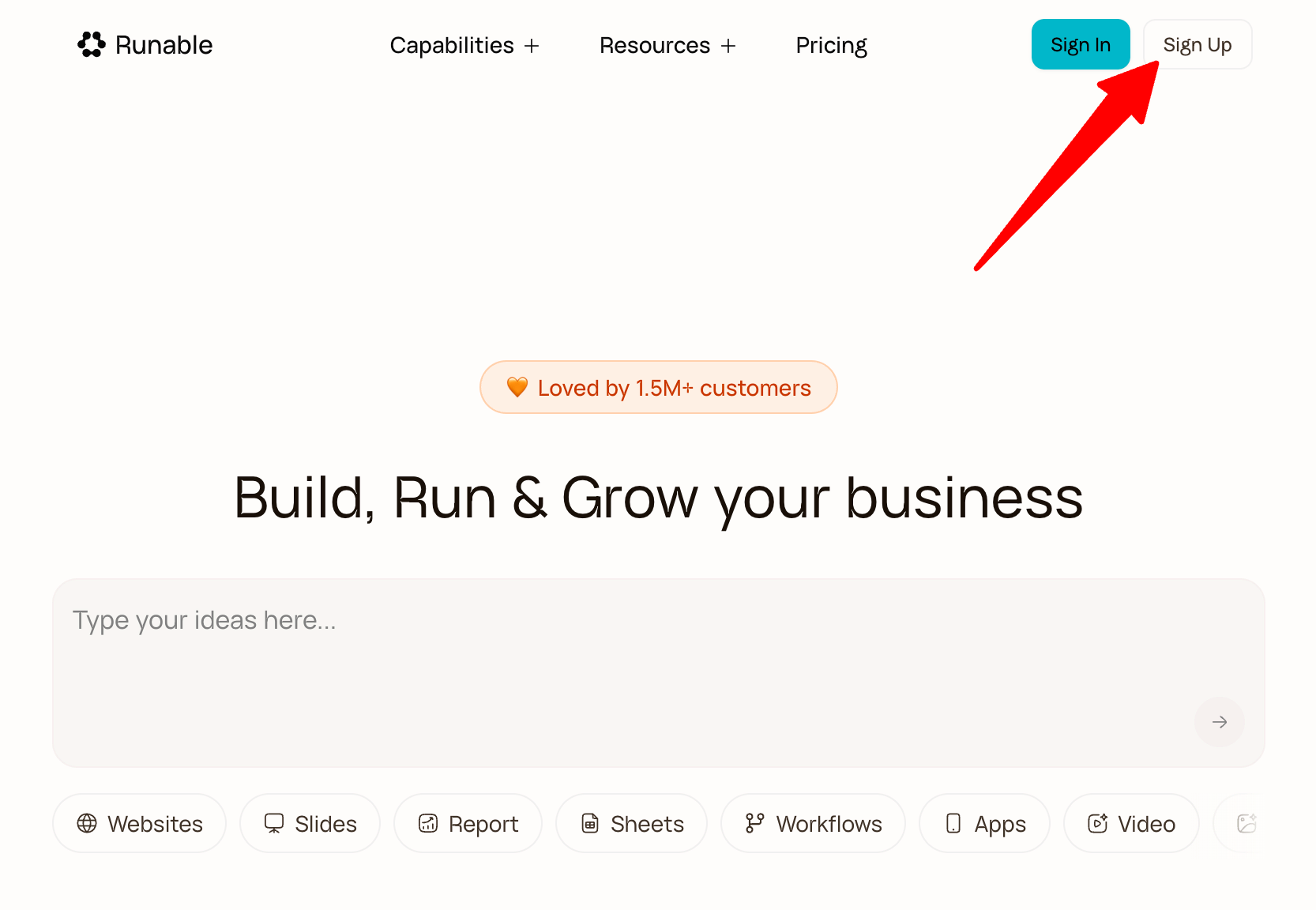
Go to Runable and click “Sign Up” in the top-right corner.
Step 2: Tell Runable What to Build
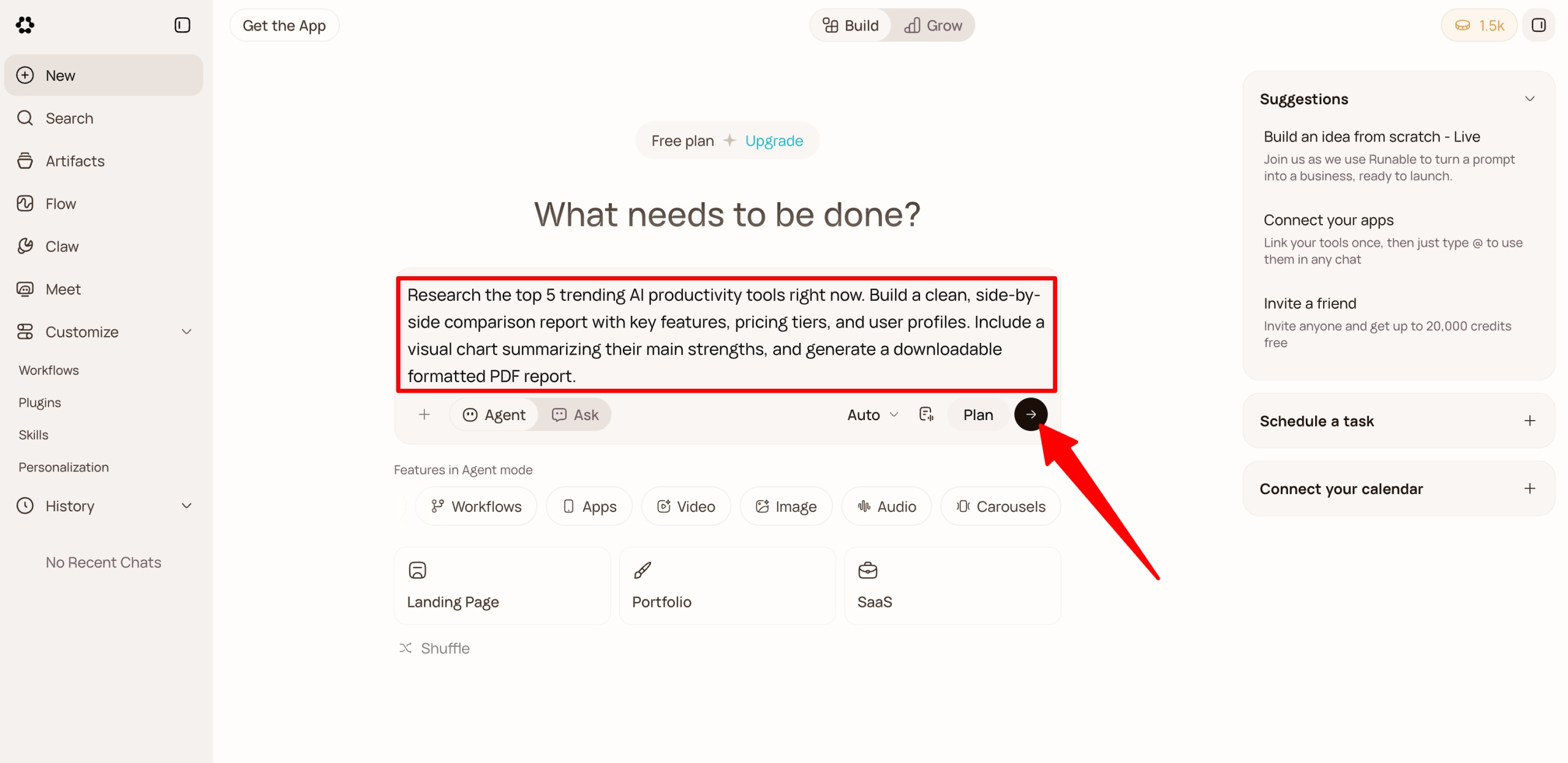
Once you’ve created your account, you’ll be placed on the free plan and receive 1,500 credits.
From there, you can tell Runable what you want it to build. You can create just about anything, including:
- Websites
- Slides
- Reports
- Spreadsheets
- Workflows
- Apps
- Videos
- Images
- Audio
Here’s an example prompt:
“Research the top 5 trending AI productivity tools right now. Build a clean, side-by-side comparison report with key features, pricing tiers, and user profiles. Include a visual chart summarizing their main strengths, and generate a downloadable formatted PDF report.”
When writing your prompt, clearly explain what you want the final deliverable to look like. Include any important requirements, such as the design style, page limit, export format (PPTX, PDF, or live web URL), and tone.
Step 3: Tweak the Settings & Send the Prompt
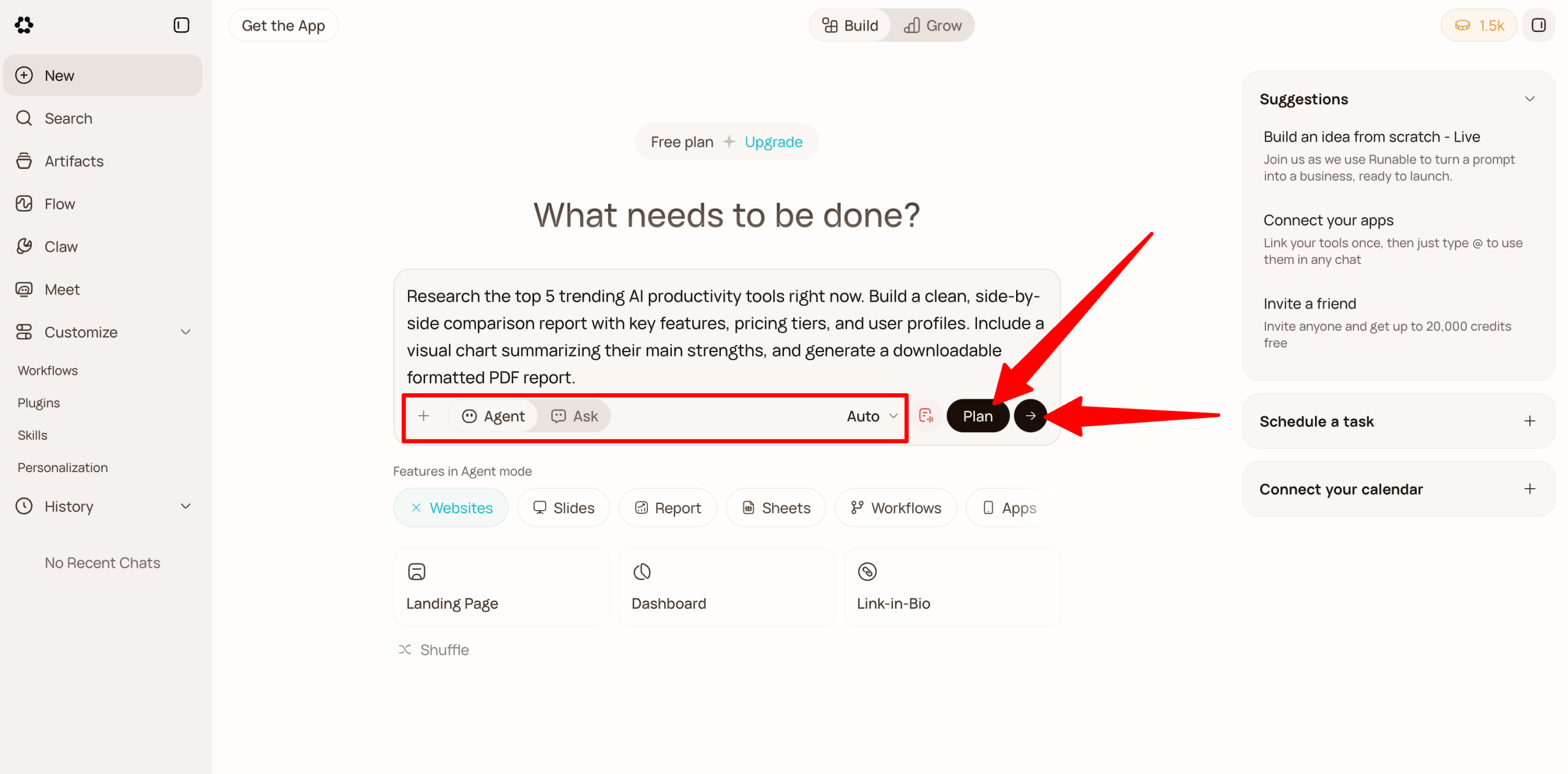
Before you send your request, make sure the mode is set to “Agent” and the model is set to “Auto.” Auto will choose the best model for your task, so you don’t have to worry about picking one yourself.
You’ll also want to turn on “Plan.” Runable will map out its approach and ask you a few questions before it starts working.
This is worth doing because an ambiguous prompt can cause an agent to waste credits on unnecessary research or rendering. Plan Mode gives you a chance to review and adjust its approach before it starts the heavier work.
You can also click the “+” to attach relevant files (such as PDFs, CSVs, or brand assets) for Runable to reference while completing your request.
Step 4: Answer Clarification Questions
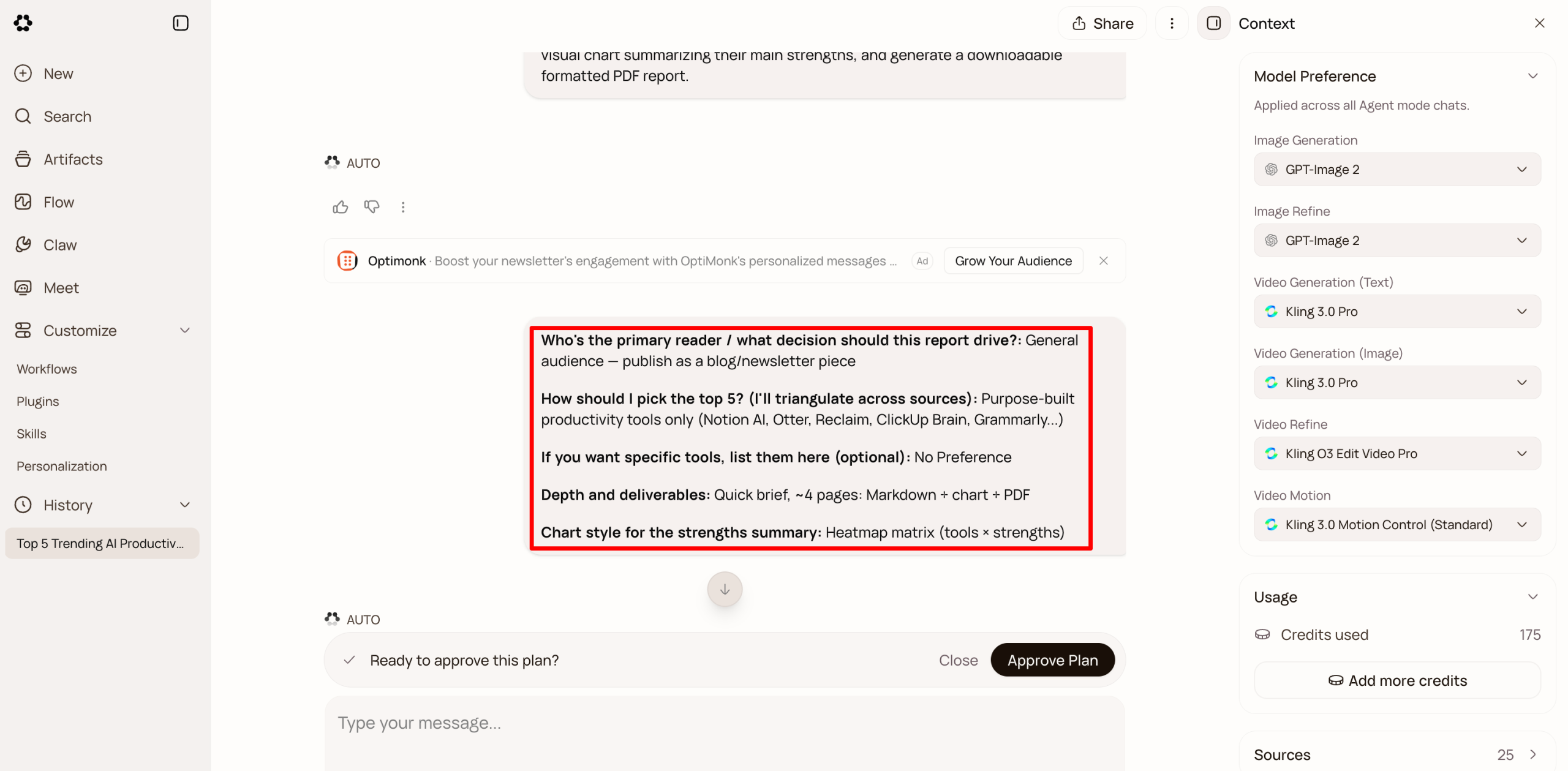
Runable immediately got to work. Because I had selected Plan Mode, it first asked me five clarification questions:
- Who’s the primary reader, and what decision should the report help them make?
- How should the top five tools be selected?
- Are there any specific tools you want included?
- How much depth and which deliverables do you want?
- What chart style should be used for the strengths summary?
Step 5: Verify & Approve the Plan
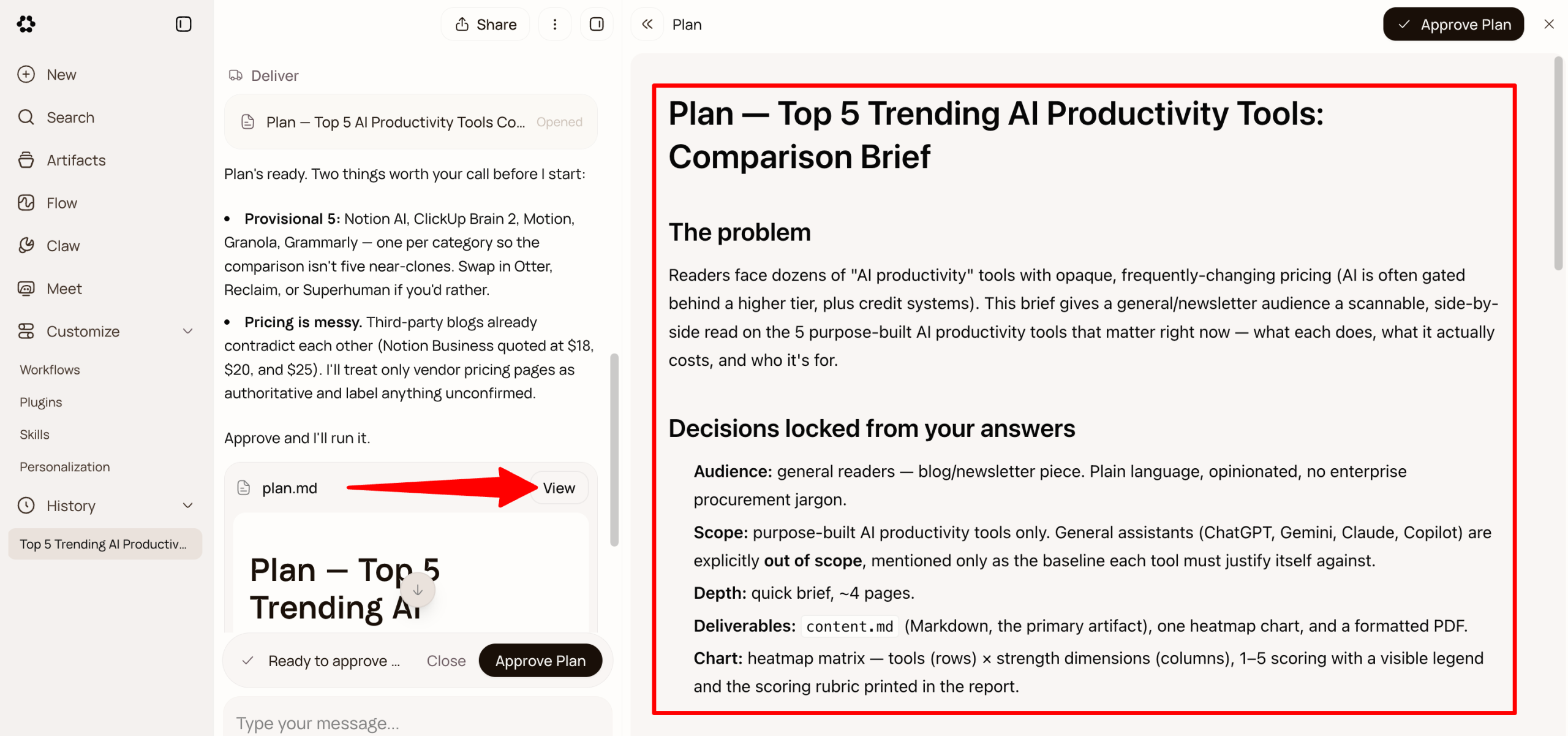
Once you answer the questions, Runable creates a plan in a matter of seconds. And it does more than just spit out a wall of text.
It creates a clear folder structure, adds rules for verifying pricing against official vendor websites, and lays out how it plans to complete the project. In my case, that included online research, using Python to create visual charts, and compiling everything into a downloadable PDF.
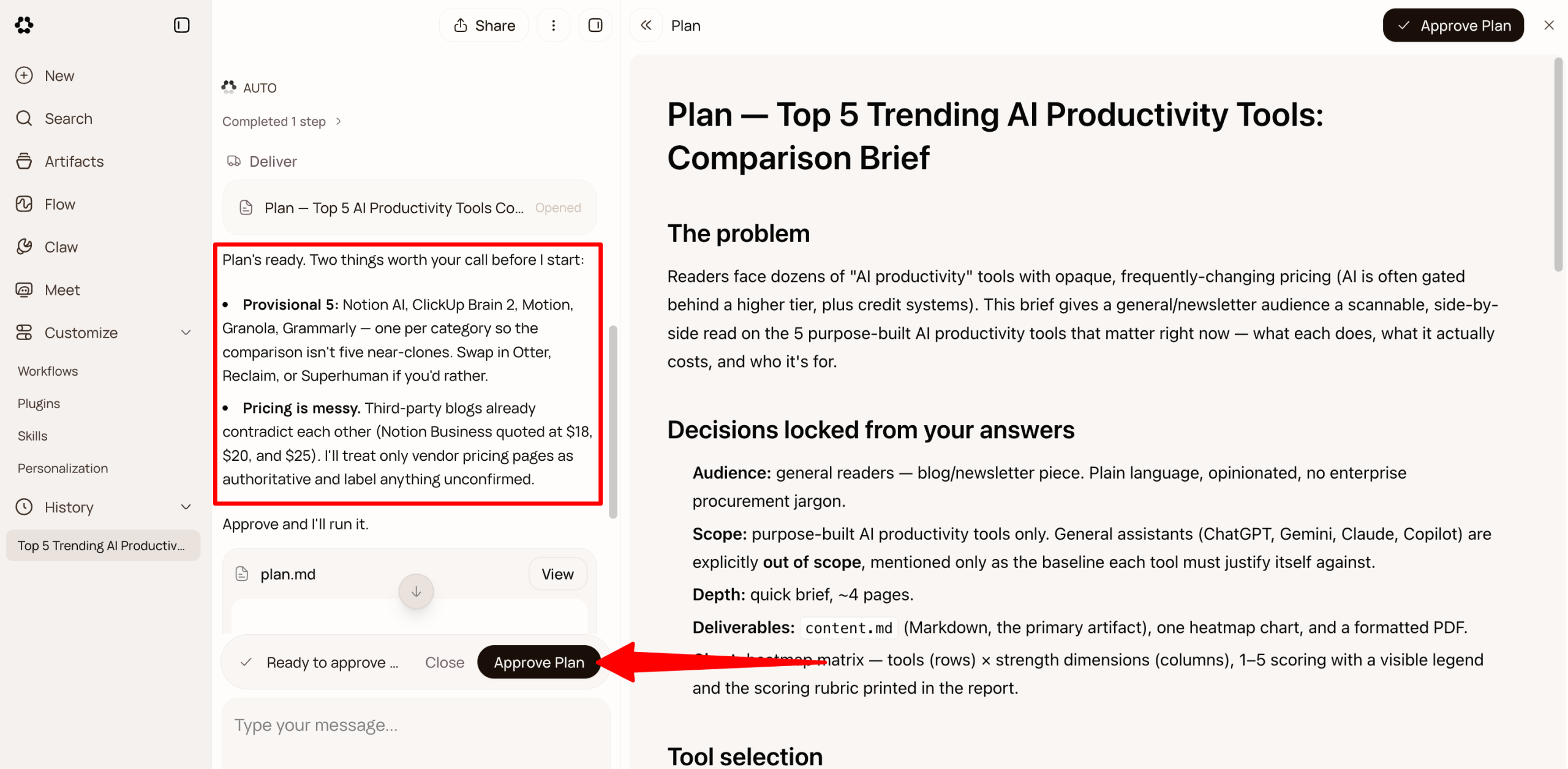
I was impressed that Runable also flagged two potential issues before starting:
- The tool selection needed variety. Instead of comparing five nearly identical tools, it planned to choose one standout option from each category.
- Pricing information could be unreliable. Since third-party sources often list conflicting prices, it decided to use official vendor pricing pages as the source of truth and clearly flag anything it couldn’t confirm.
Make any tweaks, and click “Approve Plan” to let Runable start executing.
Step 6: View the Results
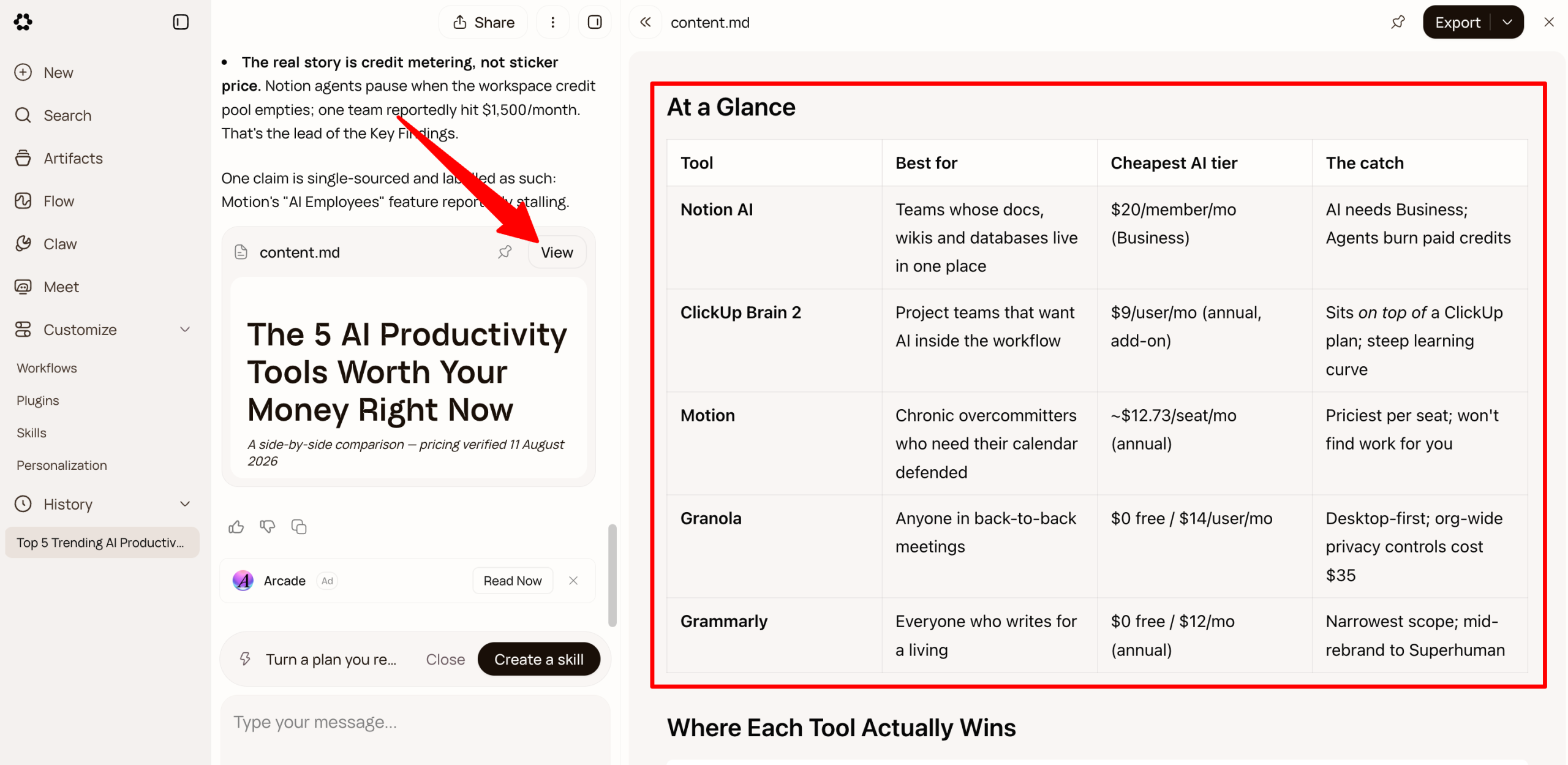
A few minutes later, the markdown brief, heatmap, and PDF were complete. Runable really showed what it could do from start to finish.
It pulled live data from vendor websites and caught some easy-to-miss credit limitations. It then ran code in the background to create the visuals and packaged everything into a verified report, chart, and downloadable PDF.
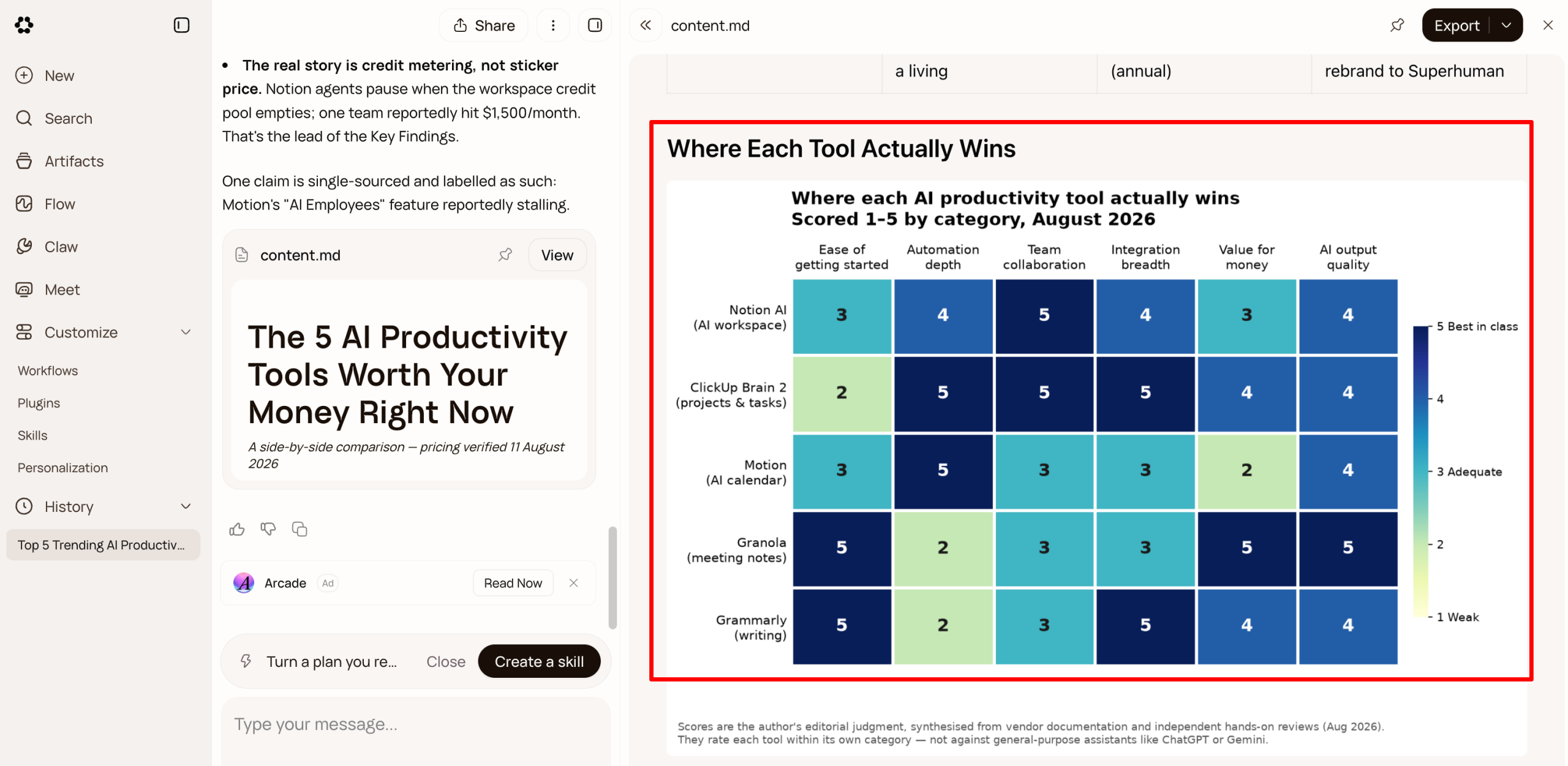
Even the heatmap was easy to read. You could compare the tools at a glance without having to dig through the full report.
Step 7: Make Edits
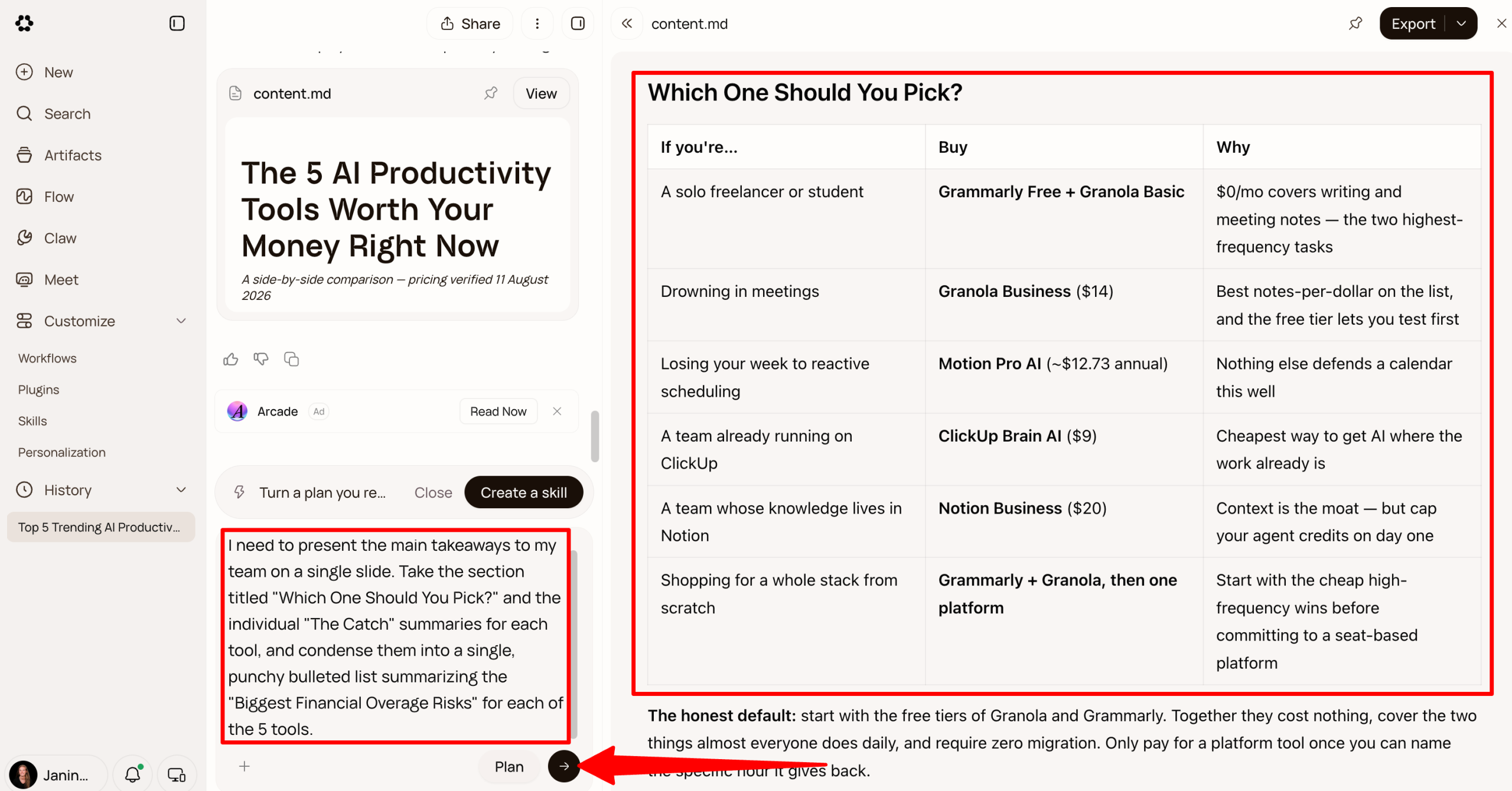
Another useful feature is that you have two ways to make edits:
- Conversational Refinement: Highlight specific elements or type follow-up instructions in the sidebar chat. For example, you could say, “Change the hero background to dark mode” or “Expand slide 3 into two separate slides.”
- Direct UI Editing: Make visual edits directly on the canvas without calling the AI agent. This can save you both time and credits.
For example, you could ask Runable:
“I need to present the main takeaways to my team on a single slide. Take the section titled ‘Which One Should You Pick?’ and the individual ‘The Catch’ summaries for each tool, and condense them into a single, punchy bulleted list summarizing the ‘Biggest Financial Overage Risks’ for each of the 5 tools.”
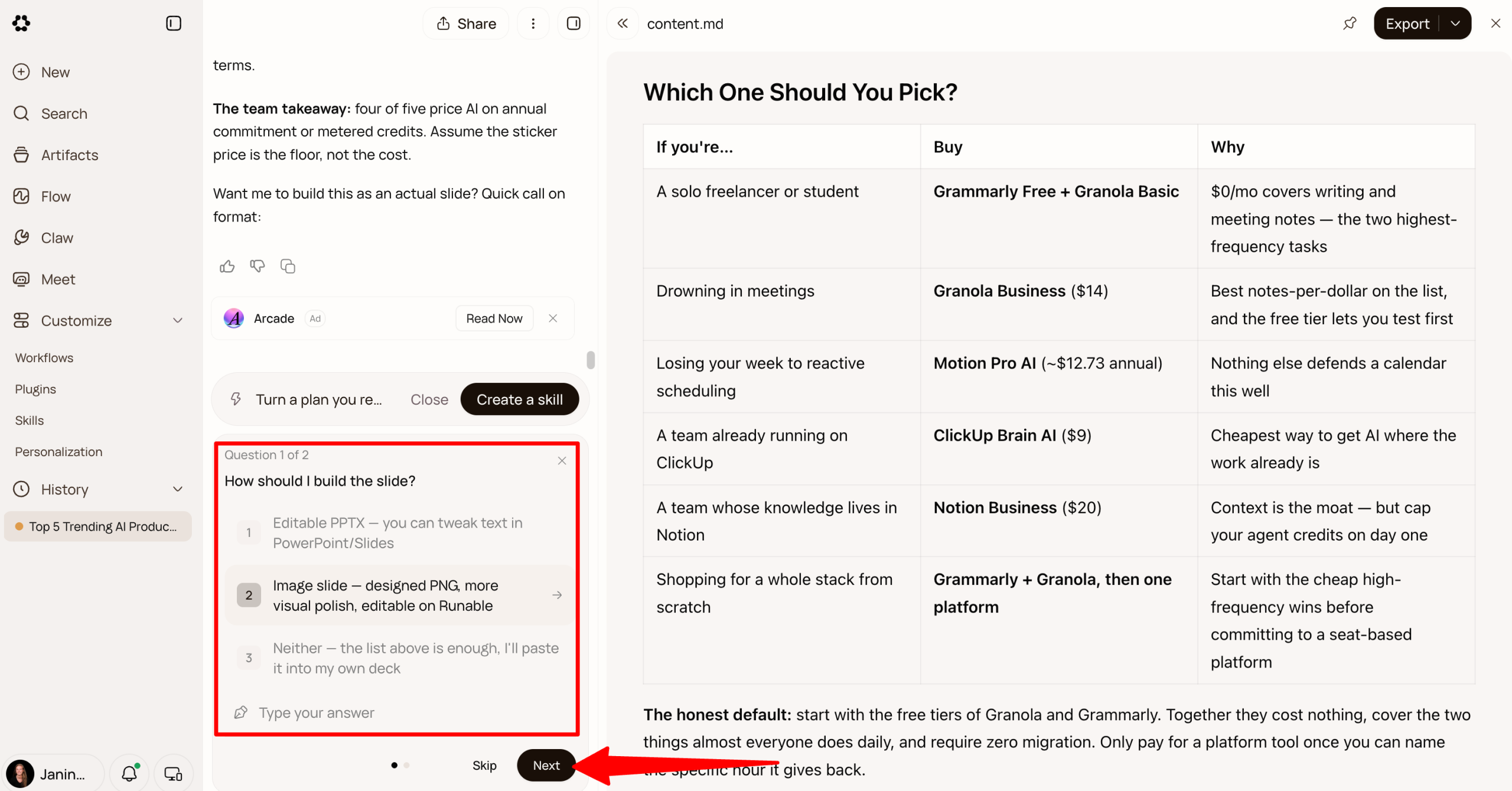
A few seconds later, Runable presented the main takeaways for each tool. It then asked how you wanted to build the slide, giving you options such as PPTX, image, slide, or neither. You could also choose whether to include the heatmap.
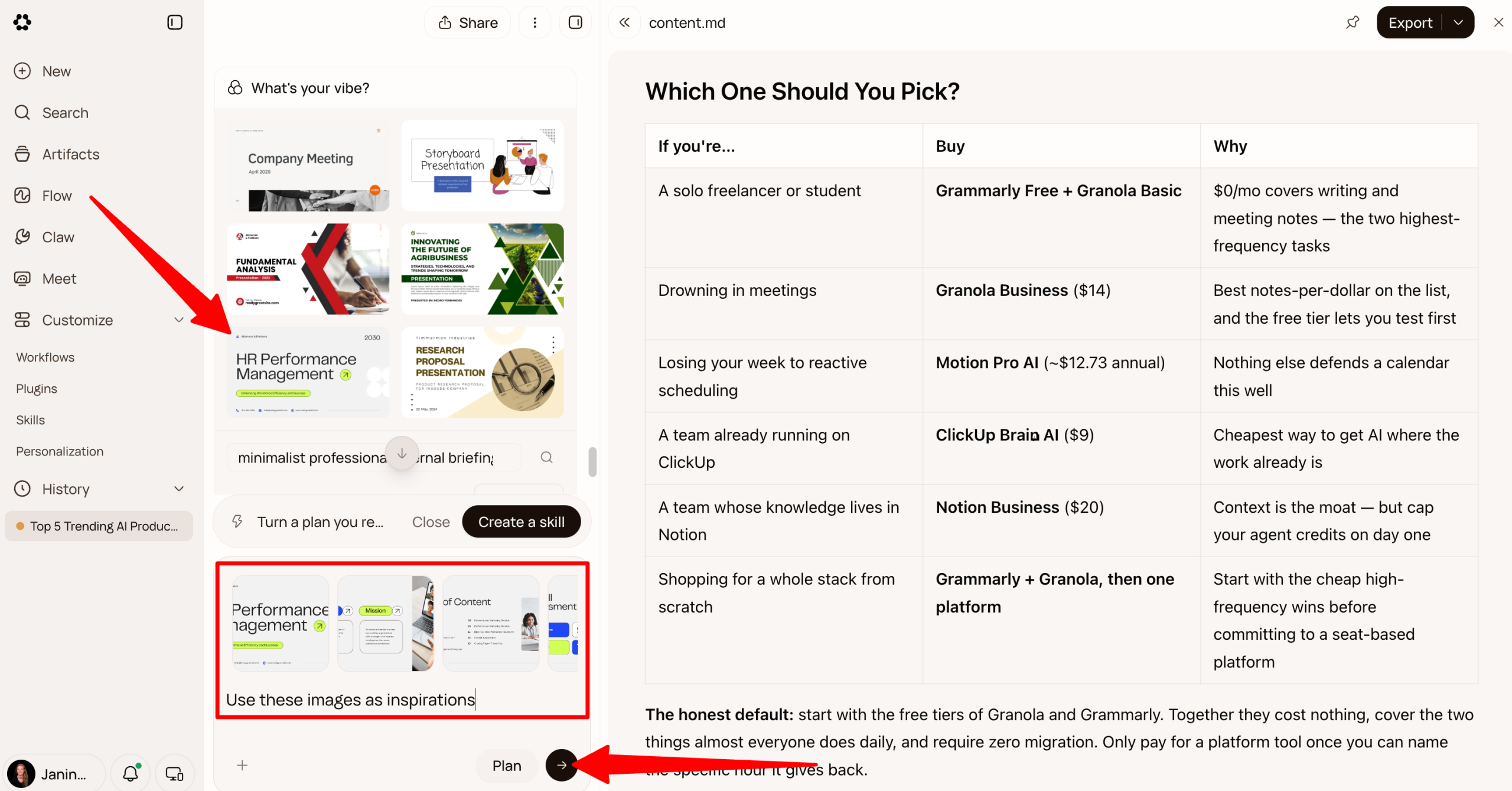
Finally, Runable asked which visual style for the slide.
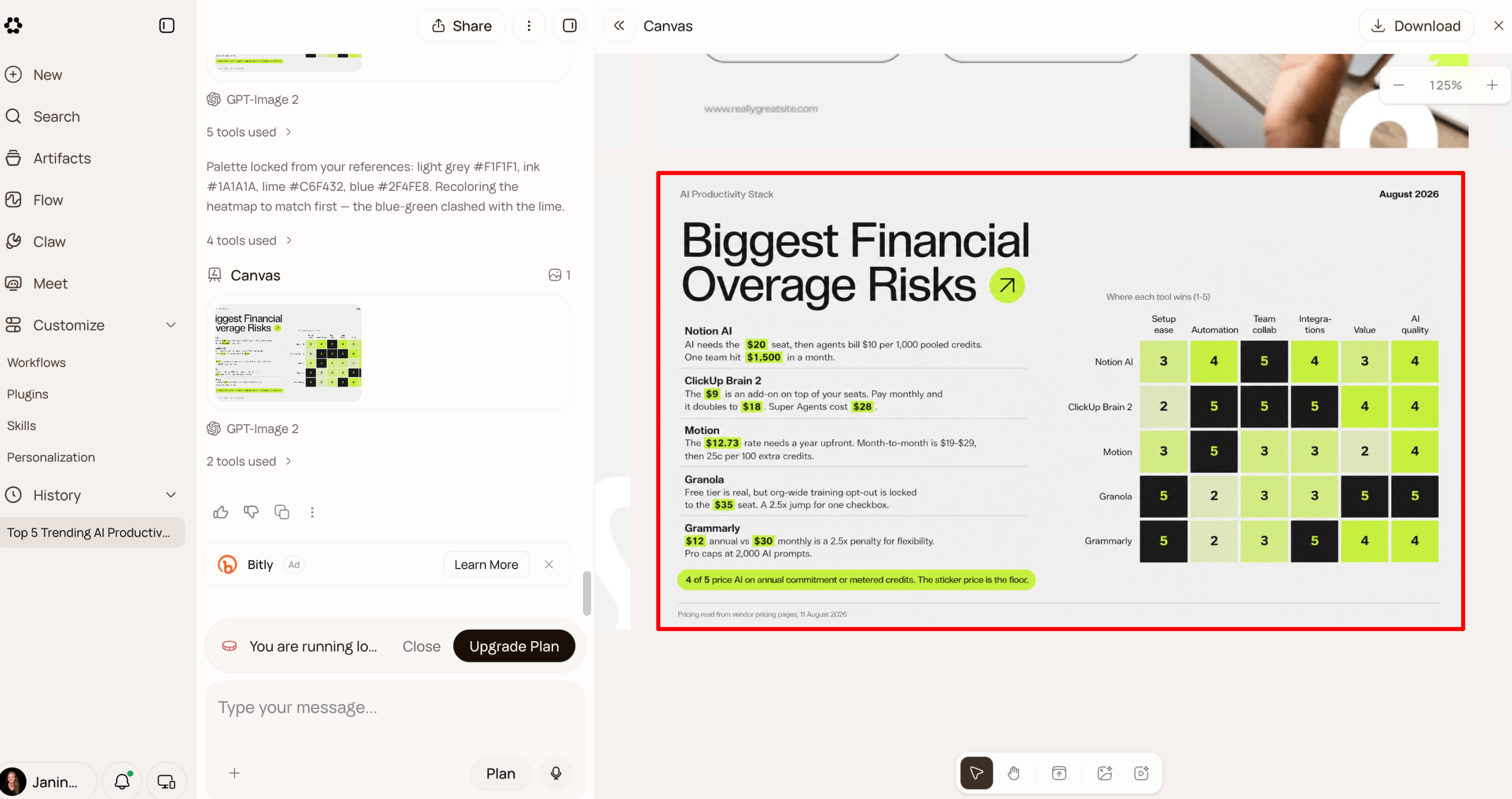
A few seconds later, Runable generated the slide in the requested style.
Step 8: Export the Document
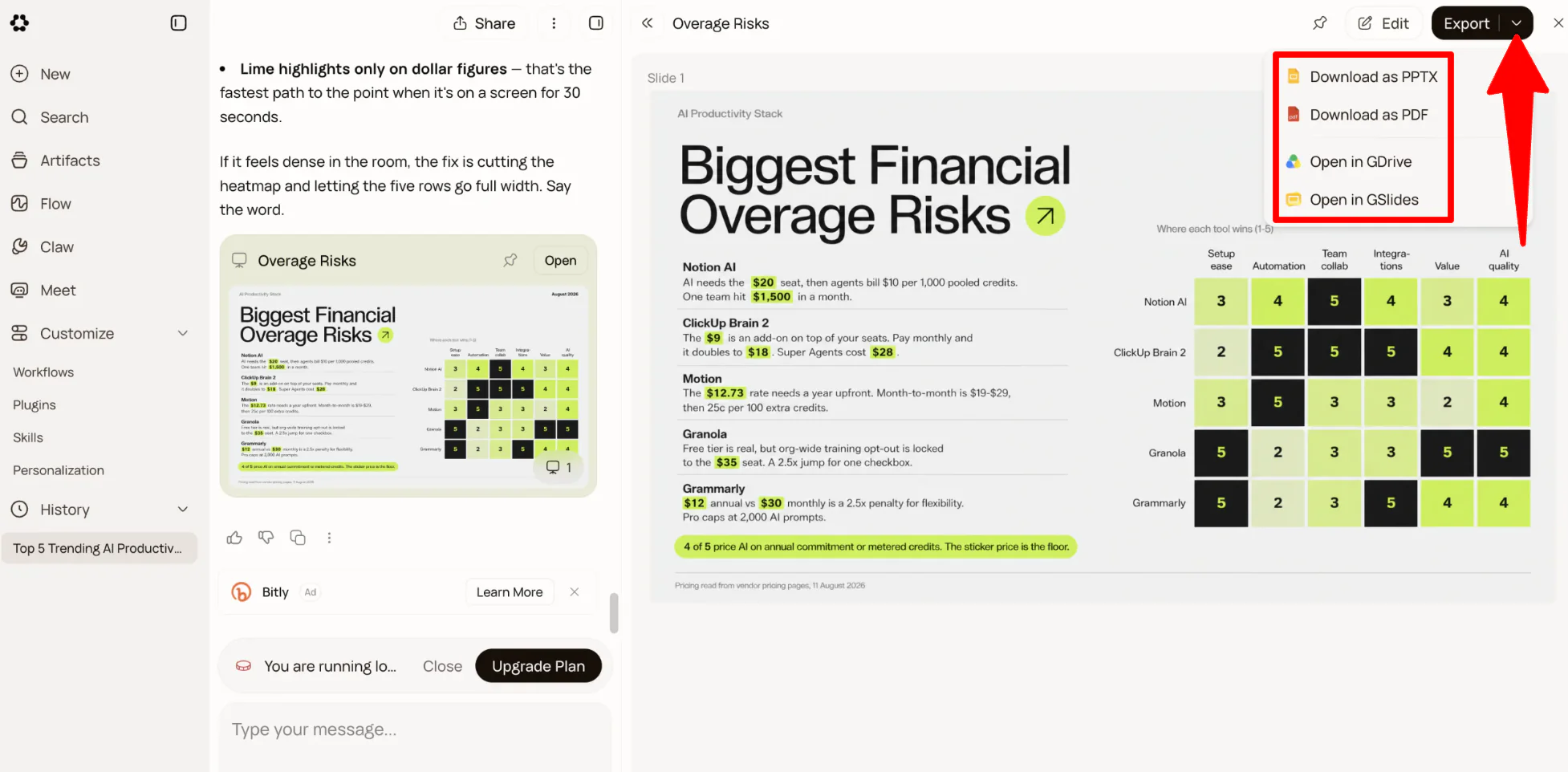
Once everything looks good, click “Export” to save your file as a PPTX or PDF. You can also open it directly in Google Drive or Google Slides.
Overall, Runable AI impressed me with how much it could handle on its own, from researching and verifying information to creating charts and turning everything into a PDF file. The biggest standout for me was the ability to plan the work first, catch potential issues, and then make edits without having to start the entire process over.
Top 3 Runable AI Alternatives
Here are the best Runable AI alternatives I’ve tried that I’d recommend.
Lovable
The first Runable AI alternative I’d recommend is Lovable. It’s an AI app builder where you can describe an idea and turn it into a working full-stack website or web app. It comes with tools for hosting, authentication, payments, analytics, and integrations built in.
Both platforms let you describe what you want and have AI handle a lot of the work for you. But they take different approaches: Lovable is mainly focused on building and launching software. Meanwhile, Runable focuses more on handling a much wider range of projects, including websites, presentations, reports, videos, images, audio, spreadsheets, and more.
If your goal is to build a website, web app, or internal tool, choose Lovable. But if you want one AI tool that can handle websites, apps, presentations, reports, videos, and more, Runable gives you a lot more flexibility.
Read my Lovable review or visit Lovable!
Claude
The next Runable AI alternative I’d recommend is Claude. It’s a powerful AI assistant that lets you create websites, apps, documents, visualizations, and other interactive projects through its Artifacts feature.
Both platforms let you describe what you want to create and have AI build it for you, making them useful if you want to create without dealing with complicated software.
However, Runable stands out as a broader all-in-one platform that handles everything from websites and presentations to videos, images, reports, audio, and spreadsheets in one place. Meanwhile, Claude.ai is better for building interactive apps, websites, documents, and visual tools that you can edit and refine right in the conversation.
For a platform that can handle many types of creative and business projects, choose Runable. For a powerful AI assistant that can also build websites, apps, and interactive tools, choose Claude.
Read my Claude Sonnet 5 review or visit Claude!
Cursor
The final Runable AI alternative I’d recommend is Cursor. It’s an AI coding tool for people who want to move beyond simply generating something with AI and actually have control over the code behind it.
Both tools use AI agents to turn ideas into working websites, apps, and other digital projects. However, Runable is built around the finished outcome. It lets you create everything from presentations and reports to websites, videos, and images. Meanwhile, Cursor is much more focused on software development and gives you far more control over the underlying code.
Choose Cursor if you want to build digital products while actually editing, testing, and controlling the code yourself. Otherwise, choose Runable if you want the AI to handle most of the work and focus on the final result.
Read my Cursor review or visit Cursor!
Runable AI Review: The Right Tool For You?
After using Runable to research, verify, visualize, and package an entire report, I can see why this all-in-one approach is appealing. I especially liked that it didn’t just generate an answer and leave me to figure out the rest. It planned the project, searched for information, checked pricing, created the heatmap, built the PDF, and let me refine the results afterward.
For me, Runable makes the most sense when I’m working on a project that involves multiple types of content. I could see myself using it for research reports and projects where I would normally have to jump between several different tools.
However, I wouldn’t replace every tool with Runable. The credits can disappear quickly, and I’d still reach for a dedicated design or coding tool when I need more detailed control.
If you mostly want to tell AI what you want and have it handle the work, Runable is worth trying. But if you want more control over how things are built, you might want to consider these alternatives:
- Lovable is best for quickly turning an idea into a functioning website or web app without any coding.
- Claude is best if you want a general-purpose AI assistant for writing, research, analysis, and building simple interactive projects.
- Cursor is best if you want to go deeper into coding and have more control over the actual code behind your product.
Thanks for reading my Runable AI review! I hope you found it helpful. If you want to try Runable for yourself, you can sign up for free and see what it can build for you.


