Ever wondered how ChatGPT, Gemini, and other chat interfaces generate PDFs, PowerPoints, and more when all they have under the hood is an LLM? The trick isn’t a smarter model. It’s something simpler: skills which are instructions an agent loads only when needed.
Next, let’s explore how skills work using LangChain and how they can make your own agents more capable, flexible, and efficient. In this article, we’ll break down the concept and build a practical understanding of how skills transform agentic workflows.
About LangChain, Middleware, and Skills
LangChain is a framework for building LLM-powered systems, such as agents, chains, or retrieval pipelines. Moreover, the framework helps with model calls, tools (pre-built and custom), and memory. Consequently, its ‘create_agent’ helper wires up a model, a set of tools, and a system prompt into a working agent in a few lines.
Middleware functionality and Skills
Middleware sits between the agent and the model on every turn. It can rewrite the request before the model sees it, inspect the response before it returns, or inject extra tools, all without touching the agent’s core logic. Developers mirror the idea of HTTP middleware here.
Skills build on top of middleware. A skill is a self-contained set of instructions the agent loads only when it’s relevant, usually via a load_skill tool. The agent sees a short list of the available skills and pulls in the full detail only for the skill it needs. For example, you can treat them as specialized sets of prompts. This is a better alternative than stuffing every possible instruction into one giant system prompt, which can be expensive, as the model must read all of it every time.
Building a specialized agent
Finally, let us now make a specialized agent with two skills: one that writes PPT decks and one that writes Excel reports. Similarly, both skills live as SKILL.md files and hand off to a real tool that saves the file. Let’s go step-by-step.
Pre-Requisites
- Make sure to get yourself an OpenAI key for the demo (https://platform.openai.com/api-keys) or you can use an alternative model as well.
- Python Notebook to run the code:
You can use Google Colab or a local Jupyter Notebook as well. - Therefore, make a skills folder and define the skills in the markdown files:

excel_reporter/SKILL.md:

---
name: excel_reporter
description: Build an Excel (.xlsx) report from one or more named tables
---

You are now a **spreadsheet analyst**. Turn the user's request into a
clean Excel report.

Guidelines:
- Organize data into one or more sheets; each sheet is a named table.
- First row of each sheet is the header row.
- Keep numbers as numbers (not strings) so Excel can sum/format them.
- Once you've drafted the data, call the `create_excel` tool with:
- `title`: workbook file name (no extension)
- `sheets`: a list of {"sheet_name": str, "headers": list[str], "rows": list[list]}
- Tell the user the file path once it's created.
---
name: pptx_builder
description: Build a PowerPoint (.pptx) deck from a title and a list of slides
---
You are now a **presentation specialist**. Turn the user's request into a
short, well-structured slide deck.
Guidelines:
- 4-8 slides unless the user asks for more.
- Each slide needs a short title and 2-4 concise bullet points (no walls of text).
- The first slide is a title slide (title + optional subtitle, no bullets).
- Pick a `theme_color` and `font_name` that fit the topic (e.g. green for eco/sustainability,
navy/gray for finance, warm orange for food/hospitality). Don't default to the same colors
every time — vary them based on what the deck is about, or honor an explicit request
("make it blue", "use Georgia").
- Once you've drafted the outline, call the `create_pptx` tool with:
- `title`: deck title
- `slides`: a list of {"heading": str, "bullets": list[str]}
- `theme_color`: 6-digit hex (no `#`) used for the title slide background and accent bars
- `font_name`: a font available in PowerPoint's defaults, e.g. "Calibri", "Georgia", "Verdana"
- Tell the user the file path once it's created.1. Install everything the notebook needs.
!pip install -q langchain langchain-core langchain-openai langgraph python-pptx openpyxlNote: python-pptx and openpyxl will be used to create the PPT and Excel respectively
2. Ask for the OpenAI key at runtime, so the system never saves it into the notebook file.
import os
from getpass import getpass
if not os.environ.get("OPENAI_API_KEY"):
    os.environ["OPENAI_API_KEY"] = getpass("Enter your OpenAI API key: ")
3. Load every SKILL.md under skills/ into memory; show just the name and description to the model up front.
from pathlib import Path
from typing import TypedDict

SKILLS_DIR = Path("skills")
OUTPUT_DIR = Path("outputs")
OUTPUT_DIR.mkdir(exist_ok=True)

class Skill(TypedDict):
    name: str
    description: str
    content: str

def _load_skills() -> list[Skill]:
    skills = []
    for skill_file in sorted(SKILLS_DIR.glob("*/SKILL.md")):
        text = skill_file.read_text()
        _, front_matter, content = text.split("---", 2)
        name = front_matter.split("name:")[1].split("\n")[0].strip()
        description = front_matter.split("description:")[1].split("\n")[0].strip()
        skills.append(Skill(name=name, description=description, content=content.strip()))
    return skills

SKILLS = _load_skills()
[(s["name"], s["description"]) for s in SKILLS]
4. Give the agent one tool that fetches a skill’s full instructions by name.
from langchain.tools import tool

@tool
def load_skill(skill_name: str) -> str:
    """Load the full instructions for a specialized skill by name."""
    for skill in SKILLS:
        if skill["name"] == skill_name:
            return skill["content"]
    return f"Unknown skill '{skill_name}'. Options: {[s['name'] for s in SKILLS]}"
Skills mechanism implementation
5. This is the actual “skills” mechanism: middleware that announces what’s available and hands the agent load_skill.
from typing import Callable
from langchain.agents.middleware import AgentMiddleware, ModelRequest, ModelResponse
from langchain.messages import SystemMessage

class SkillMiddleware(AgentMiddleware):
    """Injects skill descriptions into the system prompt and exposes load_skill."""
    tools = [load_skill]

    def __init__(self):
        self.skills_prompt = "\n".join(
            f"- **{skill['name']}**: {skill['description']}" for skill in SKILLS
        )

    def wrap_model_call(
        self,
        request: ModelRequest,
        handler: Callable[[ModelRequest], ModelResponse],
    ) -> ModelResponse:
        skills_addendum = (
            f"\n\n## Available Skills\n\n{self.skills_prompt}\n\n"
            "Call load_skill with the matching name before generating content "
            "for that kind of request."
        )
        new_content = list(request.system_message.content_blocks) + [
            {"type": "text", "text": skills_addendum}
        ]
        modified_request = request.override(
            system_message=SystemMessage(content=new_content)
        )
        return handler(modified_request)
6. The tool the pptx_builder skill hands off to; it also takes a theme color and font, so decks aren’t always the same.
from pptx import Presentation
from pptx.dml.color import RGBColor
from pptx.util import Emu


def _rgb(hex_color: str) -> RGBColor:
    return RGBColor.from_string(hex_color.lstrip("#"))


def _tint(color: RGBColor, amount: float) -> RGBColor:
    """Lighten an RGBColor toward white by `amount` (0-1)."""
    blend = lambda c: int(c + (255 - c) * amount)
    return RGBColor(blend(color[0]), blend(color[1]), blend(color[2]))


@tool
def create_pptx(
    title: str,
    slides: list[dict],
    theme_color: str = "1F4E79",
    font_name: str = "Calibri",
) -> str:
    """Create a styled .pptx deck and save it to outputs."""
    accent = _rgb(theme_color)
    tint = _tint(accent, 0.85)

    prs = Presentation()
    title_layout = prs.slide_layouts[0]
    bullet_layout = prs.slide_layouts[1]

    def style_text(text_frame, color=None, bold=None):
        for paragraph in text_frame.paragraphs:
            for run in paragraph.runs:
                run.font.name = font_name

                if color is not None:
                    run.font.color.rgb = color

                if bold is not None:
                    run.font.bold = bold

    for i, slide_data in enumerate(slides):
        heading = slide_data.get("heading", "")
        bullets = slide_data.get("bullets", [])

        if i == 0:
            slide = prs.slides.add_slide(title_layout)
            slide.background.fill.solid()
            slide.background.fill.fore_color.rgb = accent

            slide.shapes.title.text = heading
            style_text(
                slide.shapes.title.text_frame,
                color=RGBColor(0xFF, 0xFF, 0xFF),
                bold=True,
            )

            if bullets:
                slide.placeholders[1].text = bullets[0]
                style_text(
                    slide.placeholders[1].text_frame,
                    color=tint,
                )

        else:
            slide = prs.slides.add_slide(bullet_layout)
            slide.background.fill.solid()
            slide.background.fill.fore_color.rgb = RGBColor(
                0xFF, 0xFF, 0xFF
            )

            # Accent bar under the title
            bar = slide.shapes.add_shape(
                MSO_SHAPE.RECTANGLE,  # 1
                Emu(0),
                Emu(0),
                prs.slide_width,
                Emu(60000),
            )
            bar.fill.solid()
            bar.fill.fore_color.rgb = accent
            bar.line.fill.background()
            bar.shadow.inherit = False

            slide.shapes.title.text = heading
            style_text(
                slide.shapes.title.text_frame,
                color=accent,
                bold=True,
            )

            body = slide.placeholders[1].text_frame
            body.clear()

            for j, bullet in enumerate(bullets):
                p = body.paragraphs[0] if j == 0 else body.add_paragraph()
                p.text = bullet

            style_text(
                body,
                color=RGBColor(0x33, 0x33, 0x33),
            )

    file_path = OUTPUT_DIR / f"{title.replace(' ', '_')}.pptx"
    prs.save(file_path)

    return (
        f"Saved deck with {len(slides)} slides "
        f"({font_name}, #{theme_color}) to {file_path}"
    )
7. The tool the excel_reporter skill hands off to, headers plus rows per sheet.
from openpyxl import Workbook


@tool
def create_excel(title: str, sheets: list[dict]) -> str:
    """Create an .xlsx workbook and save it to outputs."""
    wb = Workbook()
    wb.remove(wb.active)

    for sheet_data in sheets:
        ws = wb.create_sheet(sheet_data["sheet_name"][:31])  # Excel sheet-name limit
        ws.append(sheet_data["headers"])

        for row in sheet_data["rows"]:
            ws.append(row)

    file_path = OUTPUT_DIR / f"{title.replace(' ', '_')}.xlsx"
    wb.save(file_path)

    return f"Saved workbook with {len(sheets)} sheet(s) to {file_path}"
8. Assemble the agent: the two document tools, a one-line system prompt, and SkillMiddleware doing the rest.
from langchain.agents import create_agent

agent = create_agent(
    model="openai:gpt-4o-mini",
    tools=[create_pptx, create_excel],
    system_prompt="You are a document-generation assistant.",
    middleware=[SkillMiddleware()],
)
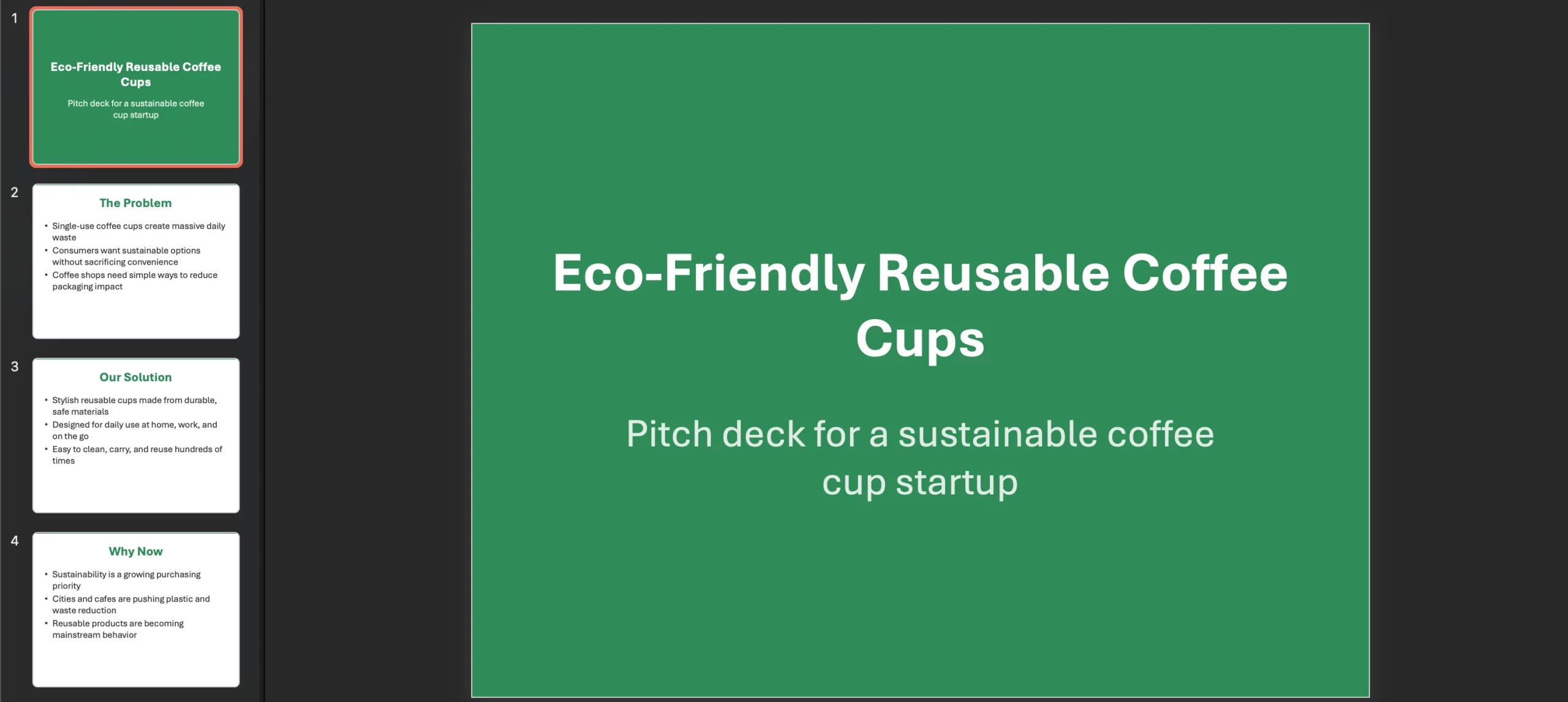
9. Ask for a slide deck. The agent should load pptx_builder, draft the outline, and pick a theme.
result = agent.invoke(
    {
        "messages": [
            {
                "role": "user",
                "content": "Make a slide pitch deck for a startup that sells eco-friendly reusable coffee cups. Use a green theme and a clean font.",
            }
        ]
    }
)
print(result["messages"][-1].content)
Done, I created the pitch deck here:
`outputs/Eco-Friendly_Reusable_Coffee_Cups_Pitch_Deck.pptx`
It uses a green theme and a clean font.
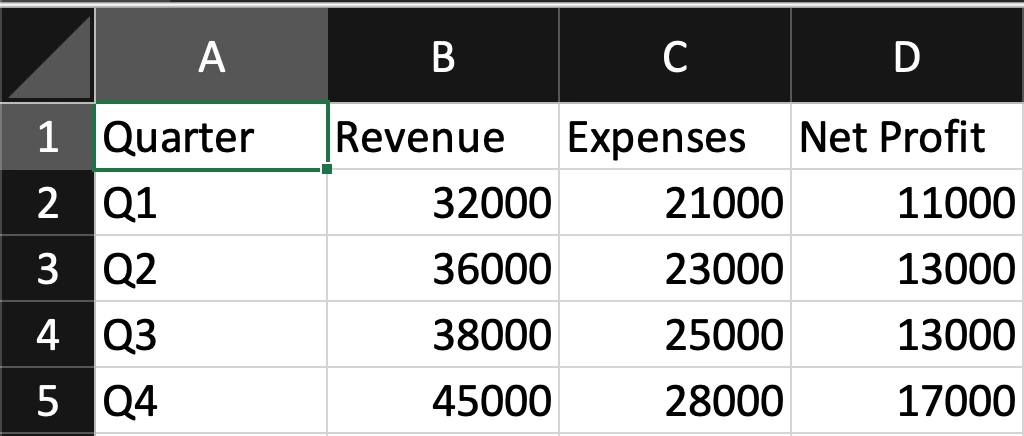
10. Let’s task the agent to make a spreadsheet.
result = agent.invoke(
    {
        "messages": [
            {
                "role": "user",
                "content": "Build a spreadsheet tracking Q1-Q4 revenue and expenses for a small bakery",
            }
        ]
    }
)
print(result["messages"][-1].content)
Done, your spreadsheet is ready: `outputs/bakery_q1_q4_revenue_expenses.xlsx`
Conclusion
Skills won’t make your agent smarter: they make it more organized. By loading detailed instructions only when needed, you can teach one agent dozens of specialized behaviors without bloating its prompt or spinning up a sub-agent for every task. Start with one skill, then add more as needs surface.
Read more: Build an Emergency Helpline Voice Agent with LangChain
Frequently Asked Questions
A. No, other frameworks provide similar patterns, and you can implement skills from scratch without a framework at all. It’s just a tool plus some prompts.
A. Yes, one the model calls load_skill as a regular tool, which is one extra round trip before it drafts the real answer.
A. Yes, the agent can call load_skill multiple times in the same run if the request spans more than one specialty.

Passionate about technology and innovation, a graduate of Vellore Institute of Technology. Currently working as a Data Science Trainee, focusing on Data Science. Deeply interested in Deep Learning and Generative AI, eager to explore cutting-edge techniques to solve complex problems and create impactful solutions.
Login to continue reading and enjoy expert-curated content.


