
Search is the front door of many applications, yet most teams struggle to answer a deceptively simple question: “Is my search actually returning relevant results?” Query logs tell you what users typed, not what they saw, what they selected, or why they left. When search feels broken, the culprit is rarely the engine. It’s the lack of deliberate signal collection, measurement, and a feedback loop to act on it.
You can close this gap on Amazon OpenSearch Service using User Behavior Insights (UBI), an open schema standard for capturing search behavior, and Search Relevance Workbench (SRW), a toolkit for measuring and evaluating search quality. Your application generates the UBI-formatted records. Together, UBI and SRW give you a repeatable framework: collect signals, turn them into relevance judgments, and validate every change before it ships.
In this post, we show you how to capture UBI data on an Amazon OpenSearch Service domain and use those signals to evaluate search quality. This is the first post in a two-part series. We build the foundation here, and Part 2 covers automating the workflow end to end.
The challenge: You can’t improve what you can’t measure
Consider a shopper searching for “handbag” on an ecommerce site. The catalog has 16 products (tote bags, duffel bags, laptop bags), but every title only says “bag.” The search returns zero results. Most shoppers leave. A patient one retries with “bag” and finds what they were looking for.
Your server log recorded that first query as a clean sub-second response: no error, no alert, no signal. What it missed entirely was a customer with purchase intent. That customer hit a vocabulary gap between how they search and how you write your catalog. Zoom out and apply this lens to misspelled queries, poor handling of long-tail searches, and abandoned sessions. The blind spot is larger than you think.
There’s a second problem: click signals are position biased. Users select the first result far more than the fifth, regardless of relevance, so raw click counts reflect where results appeared, not whether they deserved to be there. Any judgment derived from clicks must correct for this bias. We return to it when generating judgments.
Capturing behavioral data with UBI
UBI defines two indices. The ubi_queries index holds one record per executed query: the text the user typed, the full query that ran (filters and facets included), and the IDs of the documents returned. The ubi_events index holds every subsequent user action: impressions, hovers, clicks, add-to-carts, each stamped with the result position and the product’s business identifier (object_id). A shared query_id links every event back to the query that triggered it. Two additional identifiers complete the picture: client_id tracks the browser across visits, and session_id scopes events to a single visit.
A query record captures what the user asked and which document IDs the engine returned, including zero-result cases like the handbag search, which appears as a record with an empty result list. Here’s the shopper’s follow-up search for “bag”:
The UBI queries schema reference documents the complete query schema, including the mandatory attributes.
The event record captures what the user did next. For each result rendered, emit an impression event. When the user selects a result, emit a click event. Here is the impression event for the first result of the bag search:
event_attributes also accepts custom fields of your own alongside the standard position and object structures. The action_name attribute is critical: The judgment model you use later consumes only impression and click events. Treat a paginated results page as the same logical query: reuse the query_id and record absolute positions. The UBI events schema reference documents the complete event schema.
Collecting UBI data on Amazon OpenSearch Service
Behavioral data (what results ranked, what users saw, what they selected) exists only in the application layer. Your application owns the records, and Amazon OpenSearch Ingestion (OSI), a fully managed, serverless data collector powered by Data Prepper, provides the managed delivery path. Your application sends the records as SigV4-signed HTTP POST requests to the OSI pipeline endpoints. Route browser events through your backend for signing. One thing to understand before you write any code: Your application generates and owns the query_id attribute. The application creates the ID when it runs a search and stamps it on every subsequent event the user produces, until the user issues a new search or the session ends.
Prerequisites
To follow along, you need an Amazon OpenSearch Service domain running OpenSearch 3.5 or later with the OpenSearch UI application, permissions to create OpenSearch Ingestion pipelines with an AWS Identity and Access Management (IAM) pipeline role, and a search application you can instrument to emit behavioral records.
Create the UBI indices
Before you start collecting user metrics, you need the two indices in place with the right mappings. Field types matter here: query_id as keyword supports exact joins between queries and events, timestamp as date supports time-range queries, and event_attributes as dynamic means you can extend events with custom fields without schema changes.
Create ubi_queries first in Dev Tools. It holds the query-side records. We abbreviated the mappings here. Refer to the published queries-mapping.json file for the complete version:
Then create ubi_events. It holds every user action that follows (refer to the full events-mapping.json file):
With both indices created, the next step is routing data into them. You can deliver UBI data to your domain in several ways. This post uses OSI pipelines, shown end to end in the diagram that follows the setup.
Set up the OSI pipelines
Create two OSI pipelines: one for queries and another for events. Each pipeline exposes an HTTP source endpoint that your application writes to (shown on each pipeline’s console page) and sinks data to the corresponding index. The following configuration defines the events pipeline:
Note: the queries pipeline follows the same pattern, with /ubi/queries as the path and ubi_queries as the sink index and S3 prefix. Create the pipeline role yourself or let OpenSearch Ingestion create it. If your domain uses fine-grained access control, also map the pipeline role to a backend role so the domain accepts the pipeline’s writes. Refer to the tutorial Collecting UBI-formatted data in Amazon OpenSearch Service for detailed steps.
With the pipelines running, your application can start sending data. The following diagram illustrates the end-to-end flow:
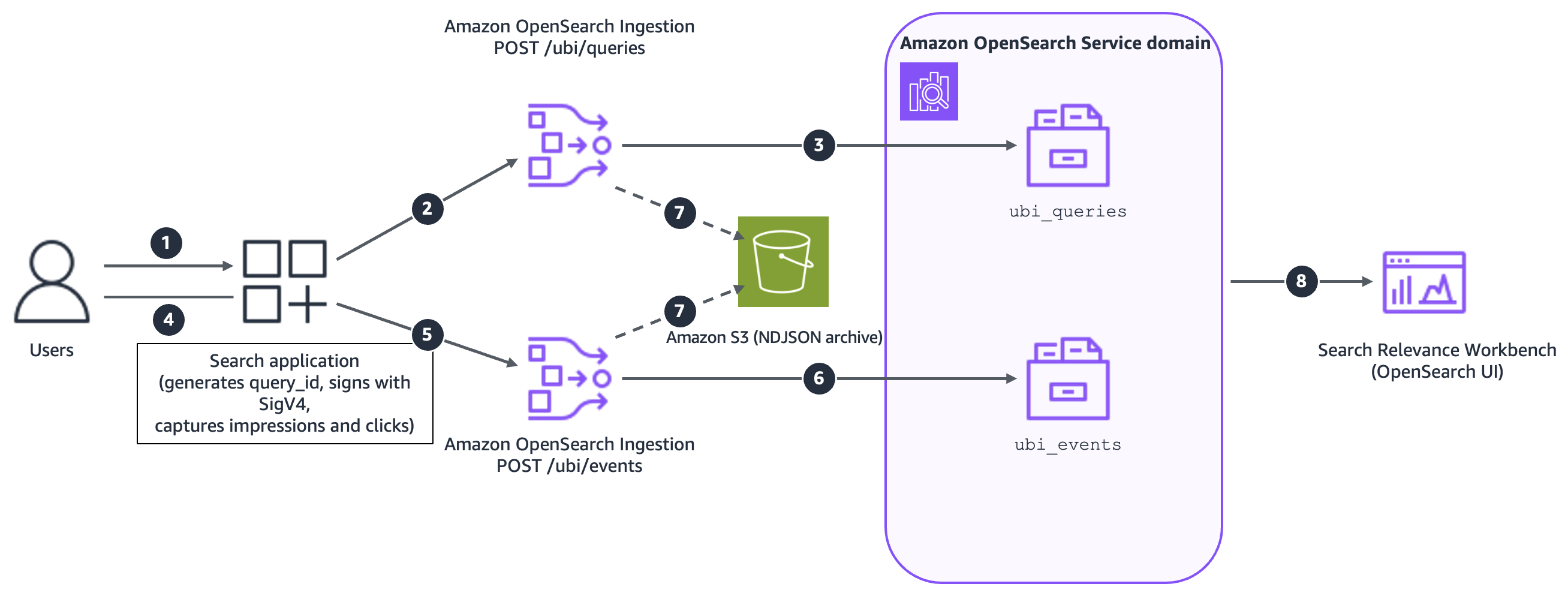
Figure 1: The UBI collection pattern on Amazon OpenSearch Service
The workflow consists of the following steps:
- Users interact with your search application.
- The application sends signed query records to the OSI HTTP endpoint.
- OSI writes queries to the
ubi_queriesindex. - Users interact with the results, viewing and selecting documents.
- The application sends signed event records, carrying the same
query_id, to the OSI HTTP endpoint. - OSI writes events to the
ubi_eventsindex. - Optionally, both pipelines archive records to Amazon Simple Storage Service (Amazon S3).
- Search Relevance Workbench (OpenSearch UI) works with the collected data in the
ubi_queriesandubi_eventsindices.
Note: if you’re already collecting site analytics through an existing third-party tool, you don’t need to replace it. Map your search-related events (queries, clicks, and conversions) into the UBI schema and store them in OpenSearch. That’s enough to unlock the out-of-the-box evaluation framework, implicit judgment generation, and the full SRW metrics pipeline, without defining a single custom metric from scratch.
Visualize the data collected
After the UBI behavior metrics start to trickle in, you can review the data in the Discover tab on the OpenSearch UI dashboard. Filtering ubi_queries for empty result lists ranks your vocabulary gaps. You can also visualize the data collected through the sample User Behavior Insights (UBI) dashboards in OpenSearch.
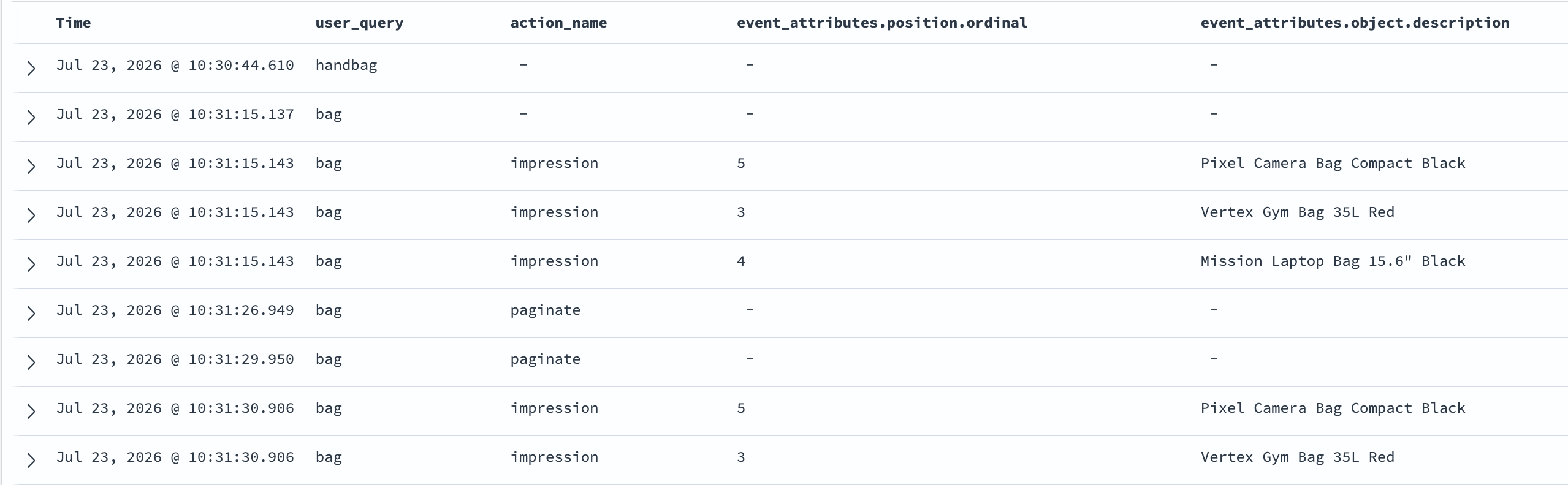
Figure 2: UBI records in Discover, showing the zero-result handbag query and the follow-up bag query with its impressions and pagination events
With data flowing into your indices, keep these things in mind as you scale to production:
- Keep telemetry off the search critical path – Queue records and forward them asynchronously. Losing a fraction of behavioral data is statistically harmless. Blocking users isn’t.
- Manage volume deliberately – Batch impression events, and if you sample, sample whole queries rather than individual events to preserve the click-through ratios that drive judgments.
- Isolate analytical load for larger deployments – Route pipelines to a separate analysis domain with the same engine version, mappings, and analyzers as production. This keeps behavioral writes from touching live search latency.
- Plan for retention and integrity – Register the UBI mappings as an index template and apply an Index State Management (ISM) retention policy as your indices grow. You should validate and rate-limit the event write path, and cover query text and client identifiers with your data retention policy.
Evaluating search quality with Search Relevance Workbench
With ubi_queries and ubi_events collecting data, you now have the signals needed to evaluate search quality. Search Relevance Workbench, generally available in the OpenSearch UI from Amazon OpenSearch Service 3.5, turns those signals into structured experiments: comparing query configurations, scoring results against relevance judgments, and surfacing metrics that guide iterative tuning.
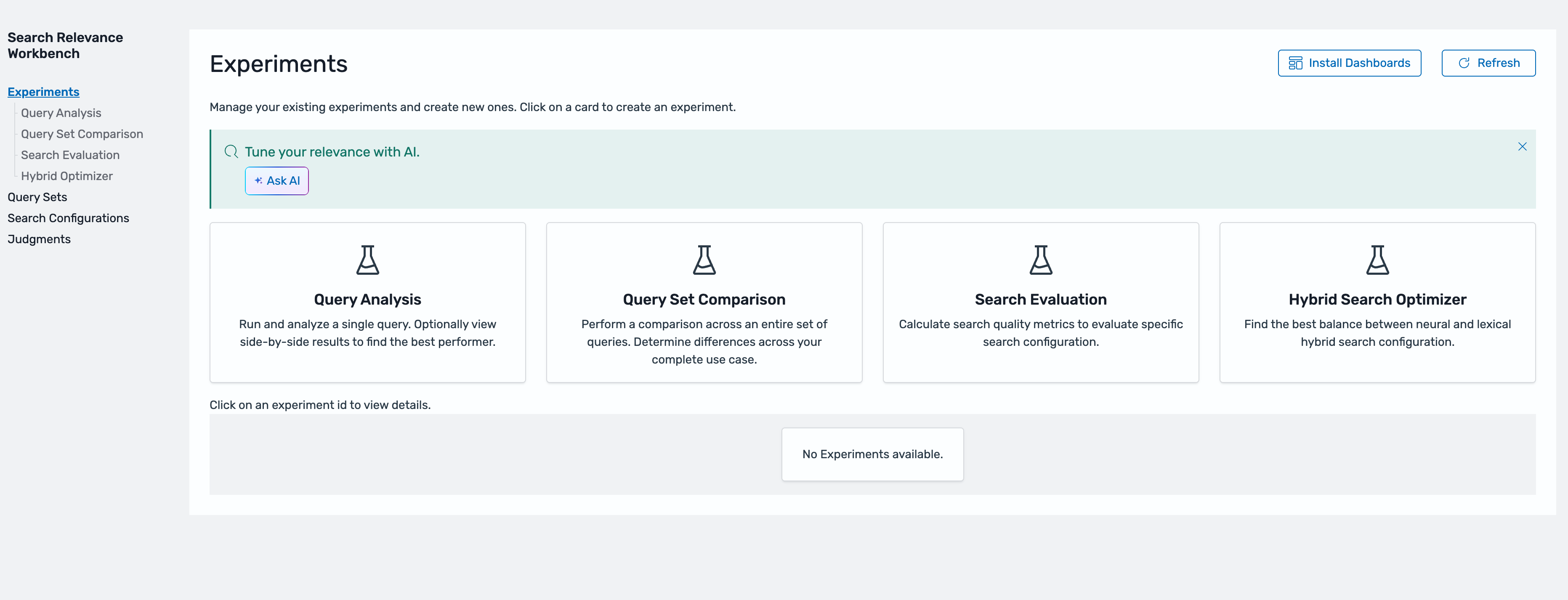
Figure 3: Search Relevance Workbench in the OpenSearch UI
SRW experiments rely on three components. You set them up once, then reuse them across every experiment you run: a query set (the fixed queries you evaluate against), search configurations (the query structures you want to compare), and a judgment list (the relevance ground truth). The following sections walk through each one.
Step 1: Create a query set
A query set is the fixed collection of queries you evaluate against. Keeping it fixed makes results comparable across experiments. Effective query sets reflect real traffic, not intuition. You can seed one from your top queries, a random sample, or a hand-picked mix that includes long-tail and low-performing queries. Alternatively, SRW can sample directly from ubi_queries using Probability-Proportional-to-Size (PPS) sampling, which selects queries in proportion to how often users issue them. This approach represents frequent queries like “bag”, so your metrics reflect search quality as users experience it.
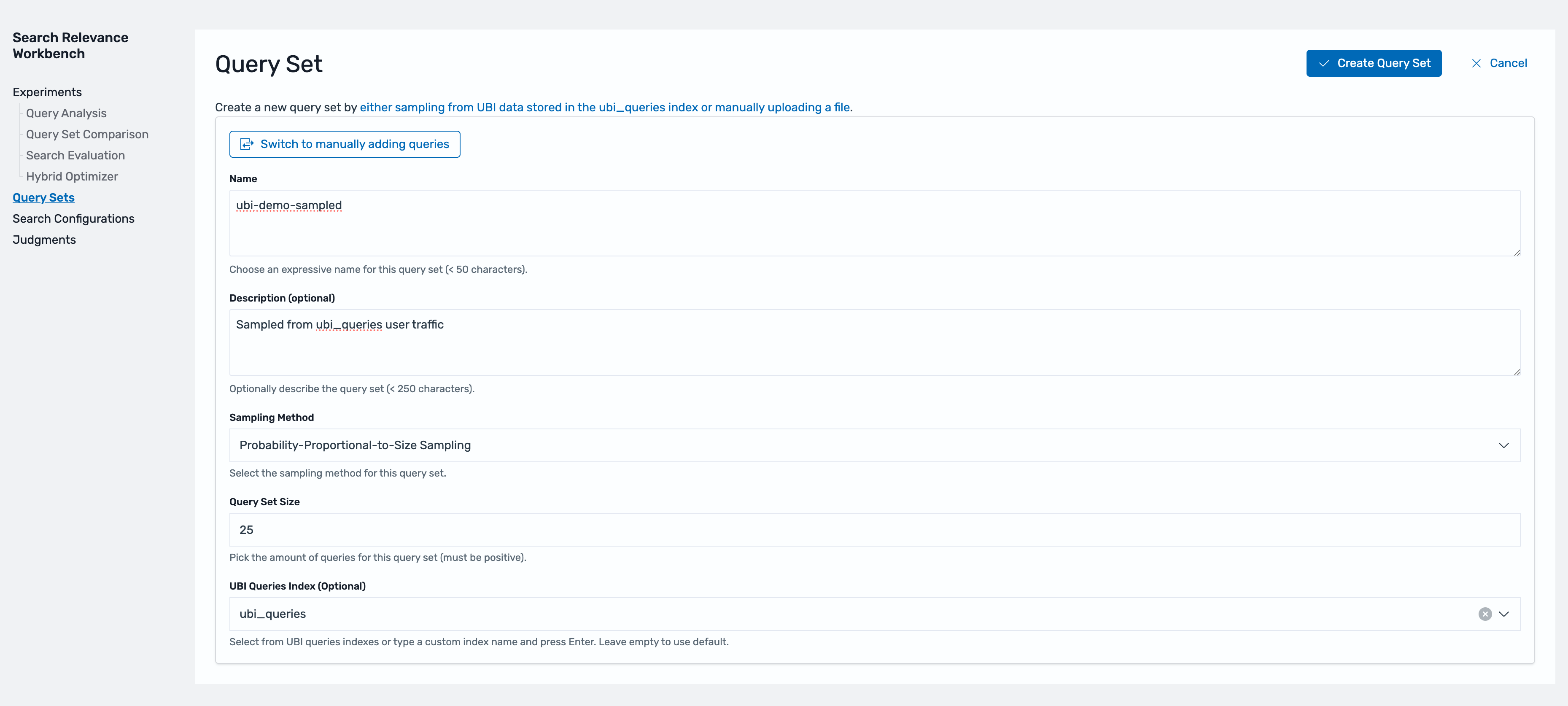
Figure 4: Creating a query set sampled from real traffic in ubi_queries
Step 2: Define search configurations
A search configuration defines how a search executes: the index, the query structure, and a %SearchText% placeholder that SRW replaces with each query in your set. Creating two configurations and running them against the same query set and judgment list is how you validate a change before any user sees it.
As an example, here we define two configurations: a baseline multi_match query (retail_query) and a variant that boosts title matches (retail_boosted_query), so we can measure whether the boost actually helps ranking.
| retail_query | retail_boosted_query |
|
Configurations go beyond query variants: a candidate can be an entirely different retrieval strategy, like hybrid search combining keyword and neural retrieval. You can use judgments to rate query-document pairs independently of your retrieval approach. You can test a semantic or hybrid approach offline against your existing traffic before shipping it.
Step 3: Create the judgment list
A judgment is a relevance rating for a query-document pair: the ground truth that quality metrics measure against. You can create judgments that are explicit (from stakeholders or a large language model acting as judge), imported, or implicit (derived from behavior). Here we use implicit judgments derived from UBI selection behavior, scored using the Clicks Over Expected Clicks (COEC) model. The COEC model helps correct position bias by comparing each document’s actual click rate against the expected rate for its rank position. Documents that outperform their position score as relevant. Those that users select because they ranked first score near average.
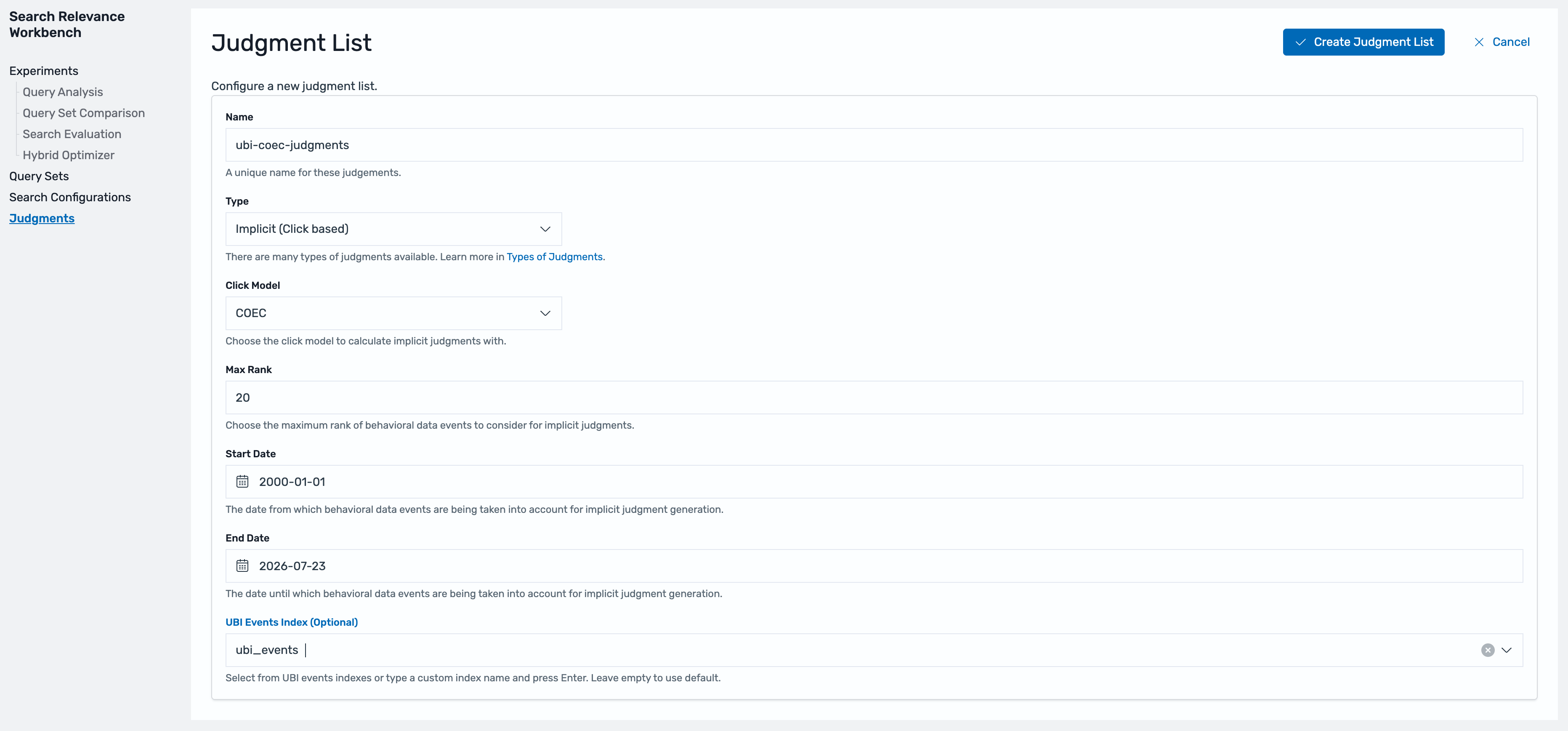
Figure 5: Creating an implicit judgment list with the Implicit (Click based) type and the COEC click model
Three things to get right before you run experiments:
object_idin your events must match the document_idfrom your product catalog. The search configurations you define return this_id, which lets SRW join judgments to results.- Implicit judgments are statistical. They need volume and query coverage. As a working rule of thumb, aim for hundreds to thousands of real sessions per query to separate signal from noise.
- Max Rank controls how deep in the result list events count. If users paginate, set it beyond a single page. We use 20 here.
Step 4: Run experiments
This post uses three SRW capabilities: Query Analysis, Query Set Comparison, and Search Evaluation. Query Analysis is a quick eyeball check: compare two configurations side by side for a specific query to see exactly what changed and why the metrics moved. The other two answer harder questions with numbers: how good a configuration is, and how two configurations compare against real relevance signals.
Query Set Comparison (also called pairwise comparison) takes two configurations and computes ranking similarity. Jaccard overlap measures how much the two result lists share, while Rank-Biased Overlap (RBO) weights agreement at the top of the list more heavily. Near-identical scores mean the change will barely register with users. Low overlap means a real ranking shift worth reviewing carefully before shipping. In this run, the two configurations score 0.93 Jaccard and 0.92 RBO, a modest but real shift. SRW cannot score zero-result queries like “handbag”: They show zero similarity in a comparison and Failed in an evaluation, a signal they need a different fix than ranking adjustments.
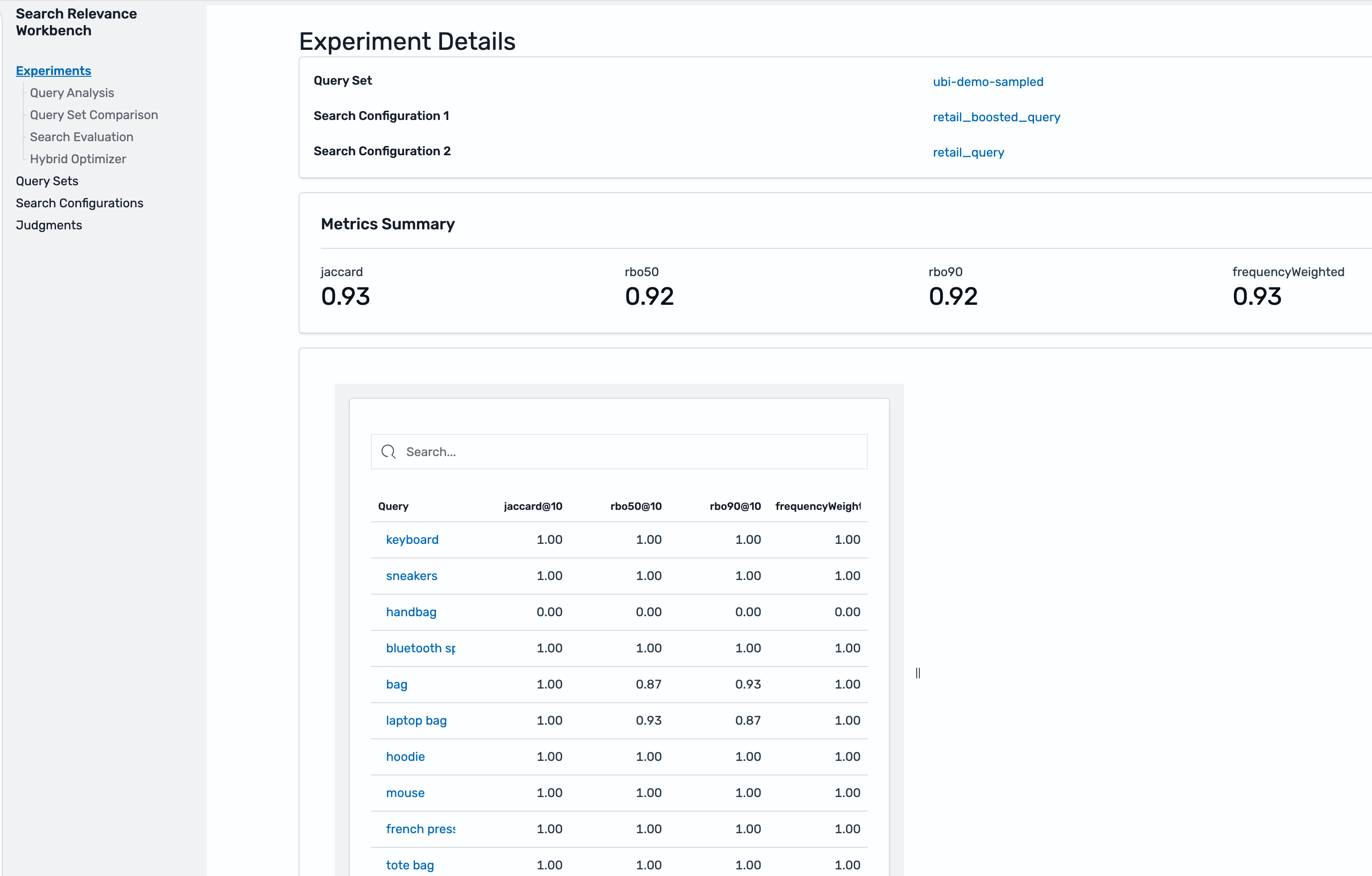
Figure 6: Query Set Comparison showing Jaccard and Rank-Biased Overlap between the two configurations
Search Evaluation (also called pointwise evaluation) scores one configuration against your query set and judgment list across four metrics, each computed over the top k results (k=10 by default):
| Metric | What it measures | What it tells you |
| Coverage@k | Proportion of returned documents that have judgments | How much to trust the other three metrics. Low Coverage means many results were never judged |
| Precision@k | Fraction of the top k results that are relevant | How many irrelevant results appear on the first page |
| MAP@k (Mean Average Precision) | Precision averaged across ranks, rewarding relevant documents placed early | Whether relevant results appear early, even when Precision ties |
| NDCG@k (Normalized Discounted Cumulative Gain) | Graded judgment values, discounted by position (rank 1 counts more than rank 9) | Whether the best results appear first. The primary comparison metric |
Each pointwise experiment evaluates one configuration. To compare candidates, run one experiment per configuration and compare the results. In this run, the baseline (retail_query) scores Coverage@10 of 1.0, Precision@10 of 1.0, MAP@10 of 0.95, and NDCG@10 of 0.93, with the zero-result “handbag” query showing as Failed in the per-query detail.
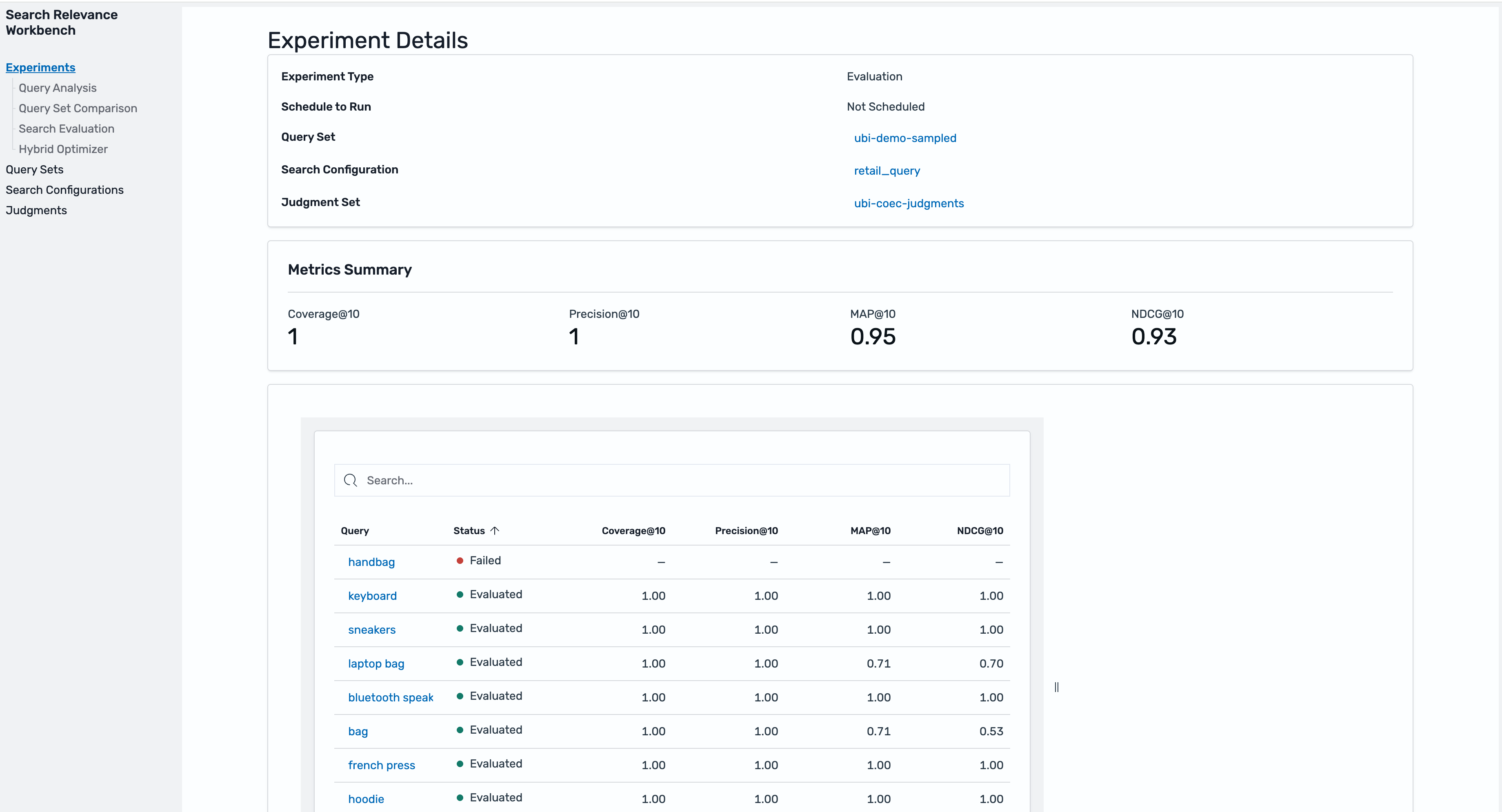
Figure 7: Search evaluation results for one configuration: Coverage, Precision, MAP, and NDCG at 10, with per-query detail
From measurement to improvement
The preceding experiments are the harness. The following are common levers to test with it. Express each as a new search configuration, evaluate it against the same query set and judgment list, and adopt it only if the metrics move:
- Synonyms – One option for addressing known vocabulary gaps is to build synonyms. A search-time synonym token filter treats “handbag” and “bag” as equivalent, and with Amazon OpenSearch Service, you can hot deploy custom synonym packages without reindexing.
- Field weights – Adjust the fields and boosts in a multi_match query, like the
title^2variant tested earlier. - Semantic retrieval – A hybrid query combines keyword and neural scores, addressing vocabulary mismatch as a class rather than term by term. Judgments evaluate it offline exactly like a lexical candidate.
- Reranking – A rerank processor in a search pipeline reorders the top results using a cross-encoder model.
Clean up
To avoid future charges, delete the resources you created for this walkthrough:
- Delete the two OpenSearch Ingestion pipelines. To reuse them later, stop them instead. A stopped pipeline keeps its configuration and incurs no OpenSearch Compute Unit (OCU) hour charges.
- If you configured the optional Amazon S3 archive, delete the archived objects (or the bucket).
- If you keep the domain, optionally delete the
ubi_queriesandubi_eventsindices and the query sets, judgment lists, and experiments you created. These live on the domain and incur no separate charges. - If you created the domain specifically for this post, delete it to remove everything, including the resources in the previous step. Deleting a domain is irreversible. Don’t delete a domain that serves other workloads.
Conclusion
UBI collects the evidence, COEC turns it into judgments, and SRW experiments deliver the verdict: Coverage, Precision, MAP, and NDCG in place of guesswork. Ship the winning configuration, keep collecting, and the next round of judgments shows whether the improvement holds with real behavior. Where there used to be an opinion, there is now a number.
Everything here follows a repeatable pattern, and repeatable patterns lend themselves to automation. Part 2 walks through the Search Relevance Agent, available through the AI Assistant chat (the Ask AI button) in the OpenSearch UI. The agent analyzes your UBI signals, generates tuning hypotheses, and validates them offline before recommending changes. The pipeline you built in this post is the foundation. Stay tuned for Part 2.
To go deeper on the evaluation features, refer to the Search Relevance Workbench documentation.
About the authors


