Every commercial photographer knows the plight. The product is lit perfectly, the client signed off on the hero angle, but then someone asks whether the product could sit on a sunlit marble counter in a Mediterranean kitchen instead.
Now sure, you can build a new set or rent a location. But each of those comes with its own costs in both time and money.
Or, you can dig through stock libraries that match the set and try to fit them in Photoshop.
That last option is exactly where generative AI starts to make sense. It’s not a replacement for the shoot, but a way to produce the background plate you composite your real subject into.
FLUX.1 is an earlier-generation model family praised for photorealism, and Flux1ai.com is a web app built around it.
So, this Flux.1 review looks at whether it can produce backdrops that actually hold up once a real, camera-captured subject is dropped on top.
What Is Flux.1 AI?
The first thing to untangle is that “Flux.1” is two things.
FLUX.1 is a family of image generation models made by the company whose founders previously worked on Stable Diffusion (perhaps one of the best-known early generative image models).
Flux1ai.com specifically is a browser-based front end that lets you use those models without an installation. You pick a model, type a prompt, choose an aspect ratio, and generate.
That distinction matters because a lot of sites actually use the Flux name and even the exact model.
This is paired with how the site presents itself. Its FAQ describes it as an official platform partner of Black Forest Labs. However, when I checked Black Forest Labs’ own model page, the partners it names for FLUX1.1 [pro] access are Freepik, together.ai, fal.ai, and Replicate. Flux1ai.com isn’t on that list.
The contact details don’t inspire much confidence either. The footer address combines a California city name, the state of Maine, and a Washington ZIP code, which appears internally inconsistent and possibly like placeholder text.
None of this means the website is fake. But if you’re doing client work, it’s worth knowing you’re dealing with a third-party reseller of the model.
How the Background Plate Workflow Actually Works
One of the main issues for this type of workflow is that the current “Create” page on Flux1ai.com is text-to-image focused.
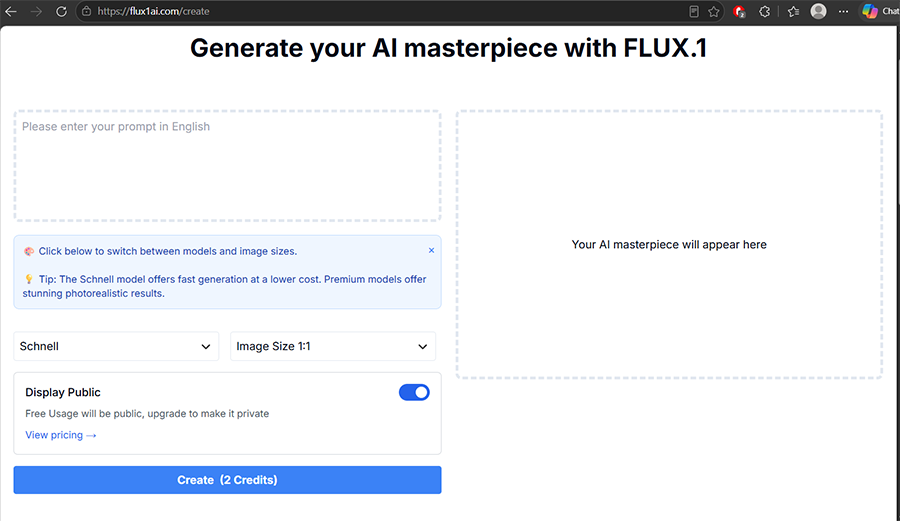
There’s no field to upload your product shot, no masking brush, and no “replace background” button. You aren’t handing Flux your photo and asking it to swap what’s behind the subject.
Instead, the workflow relies on a lot more manual input.
You need to shoot your subject on a neutral backdrop, which will be used as the base. Or, you can use Photoshop or another AI tool for background removal (we’ve reviewed several background removers).
Then, you can use Flux.1 to generate an empty scene that matches the desired direction. From there, you composite both layers in Photoshop (or whatever editor you use), building contact shadows and reflections by hand (or using AI).
For a lot of commercial photographers, that actually might work well. You keep full control over the product itself, which never passes through an AI model, so labels, logos, and textures stay exactly as the client approved them. The AI only touches the frame.
The trade-off is all of the added matching work. If you’ve never built digital backdrops before, expect a slight learning curve.
Choosing the Right Model for Backdrops
The model picker on the Create page lists seven options: FLUX 1.1 Pro Ultra, FLUX 1.1 Pro, Schnell, Dev, Pro, Realism, and Half-Illustration. For background plates, only some of them are worth your credits.
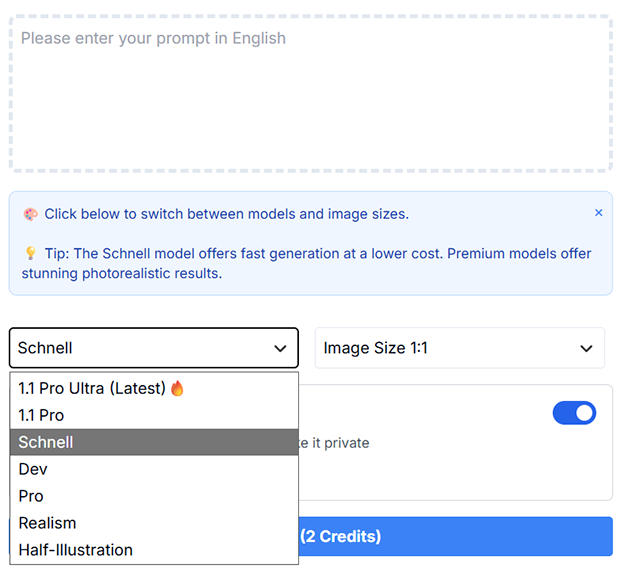
Schnell for Blocking Out Ideas
Schnell is built for speed, and the site itself describes it as the cheaper option. It’s the model to use when you’re figuring out the concept rather than producing the final plate.
Think of it as a digital mood board. You can quickly test whether a “warm concrete loft” or a “pale travertine bathroom” suits the product before spending premium credits. The texture detail is softer than the Pro models, so I wouldn’t composite a Schnell output into anything a client will see at full size.
Pro and 1.1 Pro for Standard Deliverables
FLUX.1 Pro and its successor, FLUX 1.1 Pro, are where surfaces start to look like actual materials. Wood grain, brushed metal, linen, and stone are the kinds of textures the Flux family is known for rendering convincingly.
The limitation here is size. The site’s own FAQ puts the original FLUX.1 models at between 0.1 and 2.0 megapixels, which is fine for social posts and website banners but thin for anything else.
1.1 Pro Ultra for Final Plates
This is the model most photographers will want to live in. According to Black Forest Labs’ announcement, Ultra mode generates images at up to 4MP, four times the resolution of standard FLUX1.1 [pro].
Four megapixels is a big step up, but keep it in perspective. Many cameras shoot at 24MP or more, so 4MP will still be the lower-resolution layer in almost any composite.
For most traditional e-commerce listings and web images, that’s usually enough. For print or a tight crop, you may need to run the plate through an upscaler first and possibly even blur it.
Here’s the prompt I used and the image I got as a result: “Oak surface with window light from camera left. Make the surface a table in a relatively empty cottage room. Create small decorations around the edges.”
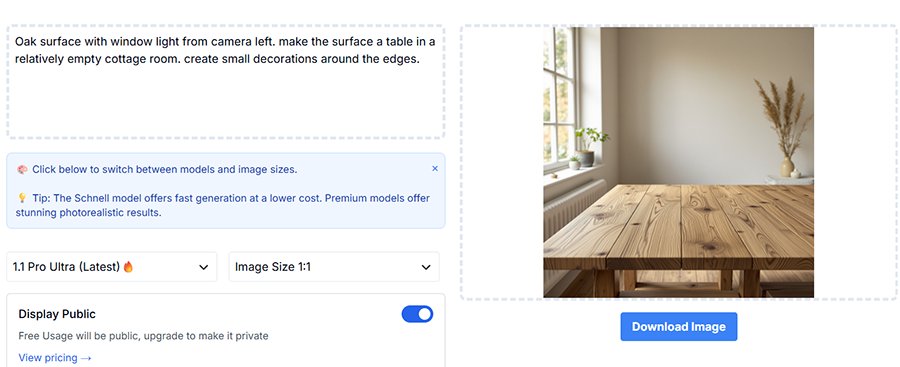
While I’d prefer a full cottage feel without the radiator, the aspect ratios, the textures, and the “look” of the wood are all relatively good.
One area that the AI does tend to fail is small details, for example, the table having seemingly random horizontal beams that aren’t consistent with one another. This is fairly fixable, and since it’s at the edge of the image, you can always cut it out.
But regardless of this, the tool creates highly photorealistic imagery.
What is missing, though, is a specific “Raw” mode that Black Forest Labs (the model developer) has on its native platform, which should create an even more candid photographic look.
Additionally, while the platform offers Flux.1, Black Forest Labs also has FLUX.2 and FLUX 3, which are newer model generations with different capabilities; it’s obvious that what you’re getting is a lighter, budget-friendlier version designed for everyday use.
The Realism Model
The site describes Realism as a LoRA Realism (or simply LoRA) aimed at lifelike scenes and portraits. For backdrops, it can help take the edge off the glossy “AI look,” so it can be worth running your final prompt through both Realism and Ultra and comparing.
Half-Illustration, as the name suggests, blends photography with illustration elements. It has no place in this workflow.
Prompting Tips
Generating a nice-looking room is easy, but it will usually come with way too much decor. Generating a room your product can believably sit in is a different skill. The prompt also has to describe the camera and the light.
Seamless Sweeps and Studio Backdrops
Honestly, this is where Flux is least necessary. If a client wants a clean white or colored sweep, a roll of paper and a couple of lights will beat any generated image. Our guide on pure white backgrounds for product photography covers that approach in detail.
Where generation does help is with textured studio backdrops, such as hand-painted canvas, mottled “old master” styles, or colored gradients you don’t own. Describing the backdrop as “hand-painted canvas backdrop, soft falloff, out of focus” tends to give you something that reads as a real studio surface rather than a flat texture.
Tabletop and Surface Plates
Product photographers will get the most use of generating plain surfaces like a slab of marble, a rustic table, or a bathroom shelf. The trick is to generate the surface with nothing on it and with a clear, empty spot where your product will go.
Be specific about camera height and angle. “Eye-level view, straight on” and “45-degree high angle” produce very different horizon lines, and your product shot needs to match whichever one you pick. If your angle doesn’t match, no amount of shadow painting will save the composite.
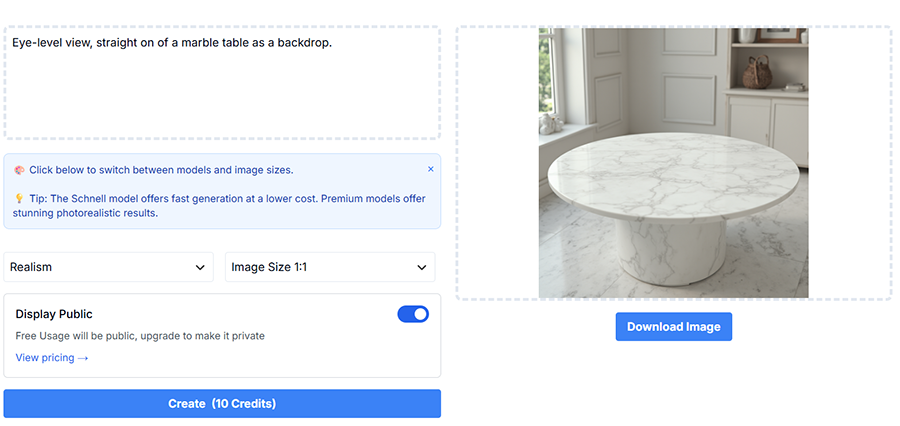
For example, this is one of the few images where I actually got the table in its entirety. Usually, eye-level prompts will provide something more similar to my test with the wooden table above.
Environmental and Lifestyle Plates
Kitchens, living rooms, patios, and outdoor settings are where Flux shows off its detail. They’re also where you should be most careful.
You’ll need to describe the light source and direction (“soft window light from camera left, late afternoon”) and make sure it matches how the product was lit during shooting. Mentioning shallow depth of field or a specific focal length also helps, but the AI isn’t particularly good at creating it.
The tool does have a link to a Prompt Generator, which expands short ideas into longer, more descriptive prompts. It’s a reasonable starting point, but do note that it tends to add stylistic flourishes which can create objects where you don’t need them.
Where Flux.1 Falls Short for Compositing
The images themselves can look excellent. The problems show up at the stage where you actually need to use them.
The biggest one is that you get a flat image and nothing else – there’s no depth map, no separate shadow layer, and no way to relight the scene afterwards. If the generated window light comes from slightly the wrong angle, your only option is to regenerate and hope, or relight your product to match.
Perspective is the second headache. Text prompts describe camera angles loosely, so the plate’s horizon and vanishing points will rarely line up with your product shot on the first try, which means you can expect to generate several variations for every plate you keep.
Third, there’s no way to edit an image you almost like, so the only option is to change the prompt and hope for the best. Otherwise, if one corner looks off, you’ll need to fix it in Photoshop yourself.
Finally, watch the background props. Generated bottles, books, and packaging in the scene may carry garbled or accidentally brand-like text.
Privacy and Usage Concerns
On the free tier, generations are public, so much so that the Create page even has a toggle that you can’t turn off until you subscribe to a paid plan. If you’re prompting for an unreleased product launch or a client’s campaign concept, that alone rules out the free credits.
The site’s FAQ does not clearly explain the licensing terms for generated images. The Privacy Policy and Terms of Use also seem to be the same relatively barren document, and there’s also no real mention of what happens with the images the AI generates.
The fact that you can download an image does not by itself establish commercial-use rights, so check the site’s current terms before using generated images commercially. Just make sure to double-check that the website’s terms haven’t changed and that the client is OK with generated imagery.
Pricing
Flux1ai.com uses a relatively common credit system with three paid tiers.
The Starter plan gives you 500 image credits for $6.90 per month, Premium gives you 2,000 credits for $9.90 per month, and Pro gives you 8,000 credits for $27.90 per month (all paid annually). All three list the same perks, meaning access to all models, private generation, better image quality, and faster generation.
As far as image generation is concerned, the Pro Ultra costs 20 credits per image, while the Realism model costs 10 credits. This gives you 25 high-quality or 50 lower-quality images per month on the lowest tier, which should be fine for most photographers.
Signing in gets you a batch of free credits so you can test it out before you commit, but there’s no real way to renew them beyond using different email addresses or actually paying a subscription.
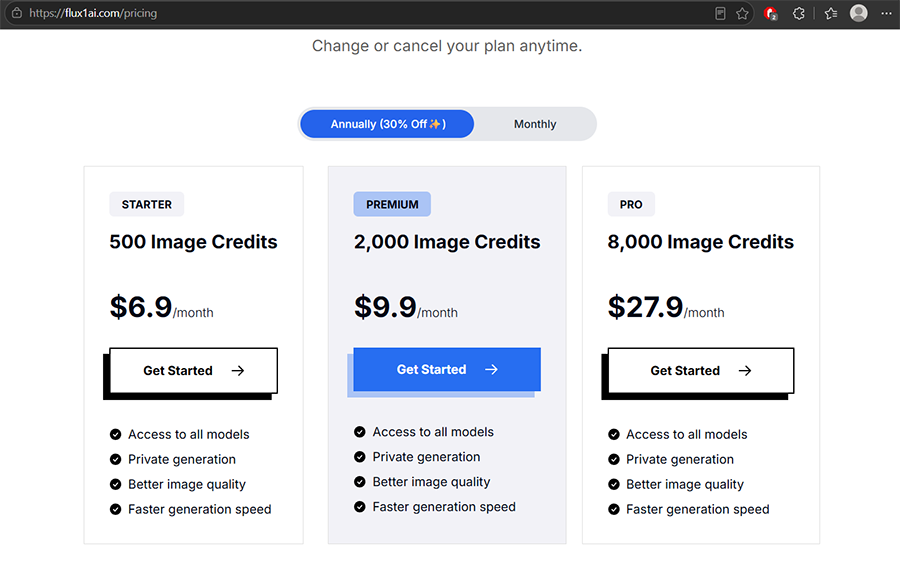
Given how many variations a single usable image can take, the Premium tier might be a good long-term choice. The jump from 500 to 2,000 credits costs only $3 more. However, I’d still suggest trying the tool out for a month on the lower tier.
Who Is Flux.1 AI For?
Flux1ai.com makes the most sense for product and e-commerce photographers who already composite regularly and want a cheap, fast source of background plates for web-sized deliverables.
If you’re comfortable matching perspective, painting shadows, and upscaling, the Ultra model gives you believable surfaces and environments for a fraction of what a set build or location rental would cost.
It’s a weaker fit if you need an all-in-one background replacement tool. There’s no upload, no masking, and no inpainting here, so you can’t just drop in a product shot and get a finished image back; you’ll be better served by dedicated product photography apps.
However, since it doesn’t really solve the entirety of the workflow, it can be a bit more cumbersome to use when you want actual results.
More: The No-Studio Photoshoot: A Review of Nightjar AI for Consistent E-Commerce Catalogs


