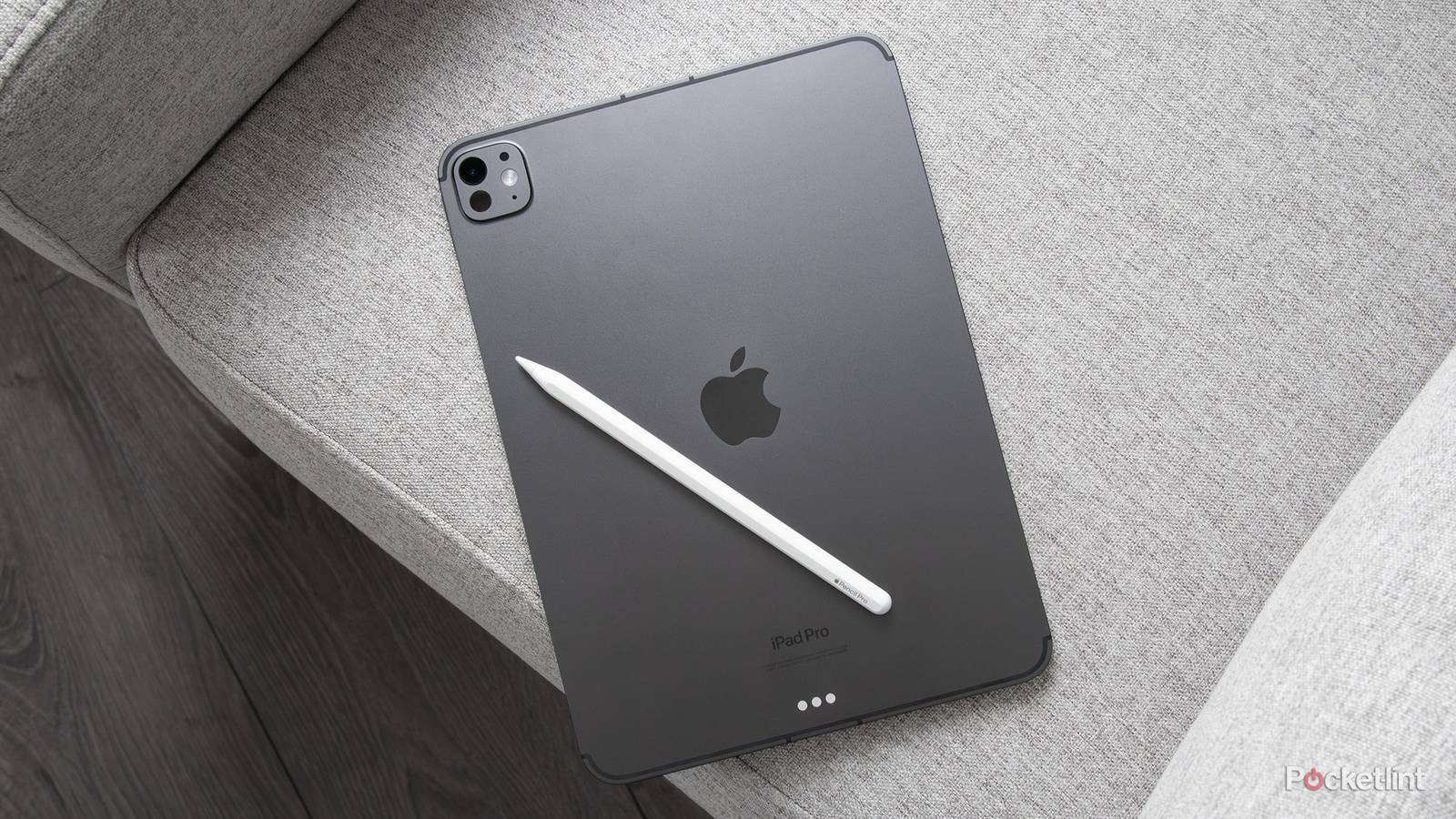
Strictly speaking, you can use any iPad out of the box. Unlike iPhones, iPads still ship with power adapters, so no additional accessories are necessary. I’d even encourage you to try a naked iPad to see if you can get away with it. The practical reality, however, is that most of you will at least want a case, since an 11- or 13-inch tablet is just as easy to drop as a 6.3-inch smartphone.
If you want to go further, there are any number of strategic upgrades you can make. Some can be surprisingly expensive, but they don’t have to be. In fact I’m going to concentrate on products that are within the realm of reason, if still luxuries for the average person.

- Brand
-
Apple
- Storage
-
256GB, 512GB, 1TB, 2TB
The Apple Magic Keyboard or Brydge Max
Cut your accessory prices, Apple

For most people, a combination keyboard/trackpad case is the most practical upgrade. A dedicated keyboard is far more efficient than touchscreen typing, which is slow, awkward, and robs you of visible content. A trackpad might seem less essential, but there are times when tapping and swiping just aren’t precise enough.
There are two high-end options I’d suggest at the moment, the most obvious being Apple’s Magic Keyboard. This floats your iPad on an adjustable stand, and you can quickly remove your iPad at any time if you just want to browse the web or watch a video. Its best tricks, however, are that it supports USB-C passthrough charging, and pairing using the Smart Connector instead of Bluetooth. The latter means you can start typing instantly, and removes the need to charge the keyboard separately.
The Brydge Max does require Bluetooth and doesn’t offer passthrough charging, but makes up for it in a few ways. For one, it’s cheaper. Whereas the iPad Pro version of the Magic Keyboard starts at $299, an equivalent Max is $249. Brydge’s case is also all-aluminum, making it both durable and less prone to tipping over. Finally, the Max’s hinge rotates up to 270 degrees, which may be useful for art and presentations.
A Thunderbolt display
Turn your iPad into a complete workstation

Initially I was going to include a regular Thunderbolt dock here, since those can be pricey enough. It occurred to me, though, that the usual incentive to buy a dock is setting up a desktop workstation, and you can cut out the middleman by buying the right monitor. You do need an iPad Pro, which at the moment is the only model that supports Thunderbolt 4 — but thanks to that technology’s daisy-chaining features and 40Gbps of bandwidth, a compatible monitor can support all the devices you might want to hook up. The Dell U2725QE, for example, includes a full eight USB ports, plus 2.5Gbps Ethernet and other options.
Connecting a monitor to any iPad with an M-series processor lets you extend your homescreen, making it possible to run more apps simultaneously, often at larger window sizes. This isn’t crucial if you’re just checking email while listening to Spotify — but if you’re editing video, or like to have research material up while you write, even a 24-inch display is going to provide a massive improvement over 11 or 13 inches.
A high-quality gamepad
All work and no play makes Jack a dull boy

Apple has long neglected gaming, going as far back as when it let Microsoft steal Halo away from the Mac. That said, there are still plenty of good games available for the iPad, ranging from Balatro and Stardew Valley to Blasphemous and Resident Evil 8. Most titles worth playing will benefit from the quick response possible with a gamepad, and some are effectively impossible to control without one.
Apple itself often steers people towards the Xbox Wireless Controller or the Sony DualSense, but those are hardly your only options. 8BitDo offers the excellent Ultimate 2.4G and 2 Wireless. Perhaps the most extreme choice is the Razer Kishi V3 Pro XL, which connects via USB-C and snaps around any 11- or 13-inch iPad. The main drawbacks, apart from its $200 cost, are that you have to hold your iPad to play, and that you can’t easily connect it to other gaming devices.


