Each day, businesses generate massive amounts of unstructured data, such as PDFs, images, email, customer feedback, and medical reports. But knowing data exists isn’t enough. You need to find it, access it, and extract answers from it fast. In Part 1 of this series, you saw how to set up the producer side of the pipeline: using Amazon Textract and Anthropic Claude on Amazon Bedrock to extract and enrich metadata, and then publish those enriched assets to Amazon SageMaker Catalog so your organization can discover them.
In this post, you take the next step: the consumer side. You sign in as a data consumer, search for and subscribe to the enriched unstructured data assets, and then query them using two approaches. The first is a no-code chat agent for natural language queries. The second is Amazon Bedrock model inference for programmatic access. By the end of this post, you will know how to unlock the business knowledge inside your unstructured data and make it available to analysts and application engineers alike.
Solution overview
This post continues the two-part series architecture, where Amazon SageMaker Catalog acts as the central hub connecting data producers and consumers through a publish-subscribe model.
The consumer workflow picks up after the producer has enriched and published the unstructured data assets. As a consumer, you will:
- Sign in to your SageMaker Unified Studio consumer project and search the catalog using keywords from the enriched metadata README.
- Subscribe to the published Amazon Simple Storage Service (Amazon S3) asset and get the subscription approved by the producer.
- Interact with the subscribed data through two options:
- Option 1 – A no-code chat agent for natural language queries (NLQs), ideal for data analysts and business users.
- Option 2 – Amazon Bedrock model inference for programmatic NLQ integration, suited for application engineers building data-driven applications.
The following diagram illustrates the consumer workflow in this solution. The consumer (1) signs in to SageMaker Unified Studio, (2) searches the Amazon SageMaker Catalog for enriched unstructured data assets using keywords from the AI-generated metadata, (3) subscribes to the S3 data asset and receives approval from the producer, and then (4) queries the data using either the Amazon Bedrock chat agent app (Option 1) or Amazon Bedrock model inference through a Jupyter notebook (Option 2).
With both a no-code and a programmatic path, consumers across different roles, from analysts to engineers, can query data in the way that fits their workflow, while the SageMaker Catalog approval workflow maintains governed access throughout.
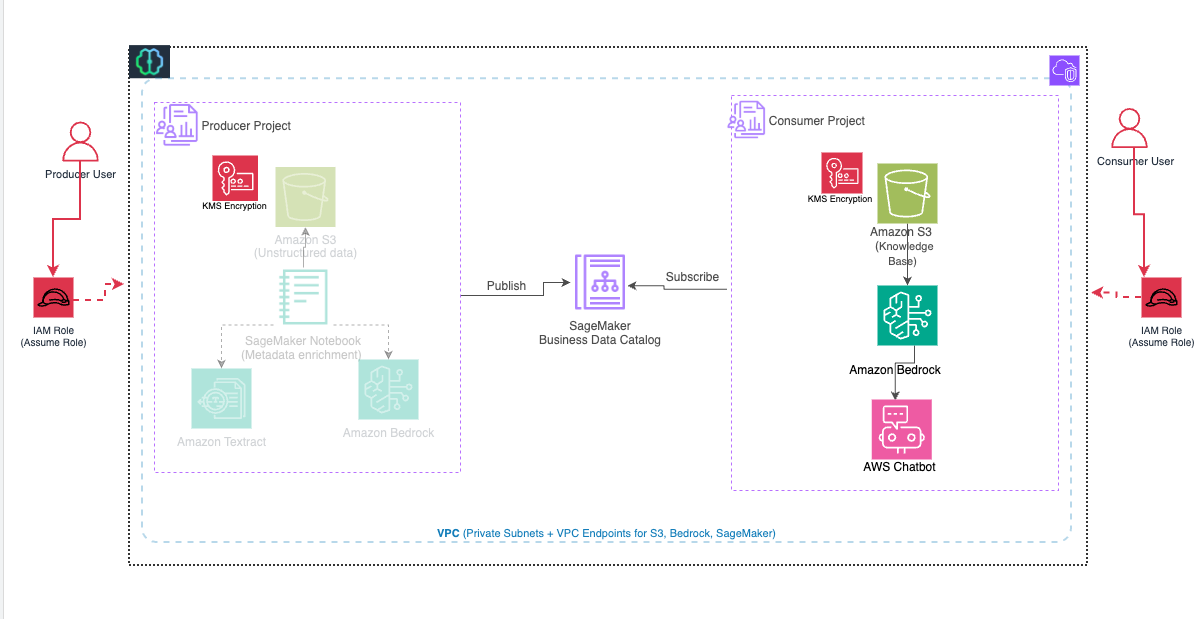
Figure 1: Consumer workflow for the publish-subscribe solution
Prerequisites
Before you begin, make sure you have completed all steps in Part 1 of this series, including:
Consume published data from the consumer project
In this section, you sign in as a consumer user in the SageMaker Unified Studio consumer project. You then subscribe to the S3 bucket by searching for a keyword that is part of the README published in Part 1.
- Sign in to the consumer project and search for the keyword
emergency, which was added to the README file during publishing. The search returns the enriched asset that the producer published in Part 1.
Figure 2: Catalog search results for the emergency keyword
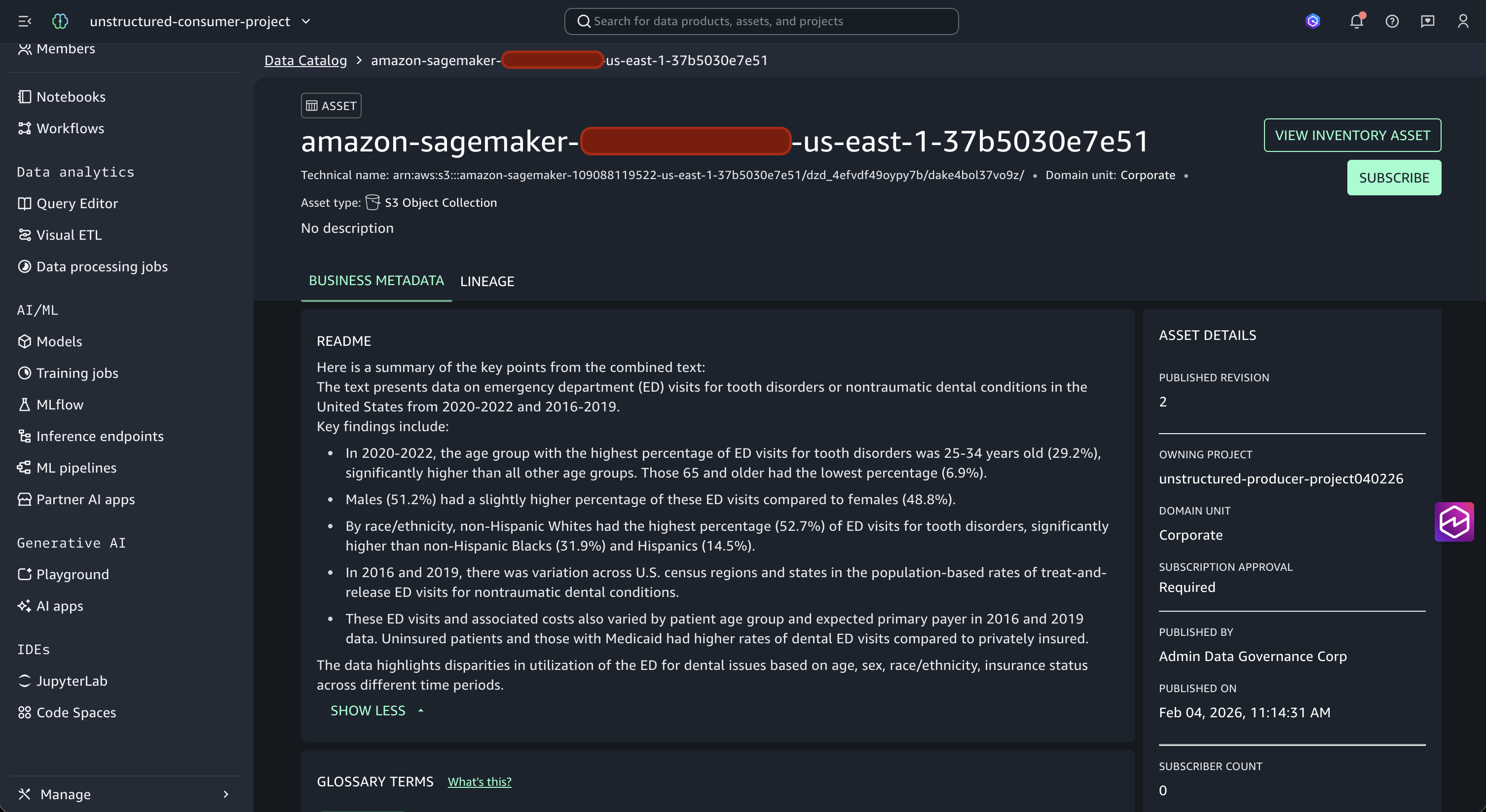
- Choose the asset from the results to view its details, including the AI-generated business metadata, glossary terms, and README content. Then choose Subscribe.
Figure 3: Asset details with AI-generated metadata and the Subscribe option
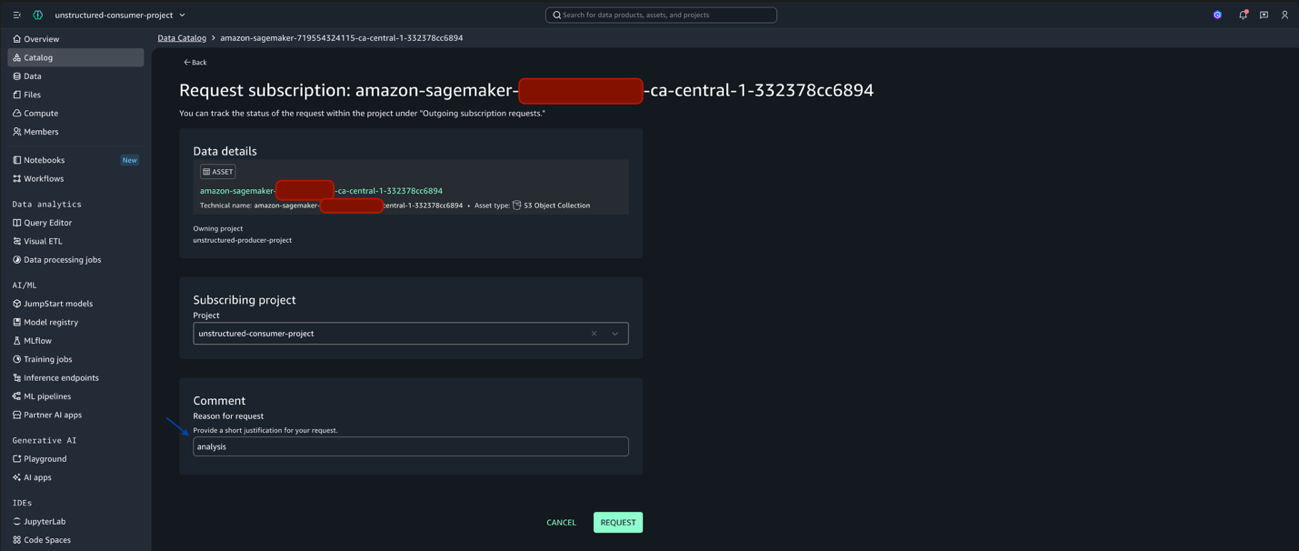
- Enter
analysisas the Reason for request in the Comment section, then choose Request.
Figure 4: Subscription request with the reason for request entered
- Sign back in to the producer project (
unstructured-producer-project) to approve the subscription request. - After approval, return to the consumer project and confirm that the subscribed asset now appears under Manage, Assets, Subscribed assets.
Figure 5: Approved subscription under the Subscribed assets tab

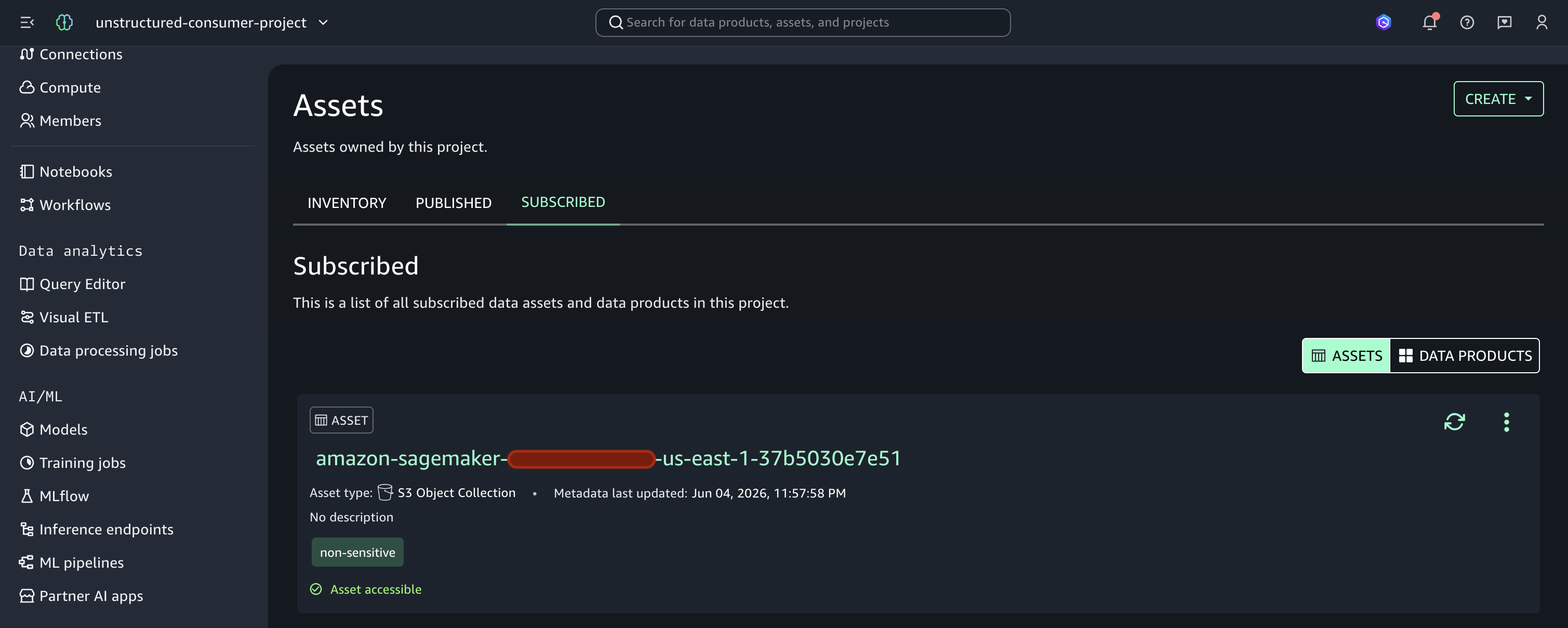
With the subscription approved, you can now access the enriched unstructured data through two approaches.
Option 1: As a data or business analyst, you can use the Amazon Bedrock chat agent app for natural language queries.
Option 2: As an application engineer, you can use Amazon Bedrock model inference for programmatic natural language queries.
Let’s explore both options.
Option 1: Amazon Bedrock chat agent app
The Amazon Bedrock chat agent app gives you a no-code, conversational interface to query your enriched unstructured data using natural language. As a data analyst or business user, you can ask questions in plain English. You get answers grounded in the documents your organization has ingested, without writing any code. For production workloads, especially in sensitive domains such as healthcare, you can apply Amazon Bedrock Guardrails to add content filtering and grounding validation to your model responses.
Data scientists and application engineers can also extend these capabilities by integrating the chat agent app APIs into custom applications, so users can interact with unstructured Amazon S3 data programmatically.
To set up the Amazon Bedrock chat agent app on your subscribed dataset, complete the following steps.
Prerequisite: Add the S3 data location.
Before creating the chat agent app, you need to add the S3 location of your subscribed data as a registered location in your project.
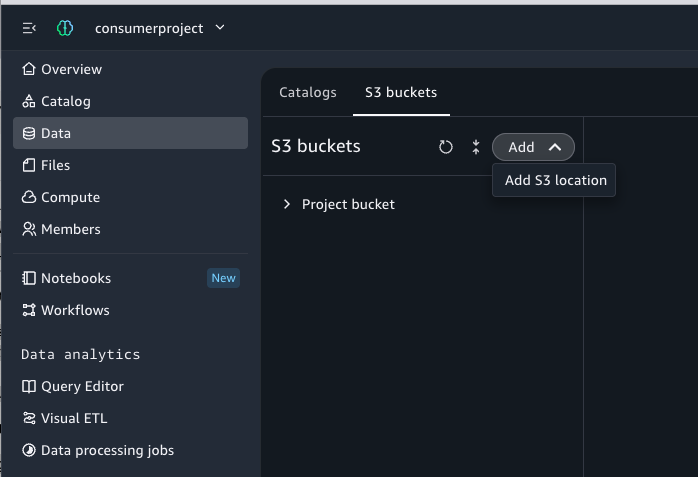
- Choose the Data tab in Overview.
- Choose the S3 bucket, and then choose Add to add the S3 location.

Figure 6: Adding the S3 location from the Data tab
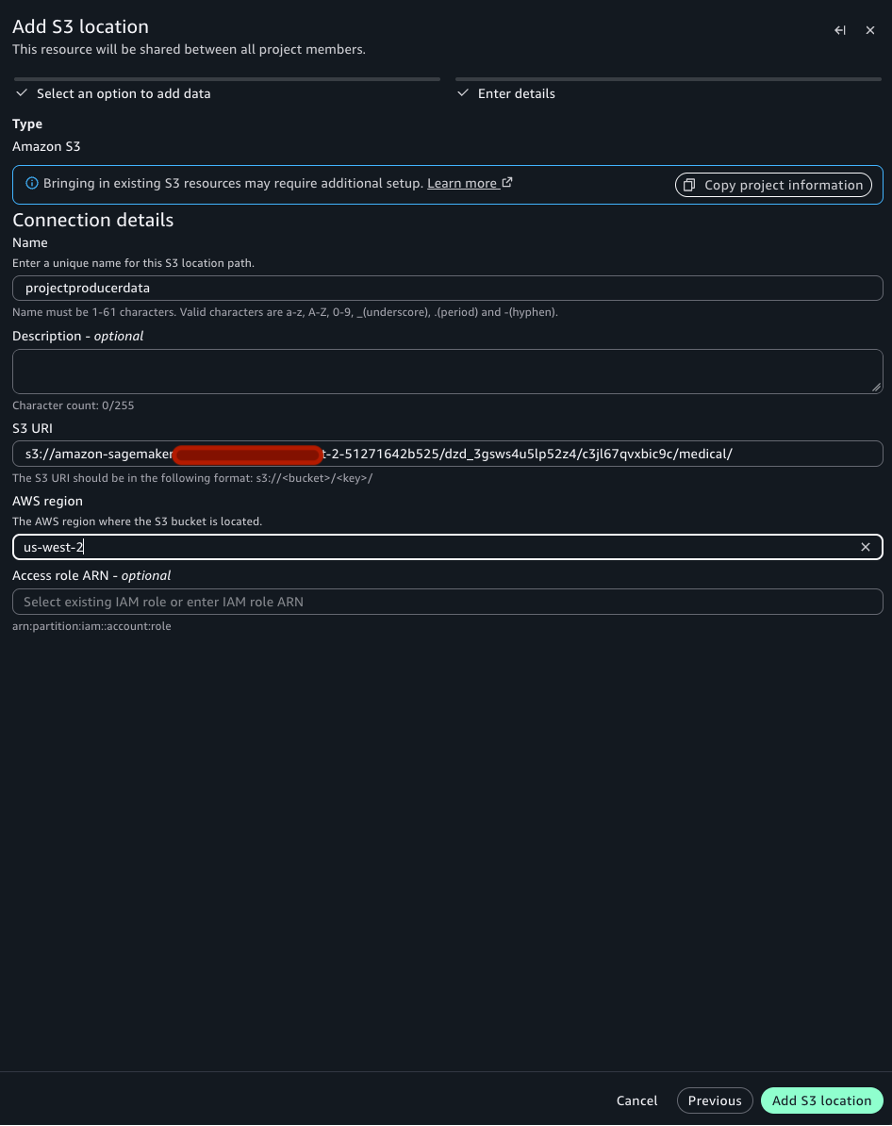
- On the S3 location page, provide the following details:
- Add a name:
producerprojectdata. - Add the producer’s S3 path as a new S3 location:
s3://amzn-sagemaker-bucket-<domain-id>-<project-id>/medical/.
Note: You can get the S3 location details from the technical name of your subscribed asset.
- Choose the AWS Region, and then choose Add data to add this as a new location.
Note: Make sure the AWS Region you select supports the Amazon Bedrock foundation models used later in this post. For a list of available models by Region, see Supported Regions and models for Amazon Bedrock.
Figure 7: S3 location details and AWS Region selection
Note: Make sure to select only the PDF files within the S3 path for the data source.
Figure 8: Selecting the PDF files as the data source
- Add a name:
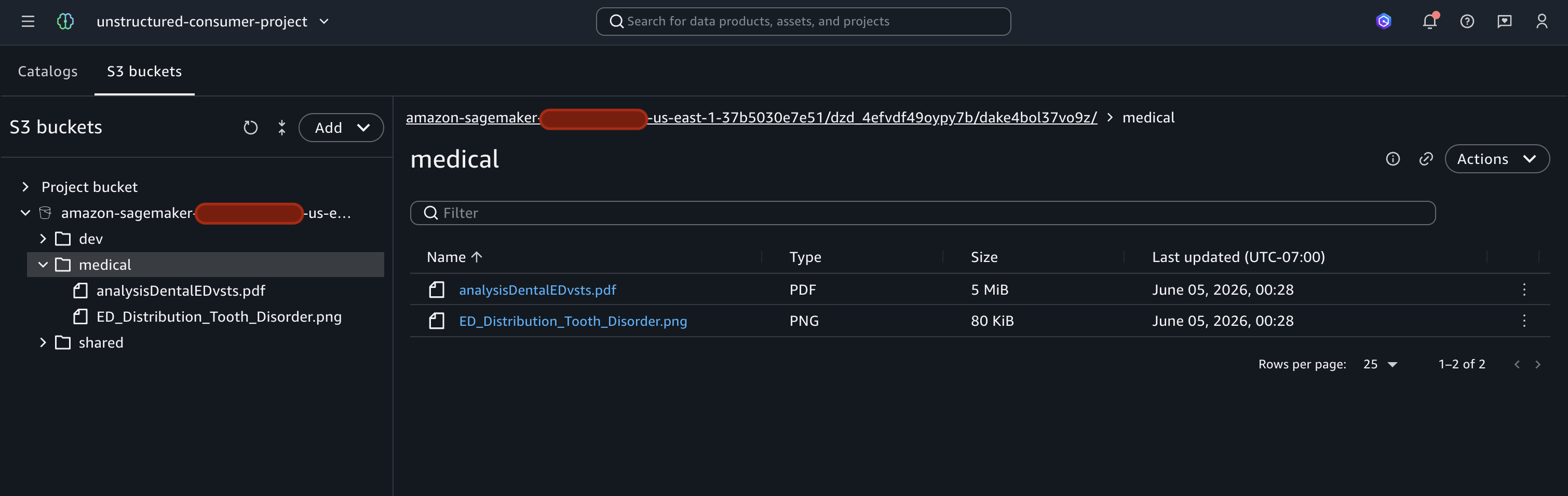
After the location is added, it appears as a selectable S3 location when creating a knowledge base in AI Apps.
Complete the following steps to configure the chat agent app:
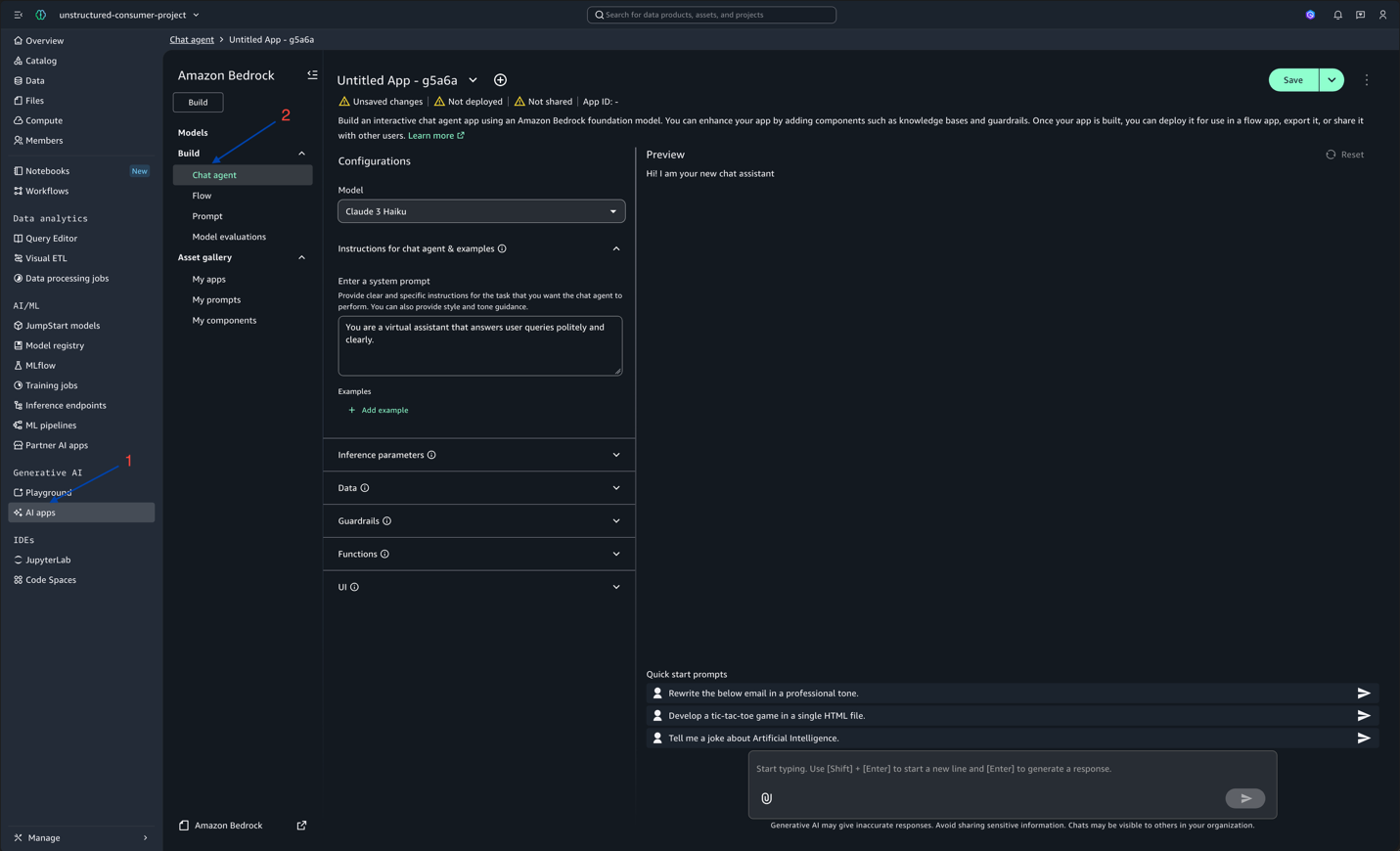
- In the left navigation pane, under Generative AI, choose AI Apps.
- In the Build section of the page, choose Chat agent.
Figure 9: Choosing Chat agent in the AI Apps Build section
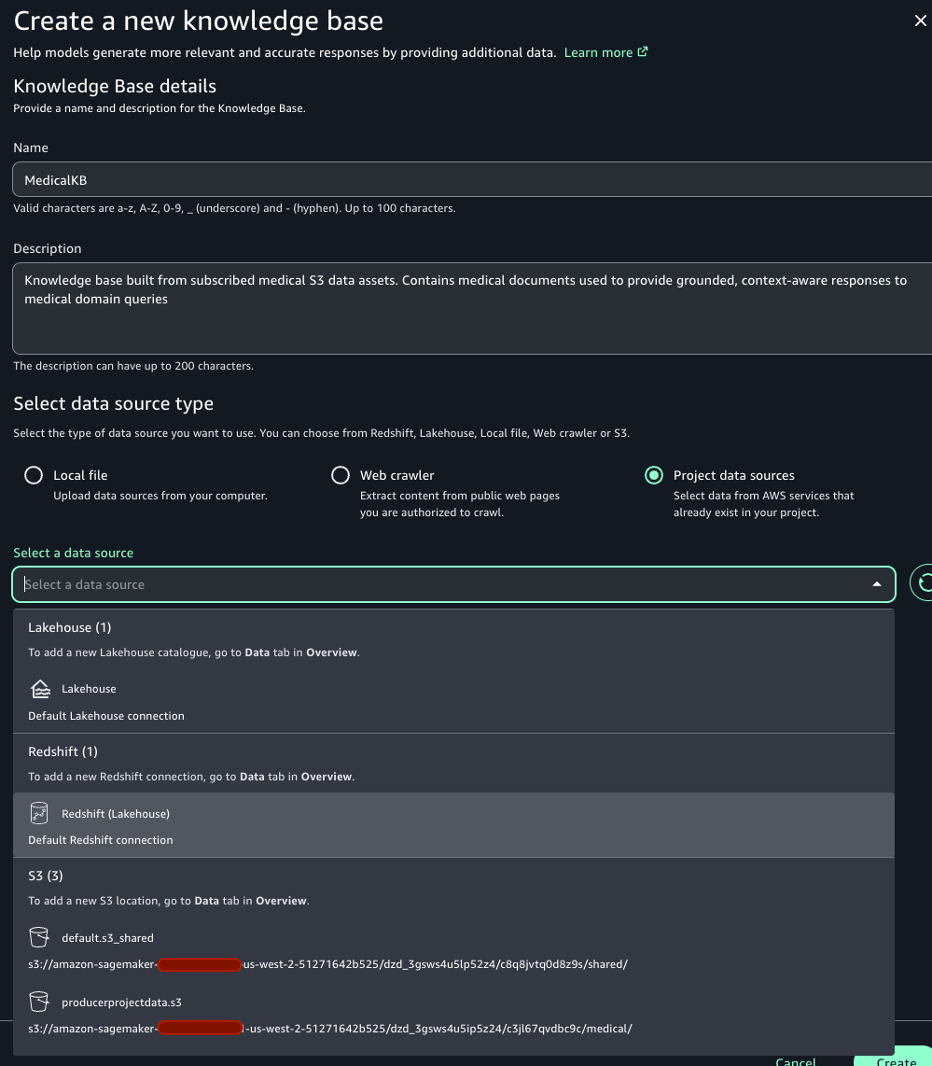
- Expand the Data tab to create a knowledge base with your S3 bucket. On the Create a new knowledge base page, enter the following:
- Add a name:
MedicalKB. - Add a description:
Knowledge base built from subscribed medical S3 data assets. Contains medical documents used to provide grounded, context-aware responses to medical domain queries. - Choose the data source. You will see the S3 bucket that you added in the previous step.
Figure 10: Creating the MedicalKB knowledge base from the S3 data source
- Add a name:
- Choose your embedding model. You can leave the default settings and choose Create. It might take 10–15 minutes to create the knowledge base, depending on file sizes.
- After the knowledge base is created, on the Chat agent page:
- Choose your preferred model from the Model menu (you can switch between different large language models as needed).
- Under Data, choose your published S3 bucket as the knowledge base.
- Begin interacting with the agent by entering questions in the Enter prompt field.
Figure 11: Chat agent page with the model and knowledge base selected
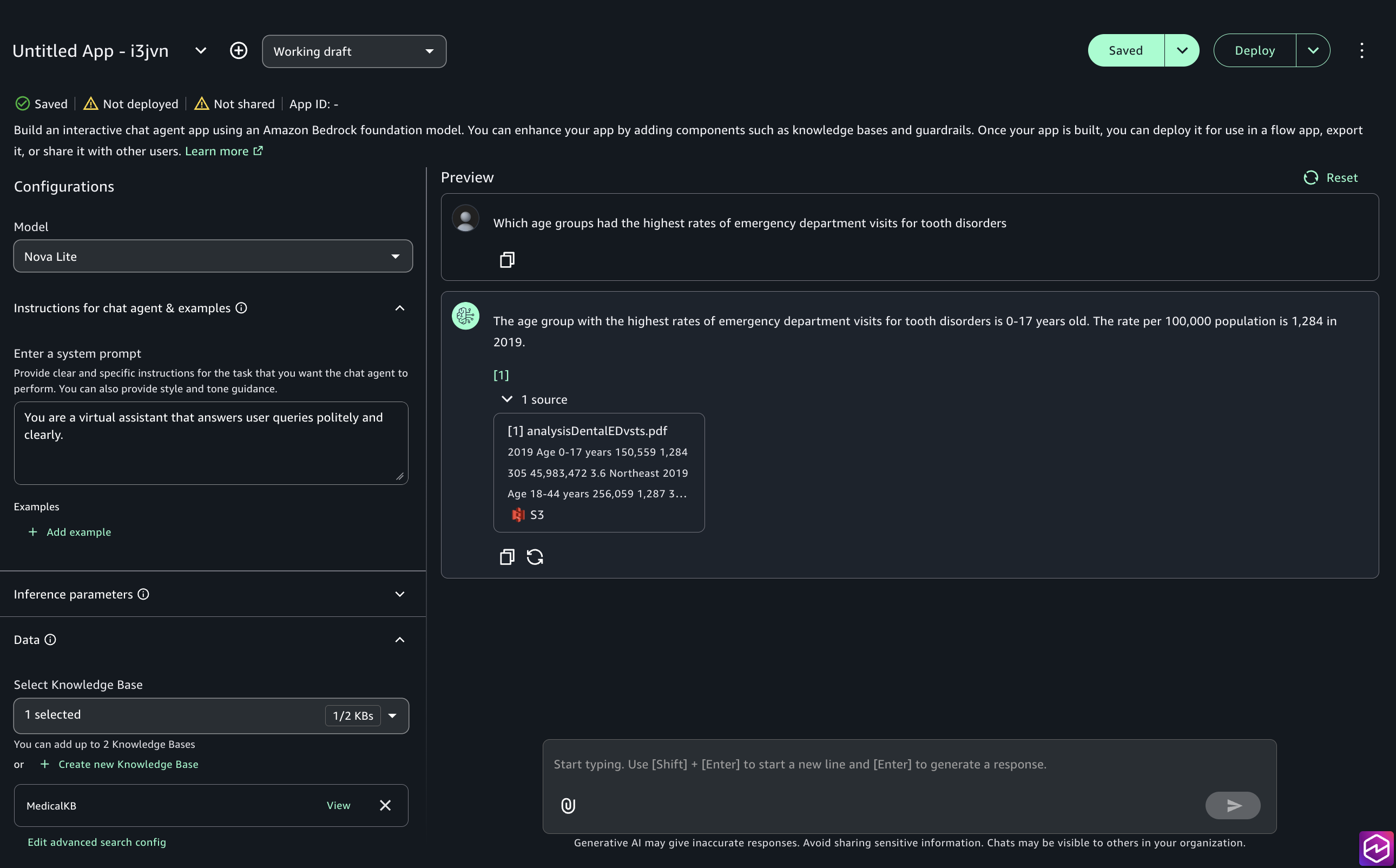
For example, entering “Which age groups had the highest rates of emergency department visits for tooth disorders?” returns an answer grounded in the enriched dental dataset published in Part 1.
The chat agent uses the enriched README metadata along with the underlying documents to surface contextually relevant answers. Analysts can explore unstructured content without needing to know where the data lives or how it’s structured.
Option 2: Natural language queries using Amazon Bedrock model inference
This option demonstrates how to use Amazon Bedrock model inference to query subscribed data using natural language. You can integrate this capability with external chat applications so users can run natural language queries through Amazon Bedrock.
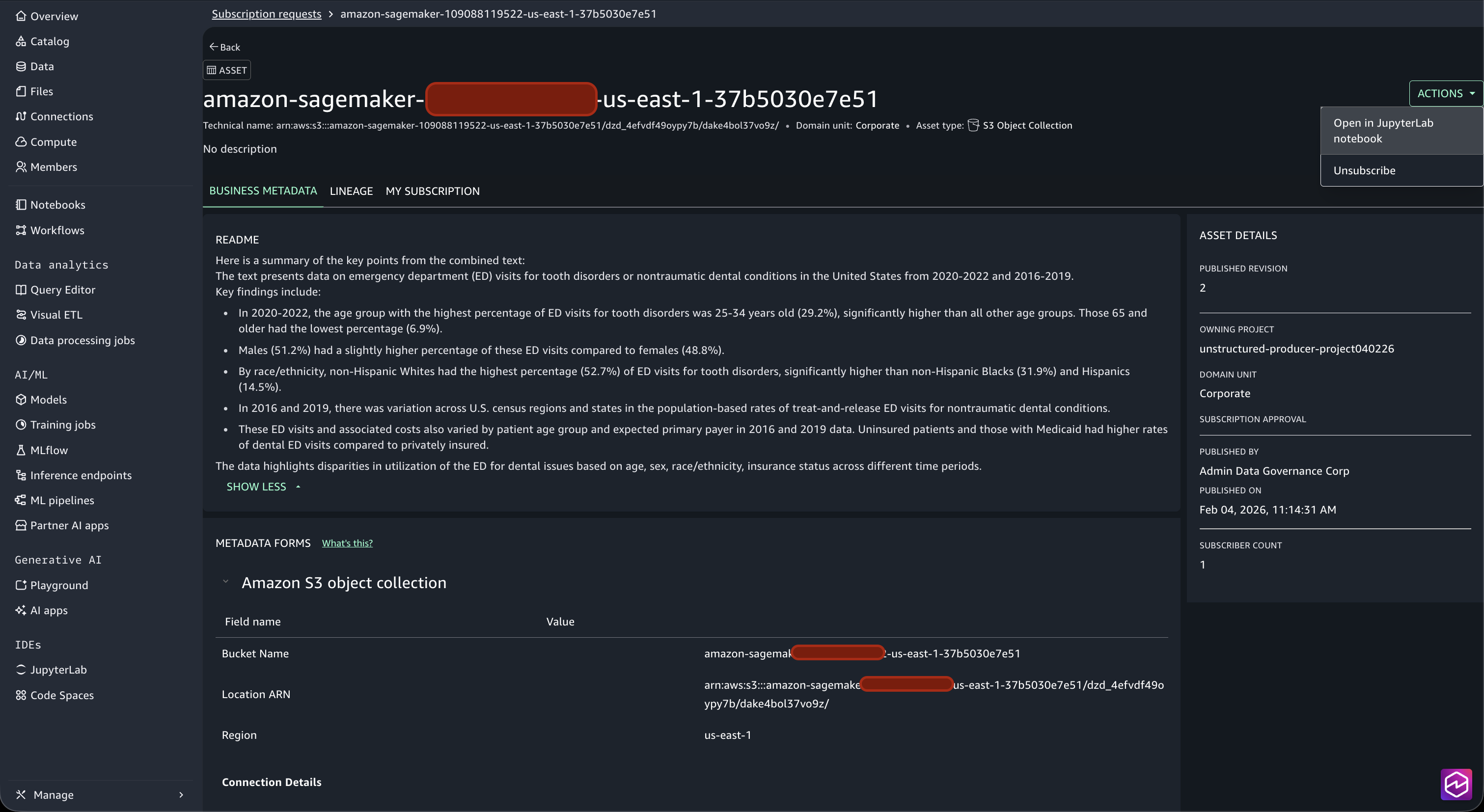
- In your consumer project, choose Manage, Assets from the bottom of the left navigation pane. On the Subscribed tab, choose your subscribed S3 asset. Under Actions, choose Open JupyterLab notebook.
Figure 12: Opening the JupyterLab notebook from the subscribed asset
- This opens the JupyterLab notebook environment. Upload the
s3_document_consumer_v2.ipynbnotebook and run all the cells. You can download the notebook from s3_document_consumer_v2.ipynb.Note: The project role requires permissions for Amazon S3, Amazon Textract, and Amazon Bedrock. If you followed Part 1, you might already have these policies attached. For details on the required policies and guidance, see the prerequisites in Part 1. - Review the notebook cells.
Figure 13: Sample question answered by Amazon Bedrock in the notebook
In the final cell, you find a sample question that Amazon Bedrock answers: “Which primary payer types (Medicare, Medicaid, private insurance, and so on) account for the highest proportion of dental-related emergency department visits?”
Amazon Bedrock processes the question against the enriched content in the S3 bucket and returns a grounded answer. You can replace this sample question with any query relevant to your documents.
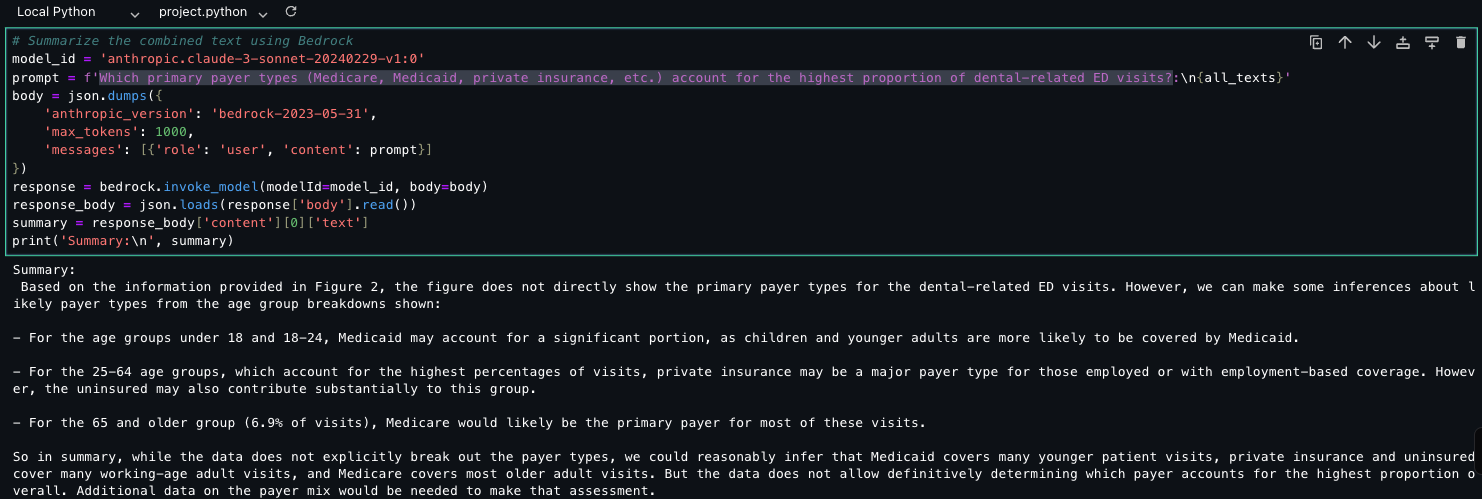
The Amazon Bedrock model inference approach gives you programmatic control, making it possible to embed natural language query capabilities directly into your existing data applications and business intelligence tools.
Clean up
To avoid ongoing charges, make sure to delete the resources used in this solution immediately after completing the walkthrough. The primary cost drivers are SageMaker Unified Studio notebook instances, Amazon Bedrock model inference calls, and Amazon S3 storage.
- Stop SageMaker Unified Studio resources:
- Close running notebooks.
- Stop running notebook instances.
- Shut down unused kernels.
Note: Running notebook instances continue to incur charges even when not in use.
- Clean Amazon S3 storage:
- Delete temporary files created during processing.
- Remove uploaded test documents that are no longer needed.
Note: Although Amazon S3 costs are minimal, large volumes of data can accumulate significant charges, so it’s best to remove unneeded data.
Conclusion
In this post, you saw how to consume and query the enriched unstructured data assets published in Part 1 of this series. By subscribing to assets through the Amazon SageMaker Catalog publish-subscribe model, you can discover, access, and interact with your organization’s unstructured data, whether through the no-code chat agent or Amazon Bedrock model inference.
Together, both parts of this series show you how to build a comprehensive pipeline that transforms raw unstructured documents into governed, queryable knowledge assets. The combination of Amazon Textract for extraction, Amazon Bedrock for intelligent summarization and NLQ, and Amazon SageMaker Catalog for governance and discoverability means your teams can focus on extracting business insights rather than managing infrastructure.
To continue your Amazon SageMaker journey, see the following resources:
About the authors


