AI image editors are on the rise, offering speed, ease-of-use, and convenience when compared to more conventional and complex programs, like Adobe Photoshop. Pincel AI is one such example. It’s a browser-based AI toolkit you can use to create and edit portraits, product pictures, and much more.
Pincel doesn’t claim to be a “Photoshop killer,” nor does it quite offer the same amount of depth or advanced features as Adobe’s market-leading photo editor. However, for quick fixes and easy edits, it could become your go-to solution.
Read on through my Pincel AI review to learn all about it, including features, pricing, benefits, and drawbacks.
What Does Pincel AI Offer?
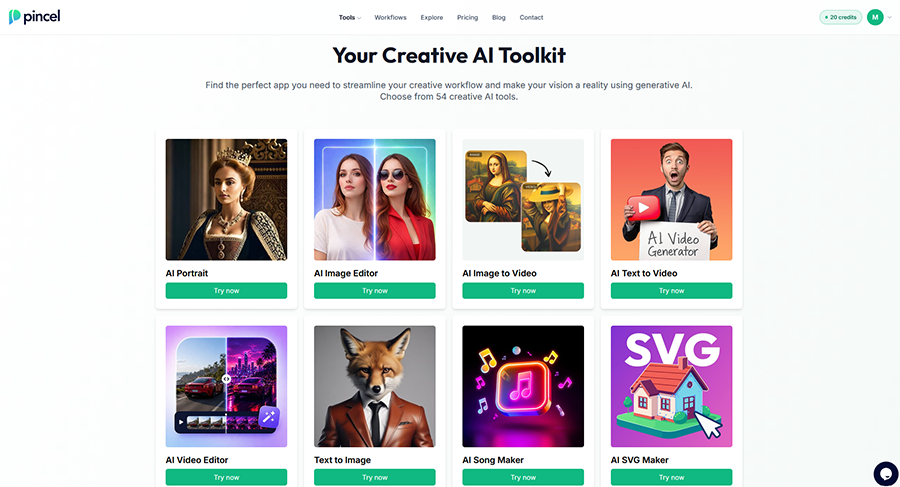
For those who aren’t yet familiar, Pincel AI is an AI-powered bundle of photo editing and generative tools you can access and use in your browser. You don’t need to download or install anything, and you can access this platform on a range of devices, from desktop computers to tablets and phones.
The platform currently offers more than 50 AI tools and has attracted over 1.5 million creators. It was designed primarily with brands, editors, and marketing agents in mind, but can appeal to a wide array of other users, from fashion enthusiasts to social media influencers.
Some of the tools featured on Pincel AI include the AI Portrait tool for generating studio-quality portraits or headshots from simple selfies, and the Background Remover, which (as the name indicates) can scan a picture, identify the background, and remove it.
Many users, however, will likely spend much of their time working with the AI Photo Editor, which lets you make almost any change imaginable to your pictures with the aid of AI. You can isolate subjects, change backgrounds, change the clothes a person is wearing, and so on, all through text prompts.
There are many other Photoshop alternatives similar to Pincel AI, but this one hopes to stand out for the diversity of its features, the fact that it can be accessed in a browser, and the relative simplicity of its design; it doesn’t bombard the user with dozens of different settings, preferring to keep things straightforward instead.
Key Features of Pincel AI
As mentioned, there are over 50 AI tools featured on Pincel AI. I can’t test and review every single one of them, so I will instead focus on a few of what I feel are the most important core features of the platform, like the AI Image Editor, to provide a general view of how it all works.
AI Image Editor
The first tool I was drawn to upon opening Pincel AI was the AI Image Editor. I wanted to see if it could compete with the kinds of editing software I’m used to working with, such as Photoshop, Canva, and Affinity Photo.
I wasn’t expecting anything too complicated, but even I was surprised to see just how simple this tool actually is. It simply invites you to upload an image and type out an AI prompt of what changes you want to make.
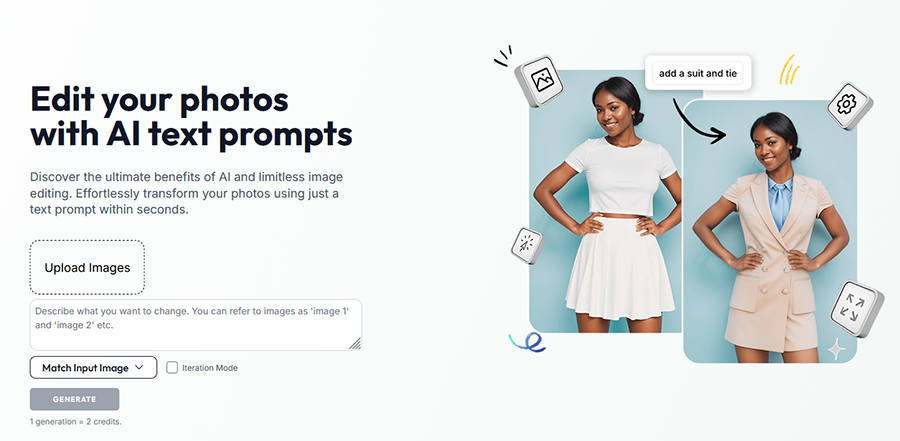
One of the other options available is a drop-down list of aspect ratios, including the usual options you would expect, such as 16:9, 1:1, or the option to simply match the aspect of the original picture.
To test out this tool, I uploaded an image of a happy couple on their wedding day.

I wanted to push the limits of what Pincel AI’s model could do, so I asked it to make the groom’s suit look a little sharper, with fewer visible creases along the back of his pants. I also requested that it change the bouquet in the bride’s hand to red roses.
Here are the results.
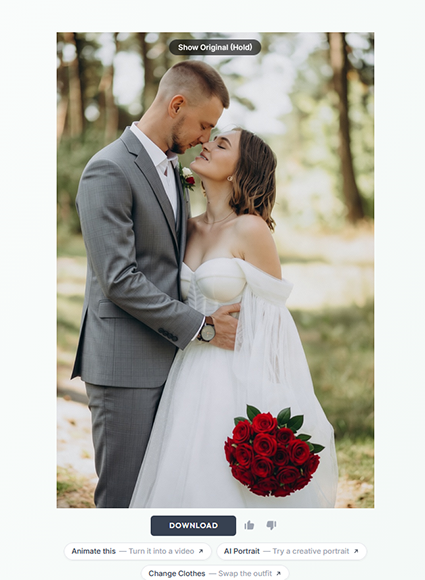
The bouquet looks good, and the groom’s suit is certainly sharper. The fact that this new image was generated in about 10 seconds is also a huge positive point about Pincel AI, as I’ve used other tools that take far longer to generate images or make changes.
However, there are a couple of issues here that would need ironing out. Firstly, the AI has decided to add a boutonnière to the groom’s suit jacket, which I didn’t ask for. The tone of his suit has also changed quite noticeably when compared to the original.
It’s still an excellent overall picture, but I would most likely need to try again with another prompt or feed this image into a separate tool, like Photoshop, to make more subtle changes.
Object Remover
The next tool I tested out was Pincel AI’s Object Remover. I’ve used similar tools on other sites to get rid of unwanted elements in my pictures, like power lines, pylons, trees, and buildings, and I’ve found that they generally work well, but results can vary depending on which AI model is used.
To verify Pincel’s potential, I uploaded this image of a field with a pylon standing right in the center. It’s a picture I’ve used in the past to test out object removers like this, since they can sometimes struggle to blend the sky in a consistent manner after getting rid of the pylon.
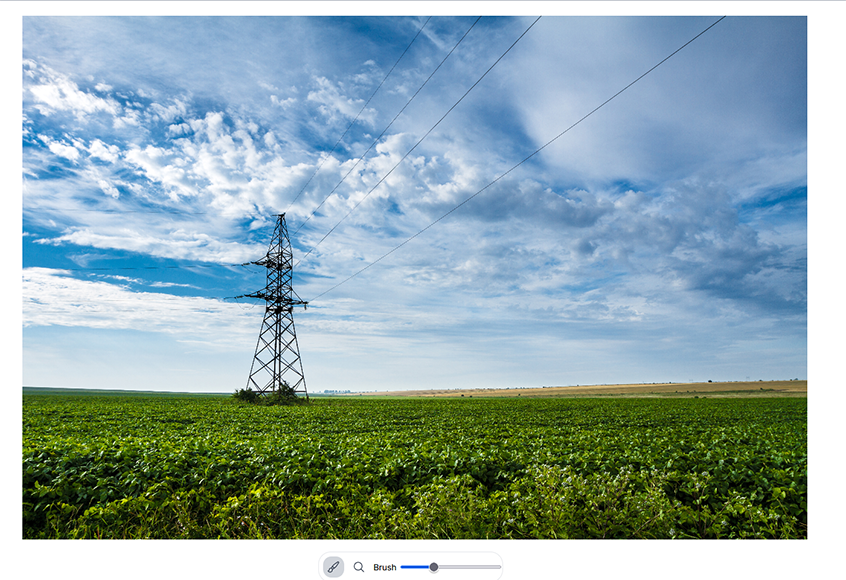
Like the AI Image Editor, the Object Remover is very intuitive. I simply had to upload my image and then use a brush tool to draw over the pylon. Once I was done, the AI took over and got to work removing the offending object. Again, this only took a few seconds, and I was soon presented with the results.
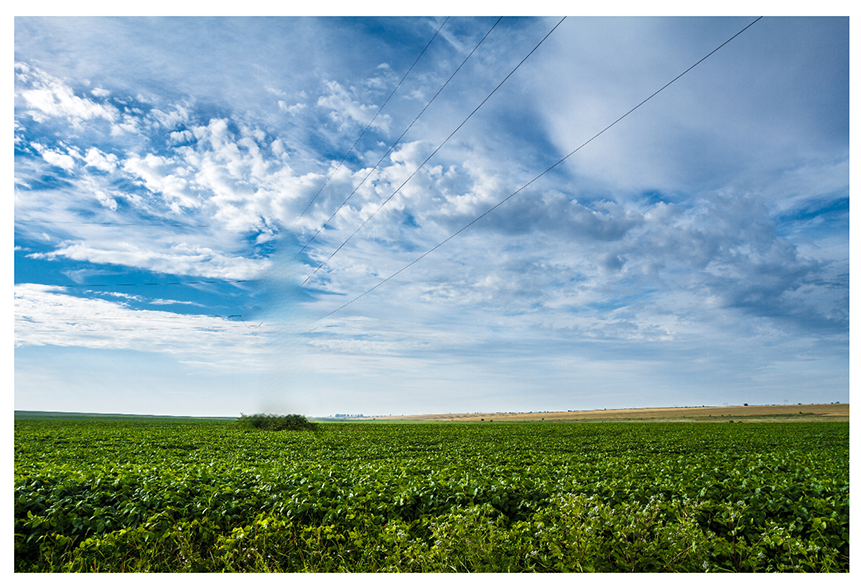
Unfortunately, I wasn’t too pleased with this picture. The tool did manage to remove all traces of the pylon itself, but a few power lines are still visible in the picture, disappearing into the sky. The biggest issue, however, is the blurry shape that now appears where the pylon once was.
It’s distracting, and it doesn’t look natural at all, as the AI has clearly been unable to smooth out the sky and clouds in a neat and consistent manner. As a result, if I wanted to share or publish this picture, I would have to take it into another editor tool and make more deliberate, manual changes.
Product Photo Generator
Finally, to see if Pincel AI could be more useful for brands and marketers, as it was originally intended, I took a look at the Product Photo tool. This allows you to upload an image of a product and place it against a selection of backgrounds, upload your own background, or generate one using a text prompt.
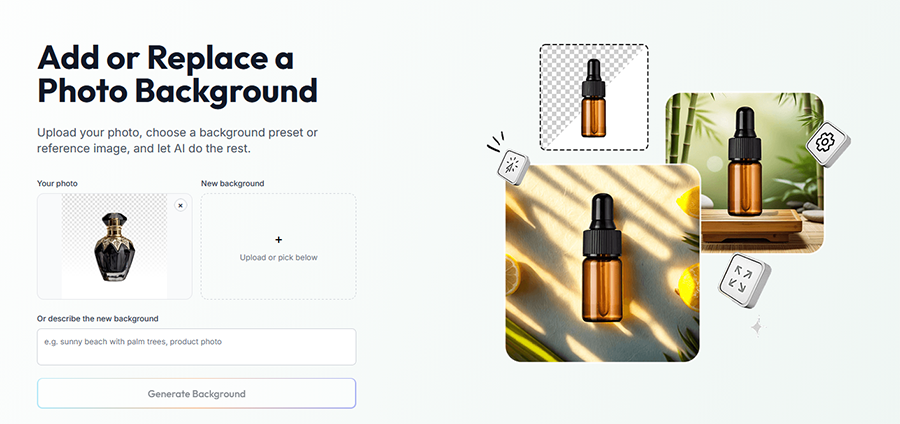
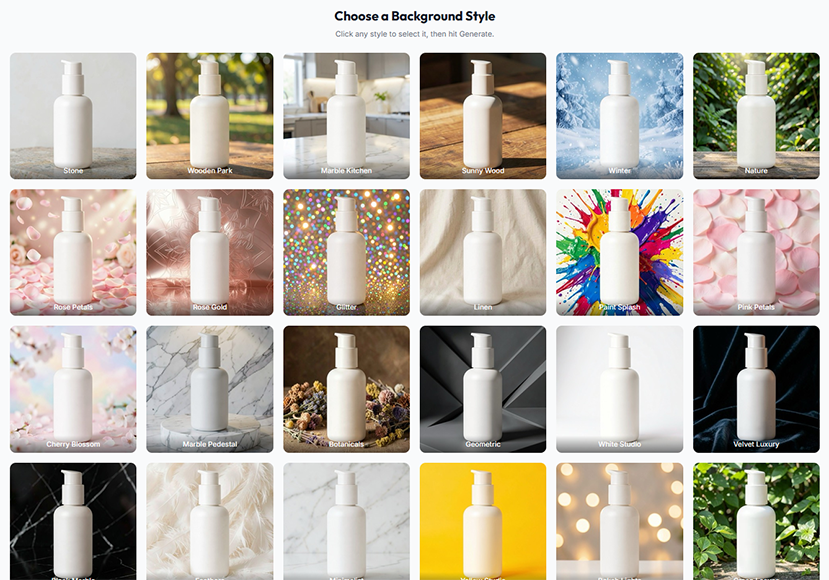
I uploaded an image of a black and gold perfume bottle, before scrolling down to select one of several dozen background styles.
From there, I only had to click the “Generate” button and wait a brief instant before my image appeared.

It’s neat, clean, and looks natural, as though the product was actually photographed in that setting. This, to me, suggests that Pincel AI is more effective for simpler tasks, like this, rather than more detailed edits, so it’s likely to have the most appeal to marketing agents or startups, rather than photographers.
Other Features
Along with the aforementioned features, Pincel AI offers:
- Image to Video: Bring a still image to life as a short animation.
- Text to Video: Create an AI video from a text prompt.
- Hair Studio: Experiment with different hairstyles using a simple selfie.
- Face Editor: Adjust face shape, skin tone, and fix imperfections with AI.
- Clothes Swap: Change the outfit of a subject.
There are dozens of additional tools and templates to work with for creating specific sorts of images or generating new AI content from scratch, and they all feature similarly sleek, intuitive interfaces and rapid processing times.
Pricing
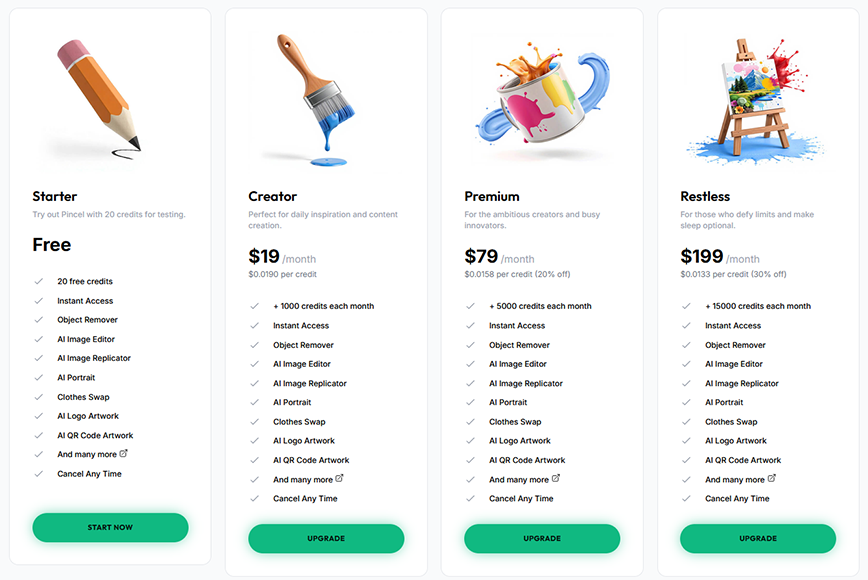
You can try many of the features listed above for free, but you’ll need a paid Pincel subscription for substantially more credits. The platform offers 20 free credits for testing its tools, with no credit card required. It’s a taster that allows you to use tools like the AI Image Editor and Object Remover.
For example, the AI Image Editor currently uses two credits per generation, although credit costs vary between tools. Once your initial 20 credits are gone, you won’t get any more without paying. Fortunately, the platform offers three different paid plans:
- Creator: This plan costs $19 per month and provides 1,000 monthly credits. That should be more than enough for casual use or even light professional edits, and Creators get access to the full suite of Pincel AI tools, including the Object Remover, AI Image Editor, AI Portrait, and more.
- Premium: The Premium plan gives you the same full level of access to Pincel AI’s features as the Creator plan, but provides a whopping 5,000 monthly credits for the price of $79 per month. It may be a good choice for small teams of photographers and editors, or event photographers.
- Restless: Finally, the most expensive plan of the trio is Restless, which costs $199 per month and provides 15,000 monthly credits. That works out at $0.0133 per credit, which is the best value of all three plans, and Restless subscriptions may work well for professional photo studios.
No matter which plan you opt for, Pincel AI makes it easy to cancel any time. This is a nice bonus, as I’ve used other sites that can make it much more difficult for users to end their subscriptions, which can be extremely frustrating.
The platform offers a money-back guarantee, too, with “no questions asked” refunds if you’re not entirely satisfied with your experience. Again, this is worth noting, as I have tested less scrupulous sites that aren’t as accommodating.
Unused subscription credits roll over into the next month as long as your plan remains active, while separately purchased credit packs do not expire. This is another feature I really appreciate about this site, as others will simply cancel out any leftover credits at the end of each billing period.
It’s worth noting, too, that Pincel is developed with a public roadmap and regularly takes user feedback into account when planning features and improvements. On top of this, the platform aims to keep all user data as safe and private as possible.
Those are the positives. But there are still a couple of negatives worth noting. For example, for around the same price as an entry-level Creator subscription, you could get quite a comprehensive Adobe plan, including Photoshop and Lightroom, so it’s not exactly the most affordable option on the market.
The more expensive plans have relatively high prices for what they offer, and I would have appreciated a little more flexibility. Pincel AI does allow users to buy one-off “credit packs,” but these, too, start at $19, and I would have preferred to see more affordable options for budget-conscious buyers.
The Final Verdict: Can Pincel AI Replace Photoshop?
Pincel AI cannot replace Photoshop entirely. It simply doesn’t have the same depth, complexity, or flexibility. However, as I mentioned earlier, this platform was never designed as a Photoshop killer; instead, it aims to offer an intuitive collection of photo editing tools to save users time and hassle.
When measured according to that particular aim, Pincel AI succeeds wholeheartedly. It provides a good mixture of tools to take care of those everyday editing tasks that would be much more complicated in a conventional editor, like removing objects, isolating subjects, or changing elements in a picture.
The tools I tested were all responsive and easy to work with, and I also appreciated the platform’s clean design, plus the fact that the developers behind it are clearly keen to keep on improving their product and adding new tools as time goes by.
With that said, it’s worth noting that I encountered some mixed results on Pincel AI. The Object Remover, for example, didn’t quite perform as well as I’d hoped, and the AI Image Editor could be a little hit or miss, depending on the prompt and picture I was working with.
Overall, Pincel AI is still an interesting platform and perfectly functional as far as quick and simple edits are concerned. But users shouldn’t approach this toolkit expecting it to become their primary editing platform, and those seeking a more comprehensive Photoshop alternative will want to look elsewhere.
More: Can AI Replace Photoshop? My Deep Dive into AI Photo Editors


