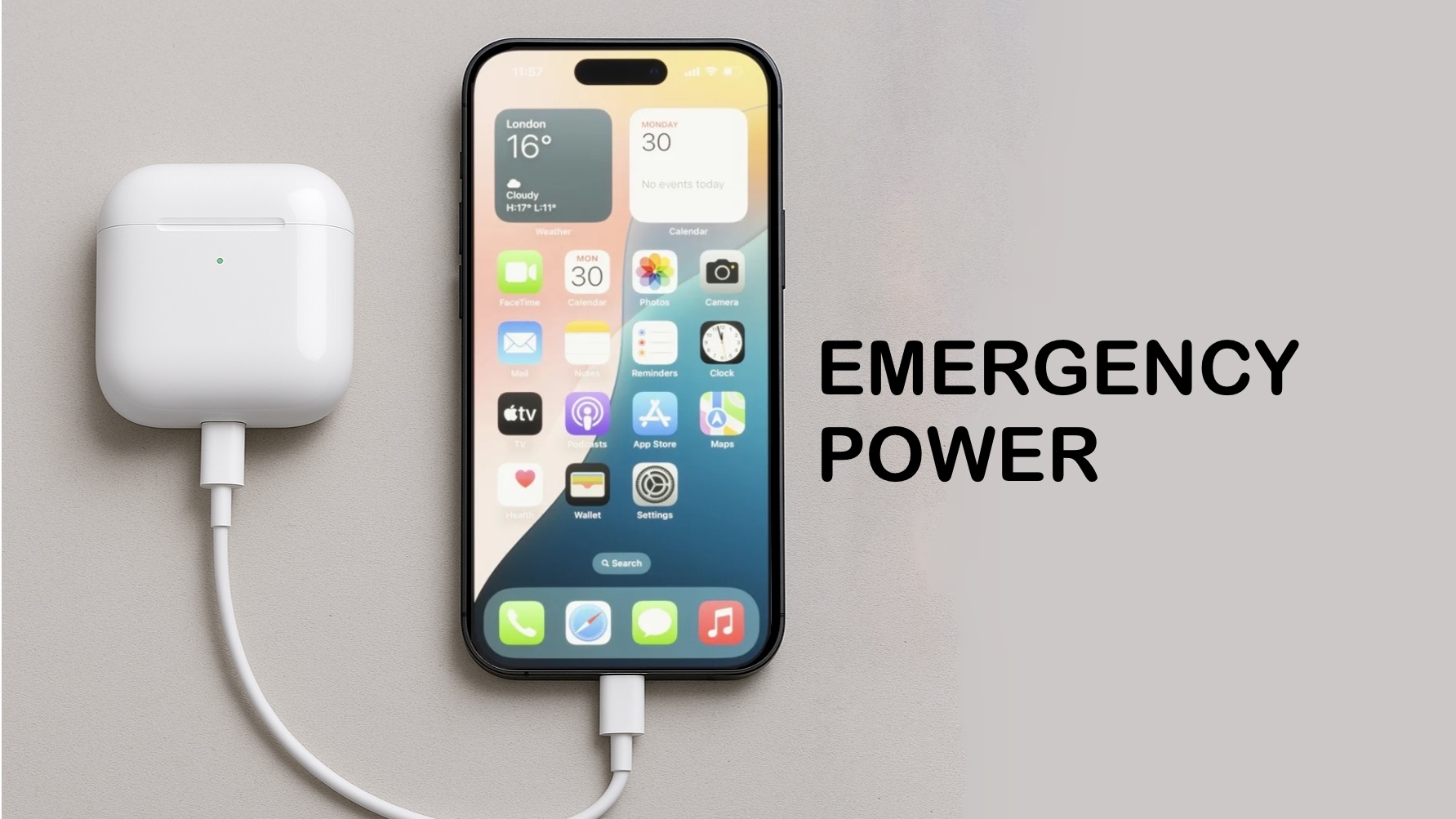
In a pinch, you can charge your AirPods with your iPhone. This feature can prove very convenient if you know how to use it. You can also use your iPhone to charge your Apple Watch, or even another iPhone.
Here’s how to take advantage of this capability.
Charge AirPods with iPhone
If there are no electrical sockets nearby and your AirPods are running low on power, you can use your iPhone to give them a boost. All you need for most of these devices is a compatible cable.
Note: This capability is limited to newer iPhones with a USB-C port. (Sorry, don’t try this with an earlier model that uses Lightning.)
iPhone can be an emergency battery
Let’s say your AirPods are almost out of juice and you can’t take an afternoon without music. No problem. As our tests prove, you can simply connect the earbuds’ case to your iPhone. Power starts flowing immediately, and your iPhone will charge your AirPods using its battery.
You do need the right cable for this trick, though. Rolling Square inCharge X ($29) is a great option. It’s very, very portable, and works whether your AirPods case uses USB-C or Lightning.
You can recharge an Apple Watch, too
Alternatively, if you forget to recharge your Apple Watch, you can use your iPhone to do the job. This becomes a bit more complicated because Apple’s wearable requires a proprietary wireless charger, not just a USB-C cable.
We did our testing with a Satechi USB-C Magnetic Charging Dock for Apple Watch ($39.99), which is small enough to go anywhere. Or you can just use the Apple Watch’s regular USB-C charging cable.
How to charge an iPhone with an iPhone
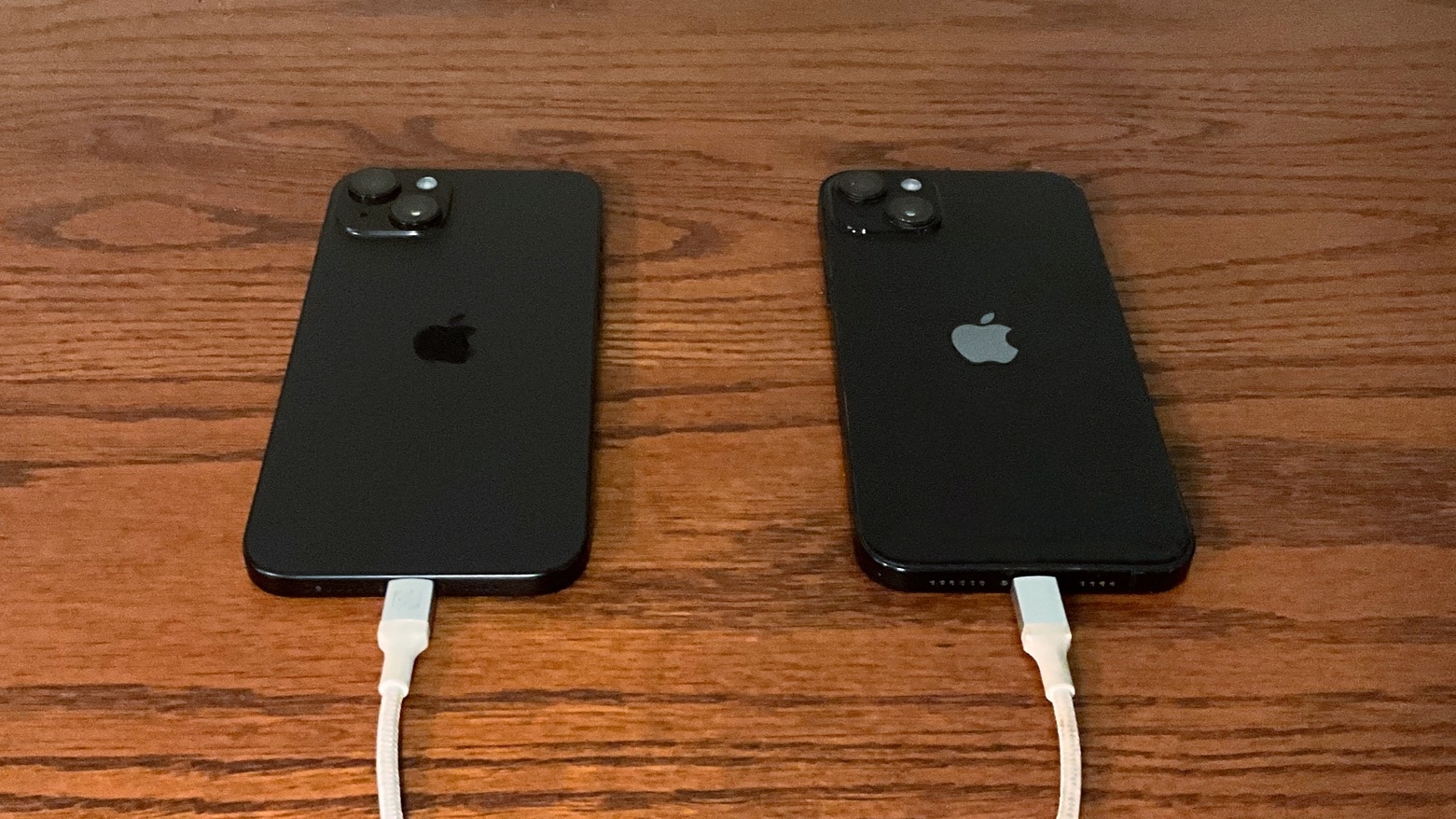
Photo: Ed Hardy/Cult of Mac
Now let’s consider another scenario. Suppose your iPhone has a 100% charge, but one belonging to your friend/spouse/child is down to 3%. You can be generous and transfer some of the power from your device to theirs.
Again, to get power from one iPhone to another, you will need an appropriate cable (another reason you might want to carry a Rolling Square inCharge X). As with using the iPhone to charge AirPods or Apple Watch, this isn’t an example of reverse wireless charging.
One end of the cable must be USB-C to plug into the iPhone 15, iPhone 16 or iPhone 17. The other end also should be USB-C if you’re charging another recent iPhone. For any other model, you need a USB-C-to-Lightning cable.
To start charging another iPhone with your iPhone, simply connect the two handsets with the appropriate cable. If you’re using two iPhone 15 models, the one with more power will immediately begin recharging the one with less power. That’s your only option — you can’t send power to a handset with a higher battery level.
The situation is slightly different if you’re using an iPhone 15 or iPhone 16 to charge an earlier version of the iPhone. Power will always flow from the iPhone 15 or 16 to the older model, no matter what their respective battery levels are.
In Cult of Mac’s testing, an iPhone 15 sends an iPhone 14 about 4W of power. That doesn’t charge the iPhone particularly fast, but it’s enough to be useful in a critical situation.
Use with caution
Note that the power transfer isn’t 100% efficient, so dropping one iPhone’s battery level 10% won’t raise another by the same amount. Power is always wasted when charging any battery.
In our tests, an hour of charging brought an iPhone 14’s battery level up by 19% while lowering the iPhone 15’s battery level by 24%.
Bonus trick: Pass-through charging
There’s another way to use this capability that can be very convenient under the right circumstances. And it means you don’t need to drain your iPhone to charge your AirPods, Apple Watch or iPhone.
This method takes advantage of wireless charging. Simply place the iPhone on a wireless charger. Then connect the appropriate charging cable from your iPhone to your AirPods, Apple Watch or another iPhone. Both devices will receive power. If you only have access to a wireless charger and a cable, you can still charge multiple devices simultaneously using this method.
We originally published this post on how to charge AirPods with an iPhone on October 12, 2023. We updated the information on July 22, 2026.

Ed Hardy has been writing full-time about tech for 26 years, and using it for much longer than that. His intro to Apple was a Macintosh SE/30 (which he still has), but now he uses a 13-inch iPad Pro as his primary computer.
That’s because he’s a “tablet first” type of guy. Rather than use a Macbook, he connects a keyboard case to the iPad. And instead of a desktop Mac, he connects his tablet to a 27-inch display and full-size keyboard. (So don’t try to tell him that everyone has to use a Mac to be productive.)
Before coming to Cult of Mac, Ed wrote for NotebookReview, TabletPCReview and Brighthand, as well as other sites.


