
Macs include strong built-in malware protection, including XProtect, Gatekeeper, Notarization and other security layers, so third-party antivirus isn’t essential for everyone. If you keep macOS up to date, download apps only from the Mac App Store and trusted websites, and are cautious about links, attachments and unexpected prompts, Apple’s own protections may be sufficient.
However, macOS is not immune to threats. As Macs have become more popular, they’ve become a more attractive target for attackers, while the nature of those threats has shifted away from traditional viruses towards phishing, fake updates, malicious downloads and scams designed to trick users into installing malware themselves.
Third-party antivirus can provide an additional layer of protection, particularly against malicious websites, suspicious downloads, phishing and emerging threats. It may be worth considering if you regularly download unfamiliar software, install apps from outside trusted sources, use torrents, handle sensitive business or personal data, share files with Windows users, or simply want stronger web protection than macOS provides on its own.
Below, we explain the security features already built into macOS, where their limitations lie, and who is most likely to benefit from installing antivirus software.
PROMOTION
Get Unlimited VPN for only $5/month!
Stay safe online with unlimited VPN, up to $1 Million of Identity Protection coverage, and AI-powered Cybersecurity software all for no more than $11 per month on the highest tier plan!
At a glance: Do you need antivirus on your Mac?
You probably don’t need additional antivirus if:
- You install software primarily from trusted developers
- You keep macOS and browsers updated
- You use strong passwords/passkeys and MFA
- You pay attention to Gatekeeper and browser warnings
You should consider antivirus if:
- You routinely install software from unfamiliar sources
- You work with sensitive business or client data
- You frequently exchange files with Windows users
- You want additional phishing/web filtering
- Less technical family members use the Mac
- You want centralized security controls across multiple devices
Who should buy antivirus for Mac?
For many Mac users, Apple’s built-in security features, including XProtect, Gatekeeper and Notarization, provide sufficient protection, particularly if you keep macOS up to date, download apps only from trusted sources, and are cautious about links, attachments and unexpected prompts. However, third-party antivirus can provide an additional layer of protection against phishing, malicious websites and suspicious downloads, and may be worthwhile if you regularly install unfamiliar software, use torrents, handle sensitive data, share files with Windows users, or simply want stronger protection than macOS provides on its own.
| Type of user | Scenarios | Recommendation |
|---|---|---|
| Low-risk user | Only downloads from App Store and trusted devs, automatic macOS updates turned on | Apple’s built-in tools are probably sufficient |
| High-risk user | Downloads from various sites and torrents | Paid antivirus is strongly recommended |
| Non-technical user | Older person who clicks links and downloads attachments or struggles to judge scams | Additional protection is more worthwhile, especially if it guards against malicious sites and offers phishing and download protection – not merely malware scanning. |
| Unsupported Mac | Mac no longer receives security updates | Antivirus can reduce some malware risk temporarily but it is not a substitute for a supported version of macOS, so our recommendation is to update the Mac. |
| Business user | Handles sensitive data and client data, shares files with Windows PCs | Paid antivirus is recommended for an extra safety layer |
| User wanting extra features | Requires VPN, password manager, phishing protection | Paid antivirus is worthwhile if it comes with appealing bundled features |
Do Macs have built-in antivirus?
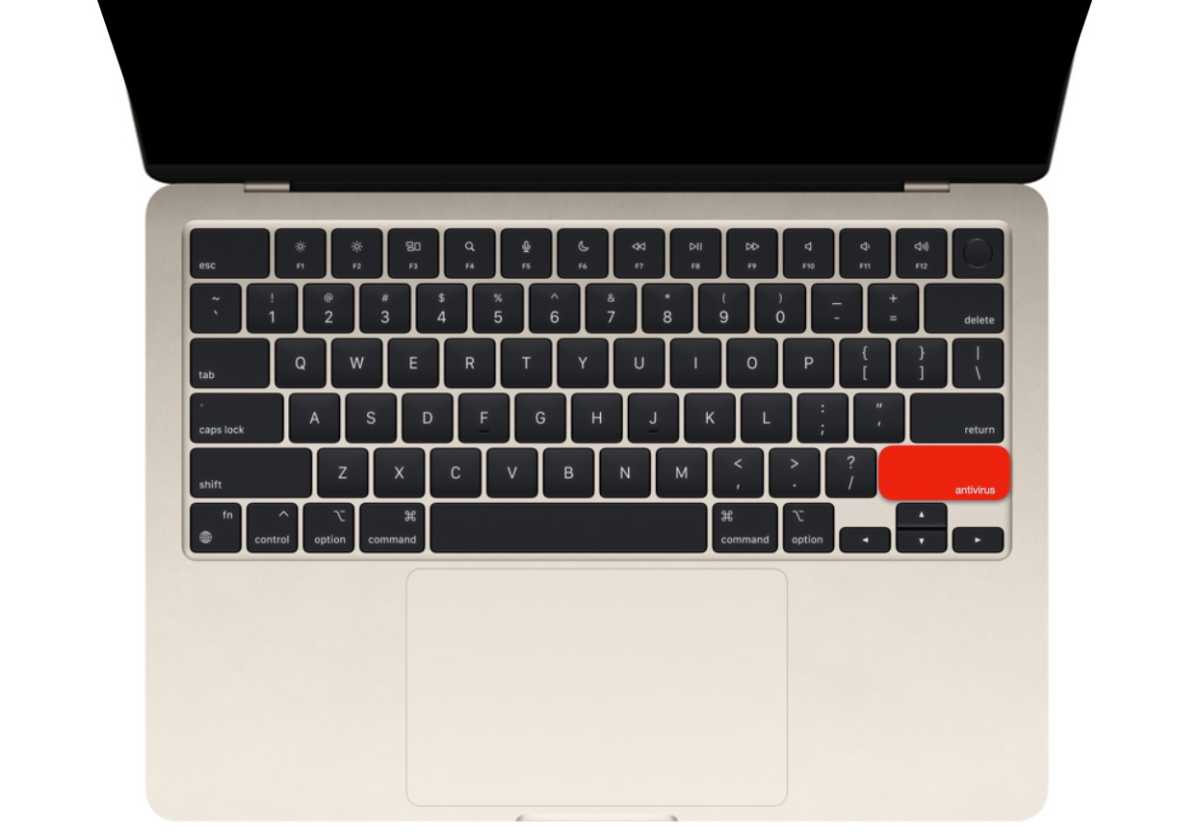
Yes. Macs include built-in antivirus and malware protection as part of macOS. Apple uses several layers of security that work automatically in the background, so you don’t need to install anything to get a basic level of protection.
The main protections include:
XProtect: This is Apple’s built-in antivirus engine. It checks apps against regularly updated definitions for known malware and can block malicious software before it runs. Apple updates XProtect automatically in the background, without requiring any action from you.
Gatekeeper and Notarization: Gatekeeper helps prevent untrusted software from running. It checks apps downloaded from the internet to make sure they come from an identified developer and, where applicable, have been notarized by Apple. Notarization means Apple has checked the software for known malicious content. Gatekeeper can warn you or block an app if it fails these checks.
Sandboxing and permissions: macOS limits what apps can access and modify, while privacy controls require apps to request permission before accessing sensitive data and hardware such as files, the camera and microphone. These protections can limit the damage malicious software is able to cause.
XProtect Remediator: This works in the background to detect and remove malware that may already be present on your Mac. It scans periodically and receives security updates independently of full macOS updates, allowing Apple to respond more quickly to new threats.
Hardware-level security: Apple silicon Macs include security features such as the Secure Enclave and hardware-backed encryption, which help protect sensitive information and make some types of attack more difficult.
Background security updates: Apple can deliver important security improvements separately from major macOS updates, helping Macs receive protection against newly discovered threats more quickly.
Protection in highly targeted cyberattacks: If you believe you are being personally targeted by a sophisticated cyberattack, Apple offers Lockdown Mode, which severely restricts certain apps, websites and features to reduce the Mac’s attack surface. It is intended for people at unusually high risk from attacks such as mercenary spyware, rather than as everyday malware protection.
macOS also includes other safeguards designed to reduce the risk of users being tricked into running malicious software. For example, newer versions of macOS can warn when potentially dangerous commands are pasted into Terminal.
Together, these protections provide a strong security baseline. For users who keep macOS up to date, download apps primarily from the Mac App Store or reputable developers, and are cautious about links and downloads, Apple’s built-in security may be all they need.
However, as good as these protections are, there have been occasions when malware has managed to infiltrate the Mac platform, and times when Apple hasn’t responded to a threat as quickly as Mac users might hope. If you want the very best protection from threats, therefore, consider adding a dedicated Mac security suite such as our top pick Intego One. You’ll find Intego in our roundup of the best antivirus for Mac, among other free and paid-for antivirus apps that might give you some peace of mind, including McAfee and Norton.
Can Macs get viruses?
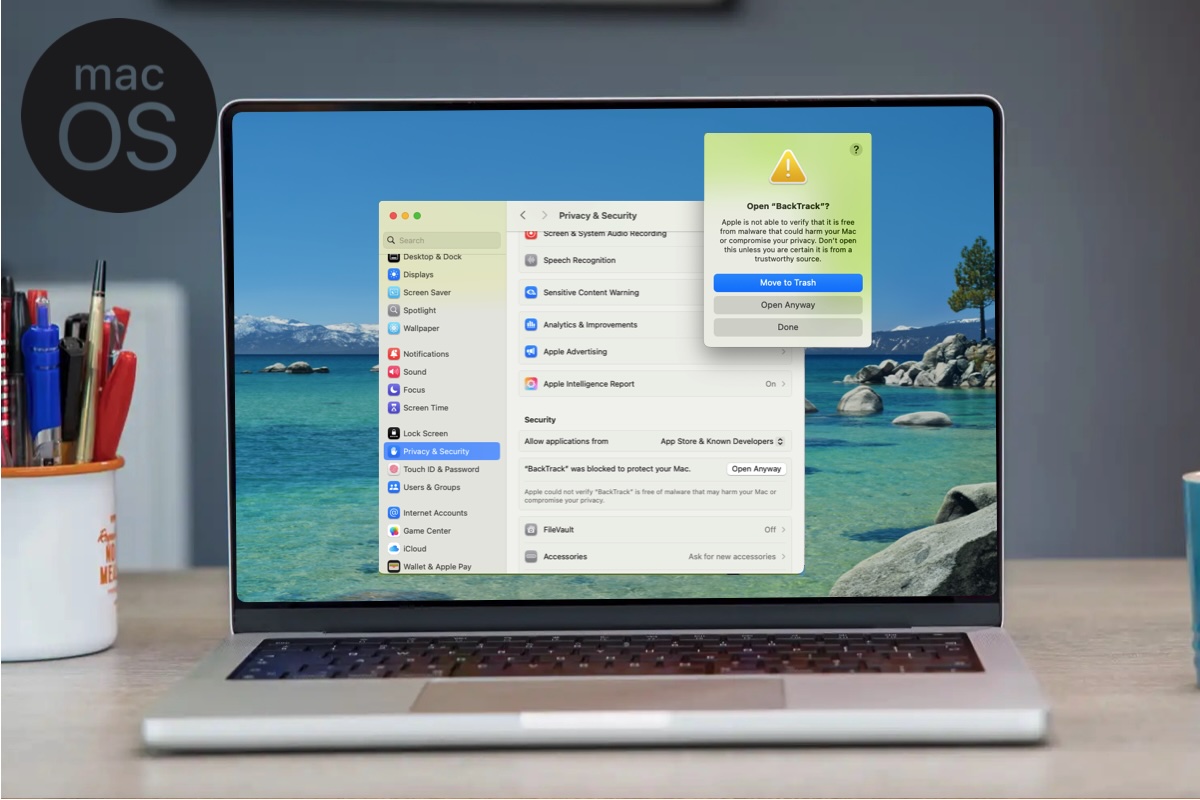
Apple makes it hard for you to install an app that could be malicious.
Foundry
Yes. Macs can get viruses and other forms of malware. macOS includes strong built-in protections, but Macs are not immune, and many of today’s biggest threats rely on social engineering rather than traditional viruses.
A Surfshark analysis of malware detections between January and July 2026 found that Windows PCs faced roughly six times greater malware risk than Macs. Even so, macOS still accounted for eight percent of detections despite representing 34 percent of the user base. Phishing was also the third-biggest threat to Mac users.
One of the biggest current risks is infostealer malware, which targets passwords, browser data, authentication cookies, cryptocurrency wallets and other sensitive information. Examples include ClickLock Stealer, which uses a fake Cloudflare CAPTCHA to trick users into pasting a malicious Terminal command, and CrashStealer, which impersonates Apple’s crash reporting tool to target browsers, password managers and crypto wallets.
Other threats include Banshee Stealer, which targets browser and cryptocurrency data; PamStealer, spread through fake websites impersonating legitimate apps; and JSCoreRunner, distributed through a fake PDF converter that alters Chrome settings to redirect users to fraudulent search engines.
Attackers are increasingly trying to bypass macOS protections by persuading users to approve malicious actions themselves. Apple has responded by adding warnings in macOS when potentially dangerous commands are pasted into Terminal.
The key point is that while traditional Mac viruses remain relatively uncommon, phishing, fake apps, malicious downloads and credential-stealing malware are real risks that Apple’s built-in tools cannot always prevent.
How can I tell if my Mac has malware?
Here are the key signs that your Mac may be infected with malware:
- Your Mac runs hot, is very slow, and the fans are loud when the computer is idle.
- Your usual home page has changed, you’re seeing redirects, extensions you didn’t install, or suspicious pop-ups — especially ones claiming “Your Mac is infected.”
- Apps you don’t remember installing appear in your Applications folder or Dock.
- You are seeing excessive CPU usage in Activity Monitor when your Mac should be idle.
Read: What to do if you think your Mac has a virus and How to tell if your Mac has been hacked – Key signs & what to do for more advice.
Users who believe they may be targeted by spyware should also consider Apple’s Lockdown Mode. This dramatically restricts certain Mac features to reduce the attack surface, but it is intended for the small number of people at unusually high risk rather than everyday Mac users.
Is Apple’s built-in protection enough?
The answer depends heavily on how you use your Mac.
Apple’s security tools are effective at blocking known malware, but one of their biggest limitations is social engineering. Attackers increasingly try to persuade users to reveal passwords, visit malicious websites, or install software themselves.
Apple’s safeguards are not infallible either. Malware has occasionally been distributed using apparently legitimate developer credentials, while vulnerabilities have sometimes allowed attackers to bypass protections such as Gatekeeper before Apple could issue a fix.
For careful users, macOS’s built-in security may be sufficient. However, a reputable antivirus with strong phishing and web protection can provide a useful additional safety net.
Here’s how XProtect compares to traditional third-party antivirus software:
| Feature | XProtect and other macOS security features | Third-party antivirus |
|---|---|---|
| How it works | Scans apps when first launched, when updated, or when the developer’s signature changes | Typically offers continuous, real-time monitoring of file activity |
| Update frequency | Updated regularly by Apple in the background, but definitions may lag behind emerging threats | Often updates virus definitions several times a day for faster response to new malware |
| Threat coverage | Focuses primarily on known macOS malware | Covers a wider range including adware, spyware, trojans, ransomware, and cross-platform threats |
| Additional features | XProtect includes malware scanning and removal. Safari provides warnings for suspected fraudulent websites | Often includes phishing protection, firewalls, VPNs, password managers, parental controls, and dark web monitoring |
| Performance impact | Negligible, as it’s integrated into the OS | Varies; some suites can cause system slowdowns |
When is third-party antivirus worth installing?
Third-party antivirus is most worthwhile when your risk is higher than that of the average Mac user, or when you want protection that goes beyond what macOS provides on its own.
You should consider installing antivirus if you regularly download software from unfamiliar websites, install apps from outside the Mac App Store, use torrents, exchange files with Windows users, or handle sensitive business, financial or client data. It can also be particularly useful on a Mac used by less technical family members who may be more likely to click suspicious links, open unexpected attachments or respond to convincing scams.
A Mac can also potentially store or forward Windows malware without being affected by it itself, so antivirus can be useful in workplaces or households where files are regularly exchanged with Windows PCs.
Another good reason to install antivirus is stronger web and phishing protection. Many modern Mac threats rely on social engineering rather than exploiting macOS directly, using fake websites, malicious downloads or instructions that persuade users to install malware themselves. A good security suite can identify and block some of these threats before they reach your Mac.
Antivirus can also make sense if you want additional security features such as ransomware protection, identity monitoring, a VPN, parental controls or centralized protection across several Macs, PCs and mobile devices.
However, antivirus should complement rather than replace Apple’s security features and good security habits. If your Mac no longer receives macOS security updates, installing antivirus may reduce some risks, but upgrading to a Mac that can run a supported version of macOS is a much better long-term solution.
What do third-party antivirus solutions add?
macOS includes strong built-in protections, but third-party antivirus solutions can fill some gaps that Apple’s tools don’t fully address. If XProtect is a lock on your Mac’s front door, a paid antivirus solution acts more like an alarm system with security cameras.
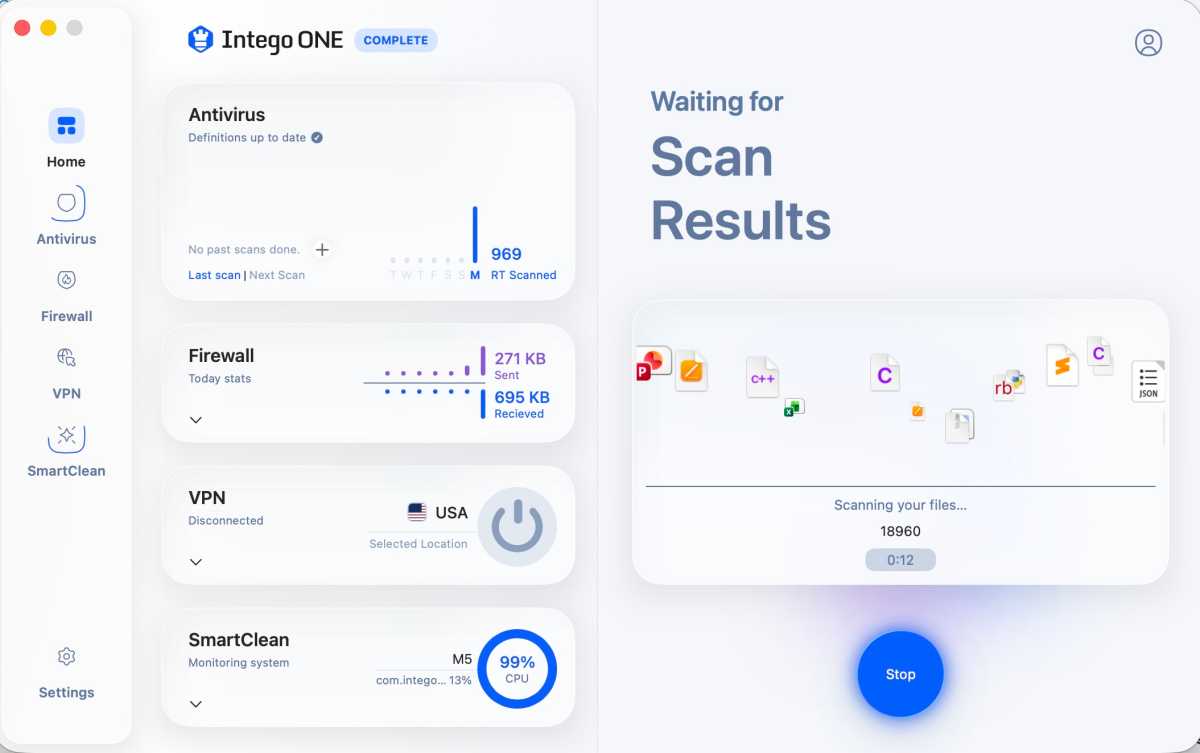
Third-party antivirus, such as Intego One, add broader protection, controls, monitoring, privacy, and extras.
Foundry
Paid antivirus suites can offer features that go beyond what Apple offers or aren’t features of macOS, such as:
Broader Threat Coverage: Apple’s XProtect and Gatekeeper primarily focus on known malware and verifying app signatures. Third-party tools go further by protecting against adware, spyware, trojans, ransomware, and phishing attempts that Apple’s systems may miss.
Real-Time Web and Phishing Protection: Safari includes built-in warnings for suspected fraudulent websites, but third-party security suites can extend web and phishing protection across browsers and may use additional threat databases to identify malicious sites, scam links and suspicious downloads.
More Frequent Updates: Apple updates XProtect signatures automatically and independently of macOS updates. Third-party antivirus vendors may update their detection systems more frequently or use cloud-based threat intelligence to respond quickly to emerging threats.
On-Demand and Scheduled Scanning: macOS scans apps automatically at launch, but you can’t force a manual scan. Third-party tools let you run quick scans, full system scans, and schedule regular checkups.
Ransomware protection: Some Mac antivirus apps protect important files and folders from unauthorized changes or encryption, preventing untrusted apps from modifying them. Some also protect Time Machine backups so clean copies remain available for recovery.
More advanced firewall controls: macOS includes a built-in firewall that can block unwanted incoming connections and restrict incoming access for individual apps. Some third-party security suites add more granular controls, including monitoring and blocking outgoing connections, alerts when apps attempt to access the network, network activity monitoring and intrusion-prevention features.
VPN services: Apple’s iCloud+ includes Private Relay, which hides your IP address and protects browsing activity primarily in Safari. A full VPN typically protects internet traffic from more apps across the Mac and lets you choose server locations, so a security suite with an included VPN may offer broader privacy and more flexibility.
Identity and dark web monitoring: Some third-party security apps monitor known data breaches and dark web sources for exposed email addresses, passwords and other personal information, then alert you if your details appear in a leak.
Parental controls: Apple’s Screen Time provides app limits, content restrictions, communication controls and family management. Some third-party security suites go a step further by adding more detailed web filtering, activity reporting and cross-platform controls, which can be useful in households with a mix of Macs, PCs and mobile devices.
What does antivirus not protect you from?
Antivirus software is an essential layer of defense, but it’s not a silver bullet. Antivirus works best alongside good habits: strong passwords, two-factor authentication, cautious clicking, and regular software updates.
Even with antivirus installed you need to be wary of the following:
Phishing and social engineering scams: Antivirus can sometimes filter out known phishing emails or block malicious links, but it often fails against sophisticated, targeted attacks.
Your own risky behavior: No antivirus can save you if you willingly hand over your password or install software from untrustworthy sources.
Zero-day exploits and advanced threats: While antivirus catches many known threats, it can miss brand-new, never-before-seen attacks (zero-days).
Existing infections and bootkits: Staying updated helps prevent installation, but once a bootkit or similar deep-rooted malware is on your system, antivirus may struggle.
Identity theft and data breaches: Antivirus doesn’t monitor the dark web for your stolen credentials or prevent a company’s database from being hacked. That’s where security suites with dark web monitoring come in.
Is your Mac still receiving security updates?
Apple typically provides security updates for the three most recent versions of macOS. As of mid-2026, those are macOS Tahoe, macOS Sequoia and macOS Sonoma. When macOS 27 Golden Gate arrives later in 2026, Apple is expected to end security support for Sonoma.
Macs that can’t run one of Apple’s supported versions will become increasingly vulnerable and may also encounter compatibility problems with websites and apps.
To check your Mac, go to System Settings > General > Software Update to see which version of macOS you’re running and whether any updates are available.
Intel Macs are a special case. Apple has confirmed that macOS 27 Golden Gate won’t support Intel-based Macs, but security updates won’t stop immediately. The handful of Intel Macs capable of running macOS Tahoe – including the 2019 16-inch MacBook Pro, 2020 13-inch MacBook Pro, 2020 27-inch iMac and 2019 Mac Pro – are expected to receive security updates until around September 2028.
If your Mac is around a decade old, there’s a good chance it is already running an unsupported version of macOS, in which case upgrading the Mac is a more effective security measure than adding antivirus software.
Antivirus software is no substitute for an operating system that no longer receives security updates.
How to keep a Mac secure without antivirus
You can keep a Mac quite secure without installing third-party antivirus software by relying on Apple’s built-in protections and practicing good digital hygiene. Here’s how.
- Keep macOS updated
This is the single most important step. Apple regularly patches security vulnerabilities through OS updates.- Open System Settings > General > Software Update
- Click the i icon beside Automatic Updates
- Ensure Install Security Responses and system files is selected
Don’t just stop at macOS – keep browsers and installed apps updated as well.
- Only download software from trusted sources
The safest way to get apps is through the Mac App Store, where Apple has vetted the software. If you prefer not to use the App Store, download directly from the developer’s official website. Avoid unfamiliar download sites and never use cracked software, as you will always risk malware exposure. - Be cautious with links and emails
Never open links in emails or texts from unknown or unexpected sources. If a message appears to be from a company you do business with, check the sender’s email address and inspect the URL carefully. You can Control-click a link, select Copy Link Address, and paste it into a text editor to see the actual URL. - Avoid pasting unknown Terminal commands
Attackers sometimes use social engineering to trick users into copying and pasting malicious commands into Terminal. macOS now includes a paste protection feature that warns you when you attempt to paste something into the command line interface. Pay attention to these warnings. - Use strong passwords and passkeys
Create a strong login password – macOS intentionally pauses after a wrong password attempt to discourage brute force attacks. - Enable FileVault
Enable FileVault (full-disk encryption) and the built-in Firewall in System Settings > Network > Firewall. - Check for suspicious activity
If you suspect something is wrong, open Activity Monitor and check the CPU, Network, and Memory tabs for unfamiliar processes consuming excessive resources. - Maintain a current backup
Ensure that if the worst should happen you can wipe your Mac and go back to how things were beforehand with a backup in Time Machine or another Mac backup solution.
If you do want an antivirus, what should you look for?
When buying antivirus software, the most important thing to remember is that protection quality is the baseline – but the right choice depends on your specific needs, technical comfort level, and budget. Here’s a breakdown of what to prioritize.
- Malware Protection Efficacy
The core job of any antivirus is stopping threats. Look for products that perform well in independent lab tests from organizations like AV-Test and AV-Comparatives, which evaluate detection rates, false positives, and overall protection.
In our tests we recommend options, like Bitdefender and Intego ONE, which we praised for their minimal system impact and fast scan speeds.
Beware that some options rely on an internet connection to catch threats. - Performance Impact
A good antivirus should protect you without slowing down your Mac. If an app bogs down your Mac, you’ll likely disable it – defeating its purpose. Some suites can be resource hogs during full scans. - Features Beyond Antivirus
Modern security suites bundle a lot of extras. Consider which ones you actually need:- VPN: Unlimited data, multiple protocols, kill switch
- Password Manager:Apple has its own password manager, Passwords, but note that this is not cross-platform beyond your Apple products, so if you have non-Apple products you should consider this.
- Phishing Protection: Blocks dangerous websites and scam links. Email filtering.
- Parental Controls: This will go beyond Apple’s Parental Controls.
- Dark Web Monitoring: To track whether your email, phone, credit card appears in breaches.
Ransomware Protection:e.g. Folder locking to protect against ransomware.
- Ease of use vs customisation
The interface should be intuitive. Products like Intego are designed to feel native to macOS, making them particularly easy to navigate.
Some antivirus programs are essentially “cut-back” versions of PC apps. It is often better to choose software specifically tailored for macOS, such as Intego, which is designed to feel native to the platform. Mac-specific tools also tend to integrate better with Apple’s built-in Gatekeeper and XProtect protections.
Beginners should look for simple, set-and-forget interfaces.
Power users will want granular control over settings, whitelists, and network functions. - Lab results
As well as reading our reviews and Best Mac Antivirus recommendations, check how the software performs in tests from AV-Test and V-Comparatives. https://www.macworld.com/article/668850/best-mac-antivirus-software.html - Multiple device coverage
If you have multiple devices, look for plans covering 5–10 devices. Consider how many devices you need to protect. If you have multiple Macs, iPhones, or even Windows PCs, look for “Total Security” or “Family” plans that cover Mac, Windows, Android, and iOS, as these often provide the best overall value. - Subscription Model and Value
Most antivirus software is now subscription-only. Key considerations:
Pricing after the first year/First-year discounts vs. renewal prices: Many products offer steep first-year discounts that jump significantly on renewal.
Free options: Most top-tier antivirus products offer a free trial or a money-back guarantee. This allows you to test the software on your own Mac before committing. Free versions of Avast and AVG are also highly rated.
Ultimately, the best choice depends on your specific needs. If you want the absolute best malware protection and firewall control, Intego ONE is a top pick. If you need a lightweight suite with excellent phishing protection, Avast One is a strong contender. For those who value a powerful VPN alongside antivirus, ESET or Surfshark One+ are worth considering.
FAQ
Does Apple recommend antivirus for Macs?
Apple does not explicitly recommend that every Mac user install third-party antivirus software, but the company has acknowledged that malware on the Mac is a problem. In fact, Apple’s own software engineering chief, Craig Federighi, admitted in 2021 that “We have a level of malware on the Mac that we don’t find acceptable“.
Instead of issuing a blanket recommendation, Apple has built a robust set of security tools directly into macOS — primarily XProtect and Gatekeeper — which work automatically in the background to block and quarantine known malware. Apple’s protections, while strong, are not bulletproof. While sufficient for low-risk users who stick to the Mac App Store and trusted developers, users who handle sensitive data, frequently download files from various sources, or simply want an extra layer of protection, should consider a dedicated security suite.
Ultimately, Apple’s stance is that its built-in security is a strong baseline, but the decision to add third-party antivirus depends on your personal risk profile.
Is XProtect the same as antivirus?
XProtect is Apple’s built-in antivirus software for macOS. It works automatically in the background to detect, block, and remove known malware without requiring any user configuration.
However, XProtect doesn’t offer continuous, real-time monitoring, only protects against macOS malware (so you could still pass on a Windows virus), is updated less frequently, and lacks additional features only found in third-party solutions.
Do Apple silicon Macs need antivirus?
Apple silicon Macs benefit from a robust, multi-layered security architecture that makes them significantly more resistant to malware than older Intel-based Macs. However, no system is completely invulnerable.
Older Intel Macs are more vulnerable and have a shorter window of security support remaining, making antivirus software a much stronger recommendation for them.
Can antivirus stop phishing attacks?
The short answer is that antivirus software can help, but it is not a silver bullet — especially against newer, psychologically manipulative attacks like ClickFix.
Antivirus can detect phishing attempts. Traditional antivirus suites are quite good at screening for known phishing links and malicious websites. These programs scan your browsing activity, email attachments, and search results for signs of fraud, and they can block access to known dangerous sites. However, phishing attacks are becoming more sophisticated.
Scammers are increasingly using AI to craft personalized, targeted messages that are much harder for automated filters to catch. In these cases, the human element becomes critical — antivirus alone may not flag a well-crafted, personalized email.
Macworld’s Recommendation
Most careful Mac users do not necessarily need third-party antivirus software, because macOS already includes strong built-in protections such as XProtect, Gatekeeper and Notarization.
However, antivirus is worth considering if you regularly download software from unfamiliar sources, handle sensitive business or personal data, share files with Windows users, or want stronger protection against phishing, malicious websites and suspicious downloads. It is also a sensible choice for less technical users or anyone who wants an additional safety net.
Whatever you decide, antivirus should complement rather than replace good security habits, including keeping macOS up to date, using strong passwords and MFA, and avoiding suspicious links, downloads and Terminal commands.


