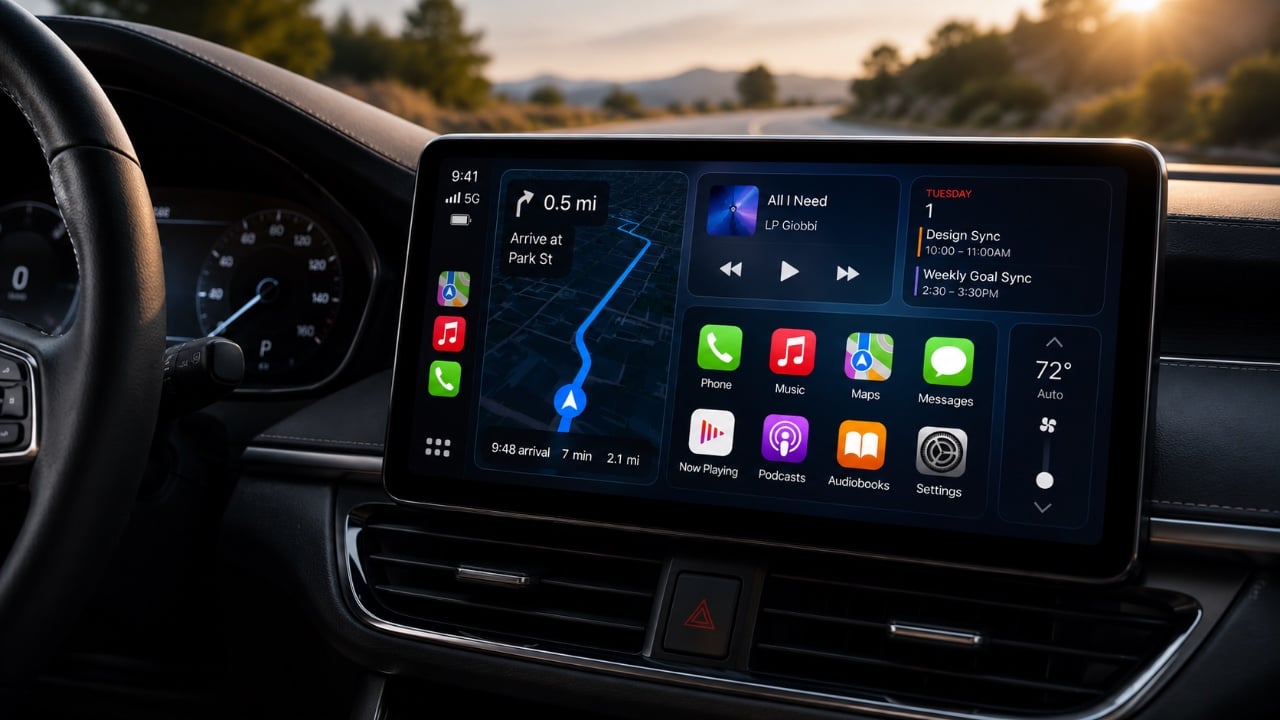
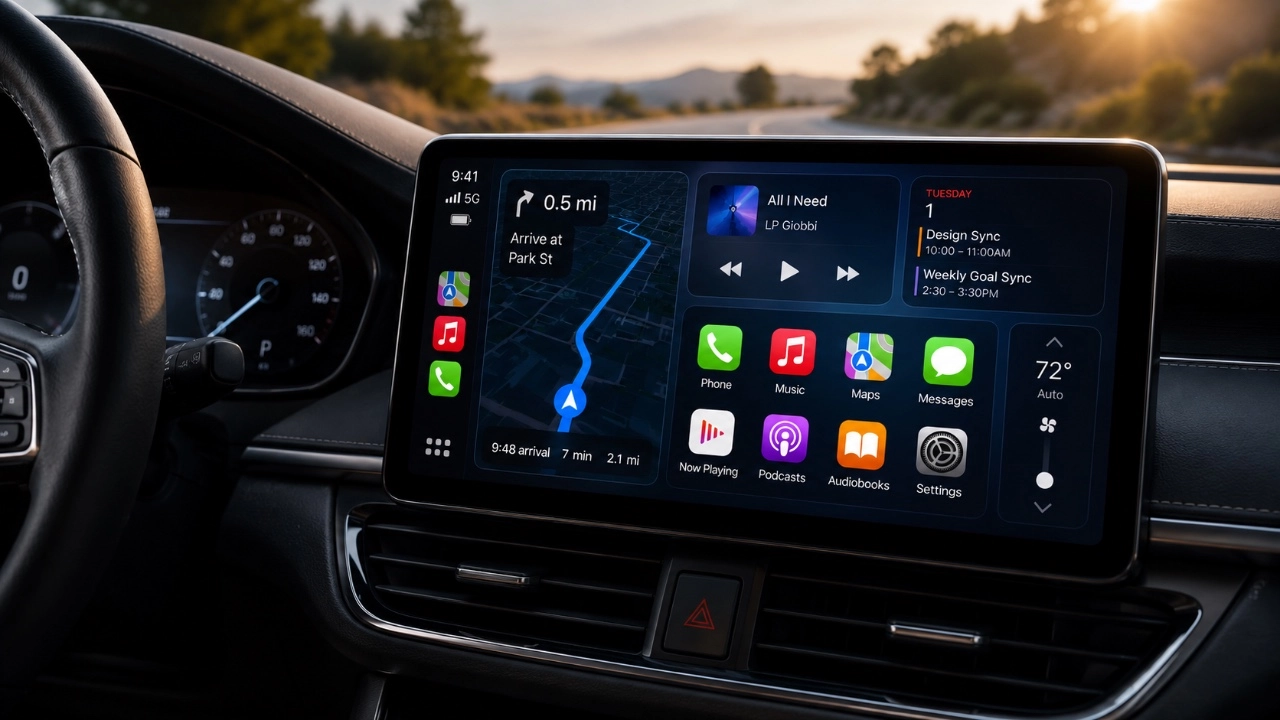
Apple CarPlay is a valuable tool designed to integrate your iPhone with your car’s infotainment system, offering hands-free access to navigation, music and communication. However, like any technology, it can encounter occasional glitches that disrupt its functionality. From connectivity challenges to interface customization, addressing these issues can significantly improve your driving experience. The video below from Proper Honest Tech provides practical solutions to common CarPlay problems, making sure a smoother and more reliable journey.

Fixing Wireless CarPlay Connectivity Problems
Wireless CarPlay provides the convenience of a cable-free connection, but connectivity issues can arise, interrupting your experience. To resolve these problems, consider the following steps:
- Ensure both Wi-Fi and Bluetooth are enabled on your iPhone, as both are required for wireless CarPlay.
- Restart your iPhone and your car’s infotainment system to refresh the connection.
- If the issue persists, go to your iPhone’s settings, select your car under CarPlay connections, and choose Forget This Car. Reconnect your device afterward.
- Disable any active VPNs, as they may interfere with the wireless connection.
- Keep an MFi-certified USB-C cable as a backup for a wired connection when wireless connectivity fails.
These steps can help restore a stable connection and reduce disruptions, making sure a seamless CarPlay experience.
Using Offline Navigation Maps
Navigation interruptions in areas with poor signal can be frustrating, especially during long drives. Downloading offline maps is a practical solution to ensure uninterrupted guidance. Follow these steps:
- Open the Maps app on your iPhone and search for your destination.
- Select the area you want to download and tap the option to save it for offline use.
- Ensure the downloaded map covers your entire route, especially if traveling through remote areas.
By preparing offline maps in advance, you can navigate confidently, even in regions with limited or no cellular connectivity.
Stopping Automatic Music Playback
Automatic music playback when connecting to CarPlay can be distracting. To disable this behavior, use the Shortcuts app to create a custom automation:
- Open the Shortcuts app on your iPhone and tap the Automation tab.
- Create a new automation and set the trigger to activate when CarPlay connects.
- Add an action to stop playback immediately upon connection.
For iPhones with advanced Apple Intelligence settings, additional options may be available to refine this automation further. This ensures a quieter and more controlled start to your drive.
Managing Siri’s Volume
Siri’s volume can sometimes be too loud or too quiet, depending on your car’s audio settings. Adjusting Siri’s voice volume independently of other audio sources is straightforward:
- Activate Siri by holding the voice command button on your steering wheel or saying “Hey Siri.”
- While Siri is speaking, use your car’s volume controls to adjust the voice level to your preference.
This adjustment ensures that Siri’s responses are audible without affecting the volume of music or navigation prompts.
Customizing Your CarPlay Interface
A well-organized CarPlay interface can reduce distractions and make navigation more intuitive. Customizing your CarPlay screen allows you to prioritize frequently used apps. Here’s how:
- On your iPhone, go to Settings > General > CarPlay.
- Select your car from the list of connected vehicles.
- Rearrange or hide apps by dragging them into your preferred order or removing unnecessary ones.
This customization helps declutter your display, making it easier to focus on essential apps while driving.
Enhancing Music Playback and Scrubbing
Managing your music library efficiently is crucial for an enjoyable driving experience. Apple Music offers features that simplify playback and navigation:
- Pin your favorite artists, albums, or playlists in Apple Music for quick access in CarPlay.
- Use the music scrubbing feature introduced in iOS 27, which allows precise control over playback by dragging the playhead to specific points in a track.
These tools make it easier to enjoy your favorite music without unnecessary distractions.
Adjusting Display Resolution
CarPlay’s display settings can be optimized for better visibility, making sure a safer and more comfortable driving experience. Use the “Smart Display Zoom” feature to toggle between higher resolution and customized views. This adjustment enhances readability, regardless of your car’s screen size or lighting conditions.
Improving Turn-by-Turn Navigation Alerts
Turn-by-turn navigation alerts are essential for staying on track during your journey. For a more effective alert system, consider allowing wrist taps on your Apple Watch:
- Open the Watch app on your iPhone and navigate to the Maps settings.
- Enable turn-by-turn notifications to receive subtle, tactile alerts on your wrist.
This feature reduces the need to glance at your car’s screen, allowing you to focus more on the road.
Streamlining with Shortcut Automation
CarPlay’s compatibility with the Shortcuts app enables you to create custom workflows that simplify your driving experience. For example:
- Set up a shortcut to automatically open your preferred navigation app or playlist when CarPlay connects.
- Create automations to adjust settings, such as allowing Do Not Disturb While Driving for a distraction-free journey.
These automations enhance convenience and help you stay focused on driving safely.
Apple CarPlay is a powerful tool that enhances your driving experience by integrating your iPhone’s features with your car’s infotainment system. By addressing common issues such as connectivity problems, navigation interruptions, and interface customization, you can optimize CarPlay for a seamless and distraction-free journey. Using features like offline maps, automation, and display adjustments ensures that you stay focused on the road while enjoying the convenience of CarPlay’s functionality.
Browse through more resources below from our in-depth content covering more areas on Apple CarPlay.
Source & Image Credit: Proper Honest Tech
Filed Under: Apple, Apple iPhone, Guides
Disclosure: Some of our articles include affiliate links. If you buy something through one of these links, Geeky Gadgets may earn an affiliate commission. Learn about our Disclosure Policy.


