38.5K
One of the most important settings in FPV drone tuning is rates—they determine how your drone responds to stick inputs. If your rates are too high, your quad will feel twitchy and hard to control. If they’re too low, it may feel sluggish and unresponsive. In this tutorial, I’ll break down what Betaflight rates are, how they work, why Actual Rates are the best option, and how to pick the perfect rates for your flying style.


Some of the links on this page are affiliate links. I receive a commission (at no extra cost to you) if you make a purchase after clicking on one of these affiliate links. This helps support the free content for the community on this website. Please read our Affiliate Link Policy for more information.
Rates Need Tuning
Just like PID and filters, rates should be fine-tuned for your specific flying style. It is like wearing the wrong shoes for the wrong sport — not only will you perform worse, but it can also hinder your growth progress.
If you are relatively new to FPV and have never tried different rates, you might be surprised by how much better your flying can become. Often, your skills improve rapidly as soon as you change your rates, because the quad becomes easier and more precise to control. It is also simply more fun to fly, which means you practice more. The same goes for the default rates in Betaflight. While they are fairly tame and beginner-friendly, they can still limit your progress without you realizing it.
Now, you might be wondering: what rates should I use? Just tell me!
I wish there were some magical “best rates for everyone”, but that simply does not exist. Depending on your flying style and your drone, you may need very different rates.
That is why it is important to understand how rates work and tune them to your own preference. You can also copy the settings used by your favorite pilots and use those as a starting point, then fine-tune them until they feel right for you.
With that said, if you have only just started out, do not rush into changing your rates. Focus on mastering the basic controls first. If you are still in your first few hours of simulator practice and crashing every 30 seconds, it is probably too early to start messing with rates, because you likely do not yet know what you are looking for. Start experimenting with rates once you are more confident with your flying.
Different Rate Systems
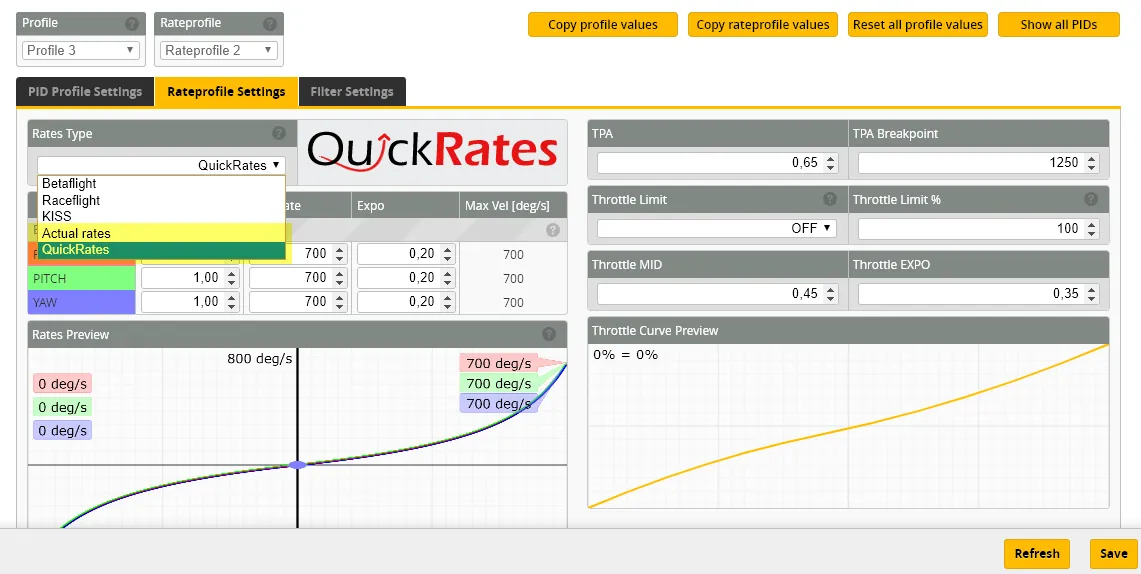
Betaflight offers several different rate systems, which can be confusing for beginners. Do not worry — you only really need to know one of them.
There are a total of five rate systems in Betaflight:
- Actual Rates
- Betaflight Rates
- Raceflight Rates
- KISS Rates
- Quick Rates
However, the most widely used system today is Actual Rates, and that is the only one you really need to learn.
In this tutorial, we will look at Actual Rates, how they work, and how to tune them to suit your flying style. I will also share my personal rates for different types of aircraft if you are interested and want to try them out.
Understanding Actual Rates
“Actual Rates” are the default rates in Betaflight, providing a straightforward approach to setting maximum rotational velocity (e.g., entering 1000 corresponds to 1000deg/sec) and center sensitivity values. No more guessing, as this system is far more intuitive and less confusing for pilots compared to the older Betaflight rates.
If you are new to the hobby, I’d recommend using Actual rates. If you come from another type of rates, there are many online tool that help you convert rate values between these different systems.
There are 3 values in Actual Rates: Center Sensitivity, Max Rate, Expo.
Center Sensitivity

Center Sensitivity relates to the responsiveness around the center stick position. A lower value offers finer, smoother control, while a higher value results in a more reactive drone to stick movement.
Max Rate
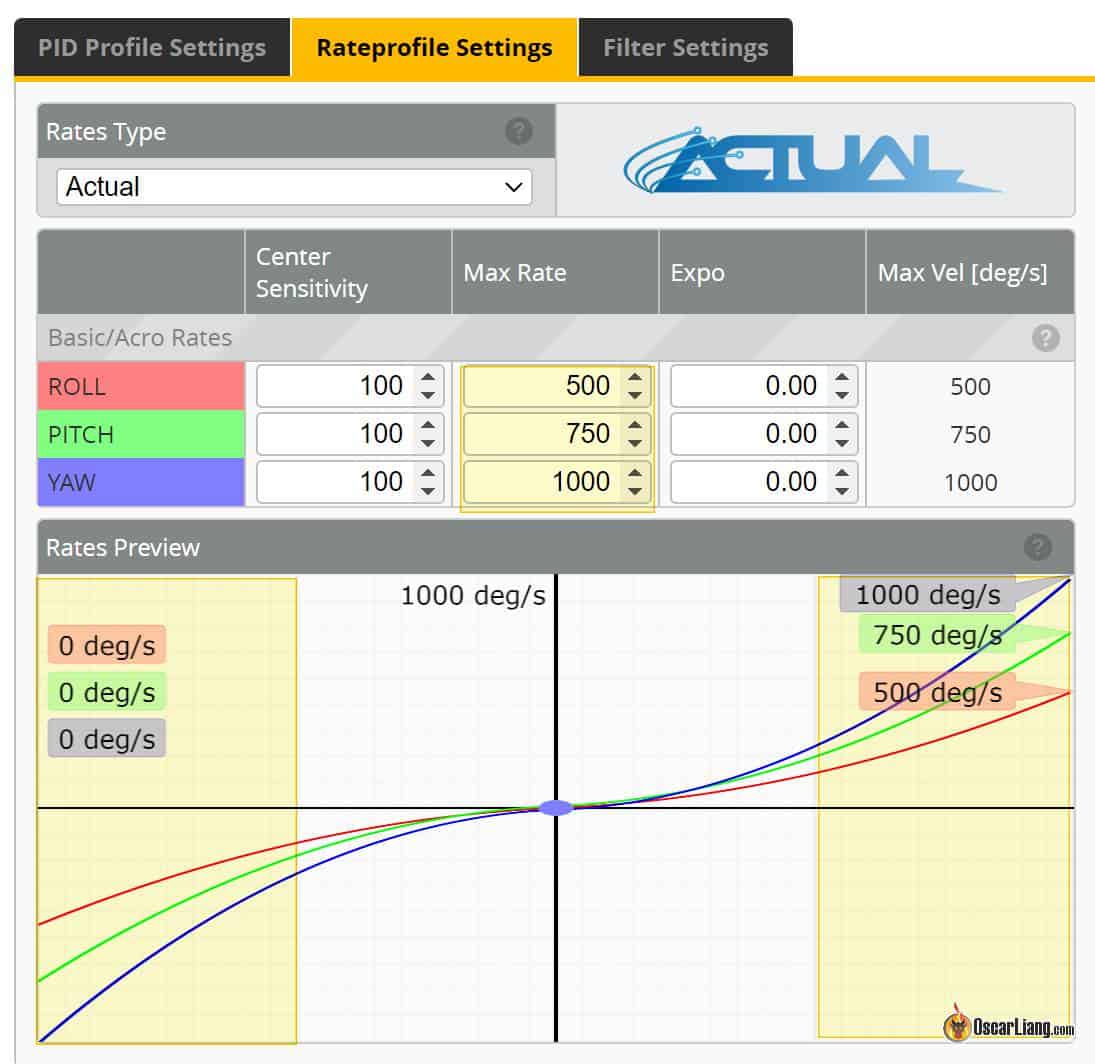
Max Rate defines the drone’s rotational speed at full stick deflection. The value you enter represents the exact maximum angular velocity. For example, entering 700 means your drone will attempt to rotate at 700 degrees per second at full stick.
Beginners often set Max Rate too low, thinking it will make learning flips and rolls easier. Personally, I find the opposite to be true. If the rate is too low, the quad takes too long to complete a flip, loses too much altitude, and becomes harder to recover.
The highest Max Rate allowed is 2000, but setting it that high is not recommended, as it becomes extremely unpredictable and difficult to control for the average pilot. Not to mention, the maximum angular velocity can also be limited by the power of your motors. When the motors reach their physical limit and cannot spin any faster, the actual maximum angular velocity may be capped, regardless of the higher value set in Betaflight. You can verify this in a Blackbox log.
For most pilots, a Max Rate between 600 and 1000 is a good range.
Expo

Expo flattens the curve between center stick and full stick. To achieve a more linear feel, keep Expo low. To make the center stick region broader for finer control, increase Expo. Keep in mind that increasing Expo also reduces center sensitivity.
While Expo can go as high as 1.0, using too much can reduce center stick sensitivity too much and make the quad’s response near full stick feel less predictable and more jumpy.
Now, while the default Expo is set to zero, which makes the rate more linear, I personally think it is bad, and should be increased.
Some people might wonder: why use Expo at all? Isn’t a linear rate better because it is more predictable?
There is some logic to that, but in reality, without Expo there is just not enough usable stick travel around center for precise control. The quad tends to feel too twitchy.
Personally, I find 0 Expo and a highly linear rate almost unflyable. You need to flatten the curve somewhat to get a wider region for fine control around center stick, so some amount of Expo is almost inevitable.
That said, too much Expo can make the quad feel lazy – less responsive and less lively, so there is a balance to strike depending on your flying style. For racing and freestyle, I generally use less Expo. On cinematic rigs, I usually use more.
Tuning Actual Rates
Steps
Here’s how I personally find the best rates.
Start by setting the Center Sensitivity. Cruise around and navigate through tight gaps to find the desired control precision around the center stick:
- If you feel like you have to move the stick a lot to get the drone to move in the way you want, Center Sensitivity is too low.
- If the drone overreacts and feels jittery (e.g. it rocks left and right because overshoots), Center Sensitivity is too high.
Review your flight footage will help you judge more objectively – with the right center sensitivity flying through tight gaps, the flight should look pretty smooth.
Next, establish your Max Rate by performing flips and rolls – make sure you are happy with how snappy your drone is. This step should be relatively straightforward,.
Lastly, practice freestyle moves involving various stick positions between center and full stick. To flatten the rate curve, add some Expo, but be aware that this can reduce predictability towards full stick. If you increase Expo too much, you may need to slightly raise Center Sensitivity to compensate. Expo is primarily a matter of personal preference.
Repeat this process for roll, pitch and yaw, or you may simply copy the same values for all 3 axes.
Guideline
Here’s a general guideline for different flying styles and applications based on my personal experience:
First set your max rates based on how snappy your want your flips and rolls to be:
- Cinematic / Racing: 600-800 Max Rate
- Freestyle: 800-1000 Max Rate
- Line of Sight: 1000+ Max Rate
Then set center sensitivity. Lowering center sensitivity improves precision, allows you to make tiny corrections without jerky movement—this is especially useful for cinematic flying and smooth freestyle lines.
- Cinematic: 50-150 Center Sensitivity
- Freestyle: 100-200 Center Sensitivity
- Racing / Line of Sight: 150-250 Center Sensitivity
Expo controls how smooth or aggressive your stick response is in the middle of stick travel. If your quad feels too jumpy and robotic, adding a bit of expo can make movements feel more natural. If you fly freestyle, a small expo curve makes tricks like juicy flicks and snap rolls feel smoother. But too much expo can make bigger movements less predictable.
- Cinematic: High expo (0.6 – 0.8) for ultra-smooth shots.
- Freestyle: Medium expo (0.5 – 0.7) for balance between smoothness and snap.
- Racing: Low expo (0.4 – 0.6) for quick, linear and predictable response.
My Rates
My Freestyle Rates
Pitch/Roll
- Center Sensitivity: 180
- Max Rate: 950
- Expo: 0.70
Yaw
- Center Sensitivity: 200
- Max Rate: 650
- Expo: 0.55
Note that my rates differ depending on how I hold the sticks too. When “pinching”, my max rates are similar, but center sensitivity tends to be higher because I can move the sticks slower and more accurately when I am pinching compared to thumbing, so I need slightly higher sensitivity to compensate.
Here are my thumbing rates for comparison:
Pitch/Roll (Thumbing)
- Center Sensitivity: 140
- Max Rate: 950
- Expo: 0.50
Yaw (Thumbing)
- Center Sensitivity: 180
- Max Rate: 650
- Expo: 0.40
My Tiny Whoop Rates
Pitch/Roll
- Center Sensitivity: 250
- Max Rate: 1100
- Expo: 0.55
Yaw
- Center Sensitivity: 300
- Max Rate: 900
- Expo: 0.55
Delving into Betaflight Rates
Betaflight Rates is a legacy system, and while I don’t recommend it I thought it would be nice to have a little introduction for newcomers. Why I don’t recommend it? Well, it’s harder to use than Actual Rates because the 3 terms are interdependent, making it less intuitive to use.
RC Rate
RC Rate affects the rate curve’s slope linearly throughout the entire stick range and determines how quickly the quadcopter rotates at full deflection. If you’re familiar with computers, you can think of it as mouse sensitivity.
A higher rate results in a more responsive but twitchier quad. Small stick movements will produce significant quad movements. Increasing the RC Rate also boosts the quad’s spin speed, enabling faster flips and rolls.

However, keep in mind that the maximum angular velocity can be limited by your motors. When motors reach their physical limitations and cannot spin any faster, the maximum angular velocity is capped, regardless of the higher value set in Betaflight.
RC Expo
RC Expo, also known as Exponential or simply Expo, reduces sensitivity near the stick’s center where fine controls are needed (for Roll, Pitch, and Yaw) but does not change the maximum angular velocity at full stick.
Expo is a percentage value, ranging from 0% (0) to 100% (1). At 0%, the increase in rotational speed between minimum and maximum stick input is linear, forming a “V” shape with no stick input in the center. At 50% stick input, your quad will rotate around the given axis at exactly half the maximum rotational velocity.

Increasing Expo reduces sensitivity around mid-stick, requiring further stick movement to achieve the same rotational velocity. Visualize Expo as transforming the “V” shape into a “U”, with a higher expo percentage flattening the “U” around the middle.
Super Rate
Super Rate (or simply Rate) increases both max angular velocity and sensitivity around the center stick.

By raising the Super Rate, you can maintain moderate stick sensitivity around mid-stick for standard flying maneuvers while still achieving snappy rolls and flips at the stick endpoints.
Super Rate essentially combines the effects of RC Rate and Expo, allowing for more flexibility in achieving the desired stick feel.

So why use Super Rate? We can just use RC Rate and Expo right? Yes, sort of, but having Super Rate gives us more flexibility in achieving the stick feel we want.
Tuning Betaflight Rates
Tuning rates ultimately depends on personal preference and “feel.”
Begin with the default Betaflight values: RC Rate 1.0, Super Rate 0.7, Expo 0 for all three axes.
When tuning my rates, I always adjust RC Rate first. Perform flips and rolls, and if the quadcopter spins too slowly, increase RC Rate until satisfied. Note down the max angular velocity (deg/sec) in the Betaflight Configurator. For my freestyle rig, I usually aim for around 700-800 degrees per second.
Next, simply cruise around (without flips or rolls) and ensure the quadcopter responds swiftly and predictably to your stick inputs during turns. If it’s too sensitive for precise movement, increase Expo. If it’s too slow to react (not sensitive enough), decrease Super Rate while increasing RC Rate to compensate and raise the max angular speed.
Expo isn’t always necessary since Super Rate can provide the same effect. However, if you still find small movements around mid-stick too sensitive, increase Expo until you strike the right balance between precision and responsiveness.
Pro Tip: Applying Expo on the radio (TX) reduces your stick resolution, so always set Expo in the flight controller software whenever possible!
You may need to iterate through the process several times until the rates feel perfect. Remember that pitch, roll, and yaw rates don’t need to be identical—freestyle pilots often prefer higher roll and yaw rates but lower pitch rate, it’s all personal preference.
Different flight controller software has different ranges and scaling in PID, rates and expo, so the same numbers don’t necessarily give the same results in a different firmware. You should be able to find online converters if you want to migrate to a different FC firmware.
To give you some examples, here are the Rates and Expos I used in the past:
Freestyle
- RC Rate – 1.2
- Super Rate – 0.77
- RC Expo – 0.20
Smooth Cruiser:
- RC Rate = 0.80
- RC Expo = 0.00
- Super Rate = 0.65
Expo is set to zero here on purpose, this is to avoid overreacting in close situations and actually gives you overall smoother result.
Aggressive Acro Quad:
- RC Rate, Pitch/Roll = 1.80, Yaw = 2.00
- Super Rate, All = 0.64
- RC Expo, Pitch/Roll = 0.20, Yaw = 0.15
Tiny Whoop Rates
- Roll+Pitch: RC Rate 1.2, Super Rate 0.75, Expo 0
- YAW: RC Rate 1.3, Super Rate 0.80 Expo 0
- If using acro mode, enable crash_recovery, there are some settings (get crash_ in CLI) you might want to tune first to avoid false self-centering.
As your flying skill improves, and you become more comfortable performing aggressive manoeuvres, you could try to crank up your rates. And you will also probably want to use a bit more expo to maintain accurate fine control.
There is no right or wrong Expo and Rate values, as long as it suits you. For example, I have shaky fingers, so my expo might be a bit higher than others. :p
Don’t Change Your Rates!
Some pilots adjust their rates for different drones, or change their rates frequently, but this can be counterproductive to your development as a pilot.
Having consistent rates across all your quads is crucial for developing muscle memory. If you’re constantly tweaking your rates, your instincts will never fully develop. Instead, pick one set of rates and stick with them—this will help you build consistent, instinctive stick control, no matter what you’re flying.
That said, this rule primarily applies to quads of similar size and power. If you’re flying drastically different aircraft—such as a 5″ freestyle quad and a tiny whoop—it makes sense to adjust rates accordingly. These drones have very different flight characteristics and are flown in entirely different environments, so using different rates for each is both practical and necessary.
Throttle Mid and Throttle Expo
Throttle Expo modifies the shape of the throttle curve, flattening it around the “Throttle Mid” point. This allows for easier throttle management and maximum stick resolution around the desired throttle level. If you find yourself having trouble to keep the drone hover in place without going up and down, you can try using Throttle Mid and Expo.
Throttle Mid adjusts the position in the throttle curve where Throttle Expo is applied.
I usually set Throttle Mid to the throttle of cruising speed (not hover throttle). For instance with my tiny whoop, I normally cruise around 28% throttle (although the hover throttle is around 20%), so I set Throttle Mid to 0.28. Then set Expo to flatten the curve, the closer to 1, the flatter is it around Throttle Mid, but you also lose throttle sensitivity. Generally I find 0.6 or 0.65 a good value for whoops, and for beginners, you can even go up to 0.8 for gentler altitude control.
By setting Throttle Expo to 0, effectively turns this feature off, and your throttle curve will be linear regardless of the Throttle Mid value.
Alternatively, you can set up a throttle curve in your transmitter for even more complex throttle control.
Final Thoughts: The Magic of Actual Rates
Switching to Actual Rates in Betaflight was a game-changer for me. It gave me full control over how my quad responds without annoying side effects from outdated rate systems. If you’re still on old Betaflight rates, do yourself a favor—switch to Actual Rates and never look back. You’ll get smoother, more predictable, and easier-to-tune control.
Edit History
- 2015 – Article created
- 2018 – Article updated
- 2021 – Added info about new feature in Betaflight: Actual Rate
- 2022 – Using Actual Rate as the standard, updated screenshots, updated Rate Tuning instructions,
- 2023 – Simplified URL, optimized title
- Feb 2025 – Updated tutorial
- July 2026 – Updated tutorial