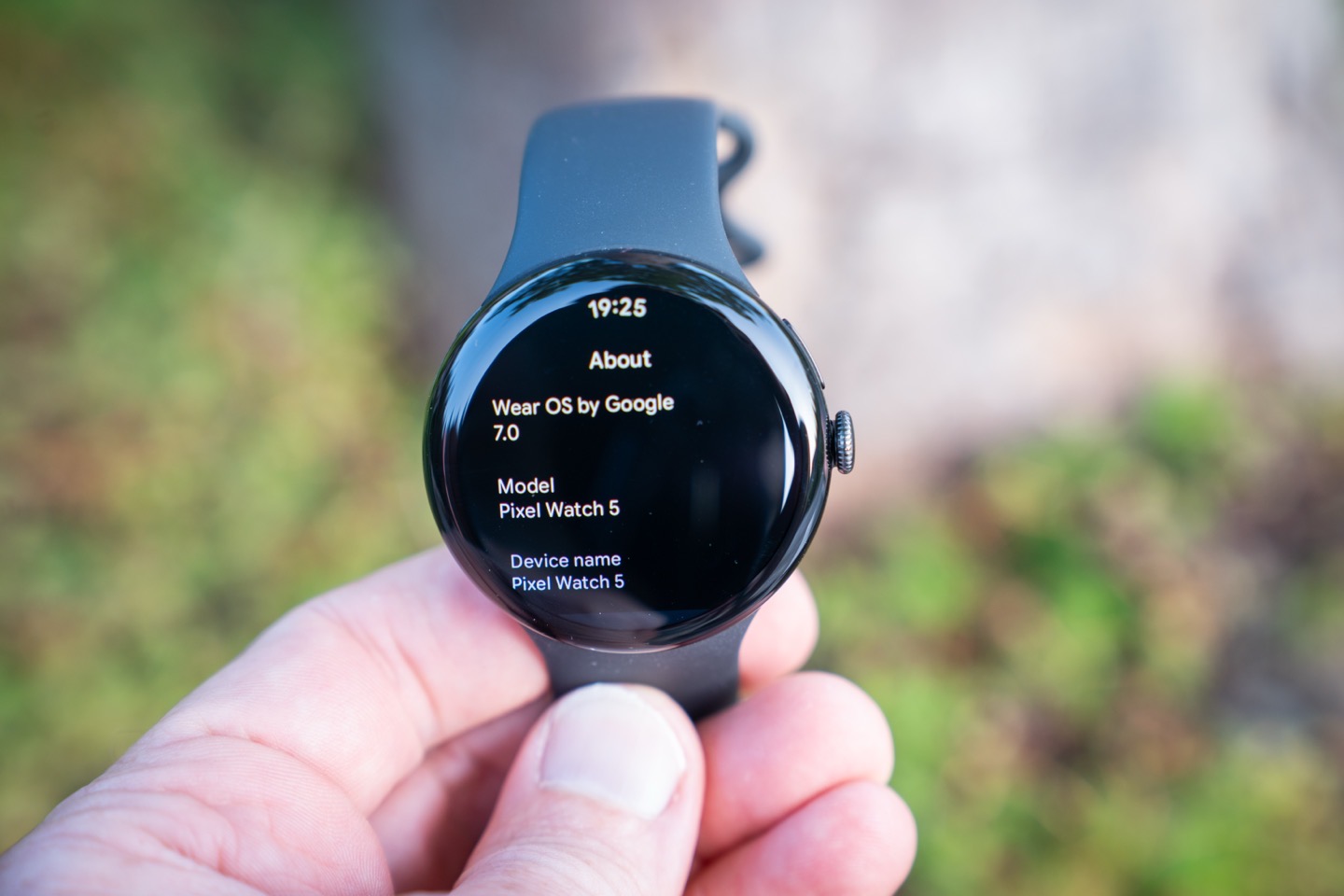

From the outside, the Pixel Watch 5 doesn’t really look any different (it’s externally identical). But to the end user, the Pixel Watch 5 brings about one of the most impressive GPS accuracy shifts we’ve seen since the start of GPS sports watches. But almost none of that progress is because of the actual Pixel Watch 5 hardware itself. Instead, it’s Google doing what Google does best – leaning on its other products and platforms to pull together.
In fact, if you step back and look at the Pixel Watch 5’s new features, you’ll see that pattern repeat itself in almost every category. The new AI features lean heavily on the work the Gemini team has done. The bulk of the sports and fitness features lean heavily on the work the Google Health app (previously Fitbit) team is doing for more than just the Pixel Watch 5. Still, all of this requires glue on the watch to pull it together. Over the last three weeks, I’ve been putting this watch through its paces trying to figure out if all of these things are worth the upgrade, and more critically – is it enough to make the Pixel Watch 5 compelling in a sea of options?
With that, let’s get right into it!
The Key Updates:
Here’s the full list of what’s new on the Pixel Watch 5, in one simple list:
– Increased processor CPU power by 12%
– Increased RAM by 60%
– Claimed 20% faster overall operations
– Added GPS post-processing accuracy gains (for walk/run/cycling-based activities)
– Added weight and rep tracking (coming this fall)
– Added workout builder (app)
– Added audio cues for structured workouts
– Added rest timers for structured workouts
– Added new Bedtime mode with face
– Added 11 new glanceable complication styles
– Added 2 new watch faces
– Added new generative watch faces (ok, this is legit cool, see below)
– Added ‘Raise to Gemini’ questions/answers in no-internet situations
– Added Gemini proactive text responses for automatic replies (requires Pixel 11 phone)
– Claimed 15% more accurate sleep tracking
– Added new smart wake alarm option
– Added new overnight sleep breathing quality metric
– Added ‘Health Guardian’ umbrella feature/concept
– Added Breathing emergency detection (will detect persistent loss of oxygen saturation)
– Added new Blood Pressure trends report (app-based, coming to Pixel Watch 3/4/5 this fall)
– Added new insulin resistance trends report (app-based, coming to all Pixel & Fitbit devices this fall)
– Same exact case sizes as before
– Also added new Steph Curry special band edition, shipping Sept 3rd
Pricing has increased for the first time since the launch of the Pixel Watch series, now $50 more than last year for the non-LTE models, and a $30 increase for the LTE models, bringing it to:
41mm: $399 for Wi-Fi and $479 for LTE
45mm: $449 for Wi-Fi and $529 for LTE
Steph Curry Special Edition (LTE only): Starts at $579
Here are the color options, shown below (Obsidian aka black, Olive, Fog aka white, and Canyon):

Finally, note that the Pixel Watch 5 requires an Android phone, though largely does not require a Pixel phone. There are a few features that require a Pixel phone (such as the camera shutter feature and Pixel phone unlock from previous years), as well as this year the Gemini proactive text responses for automatic replies requires not just a Pixel phone, but a Pixel 11 Phone.
Got all that? Good, let’s get right into using it.
The Basics:
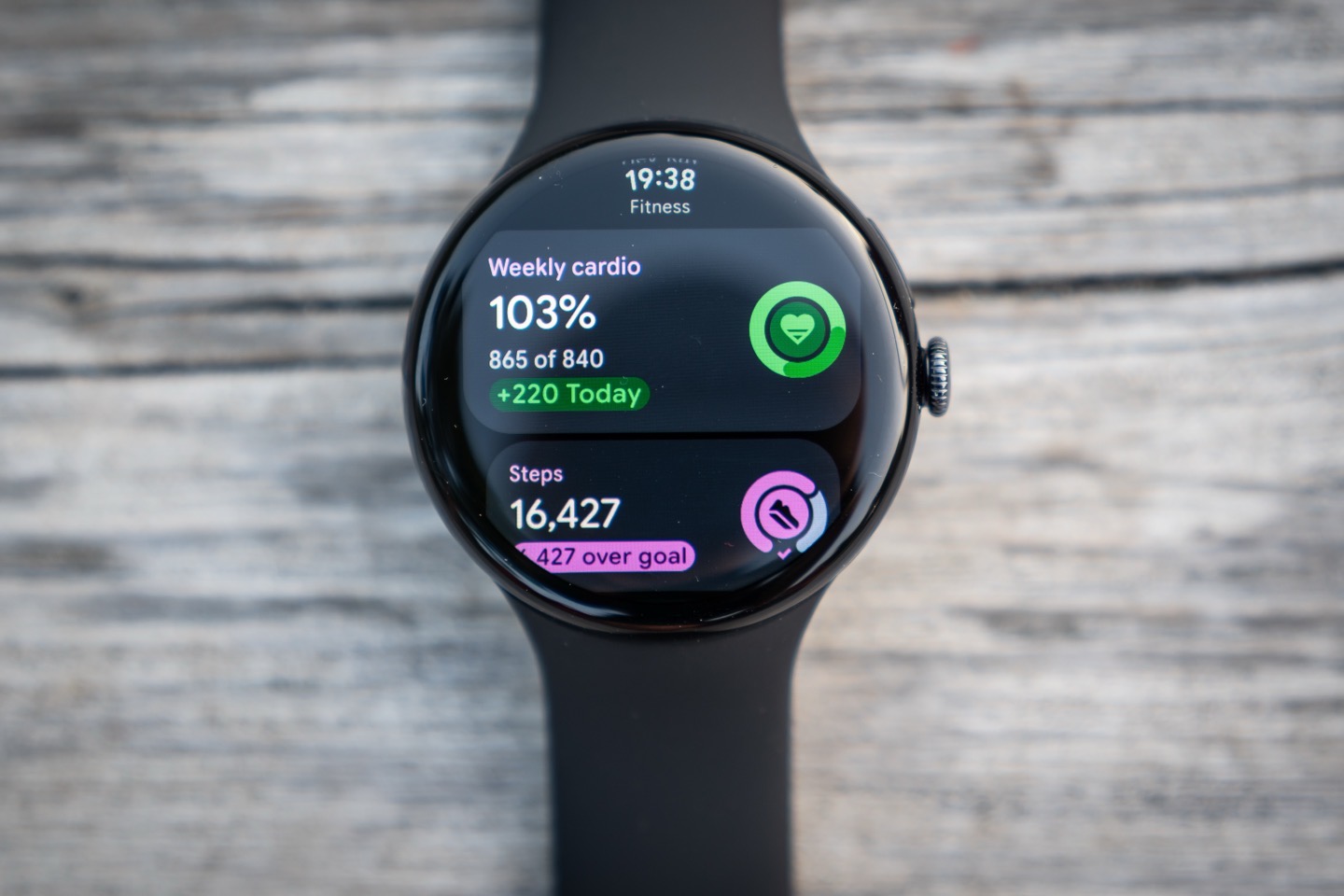
The Pixel Watch 5 UI has received minor upgrades to it, largely via Wear OS updates. For most users, you’d struggle to notice these minor things, but I’ll mention them as we go along here. There are handy quality-of-life ones, such as the new sleep watch face, which is unique to Pixel Watch 5 for the time being.
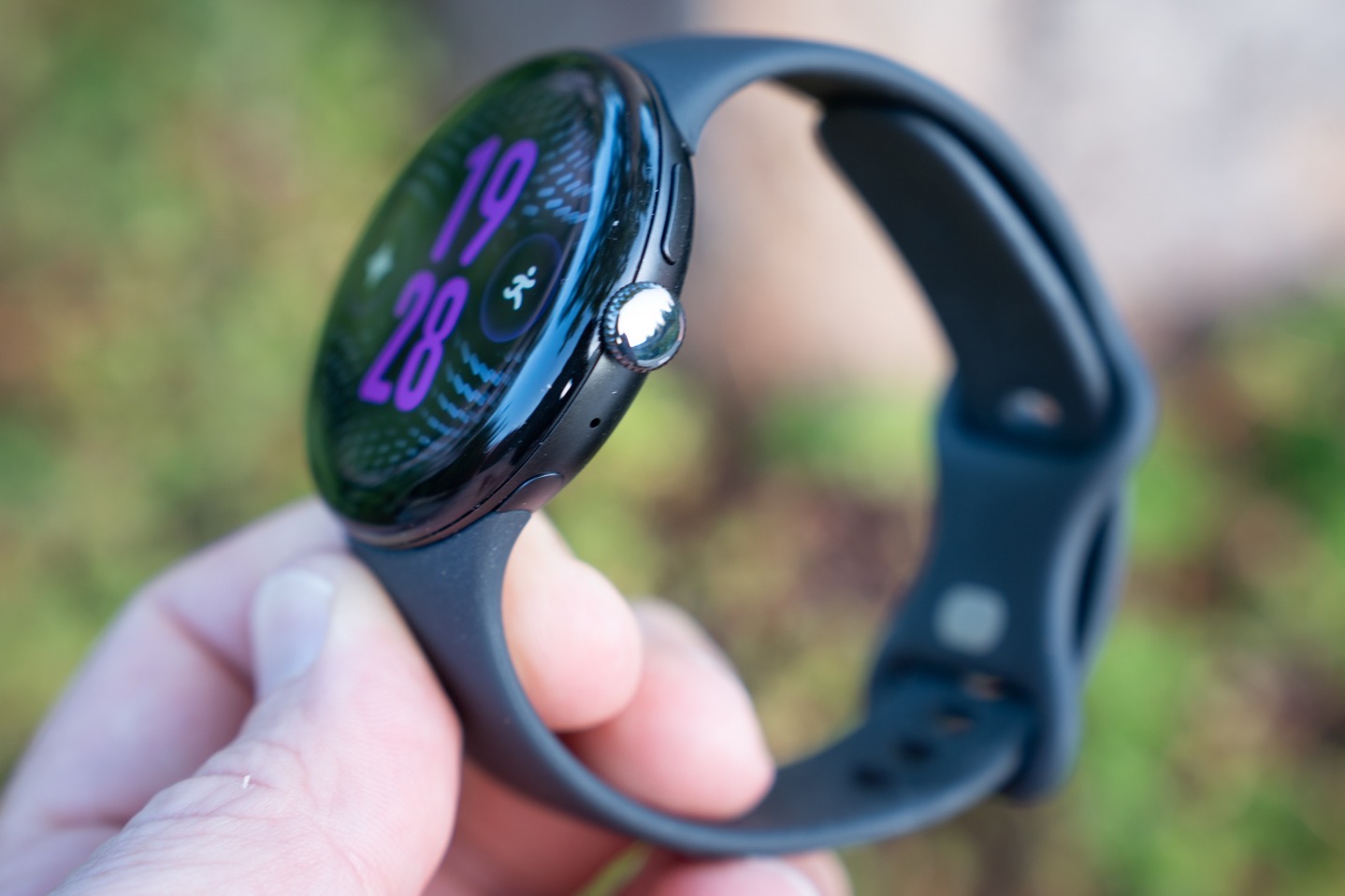
In any case, backing up briefly, the Pixel Watch 5 has a full touchscreen, with two buttons (one of which is a Digital Crown). Pressing the upper right button brings you to the ‘Recents’ (your recent apps), while the Digital Crown scrolls as you’d expect. If you press the Digital Crown in, you’ll get a list of all your apps. Meanwhile, long-holding the single button opens up Gemini. Otherwise, you can swipe from different directions to open up different features.
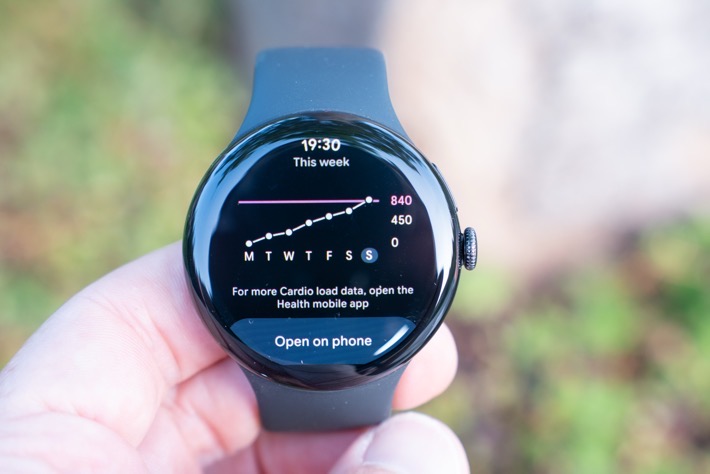
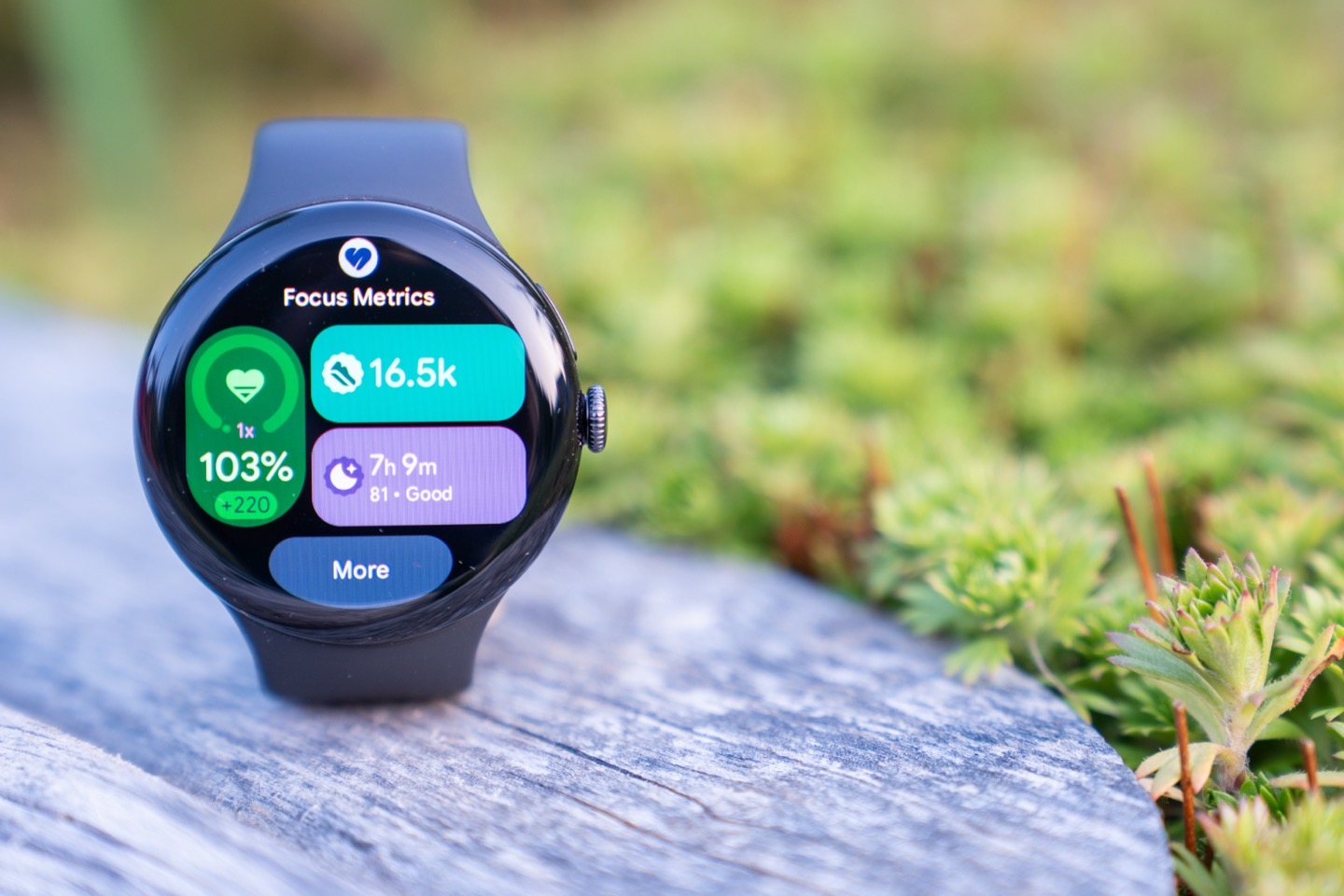
In my case, I tend to swipe from the right to get to the Focus Metrics, which shows all my metrics for the day (and Cardio Load for the week):
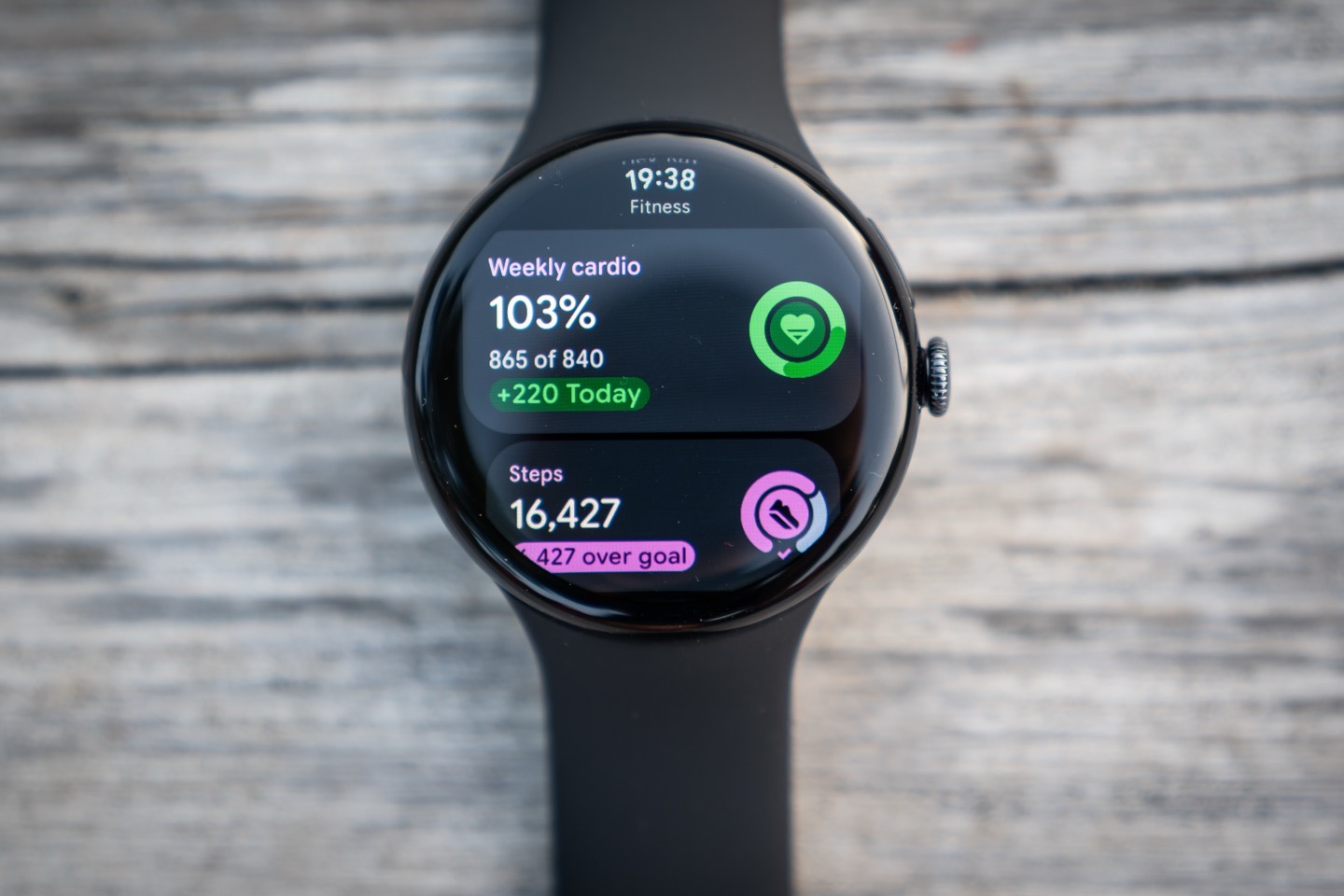
If I tap the ‘More’ button, I get an individual list of metrics across all the core activity areas. It’s a pretty logical and clean execution, and is easy enough to scroll through.
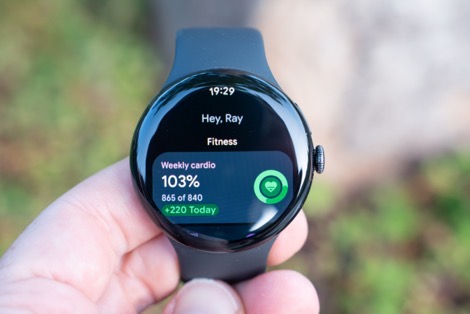
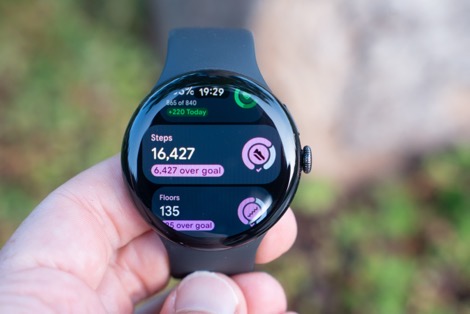
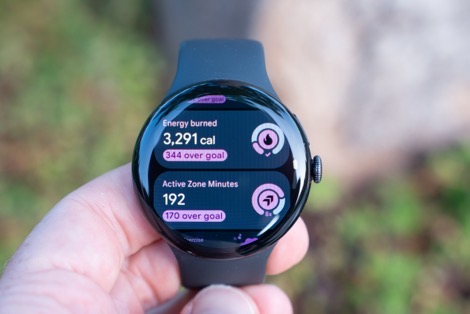
I can tap any given metric glance to get more details about that particular metric, such as steps or stairs, showing a timeline of the day.
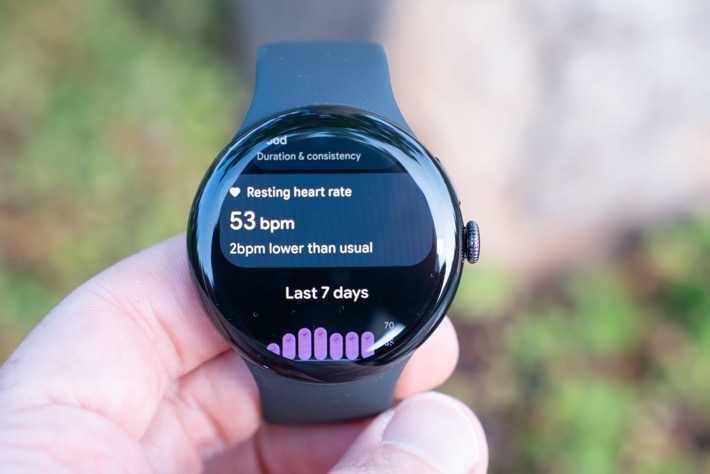
All of this information is then synced/displayed within the Google Health app. Google fully shifted over to that revamped version of the Fitbit App this past spring with the Fitbit Air launch. This app leans heavily on AI to generate a more talkative timeline of your activities. You can still customize the metrics at the top page of the home dashboard, though it can’t really extend beyond that. If you don’t have a Google Health Premium subscription, then the bottom half will largely be void of text (which, is how some people like it).
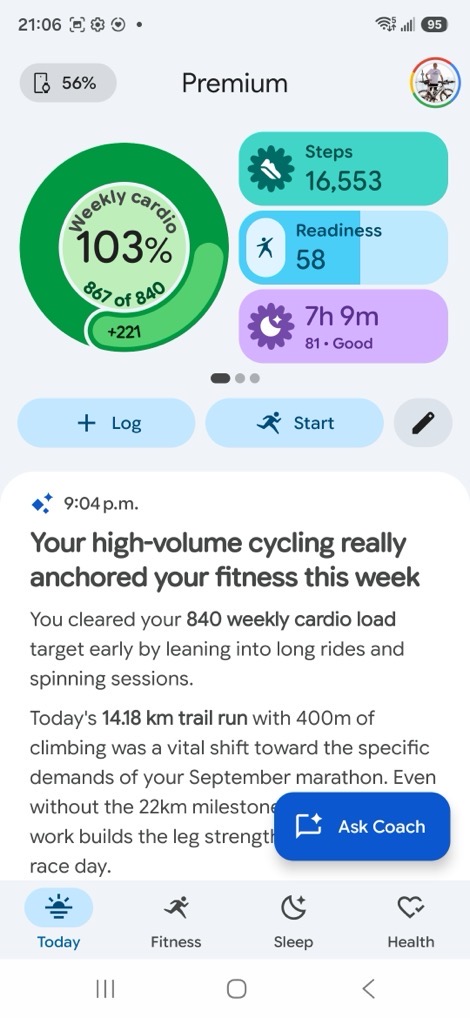
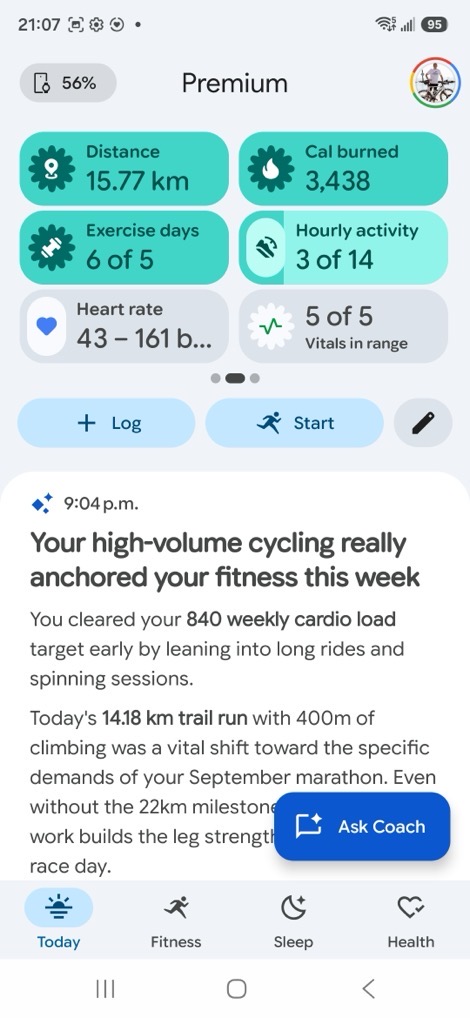
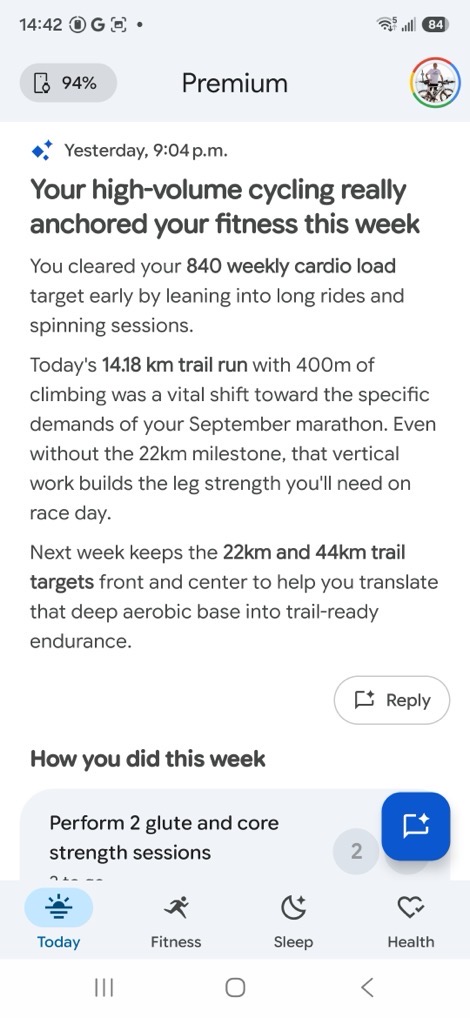
You can tap into any of these metrics to get more details about them, such as steps or sleep, pulling up longer term history. The general line in the sand for Google Health is that all of your data is free/accessible, but the AI insights are what requires the subscription. For the most part, anything with wordy text is an AI snippet requiring a subscription. I’ve slowly gotten used to the whole thing, but I do wish I still had more control over the homepage to reduce the talking and increase some of the core data bits. There’s also times where workouts are severely delayed in showing up (many hours in my case), though Google says they’re working on figuring out and fixing that.
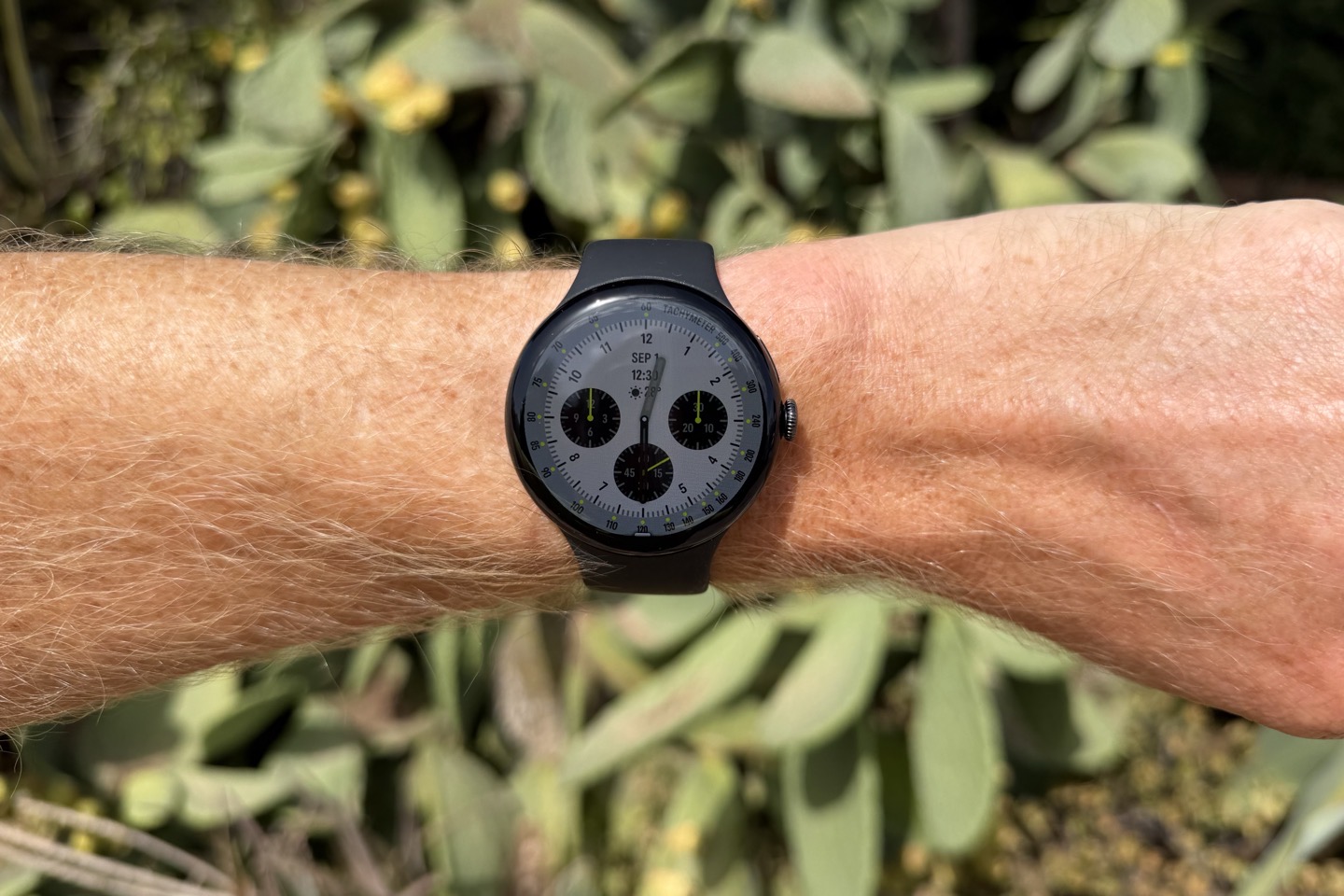
Back on the watch, all of this is displayed on a 3,000 nit display, which has been plenty bright in all my adventures thus far, both on bright sunny days, as well as dark rainy days. The display has adjusted brightness accordingly. Of course, like all smartwatches, that 3,000 nit value is the peak brightness level, which it will only hit momentarily. It doesn’t stay there forever. Nonetheless, even in bright sunny conditions in the Mediterranean (Mallorca, Spain), there’s no issues seeing it:
When it comes to the watch faces, there’s both new watches as well as generative watch faces. The generative watch faces are getting all the attention, and rightly so. You can simply ask it to create watch face based anything you want. Pizza, pasta, the Eiffel Tower, etc… The world is your oyster. Oh, wait, you wanted an Oyster watch face? No problem, here ya go:
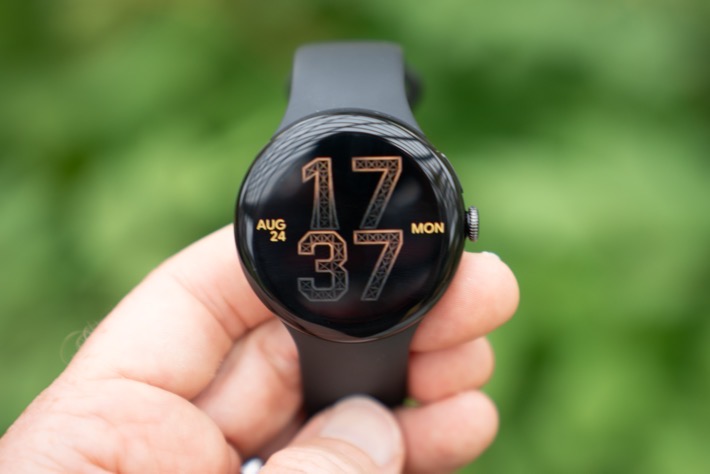
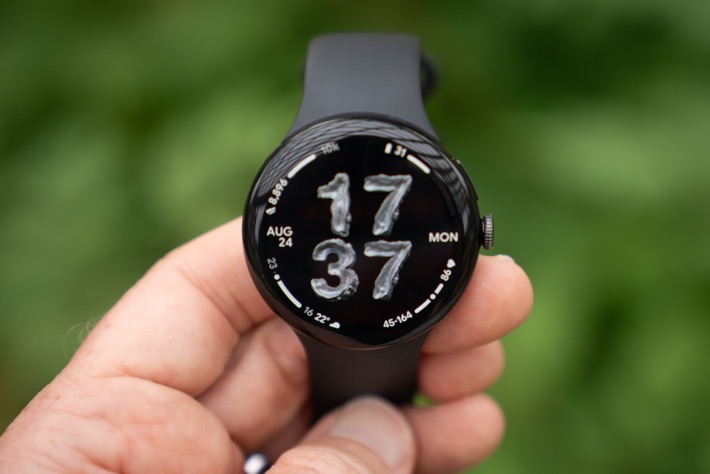
Look, I’m not generally a big fan of generative AI (for lots of reasons), but I’ll give credit that this makes a small part of me smile. It’s fun.
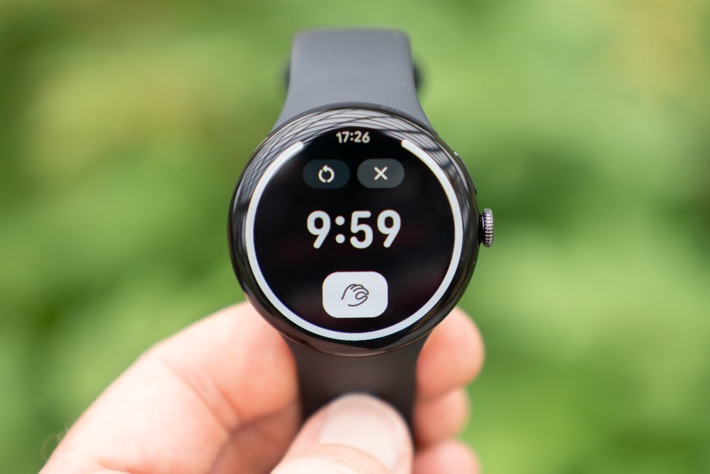
Since we’re on the AI train, I’ll mention that google Added the ability for Gemini give responses in non-internet-connected scenarios. Think timers and the like, not requiring the internet to respond.
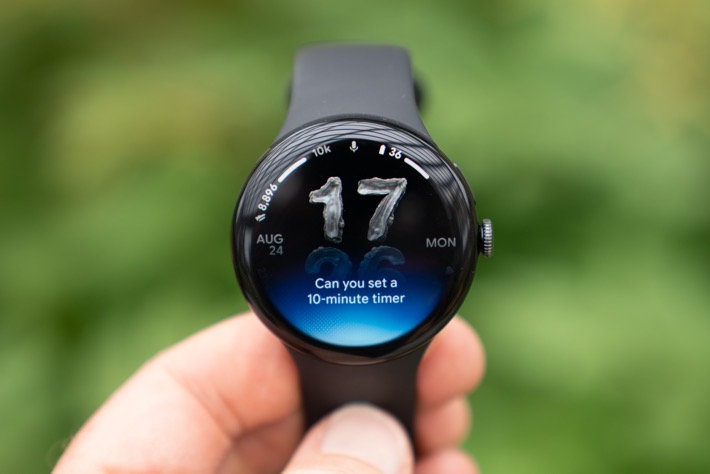
Inversely, if you have internet and a Pixel 11 phone, your watch can now produce quick-tap automatic reply proactive text responses for incoming text messages. It’ll leverage all the things in your phone (e-mail/calendar/etc…) to do this. For example, if my wife texts me to ask our flights for Wednesday, it can respond with the details automatically by pulling them from my calendar/e-mail.
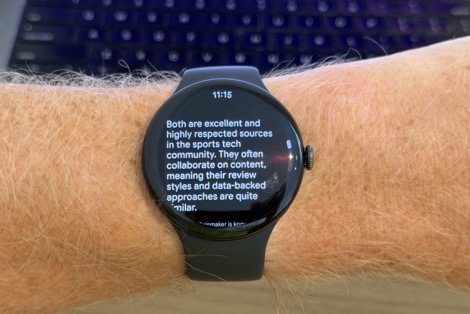
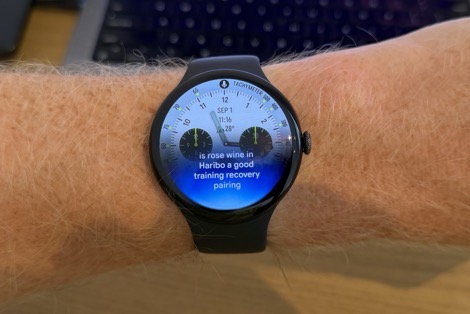
Of course, there’s still Gemini on the wrist for everything else. As I said last year, Google is far ahead of its competitors in this space, in terms of bringing AI to the wrist. It just works.
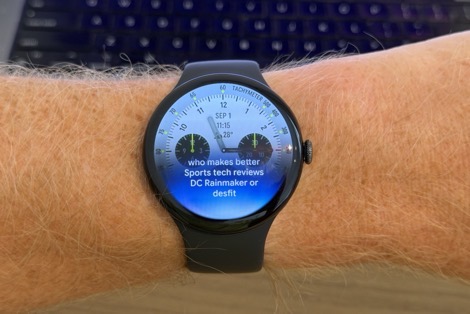
In any event, let’s move onto some of the new sleep bits. The Pixel Watch 5 has a new bedtime sleep watch face mode, which essentially does what everyone else does and dims the screen a bunch and puts the watch face into red lettering on a black background, so it doesn’t blind you at night. Here’s a clean daytime photo of it, followed by a legit fuzzy-cam night photo of it:
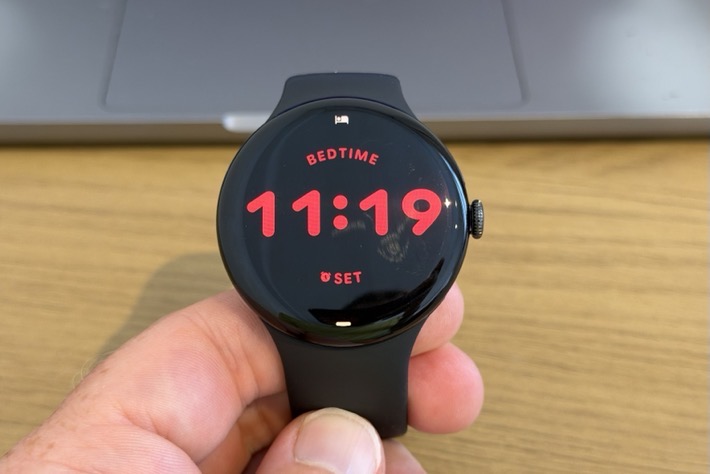
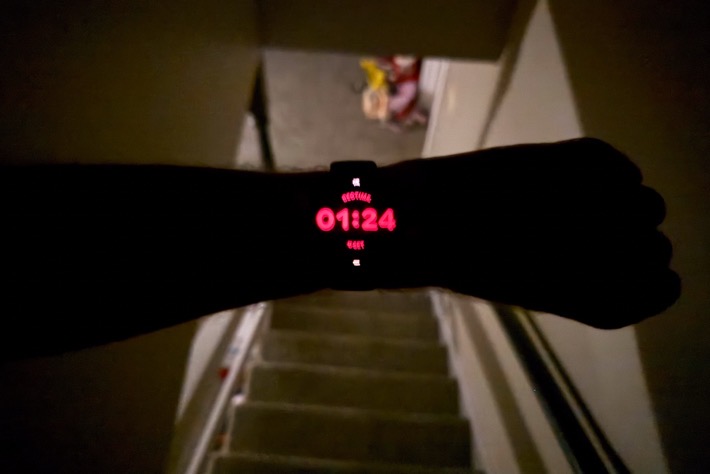
Note that you can have your watch automatically go into that mode, or do it manually by tapping the little bed icon.
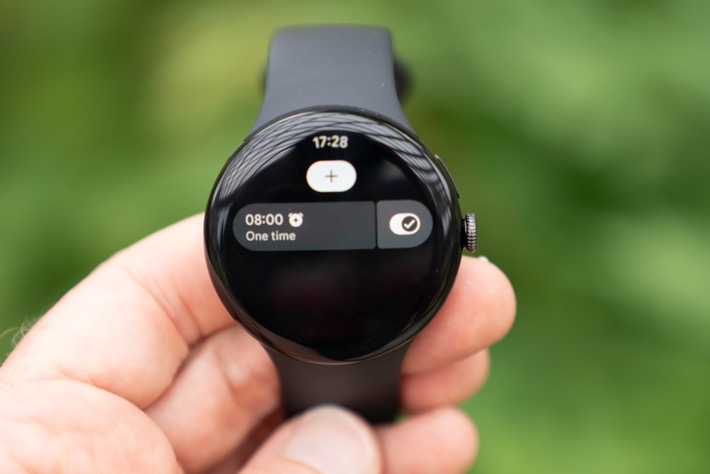
Likewise, it’s worth mentioning the new smart alarms. These work like most smart alarms in that you set a time to wake-up (e.g. 8AM), and then it’ll wake you up anytime between 7:30AM and 8:00AM depending on your sleep phases/stages, to find the least-sucky moment in terms of that sleep cycle. Once that 30-minute window prior to your wake-up time expires, you’re getting woken up, whether you like it or not.
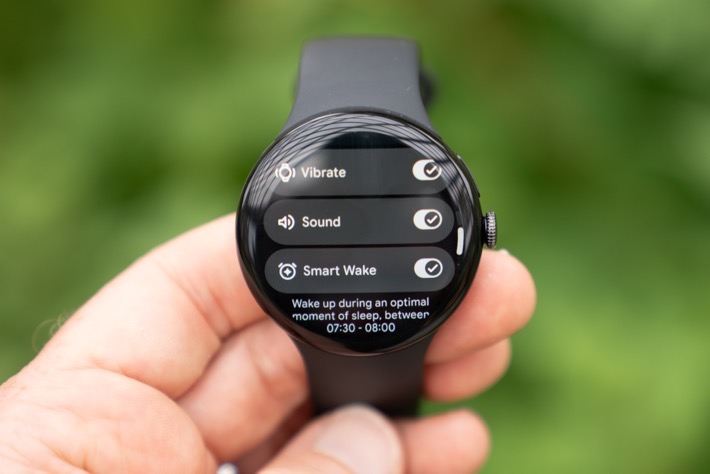
Now Google claims 15% improved sleep accuracy, but there’s no real way to validate/test that in my scenario. Likewise, while I do look at sleep wake-up/fall-asleep times, I don’t judge sleep phase/stages (e.g. REM/Deep/etc…). The reason is that even in a best case (gold standard clinical world), the highest level accuracy is in the low 80% range. With other devices all reporting below that. We’d never use heart rate strap that was only 80% accurate to judge workout accuracy; thus, there’s no logical reason to do the same with sleep phase/stage data. That’s just silly.
Instead, I’ll note that the times where have been consistently within about 5 minutes of my sleep times. And even more notable, there’s been no issues with snooze alarms or such, which some wearables get tripped up by (thinking you woke up, when I promise you, I can snooze the crap out of something).
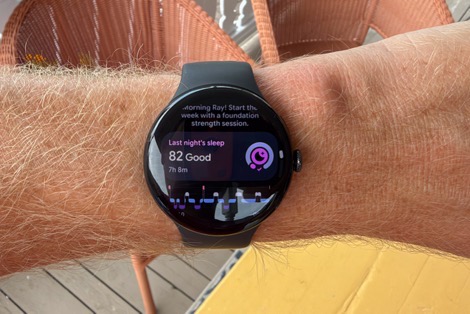
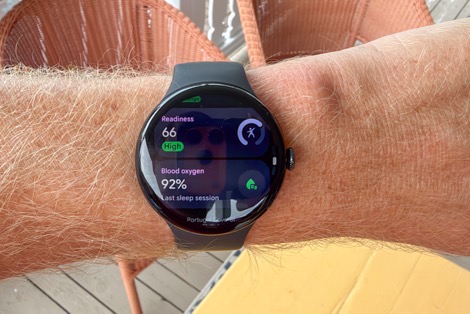
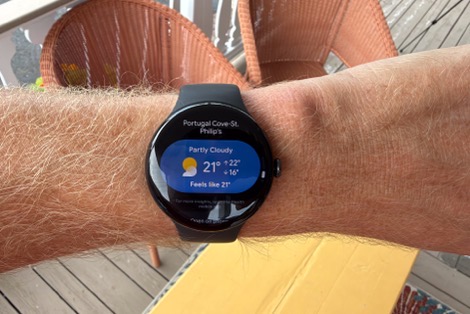
Once you do wake up, the first thing you’ll see on your watch is the Morning Brief. This shows your stats from last night, as well as Readiness score and local weather:
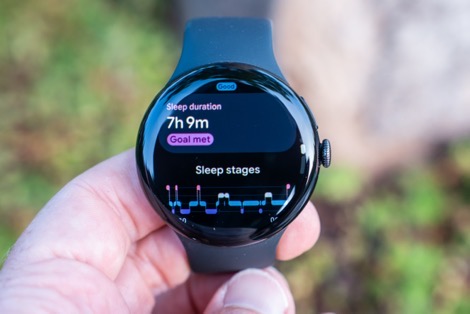
You can still of course dive into the sleep stats anytime you want via the normal sleep pages, to see those stats:
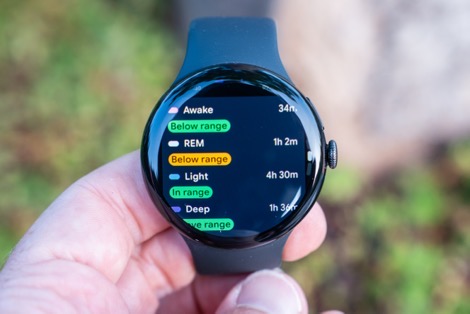
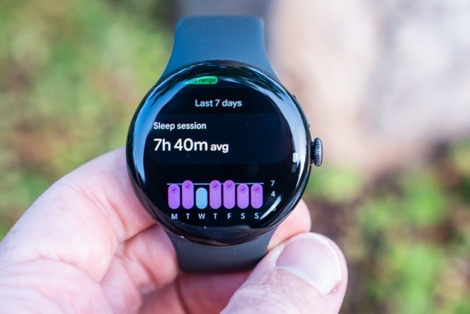
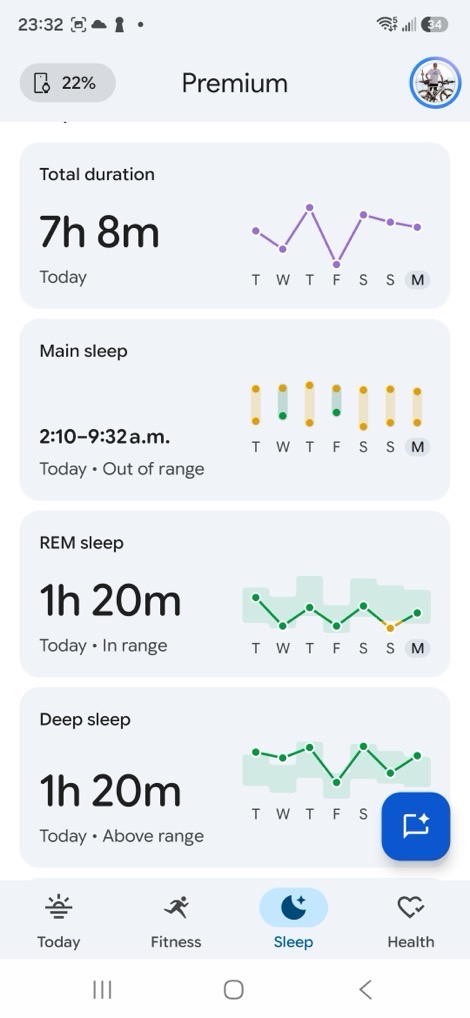
All of this data feeds into the Sleep & Health tabs on the Google Health app. The Sleep tab is fairly straightforward:
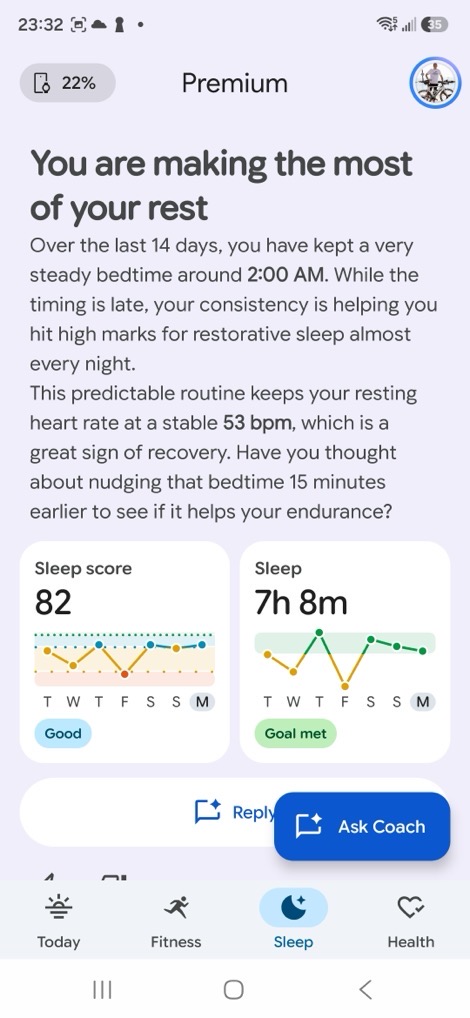
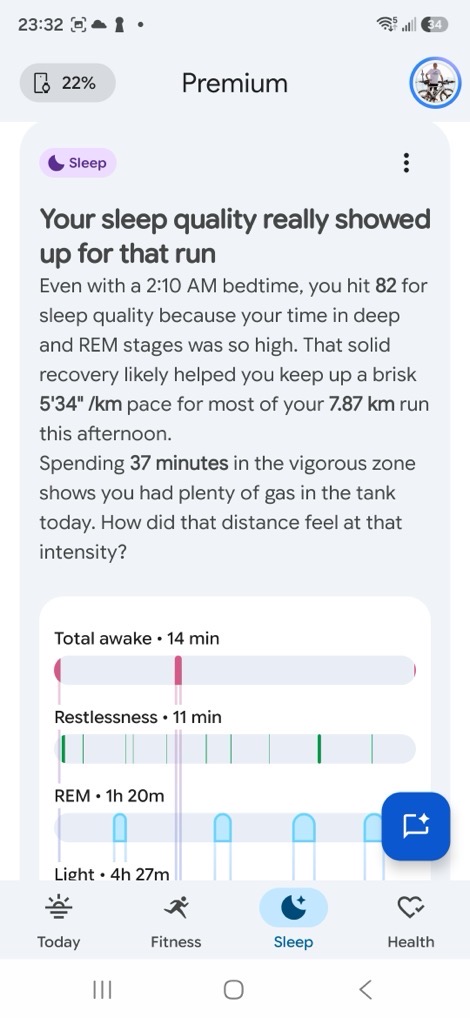
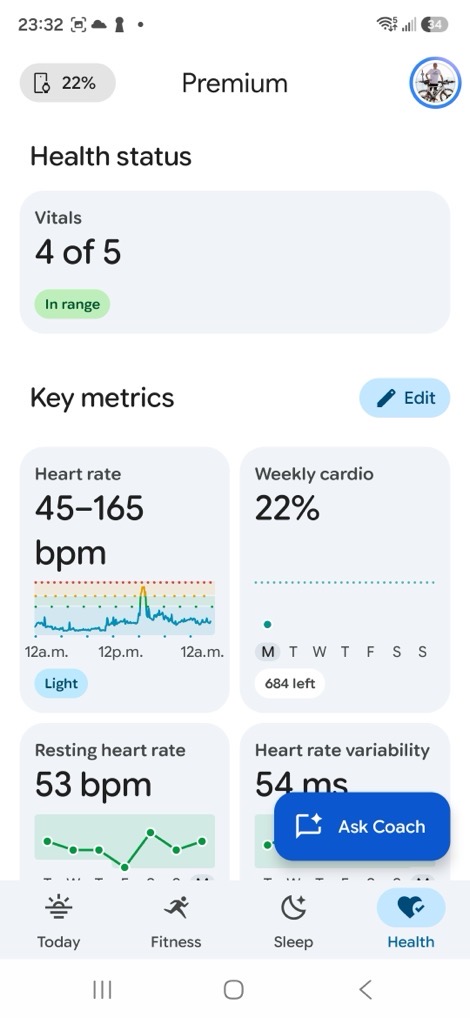
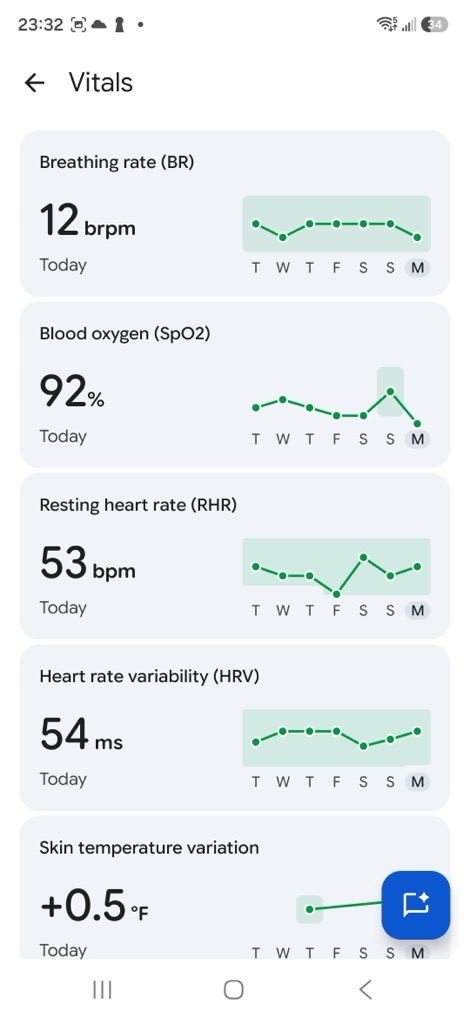
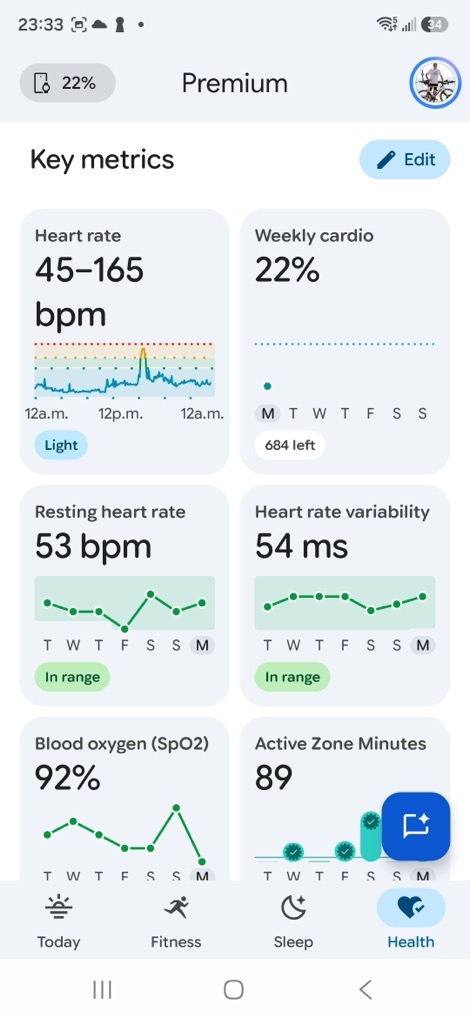
Meanwhile, the Health tab is where you’ll see your Vitals and other core metrics. Like most companies, Google started displaying these in a consolidated view over the last year or so, and then trending them against your baseline. This includes resting heart rate, heart rate variability (HRV), SpO2 (Blood Oxygen), Breathing Rate, and Skin temperature variation. Note that skin temperature variation is per-device, so if you flip back and forth between a Fitbit Air and a Pixel Watch, this gets all dorked up.
When then finally gets us to the Readiness score. This used to be called Daily Readiness under the Fitbit realm, but is now shortened to just Readiness. That looks at your sleep, HRV, and resting HR levels to outline how ready to take on the day you are. This score doesn’t change throughout the day though (unlike Garmin’s Training Readiness), but does do a really good job of showing fatigue you may have from previous workouts or poor sleep:
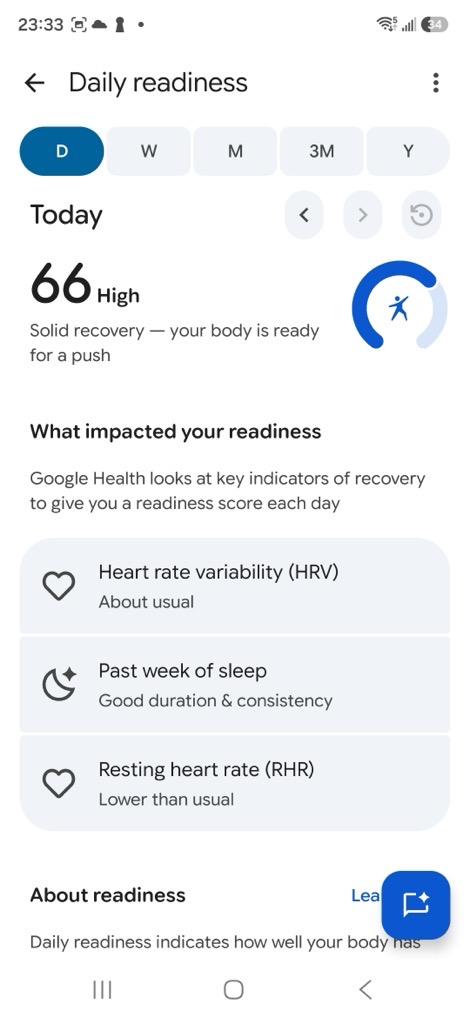
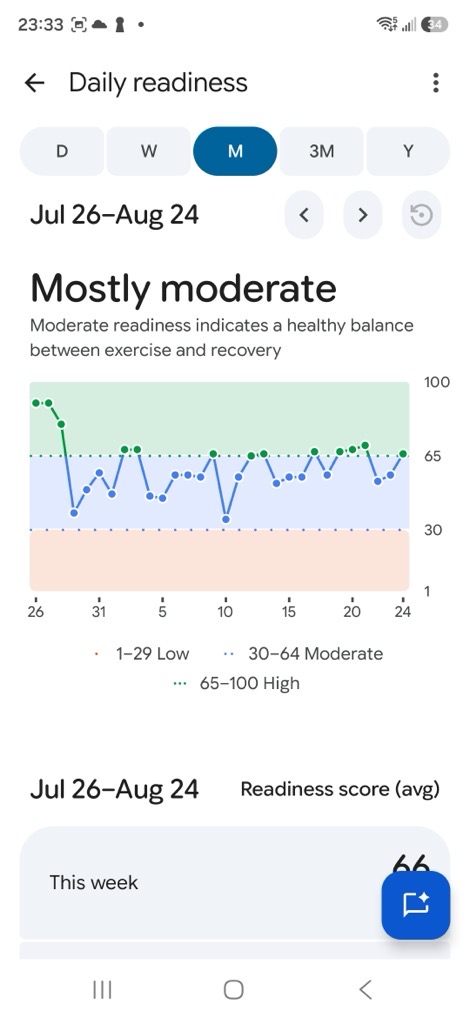
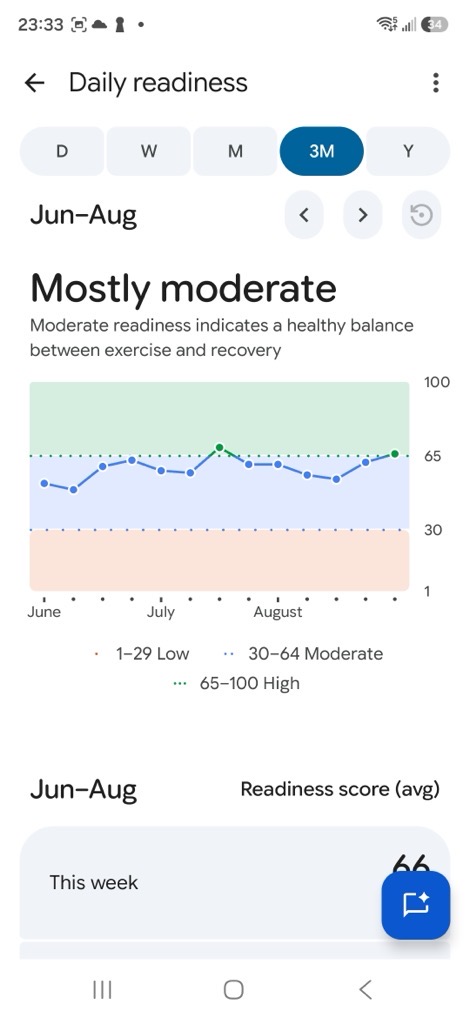
As you can see above, you can trend this over time pretty easily to see how it shifts.
With that, let’s dive into the workout pieces.
Sports Tracking:
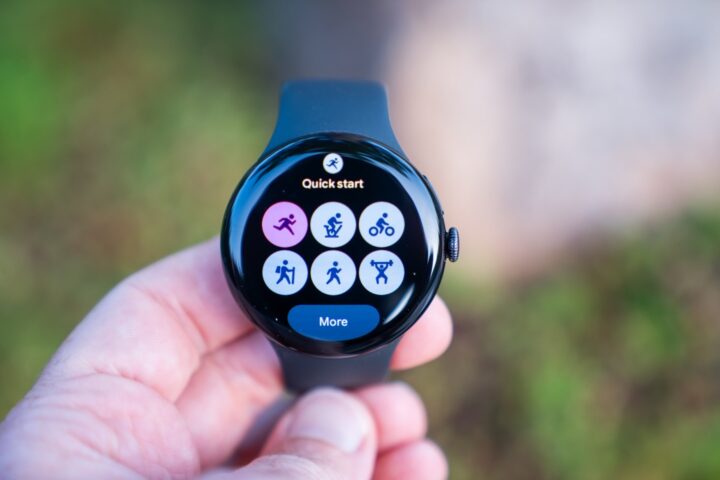
Next up we’ve got sports tracking. This is an area that Google has made some notable gains around strength training (both on-device and structured workouts coming from the phone), but unfortunately, those new features haven’t gone live yet. It sounds like that’s “very close”, which I suspect is Google-speak for “We found a last-minute bug that kept these from going live”, as they weren’t listed on the ‘later-gator’ features during all the media briefings (those later-gator features like weight lifting are coming later this fall).
In any case, let’s talk about what’s there today.
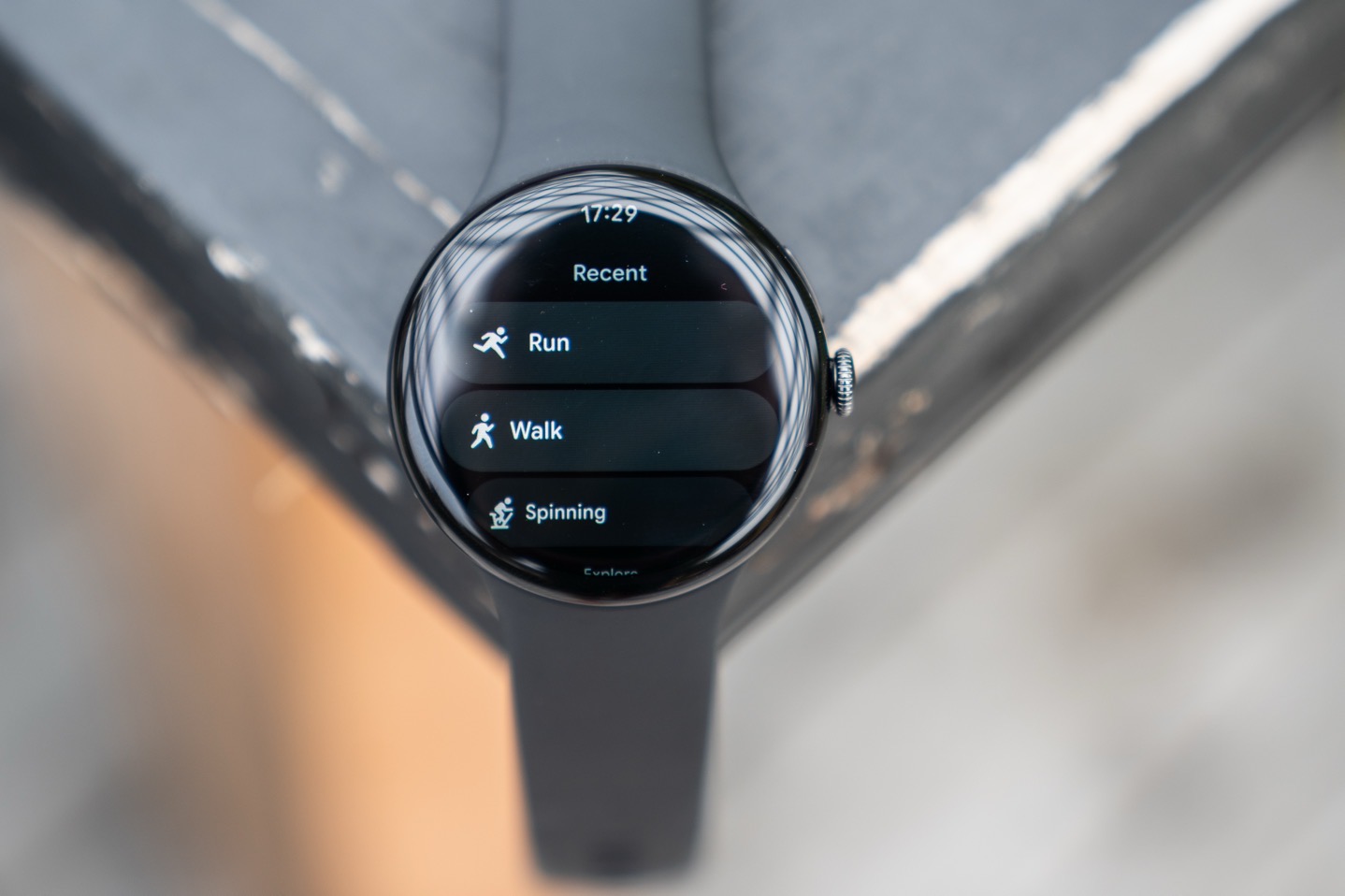
First up, to start a sport profile you’ll either tap the little runner-man ion on the watch face, or tap the Digital Crown to get to the ‘Exercise’ app, which brings you here, showing your recent sports, and then below it, all the exercise types and settings:
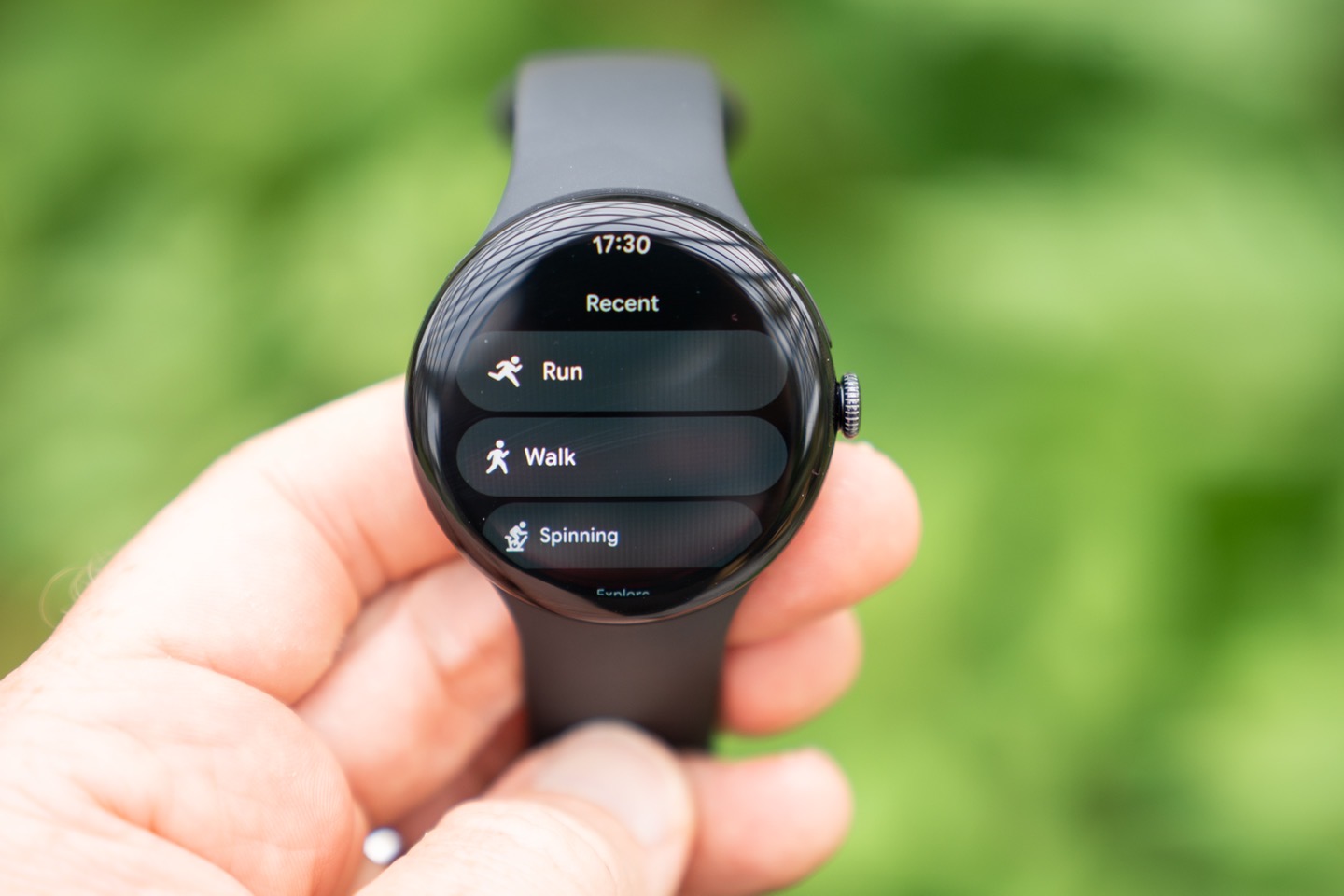
It’ll save your three most recent sport types at the top, and then everything else you have to go fish for. There are approximately 55 sport profiles, which I’ve handily listed here for you:
Aerobics, Badminton, Baseball, Basketball, Bike, Bootcamp, Boxing, Canoeing, Circuit Training, Core Training, Cricket, Cross-Country Skiing, CrossFit, Dancing, Elliptical, Field Hockey, Football, Golf, HIIT, Hike, Indoor Climbing, Kayaking, Kickboxing, Martial Arts, Mountain Biking, Outdoor Workout, Paddleboarding, Padel, Pickleball, Pilates, Powerlifting, Rollerblading, Rowing machine, Rugby, Run, Skating, Skiing, Snowboarding, Soccer, Spinning, Sport, Stair Climber, Strength Training, Surfing, Swim – Open, Swim – Pool, Tennis, Treadmill, Walk, Weightlifting, Weights, Workout, Yoga
When you choose a given sport profile, you can tweak the settings for that sport profile. In my case, we’ll use Running. From here we can change the two workout views (just barely), modifying the four slots in a single data page. You can also change the splits to be automatic 1KM/1MI splits or not. And there’s an automatic pause button.
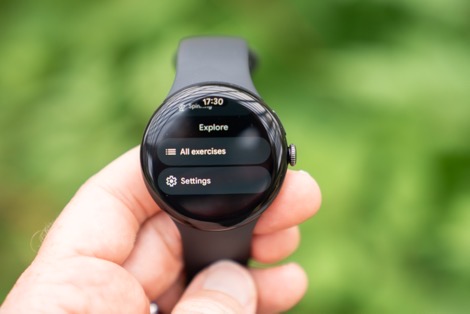
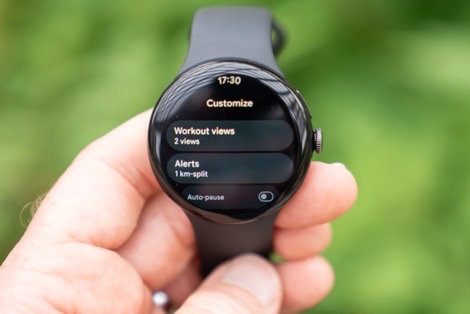
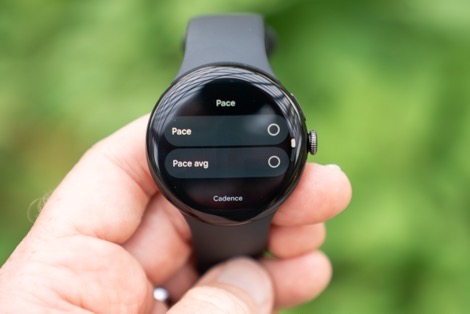
Look, Google may have added in a lot of features over the last few years, including sport ones. But at this point there’s no excuse for not having a manual lap option. Likewise, the configurability of data pages is well behind all of their competitors. These areas need to be significantly improved. In this day and age, there’s just no reason why both of these aren’t here by a 5th generation watch.
Speaking of missing features, there’s still no way to pair a heart rate chest strap to the watch. There are third party apps that can do it, but then you’ve got all the baggage that comes with 3rd party apps. Same goes for lack of any other sensor support, especially cycling sensors like power meters (or other fitness equipment). Again, in 2026 that’s become baseline stuff for every company in this category, and Google needs to spend time on those things.

In any event, once we go ahead and choose the sport we want, I can tap to start it. In the case of running for example, it’ll happily capture my run without any issues, and I can see my stats as I go along:
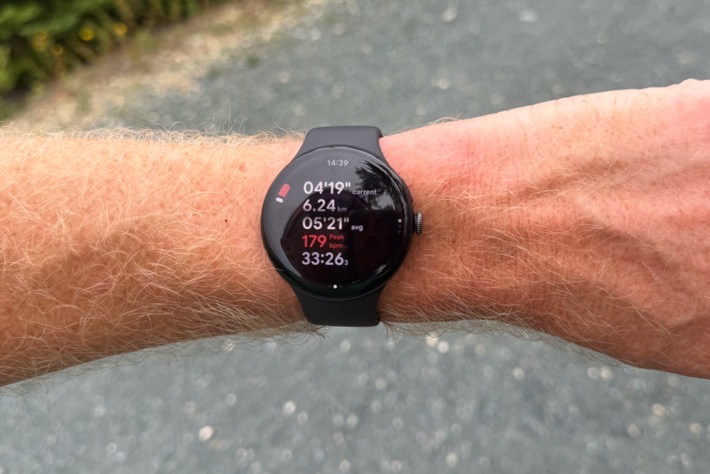
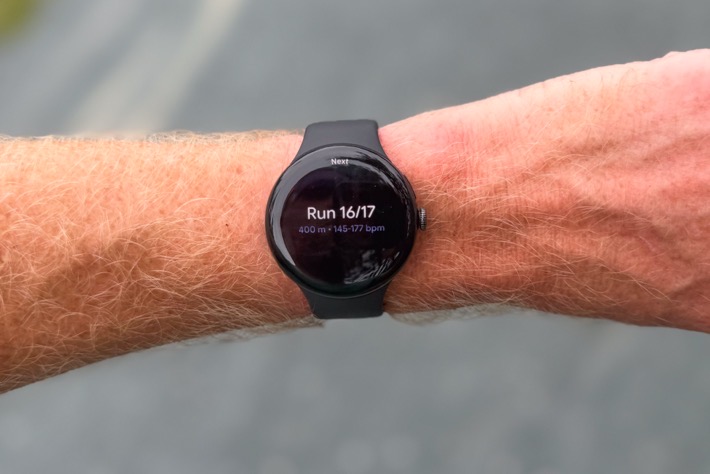
Within the Google Health app you can let the Google Health Coach create workout suggestions automatically, or you can create your own, either manually or via the text prompt (even using voice). So for example, for today I asked it to create an 8x400m workout, as you can see below. It did so correctly, exactly what I wanted. It did guess on my ‘target’ (e.g. HR or pace), which is fine, because honestly I was just gonna run it hard, and see how it worked out. I’m doing it on crushed gravel on trails with some 90* turns, so trying to stick a specific pace will be tricky.
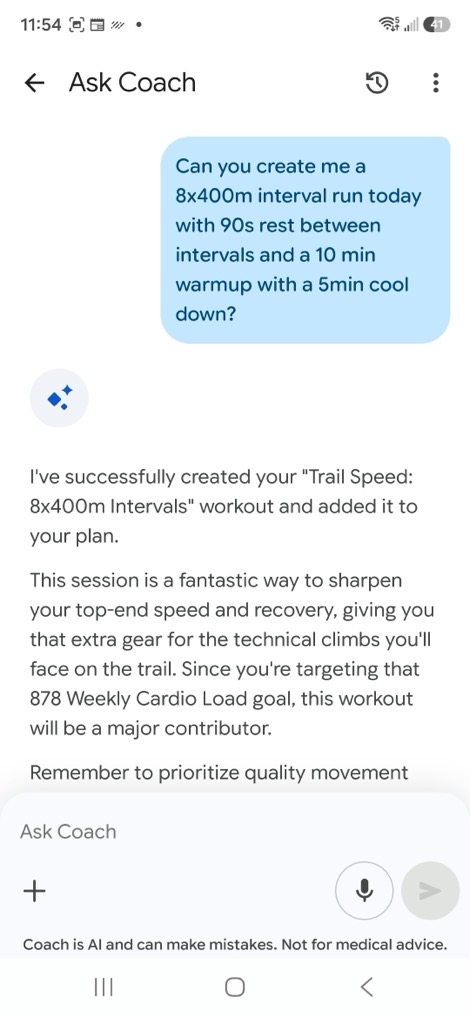
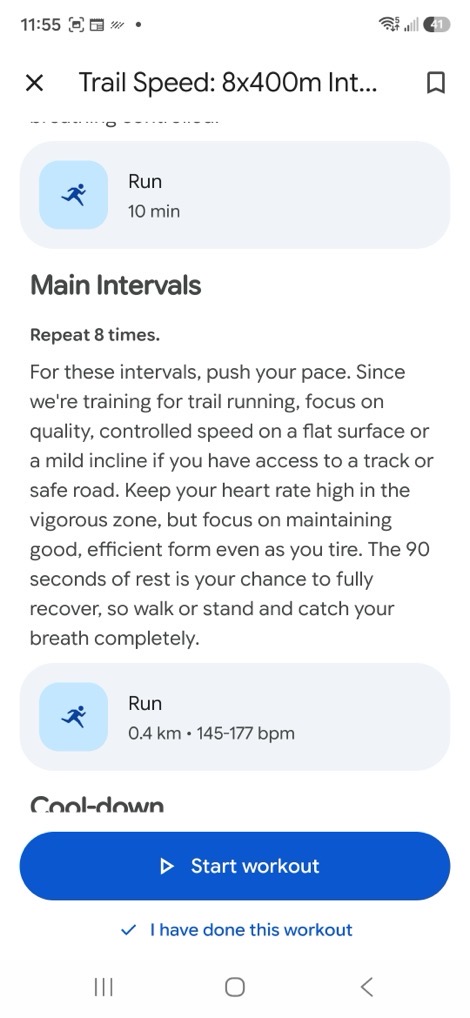
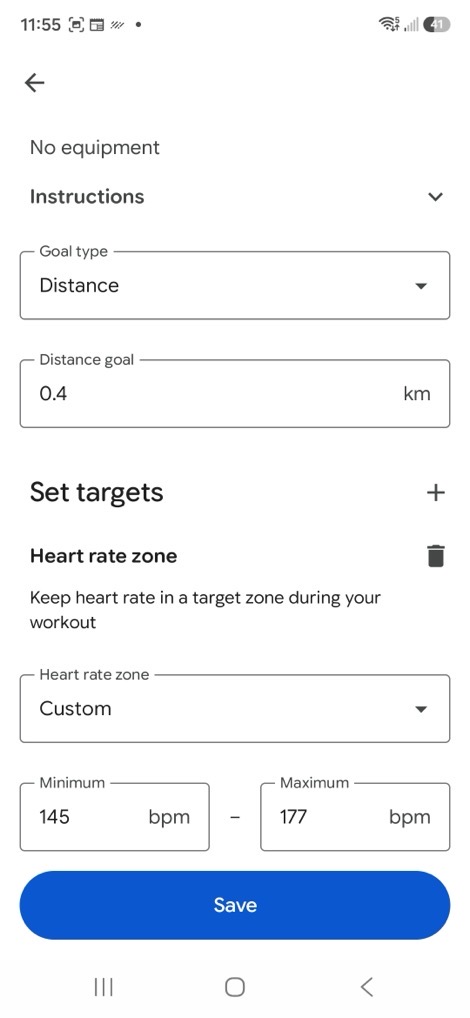
Now despite telling it to save it, it didn’t actually save/show-up on my watch. You have to go back and explicitly tap the little flag in the corner, and then reconfirm you want it on your workout library, then it’ll sync. This seems like a bit of a disconnect.
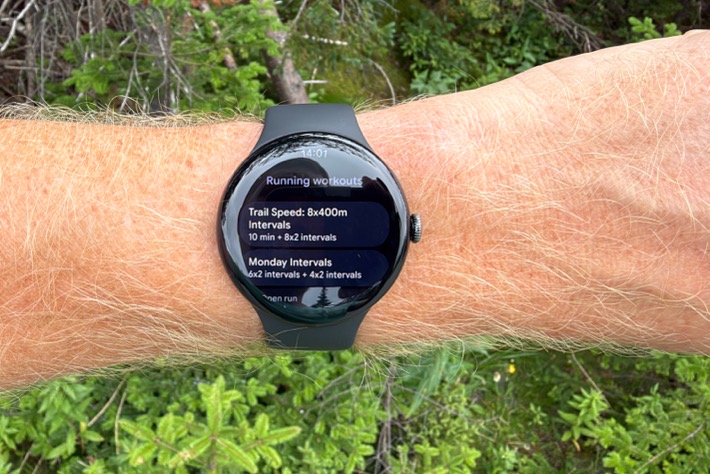
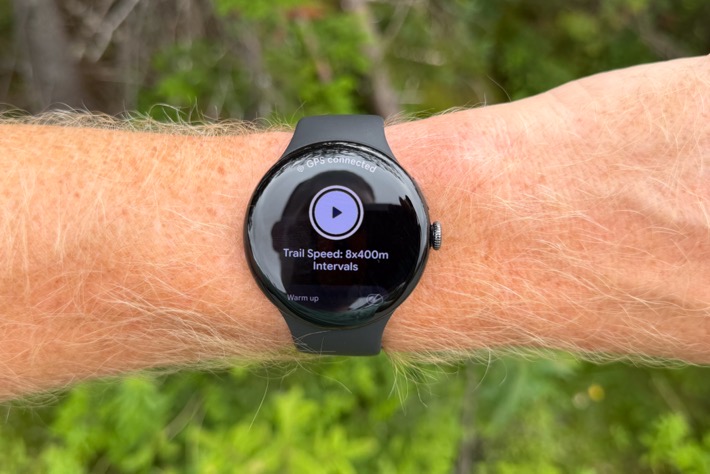
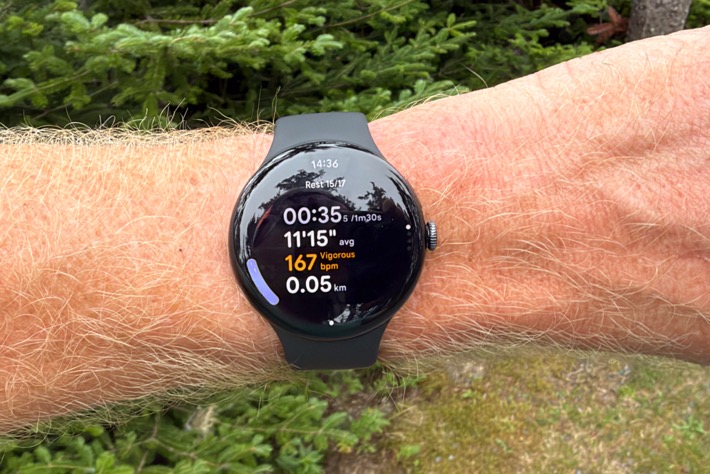
Once that’s done, you’ll see it while running, showing your targets and counting down each section, and targets. You can see in this rest section it shows me 35 seconds into a 1m 30s rest period. Taking photos during 400m repeats (and having those photos actually be clear on a dreary day) was challenging. So, rest periods you get.
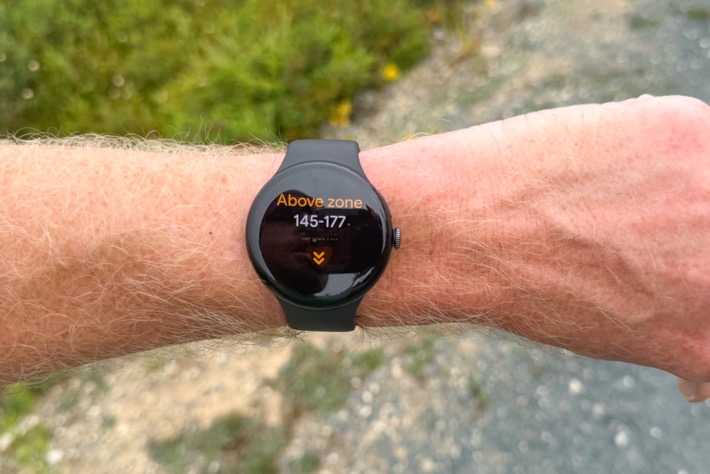
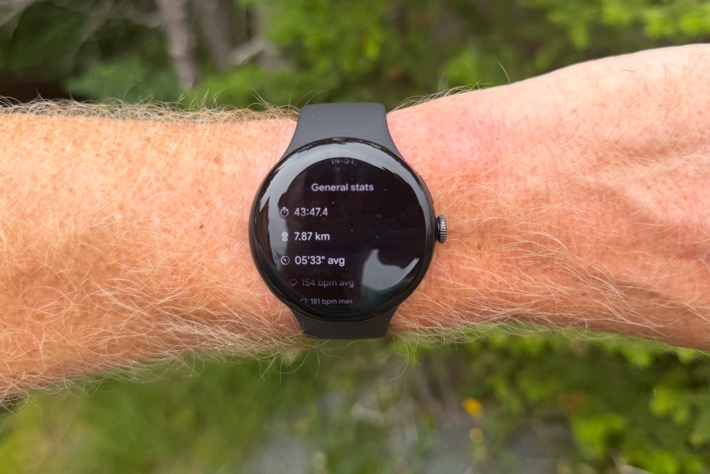
Once you’ve completed a workout (any workout) then you’ll get a full summary of your activity. I’d say this falls short in terms of detail compared to some of their endurance-focused competitors, but is inline with something like the Apple Watch.
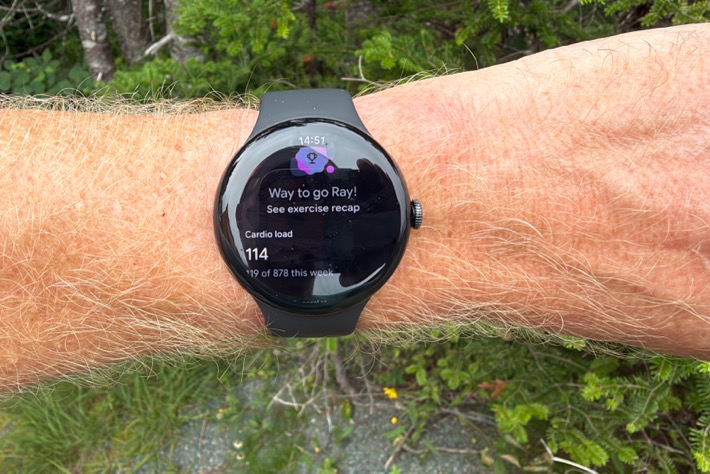
Now, the last thing to cover from a workout standpoint is Cardio Load. This is Google’s training load metric, and it’s actually pretty darn good, and is one of the best ones out there in terms of holistically capturing your full day, both structured workouts and other bits that contribute to bodily load.
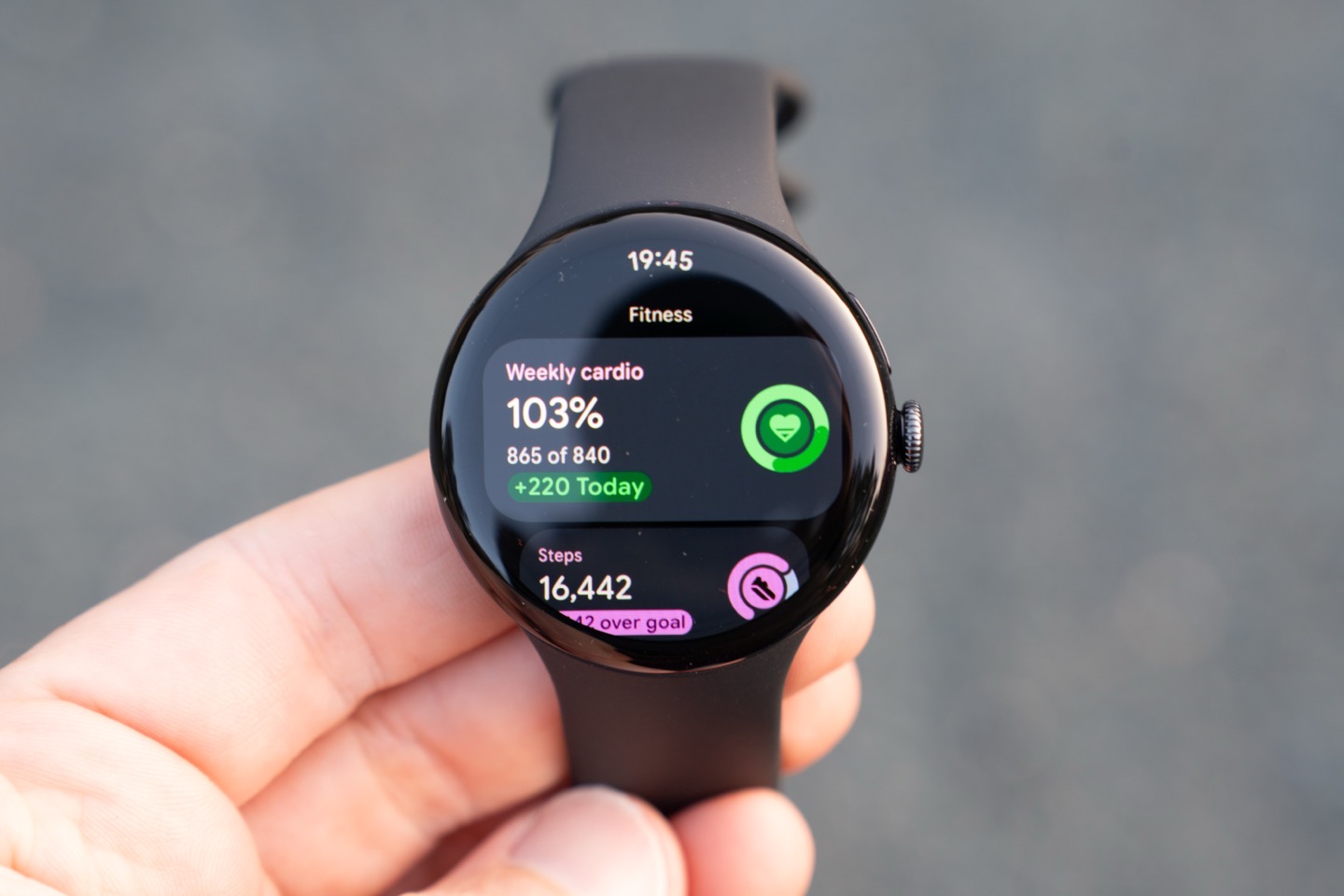
You see, a Garmin watch (and everyone else except Whoop), only accounts for training load when you start a workout. If a workout didn’t happen, then the load didn’t occur. But the problem is that misses things like loading boxes for moving (house) for hours. Or it misses running for 10 minutes in a giant international airport dragging luggage and kids to get to your plane because the WestJet ticket agents didn’t know how to do their job. I mean, not that I have specific recent examples or anything. Google/Fitbit captures all of that, because Cardio Load is simply looking at your heart rate 24×7, and assigning load throughout the day.
Cardio Load is displayed on the watch, as well as see it on the app. Each workout gets assigned a Cardio Load number, and then likewise the rest of the day gets accumulated load as well. It’s a really solid system, and is better than Whoop because it follows industry norms on training load accumulation (versus the wonky 21-load cap that Whoop has which makes no sense physiologically, or even just logically).
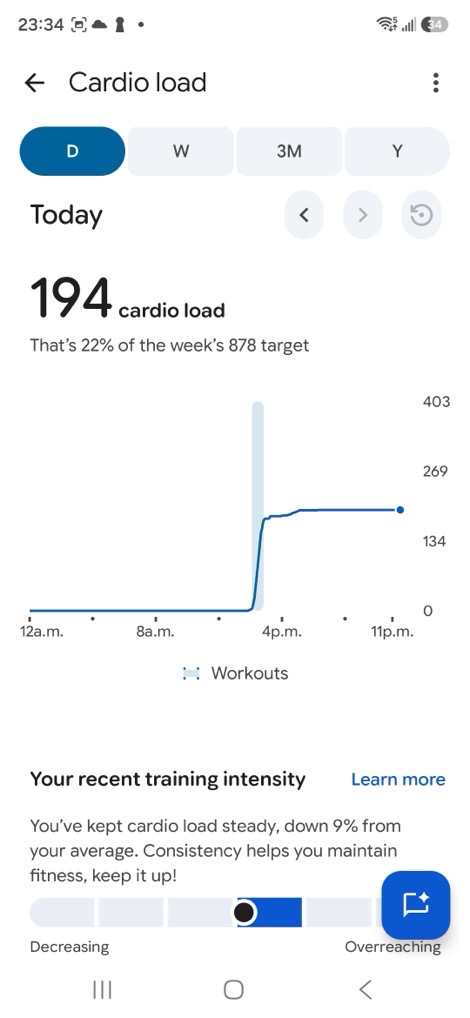
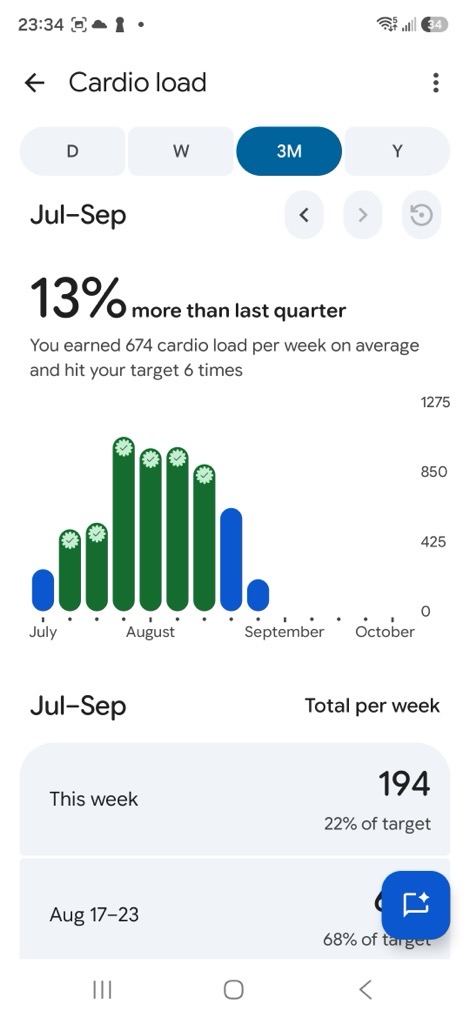
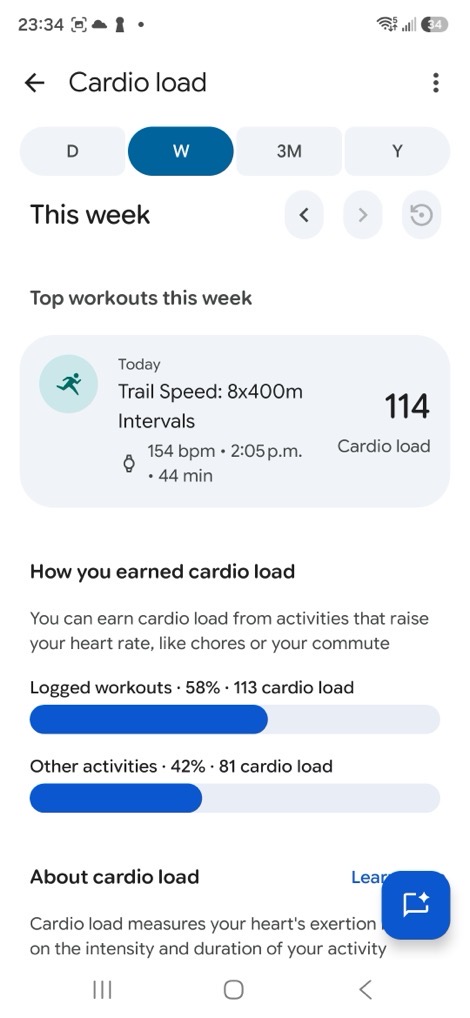
You can see above how I earned Cardio Load, including both a bunch of workouts, as well as other activities. Depending on the week, this bucketization will vary. In fact, even more, depending on the device this will vary. Meaning, if I wear a Fitbit Air, I’ll get more ‘categorized’ cardio load, because it will automatically create workouts for things I might not bother to (e.g. moving boxes). Whereas the Pixel Watch 5 won’t create those workouts automatically, and instead will just assign the Cardio Load to the other bucket. Not a big deal, but kinda a notable difference.
Obviously, you can see above the Cardio Load goal that it’s automatically and dynamically assigned me. It changes each way, I just let it do what it feels like doing.
Now lastly, remember that the new strength workout pieces aren’t yet available publicly, so they aren’t in this review. Hopefully that happens soon, as it’s pretty cool.
GPS Accuracy:

Now arguably the biggest new feature of the Pixel Watch 5 is the revamped GPS accuracy bits. This is almost entirely done in post-processing, where they refactor your GPS track based on a ton of data to produce astonishingly accurate results. By far the most accurate GPS tracks we’re seeing in sports tech today.
I have an entire video and post on that here, where I go into massive geekery in New York City on hours of running, as well as a ride, purposefully seeking out the most difficult GPS situations I can find. Now, I just want to recap the basics of what Google is doing from that post, and then show you a bunch of new non-NYC data in deep forests.
To begin, Google says they’re focused on trying to solve for really three specific GPS issues. To consumers, these ‘issues’ manifest themselves as all assortment of wonky GPS track errors, but to GPS engineers, these are basically three specific issues. They are:
– Poor tracks in tall building scenarios: Commonly known as urban canyons, such as New York City, or really any building, tall buildings will not only block GPS signals, but more critically, as far as bad tracks go, they will literally reflect GPS signals (off glass & metal), which tricks GPS watches into thinking they are somewhere they aren’t. In GPS-lingo, these are called multi-path errors, because the path from the satellite to your watch can take multiple paths to the watch, only one of which is ‘real’/true (or even none of which are).
– Terrain blockages: This is a semi-similar bucket to the first one, except for natural terrain blockages, like cliffs, or mountains, or tree cover. These things are less likely to reflect the GPS signal, but can still present challenges due to limited GPS satellite views (remember, a GPS watch will normally be connecting to upwards of dozens of satellites at once).
– Atmospheric issues: This is probably the bucket you think of least, but still a very impactful part of the signal. This is mainly focused on weather, including heavy cloud cover, rain, thunderstorms, fog, etc… Basically, anything in the sky that’s dorking up GPS reception.
Ok, with that out of the way, let’s talk about how they are making the tracks better. And now it’s important to note that they are doing this in post-processing. Meaning, it’s not fixing your exact position in real-time as you go down the street, but afterwards. And critically, it is very much not just road/trail-snapping (as some of their competitors do). In fact, I’ll literally demonstrate that over and over again, purposefully trying to trick it (and where the competitors will route snap). But we’re getting ahead of ourselves.
Google is using three specific fixes to post-process the tracks. They are as follows:
1. 3D Building Models: Here, they are using Google’s massive database of the entire world, mapped in 3D (think Google Earth), which in turn knows the exact building heights of just about everything on this planet. From buildings to mountains to bridges, it knows it all. By knowing there’s a building there, and the specific height, it can determine whether or not you (running on the street or wherever) can actually see the satellite your watch thinks it can see. Or, if instead, that GPS signal is being reflected off of a different building, causing a multi-path error/inaccuracy. By knowing which satellites can and cannot be seen by the watch, it can re-prioritize which signals to trust, and then re-process that file with satellites the watch can actually see. All of this also applies to non-building terrain too.
2. DGNSS Weather Correction: The next step is to use real-time reference stations to understand current weather and atmospheric conditions for your exact location. From there, Google will apply these corrections to your file, attempting to mitigate that rain or otherwise problematic weather.
3. Signal fusion: Finally, Google was already doing various on-device signal fusion like most companies (e.g., looking at accelerometer/gyro/etc to see if you were actually going the direction GPS says you are), but now, they reprocess that all again in the cloud, with the 3D building/terrain models and DGNSS weather correction.
Note that they are doing this for pedestrian-based walking/running/hiking, as well as cycling-based activities. They do not impact/help other sport modes at this time, such as openwater swimming.
So, let’s get into some actual tracks here, before and after differences. Note that in my previous accuracy deep-dive post, I showed before/after tracks using two Pixel Watches (including a special development one). You should check out that post to see the differences. In this post though, I’m just focusing on the final production device and how it compares to Apple/Garmin/COROS/Suunto.
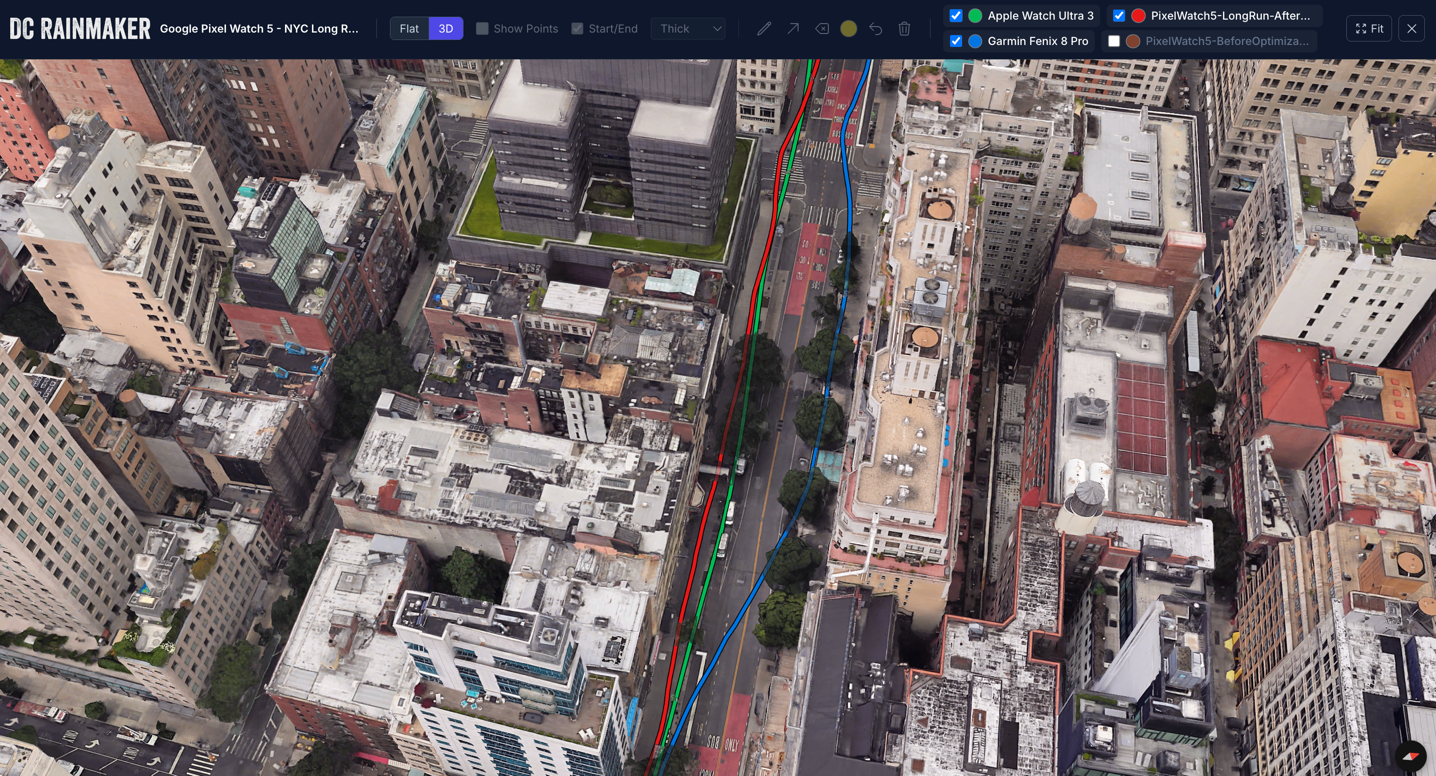
Now, as a reminder, here’s just a look at the differences in New York City, which are pretty substantial compared to some of the leading GPS watches on the market:
Here we can see the Garmin Fenix 8 Pro on the wrong side of the street, while the Pixel and Apple Watch are on the correct side of the street, with the Pixel Watch having me correctly on the actual sidewalk, versus the Apple Watch playing a tiny bit in traffic.
Next, as I enter this park, the Pixel Watch is a couple of meters off the crosswalk that I used. I mention this mostly to be fair, not because it’s a huge deal (since I was only a few meters off above with the Apple Watch).
In any case, more notably though, I did three loops around this small pergola of sorts, which was perhaps 3-4m wide. All three units actually tracked that surprisingly well.
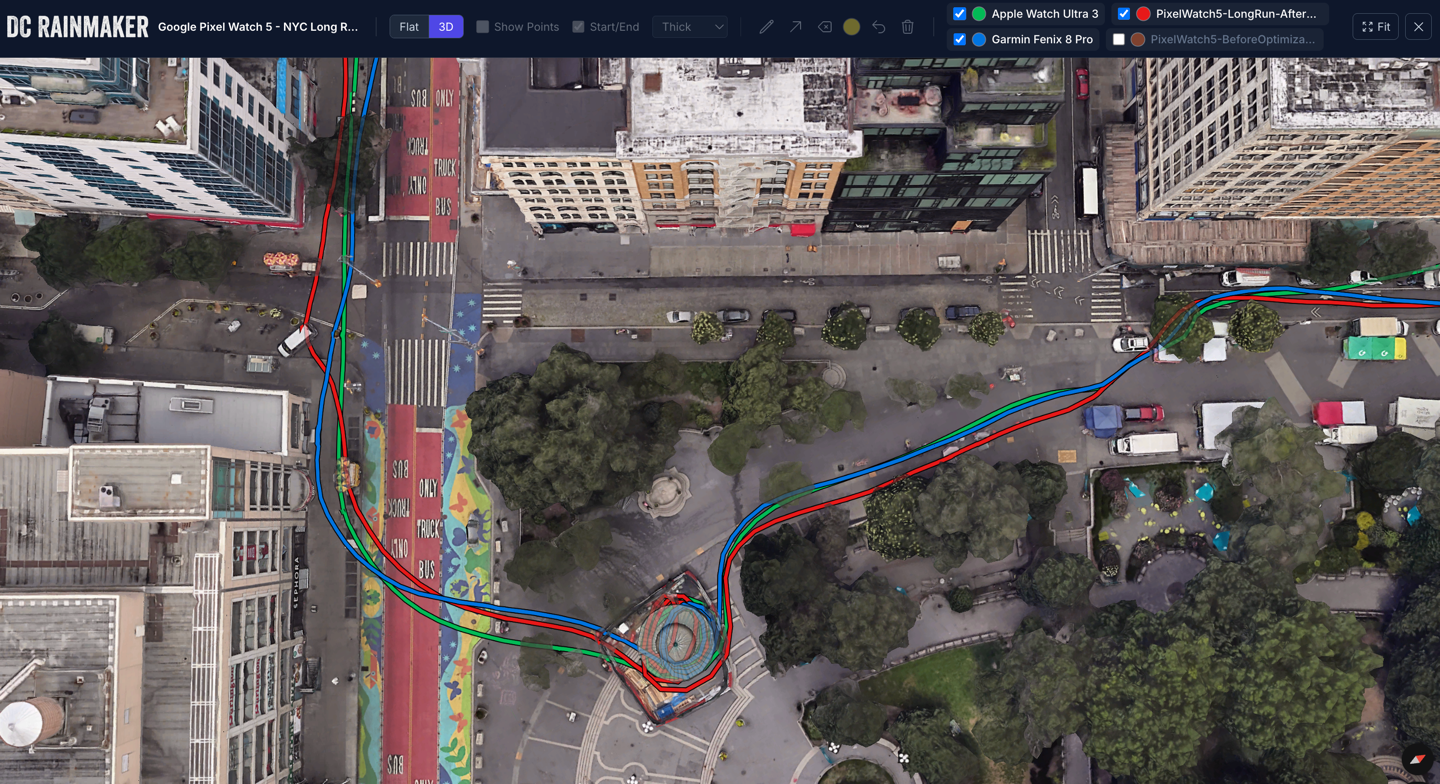
Moments like this show slight differences. That again, might not be super obvious. Apple has me in the buildings and the street. Whereas Google shows a more clear crossing of the street. Garmin’s track isn’t bad, but again, isn’t exactly where I went.
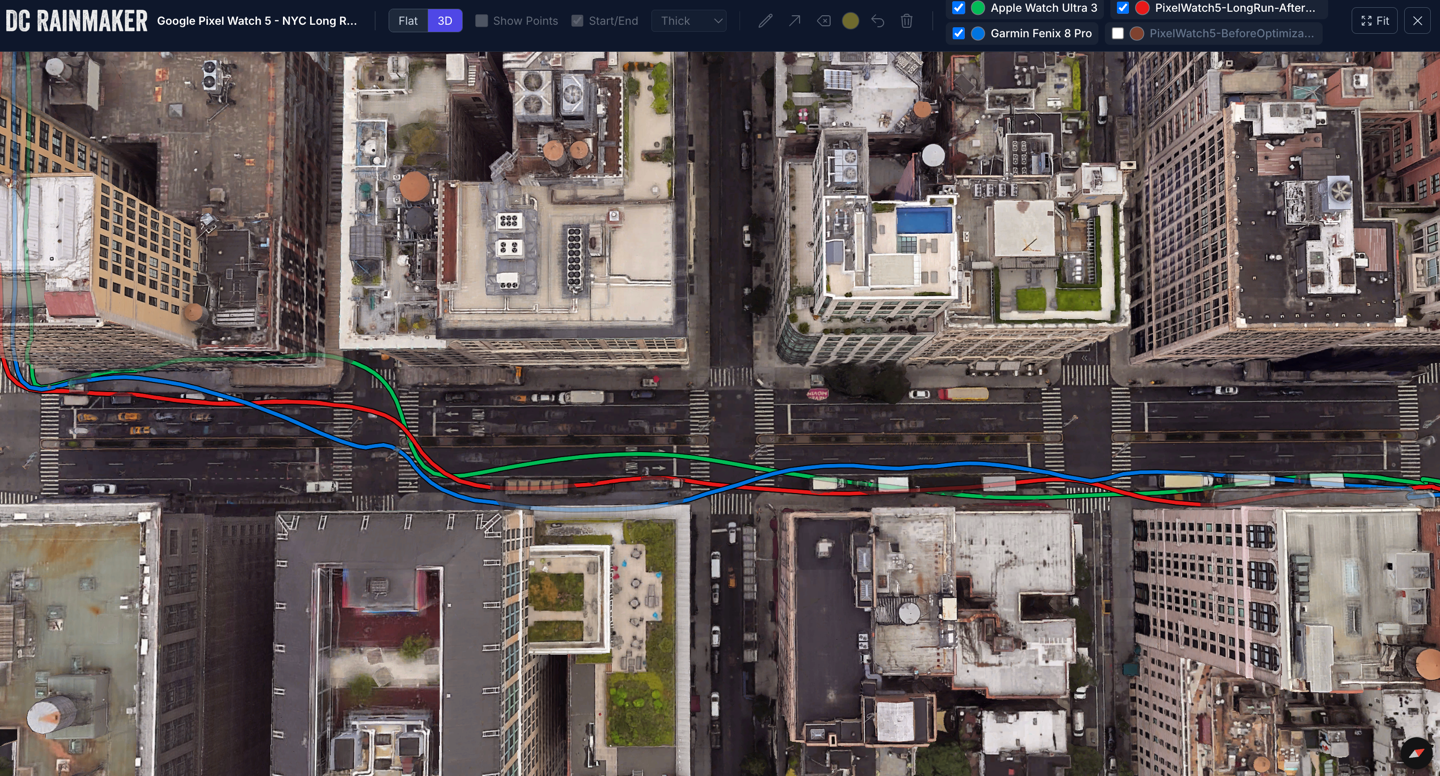
Here on this turn, you can see the real advantage of Google’s multi-path algorithms reducing the errors, whereas Garmin is on the wrong side. While Apple is on the correct side, this is almost certainly automatic snapping to the sidewalk going on here (which Apple will do, more on that later).
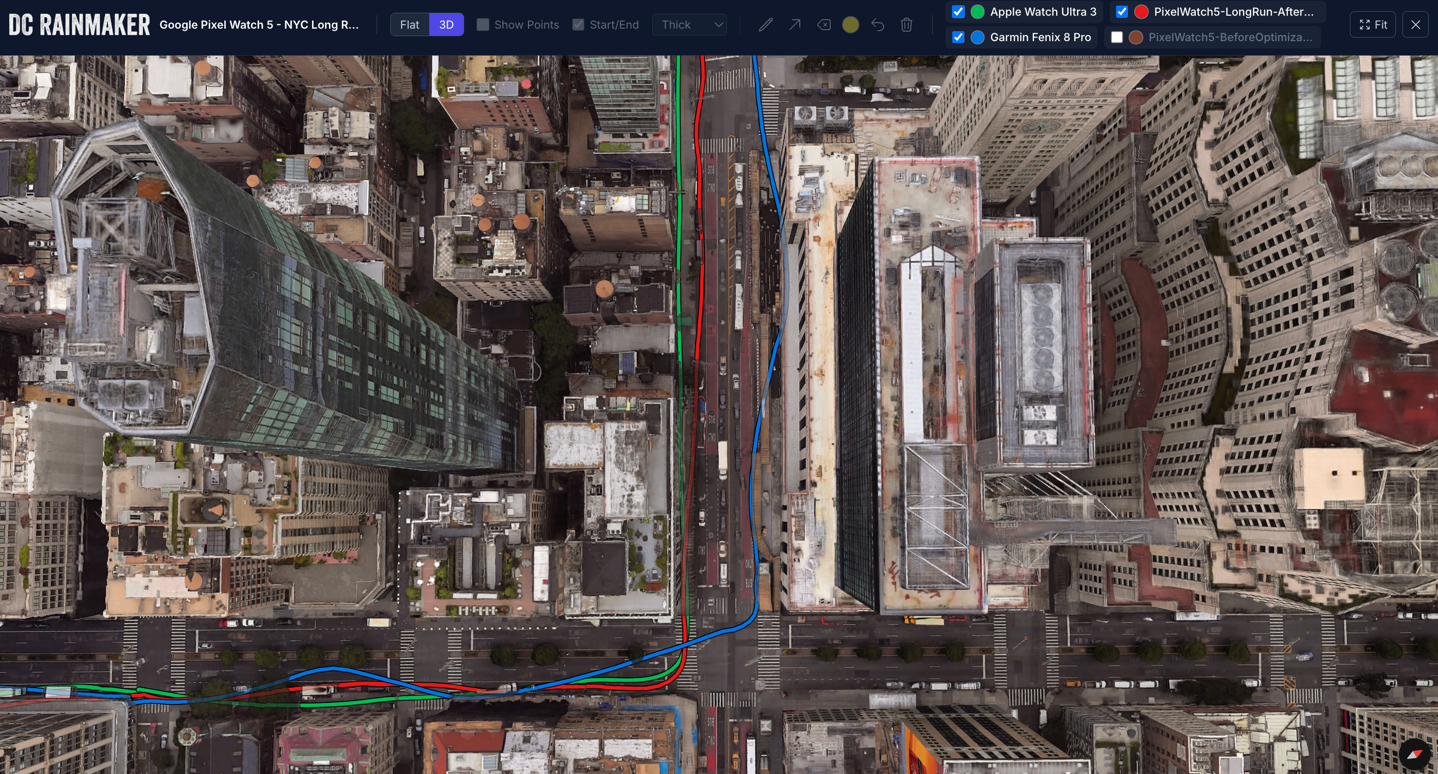
Still, the Pixel Watch 5 is not perfect. Below (the vertical street), a perfect example of that. You can see Apple correctly keeps me on the sidewalk on this section, whereas Google put me into the side of the buildings across the street. Of course, one only needs to look at the street before (the horizontal one here) to see that Google nailed that.
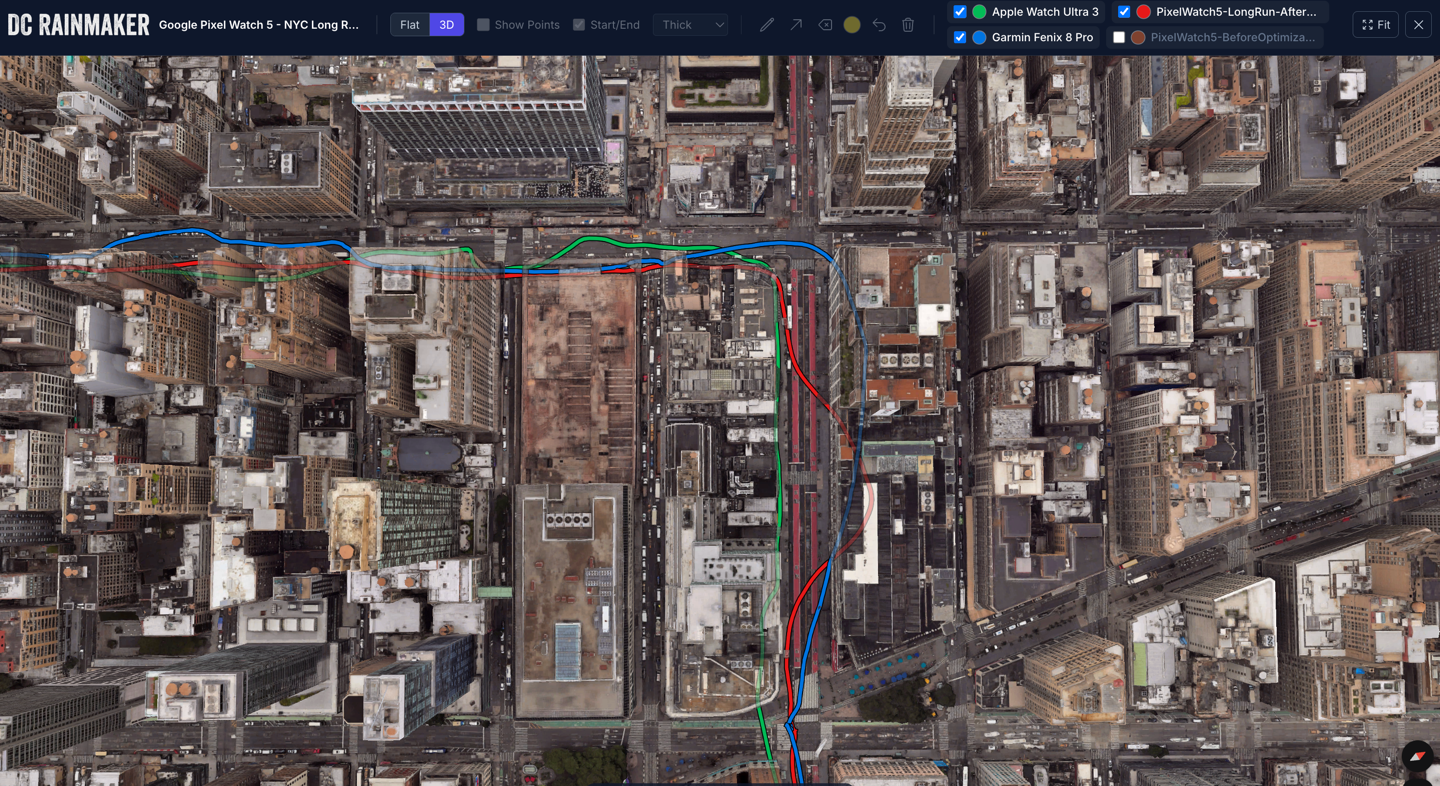
Of course, my aim is to try and break things. And that’s exactly what I did below. In this case, I stopped for a cold drink, and then decided to walk through/under this bridge (not running), go about 25 meters beyond the bridge, then cross the street, and then turn back up the street. Google absolutely nailed this. Garmin got the general gist of things (vaguely), and Apple simply decided I wasn’t stupid enough to actually do that and ignored me entirely.
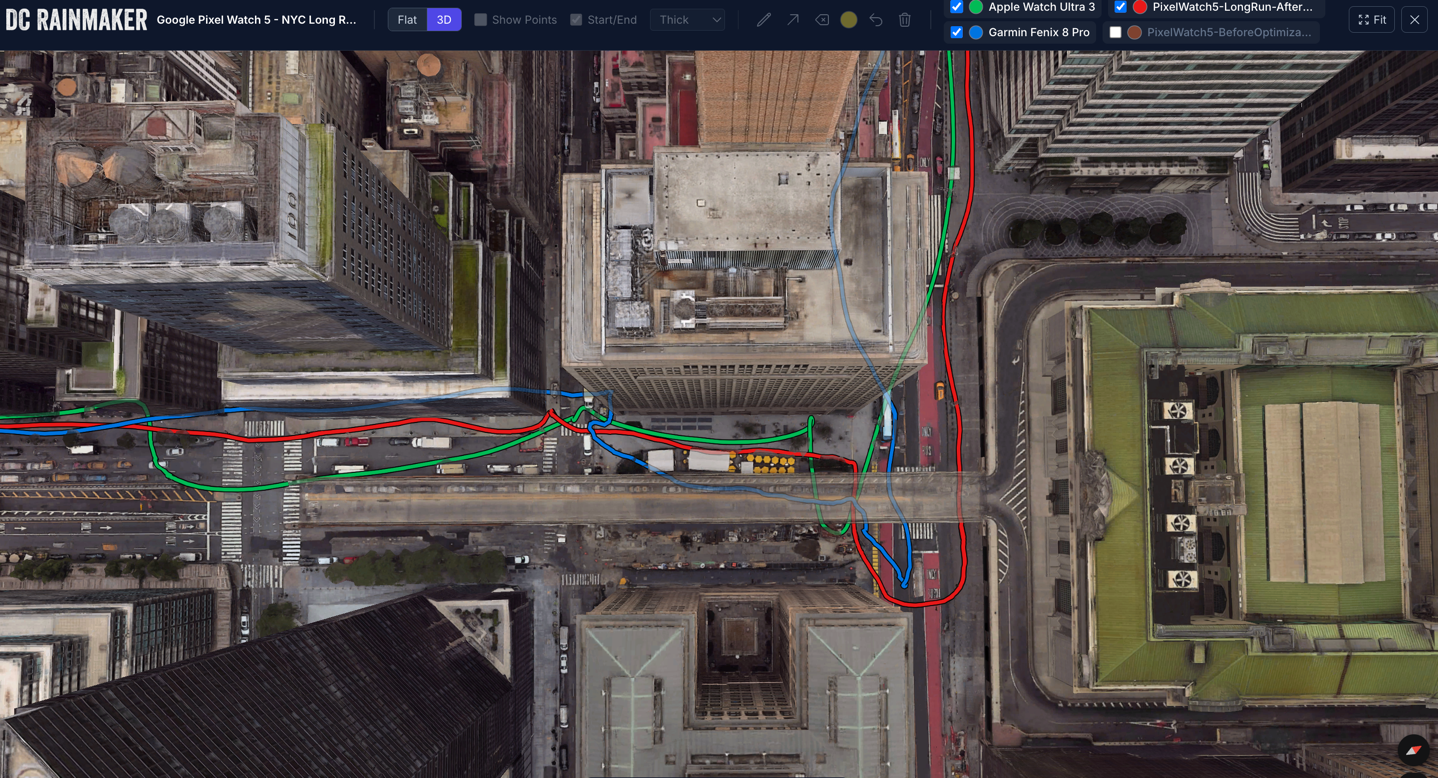
And as I approach the outer edges of Times Square, you can see bigger buildings equal bigger problems for Apple. For Garmin, they mostly aren’t in the buildings, but in the middle of the road. Whereas Google is exactly on the correct sidewalk side.
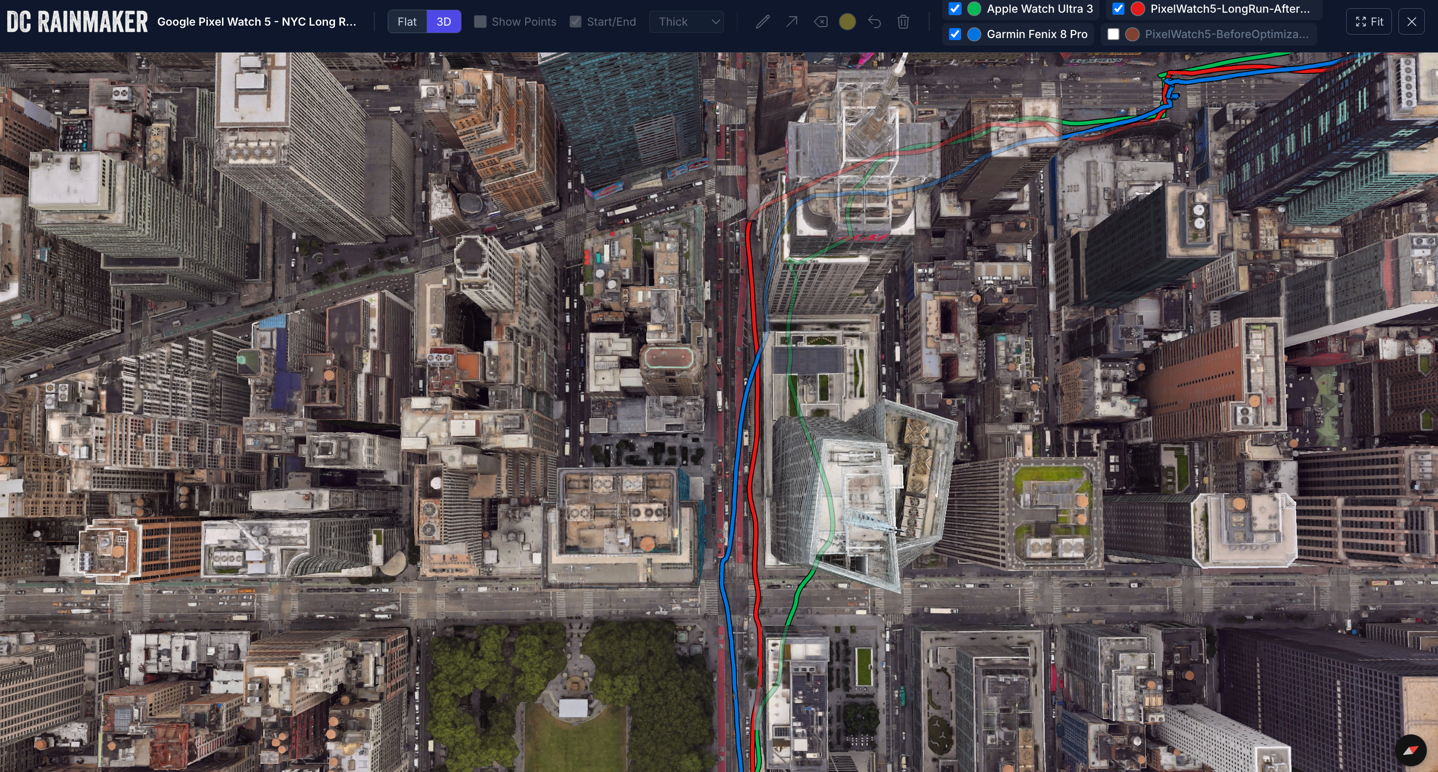
As I enter Times Square, with the massively tall buildings on both sides, the units actually don’t do that badly. Of course, I’m here to cause problems. So I do a tight loop around this building in the center. Google is the closest to correct, though still with some light building shaving. Garmin gives the 4-year-old-toddler version. And Apple just makes a mark across the building. To the right of the building, the Apple/Google squiggle is correct, as I stopped to take some photos there. Garmin has me on the wrong side of the street.
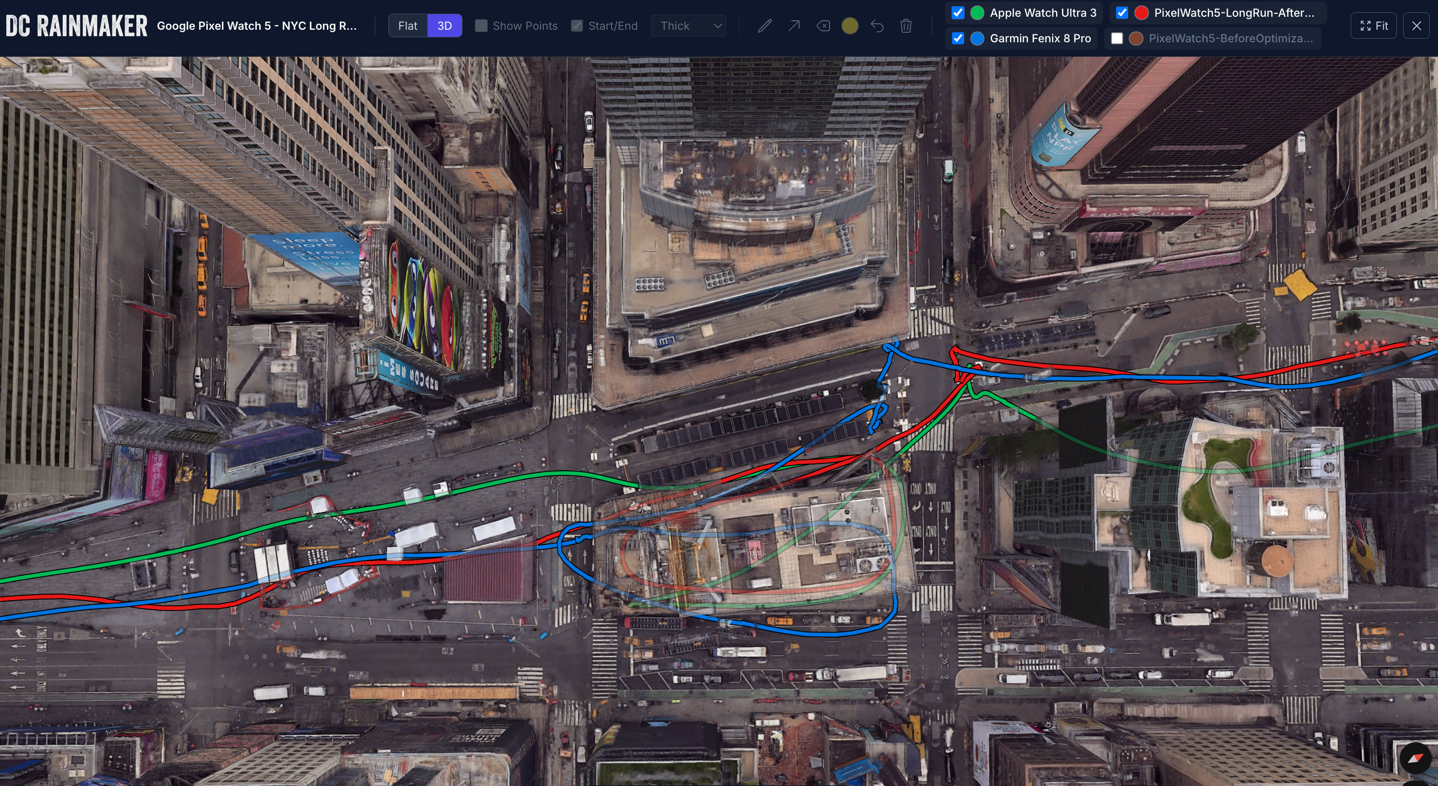
And one more moment on this run that I aimed to break things was this circle I ran in the middle of the street (it’s now a closed street). You can see Google perfectly hits that circle (I show it in my video, from the GoPro perspective). Garmin isn’t bad, albeit a bit tight. And Apple again decides there’s no way I actually drew a circle in the middle of the street, and thus puts me on the sidewalk.
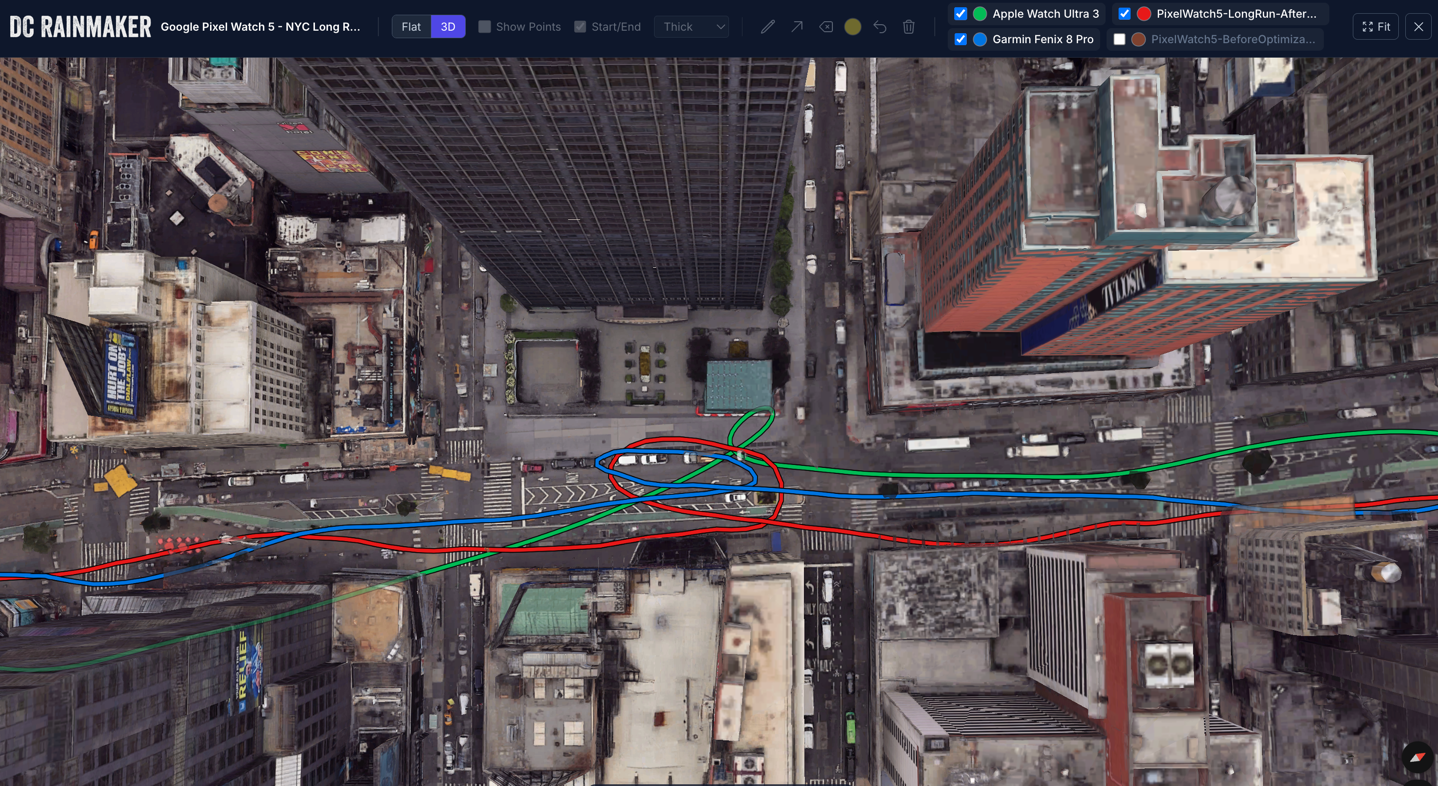
But again, Google is not perfect. And just a block later, it throws me into the buildings, while only Apple correctly sails down the street on the right sidewalk.
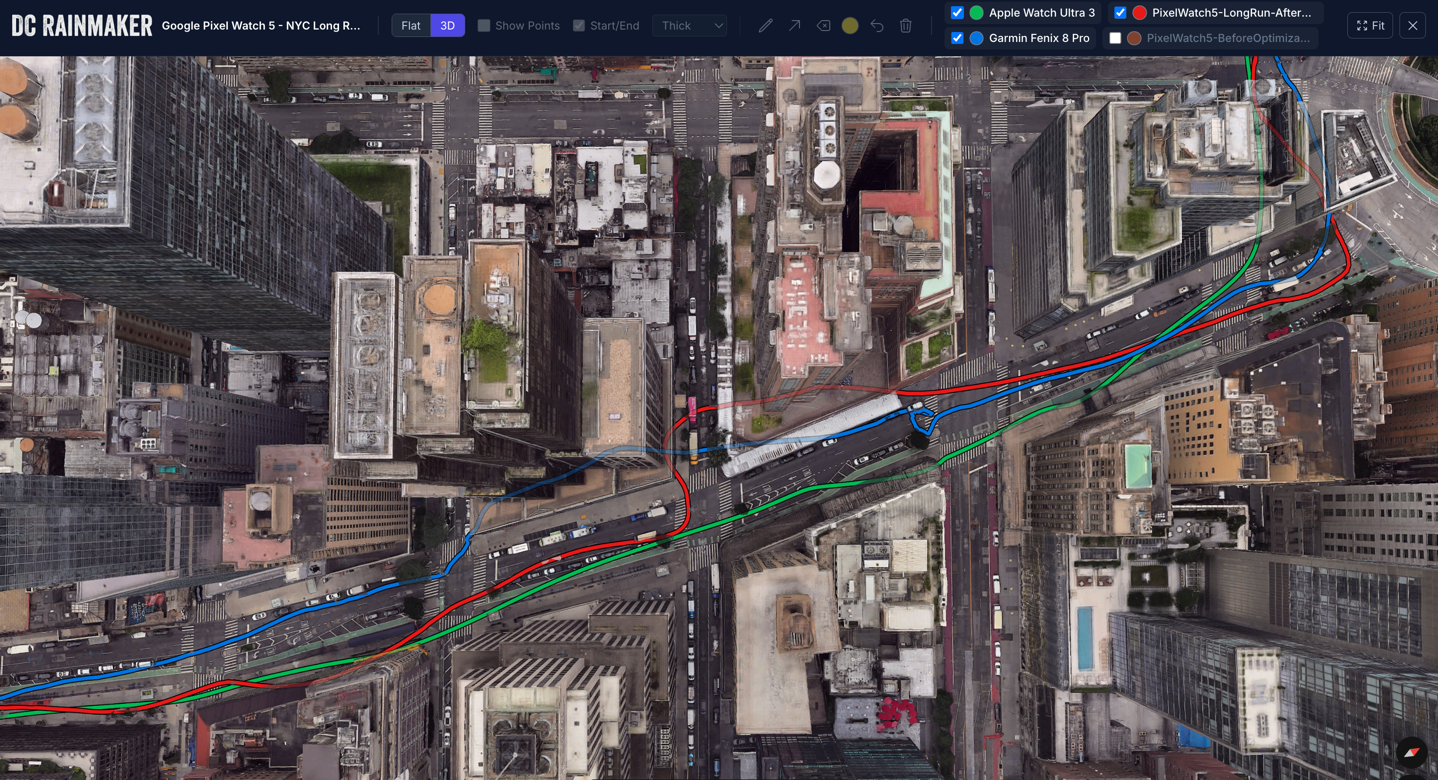
Anyways, for the rest of the run, this pattern basically continues, though Apple did struggle a bit more at times in the buildings. You can view the whole track here, if you’d like.
With that, let’s dive into a forest trail run as a good starting point. This one is an out and back (handy for seeing how close each track aligns), with a very tight trail that is often surrounded by steep cliffs. This is a snippet of the longer run, but I wanted to focus on this more interesting section, versus some of the gravel roads that led to it.
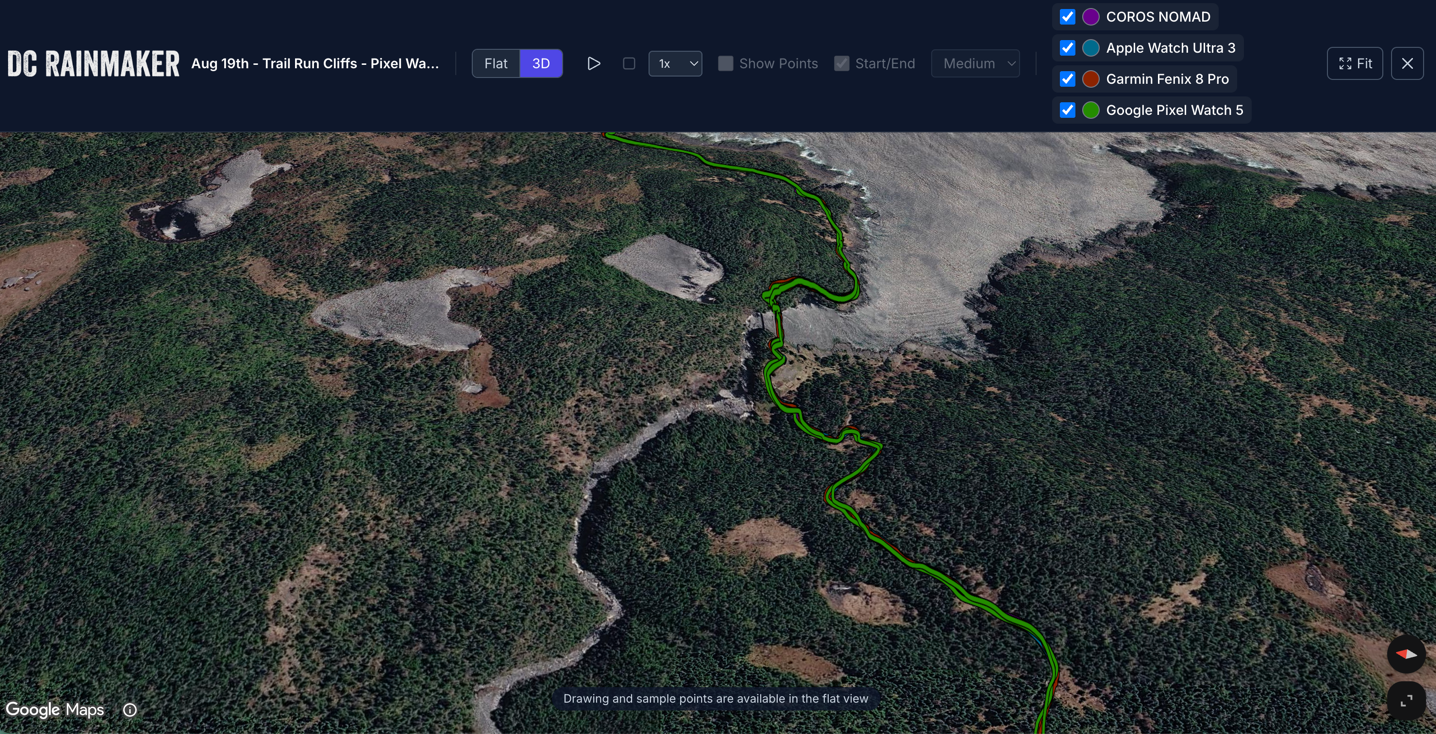
For context, this is what we’re looking at, trail-coverage wise:
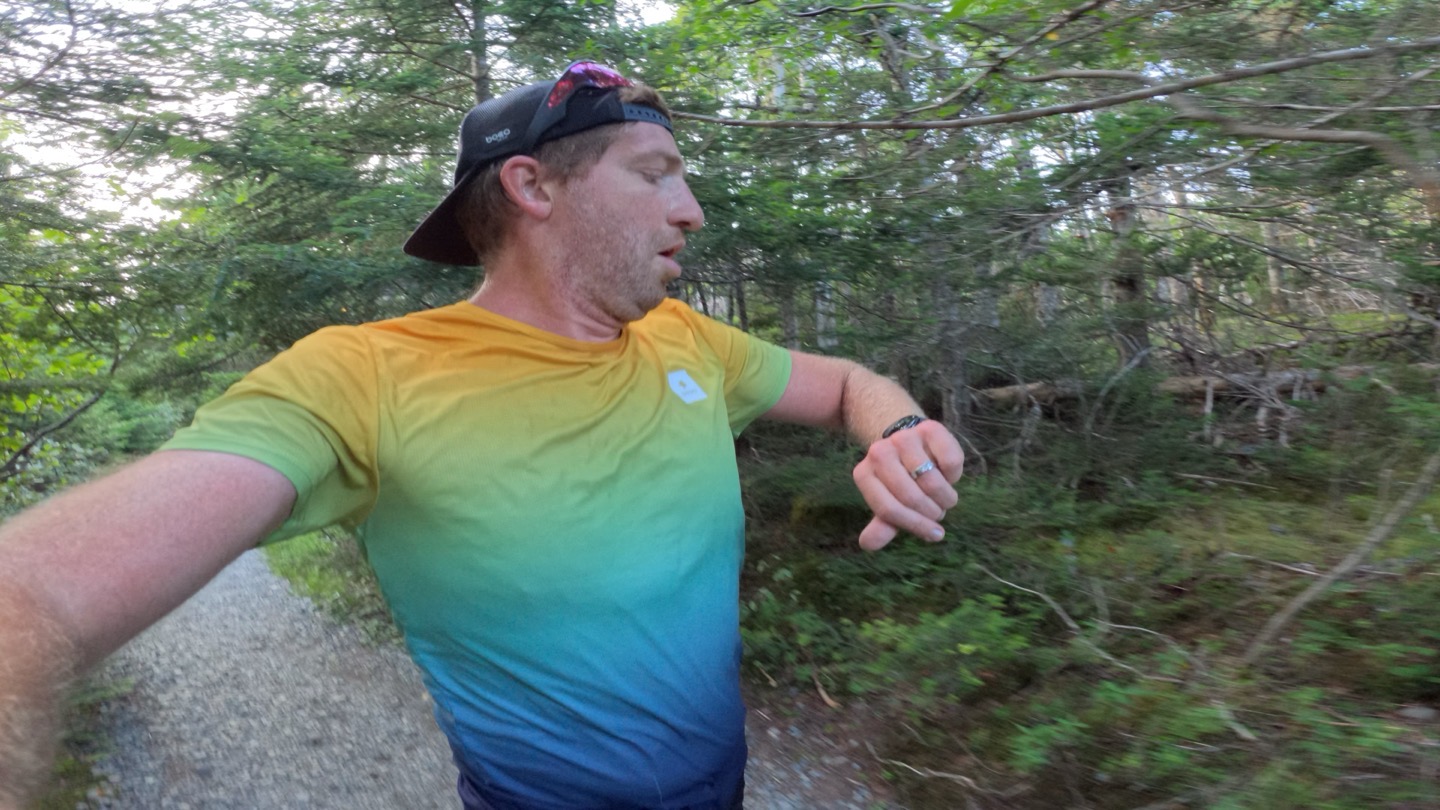
As I work my way through forest, all of the watches are pretty darn similar. I would say that it feels like the Pixel Watch 5 track isn’t quite as close together as the others, given this is a simple single-track scenario. But that might also be the brighter green coloring making it more prominent or something.
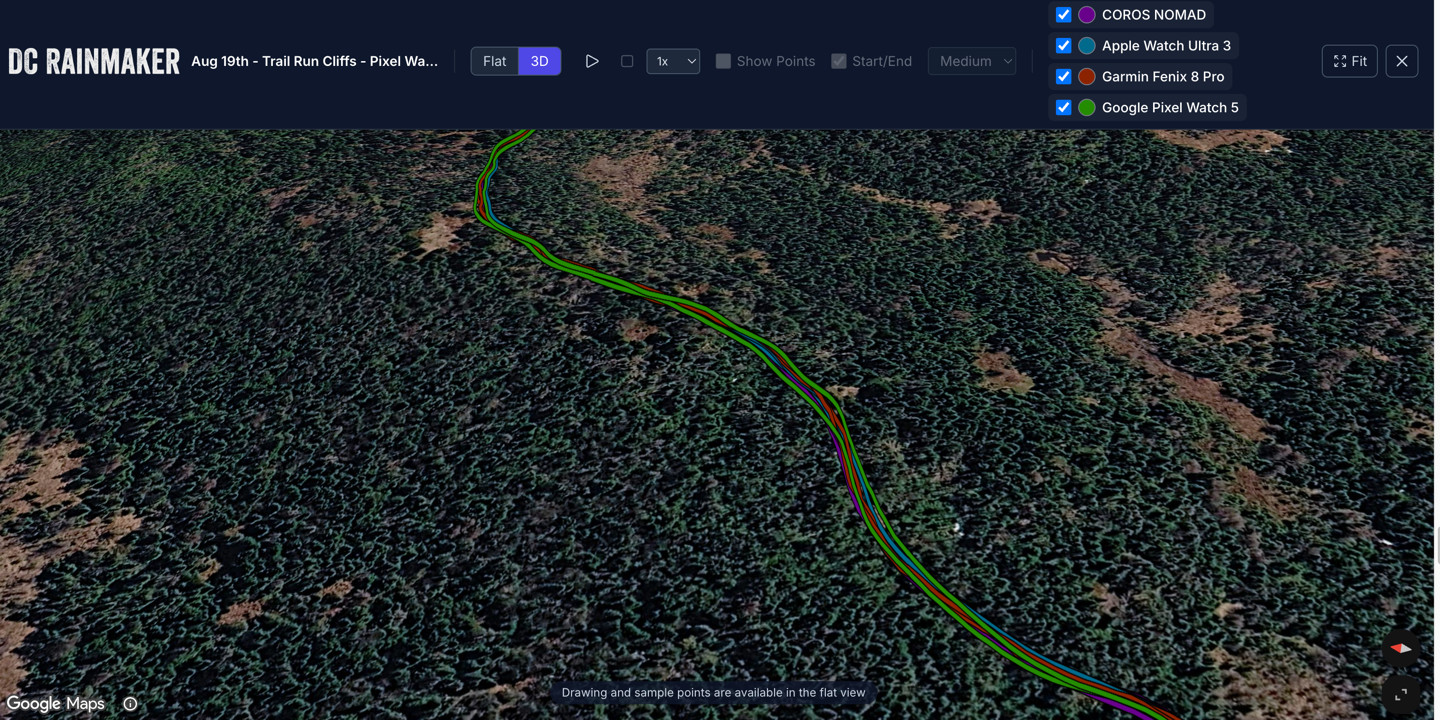
On this next section of the run, the cliffs really start to dork with all the units. You can see the Pixel Watch squiggling around, as well as the Garmin Fenix 8 Pro being a bit offset too. The COROS Nomad and Apple Watch Ultra 3 seem to sneak through the best here.
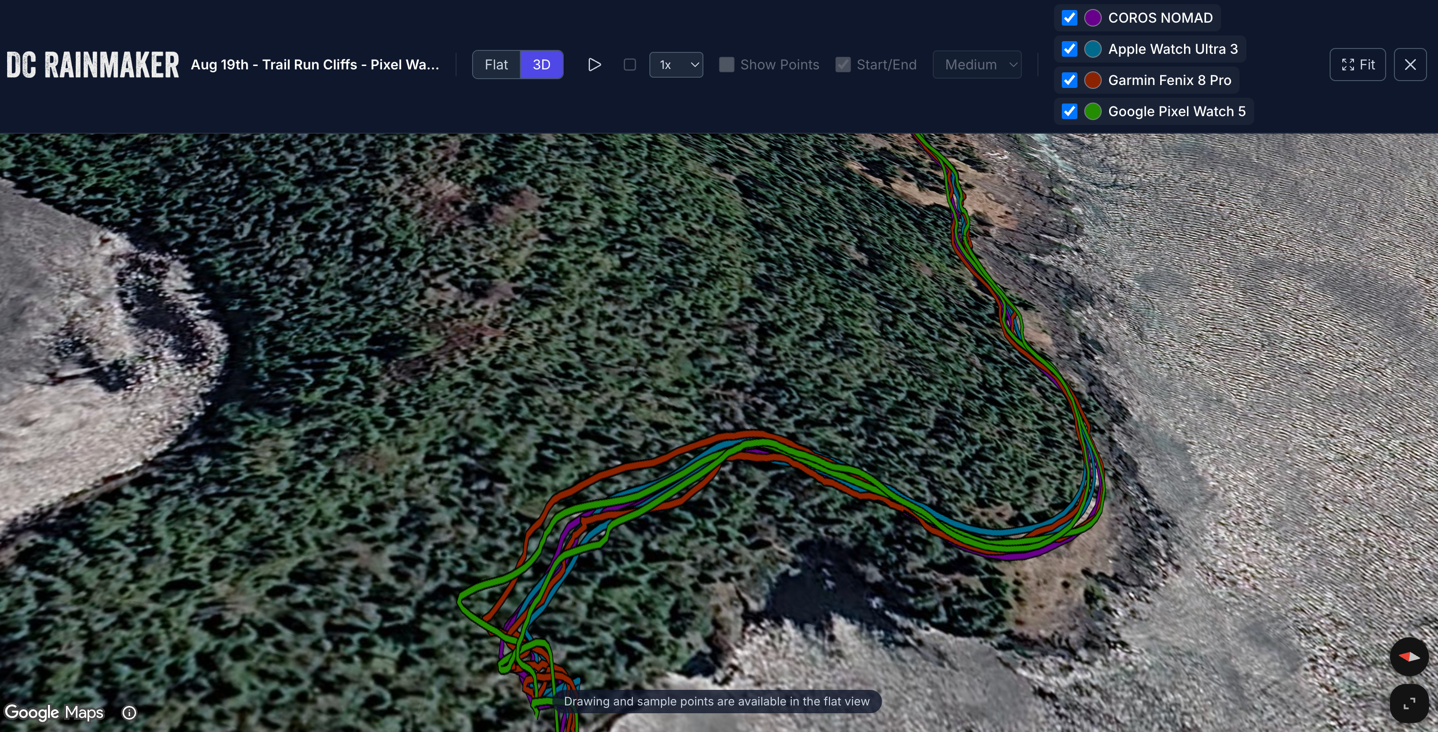
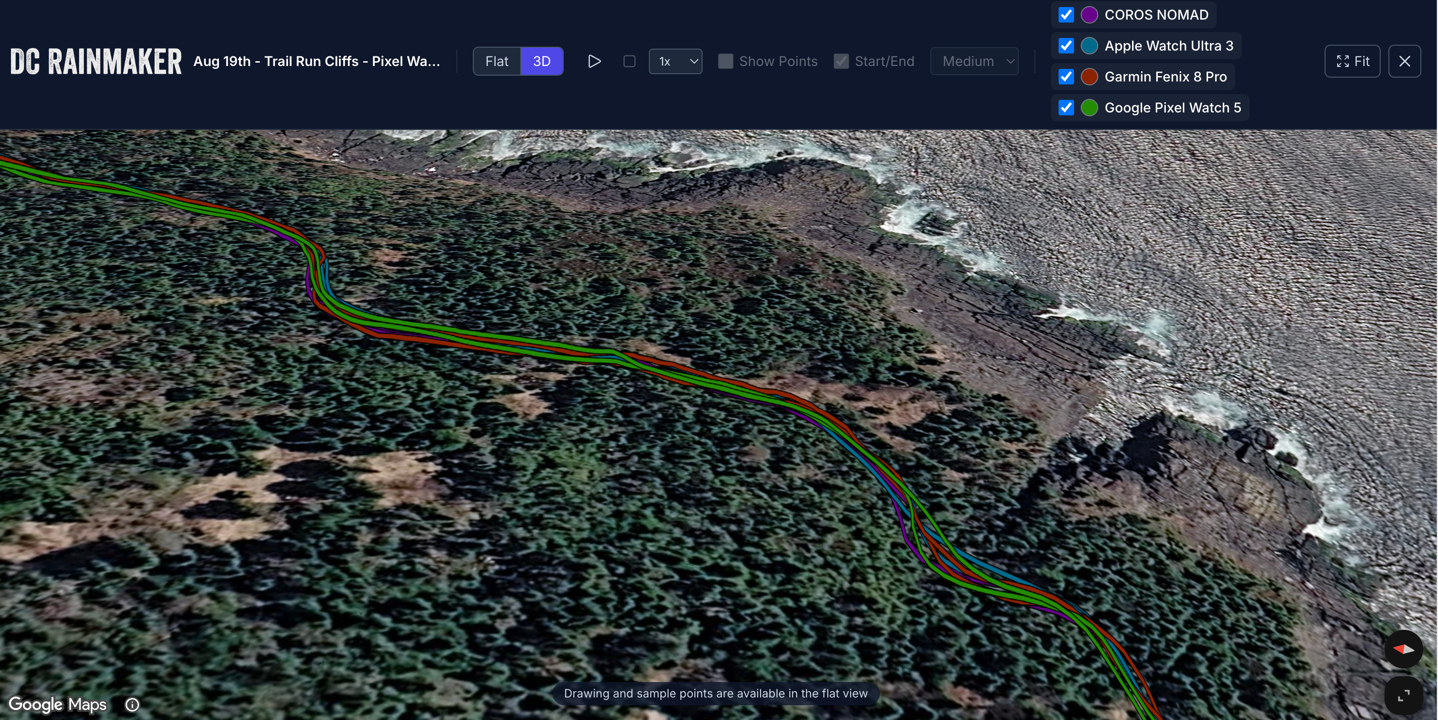
On this other section of trail, equally against the cliffs and trees, all the unit did fairly well.
Next, we’ve got a road/gravel ride, eventually off into the forests. This didn’t have a ton of super tall trees, but did have some steep switchback sections here and there, which were worth exploring. At a high level, including all the main roads, this looks perfectly fine:

That said, if I zoomed into sections of roadway, the Pixel Watch 5 wasn’t super impressive here. It wasn’t horribly wrong or anything, but it was getting clearly outperformed by Garmin’s Fenix 8 Pro and Apple:

Next, just before it turned into gravel, there’s a very steep near-20% grade switchback section, and it’s funny, because you can see me wobbling back and forth across the road (I was curious if it’d show up, and since it’s a desolate road, yes, I can confirm it did show up):

Note above that the straight lines are when I came back down again.
If we zoom in on some of the tree sections on gravel roads, this also looks fine, but not stand-out either. Just shrug-usual:

Same goes for another section that’s fairly step as it descends down to the water. Note there isn’t really any cool Google Earth 3D imagery in this area unfortunately, which perhaps is the issue here – I’m not sure.

Finally, one more run this time in a simple park doing a slate of loops as intervals (each loop was 450m around a trail section). It’s a good test to see how tight the tracks are. First, to establish the high level area, things are good:

Then, we’ll zoom in on the loop itself. It’s about 450m per loop, with a few 80-90* turns in there. As you can see, things are pretty good, with only the Suunto showing a little bit more variability.

Now, here’s where it gets really fun. In this case, if we take away the Sunuto, we can literally see which side of my body I wore each one on. The Google Pixel Watch 5 on my left wrist, and the Garmin/Apple Watches on my right wrist (making clockwise turns). Those tracks stay consistent to each side on almost every loop. That said, there’s no meaningful difference here between Google’s corrected track and Garmin’s track. There’s a couple minor differences to the Apple track.

Now, while I won’t dig into all the details here, this same pattern has applied in Europe as well. Here’s a run from last night (Sept 1st) showing that while the Pixel Watch 5 produced perfectly fine tracks, I wouldn’t say it was the leader on this route if I wanted to nitpick every single sidewalk. In that case, the Fenix 8 Pro in forced multiband was the leader (beating both Apple Watch Ultra 3 & Fenix 9 Pro in default non-maximum accuracy mode).
Finally, one last thing I’ve seen a lot of questions/comments on, is whether or not this changes the end-state distance of the file, as well as whether or not it impacts pace. The answer to both is no. However, one thing to understand is that for modern running smartwatches, pace is rarely just GPS satellite pace. That changed nearly a decade ago. Instead, pace (specially running pace) is a blend of data from GPS, accelerometers, gyros, and other internal sensors. These sensors essentially override big spikes that might occur from poor GPS reception, showing you going through a building, because it knows your wrist movements don’t match that. Thus, pacing-wise, things were actually already stable, and remain that way.
The distance however, is an area that I think they could correct a little bit more. That said, like pace, distance from running watches is almost always driven heavily by the sensor data as well (which is why you can run through a long tunnel and distance doesn’t go all wonky both inside and when you exit).
Heart Rate Accuracy:
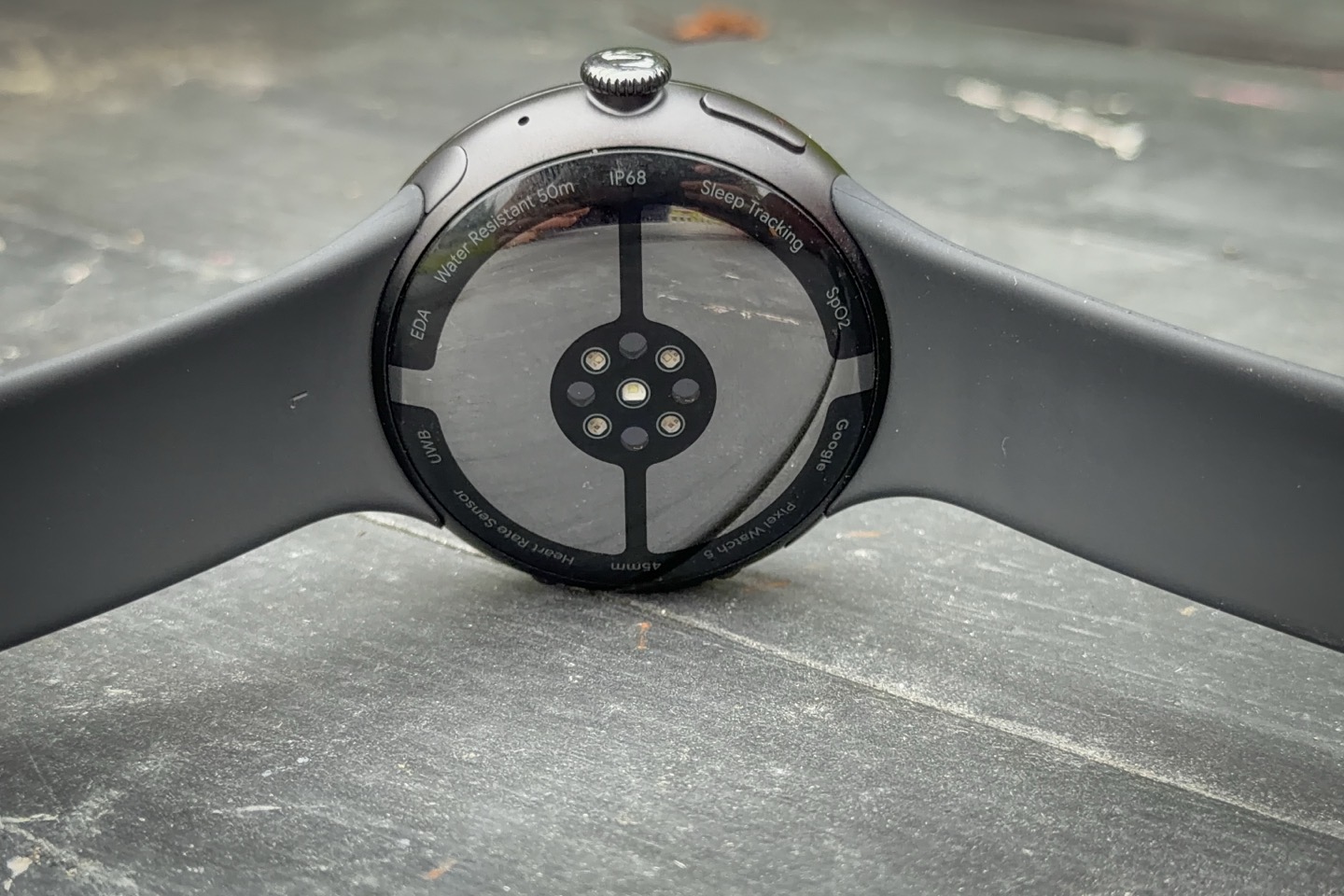
Next, let’s look at some heart rate data. There’s no changes this year to the heart rate sensor in the Pixel Watch 5, it’s the same as last year. Nonetheless, I’ll quickly look at some data for fun.
First up, I’ve got a relatively steady-state run as a quickie. As you can see here, nothing really of note:

Then I’ve got this trail run I did. Again, occasional stop and go getting around tricky spots, but really solid performance here by all the units, but especially the Pixel Watch 5:

Next, we’ve got this trail run I did that had some steep sections/etc, though they don’t really correspond with where the few quirks in heart rate. Sometimes, you’ll see cases where if you have to boulder/crawl around something, it may cause issues, but in this case the first HR blip was actually on a simple gravel road leaving the camping area. And the ones later don’t really make sense either. Overall though, it’s not a bad HR plot, just has a few short issues.

And then finally on the running side, here’s an interval run I did earlier today. This was 8x400m repeats. As you can see, it’s pretty darn strong, with only a few bobbles on the first and 7th interval. I don’t really know why there, nothing special happened on either.
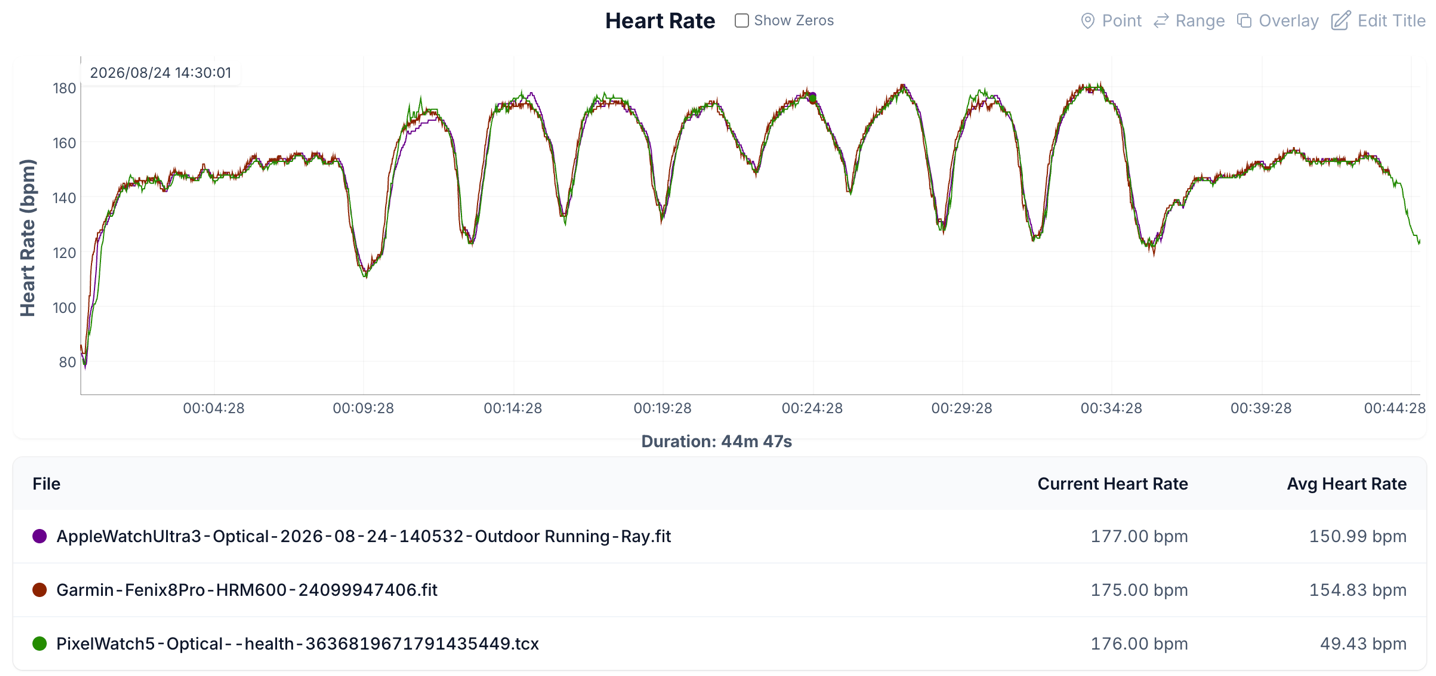
I’ve got other running activities, but they’re all the same in terms of accuracy as the other non-interval ones: Perfectly fine.
Instead, flipping over to an indoor trainer ride, we’ve got this one here. Again, no issues at all, but indoor trainer rides are among the easiest things to track, even for hard interval efforts:

And then rather surprisingly, this nearly-3hr long combined road & gravel ride was really strong on optical HR, near-perfect from the Pixel Watch 5 (I’m not quite sure why the Apple Watch Ultra 3 lost HR for a short while). Very very strong performance:

Ultimately, from a heart rate standpoint, the Pixel Watch 5 continues to show very strong performance in my testing, even in the cooler conditions that most of my activities have occurred within over the last 10 days.
What’s Next for Pixel Watch?
In many ways, I think this is actually the most important question to be asked. Last year, when the Pixel Watch 4 came out, I noted that while Google’s team was doing a great job on software pieces (and internal hardware components), it didn’t seem to be making the watch ‘catch on’ in terms of sales. At the time though, they were going from a 3rd edition to a just-announced 4th edition. But now as we get into the 5th edition, the question has to be asked with more seriousness.
The simple reality is that the Pixel Watch continues to struggle in terms of generating attention. One only need to look at any reviewers YouTube views you want, to see that reality hitting here again with the Pixel Watch 5. And then further compare that to the Fitbit Air (by the same team) that launched just three months earlier. That has exponentially more interest, and I don’t think it’s anything to do with the price. Said differently (and in a more Dutch-like blunt way): A similarly priced COROS watch should not out-view a watch from one of the biggest software/tech companies in the world. Yet consistently, it does. That’s not anything against COROS, as they’re making fantastic devices, but just a simple statement of obviousness.
Instead, I think Google needs to have a long think about their limiters. So, let’s briefly talk about them:
1) The Android limiter: At the end of the day, the market for a $400 watch skews very heavily towards iOS. It always has. Companies like Samsung have made it work because they largely subsidize or give-away the watch as part of phone bundles. Google knows this too. But ask any other company in the sports tech industry, and they know that the Venn diagram between $400 smartwatch owners and iPhone owners is far higher than Android phone owners. Yes, Android has more global market share, but the majority of the population driving that figure in MEA isn’t buying $400 smartwatches. Watch companies consistently note that iOS market share for their smartwatches is roughly 60-70%. That matches my figures here on the site, which shows iOS users outnumber Android users 2:1. As Google just showed with the Fitbit Air, they can deliver the Google Health experience on iOS just fine (sure, there’s fewer Android-specific features, but I’d argue far fewer users care about the latest AI integration features than Google thinks they do).
2) The design/style of Pixel Watch: I’ve talked about this for a while, and I’ll acknowledge upfront that not every style is liked by every person. To each their own. But five generations in, the numbers don’t lie: People simply aren’t excited about the Pixel Watch design. This isn’t a debatable concept, it’s a factual reality. I appreciate Google sticking to something (anything), but there comes a point in time where the company needs to re-think the overall design of the watch. And all of that sets aside the strong industry trend for 3-4 years now to have larger and more ‘in-charge’ watch sizes (e.g. Ultra/etc styles), of which Google has none.
3) There’s still notable gaps for the serious athlete: In many ways, the Pixel Watch remains frustratingly quirky when it comes to feature gaps. They spent an enormous amount of effort on creating an industry-leading GPS solution. They built by-far the best sports/fitness/health AI platform on the market, nothing comes close. Yet it stumbles at basic things: You can’t pair to a heart rate sensor, or a cycling power meter, or have any meaningful amount of sport data field customization. You can’t take manual laps. These are all things that every basic sports watch in 2026 does, or even nearly a decade ago did at this price point. And that’s to say nothing of navigation/routing. I struggle to understand the (much appreciated) focus on GPS accuracy, but equally not bother with the basics.
4) There’s a lack of trust on when a Pixel Watch will get updates: Right now, the waters remain super fuzzy each release whether or not new features go back to older watches. If we look at Apple, we know that in virtually every case they go back at least 2-3 generations of watches. Same goes for COROS. For Suunto, it’s kinda hit or miss. For Garmin, we just know they won’t [Update after they just announced the Fenix 8 owners will get Fenix 9 features…ok, sometimes they might]. But for Google, it’s not only not clear, it’s inconsistent. Given Google’s relative newness in the space, consumers struggle with whether or not their watch gets anything new meaningful less than a year later.
Ultimately, my point here is that while Google’s Pixel team continues to make good progress year over year (including some very interesting new features), I feel like the disconnect between Pixel Watch as a product that people are compelled to go out and purchase continues to grow. Perhaps there’s other reasons for it, but it feels like the above one are the most likely culprits.
Wrap-Up:
In many ways, the Pixel Watch team has found themselves a relatively stable and mostly predictable update cycle pattern. One very similar to both Apple & Samsung. Each August-ish we see a new hardware model with slightly tweaked hardware specs, and a medium amount of new software features. Those features vary each year on the spectrum from general interest features, to sports features. This year, Google mostly focused in two camps: GPS-accuracy and AI bits. However, there’s a third camp of features that won’t really show-up till later this fall around health reporting (which are available to everyone). And the strength training bits falls into that realm as well.
As has been the case now for the last few years, for the features that Google does focus on, they tend to be very well executed. Say what you want about the usefulness of the GPS track correction bits, but it’s incredibly impressive in really hard places (like New York City). There’s nothing like that on the market today. They took an issue that people have complained about (vocally) for nearly decades, and basically made that issue disappear. It’s super compelling if you live in such a place. Beyond that, they did a good job at filling in some of the minor daily quirks, such as lack of bedtime mode and smart alarms. And when it comes to Google Health’s AI integration pieces, it continues to be industry leading (exponentially more detailed and better than even their closest competitors) – albeit for those without Google Health Premium, the app can and will feel a bit flat/sparse.
If you’re coming from an older Pixel Watch, especially a Pixel Watch 1 or 2, and perhaps a Pixel Watch 3 depending on whether GPS accuracy impacts you (since that lacked multi-band), the Pixel Watch 5 would be considered a strong upgrade in terms of lots of little things. The good news is that aside from predictive responses pieces, nothing major here requires a Pixel Phone 11. I used mine almost entirely with the cheapest Samsung phone I could buy at Best Buy, and there’s no meaningful difference to the Pixel Watch 5 experience for me. It worked great, along with the Google Health app working great.
As I outlined in the previous section, I’m keen to see the direction Google takes next year, and hoping they look at some of their Fitbit Air success in recent months, on how they might be able to change the overall direction of Pixel Watch going forward to match that success.
With that – thanks for reading!
Found This Post Useful? Support The Site!
Hopefully you found this review/post useful. At the end of the day, I’m an athlete just like you looking for the most detail possible on a new purchase – so my review is written from the standpoint of how I used the device. The reviews generally take a lot of hours to put together, so it’s a fair bit of work (and labor of love). As you probably noticed by looking below, I also take time to answer all the questions posted in the comments – and there’s quite a bit of detail in there as well.
If you’re shopping for the Google Pixel Watch 5 (41mm WiFi) or any other accessory items, please consider using the affiliate links below! As an Amazon Associate I earn from qualifying purchases. It doesn’t cost you anything extra, but your purchases help support this website a lot.
Here’s a few other variants or sibling products that are worth considering:
And of course – you can always sign-up to be a DCR Supporter! That gets you an ad-free DCR, access to the DCR Shed Talkin’ video series packed with behind the scenes tidbits…and it also makes you awesome. And being awesome is what it’s all about!
Thanks for reading! And as always, feel free to post comments or questions in the comments section below, I’ll be happy to try and answer them as quickly as possible. And lastly, if you felt this review was useful – I always appreciate feedback in the comments below. Thanks!


