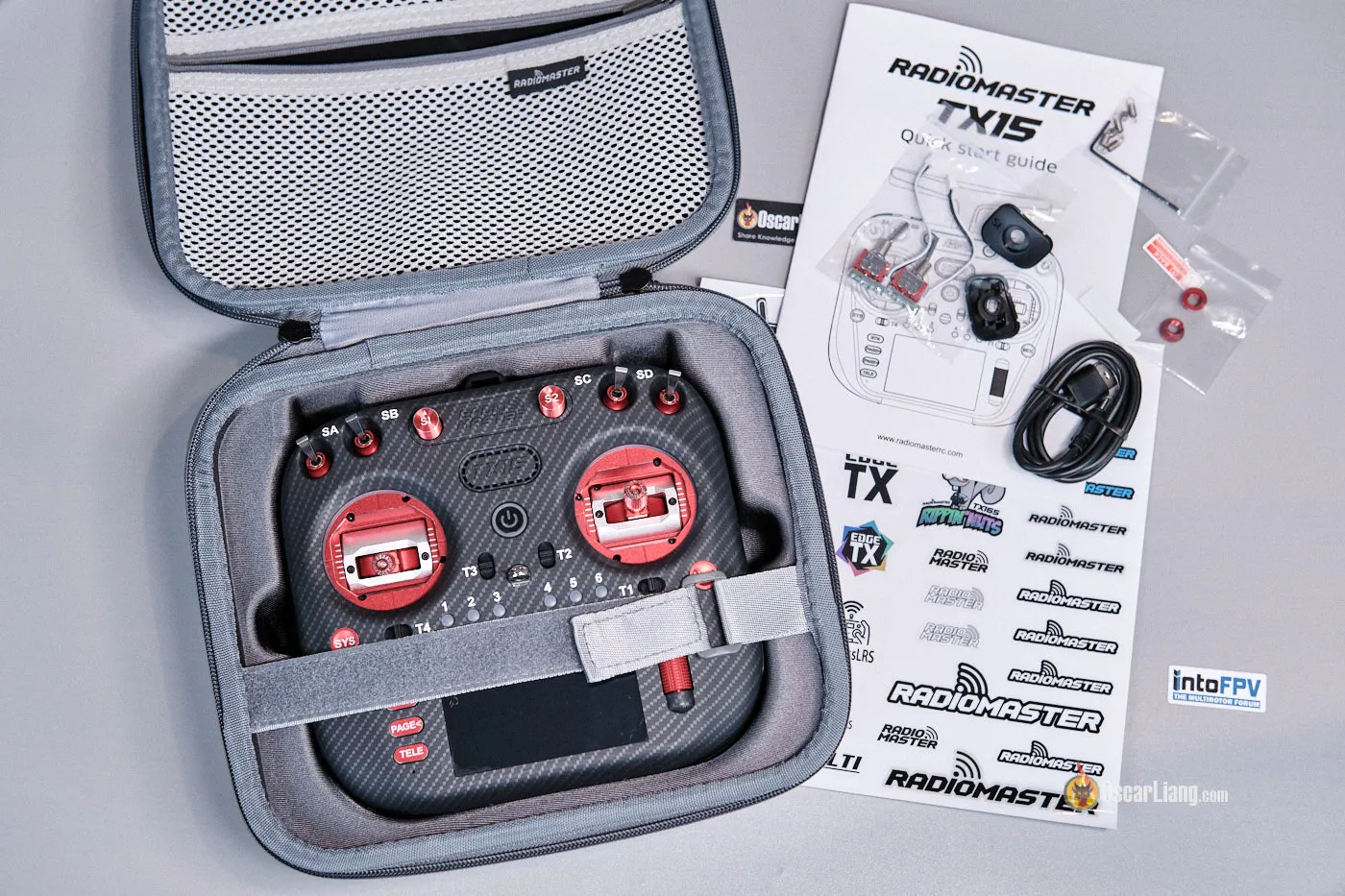
So, you’ve got yourself a Radiomaster TX15? Great choice. Now let’s make sure you set it up correctly and get the most out of it. In this tutorial, I’ll guide you step by step through the radio setup process and show you how to configure the important settings in EdgeTX. I’ll also share some handy tips and tricks along the way.


Still deciding whether the TX15 is right for you? Check out my in-depth review here: https://oscarliang.com/radiomaster-tx15-max/
The radio I have here is the TX15 Max Edition. If you have the Standard Edition, that’s fine too—the setup process is almost identical. The radios are essentially the same, with only some cosmetic and gimbal differences.
Understanding the Controls and Switches
Here’s a diagram of all the available controls, buttons, and switches. Familiarize yourself with it so you don’t get lost. 🙂

Battery Installation
To power up your radio, you’ll need two 18650 Li-ion cells. The TX15 comes with a battery holder in the rear compartment that holds two 18650 Li-ion cells.

The batteries are not included, but they are widely available online. Here are my battery recommendations:
- RadioMaster 3200mah:
- Sanyo NCR18650GA:
- Molicel M35A:
- VTC6:
Potential Start-up Warnings
To power on, press and hold the radio’s power button for a couple of seconds.
Ideally, a brand new radio should fire up without any fuss. However, if your screen flashes a warning, don’t panic. Here’s a breakdown of potential alerts and what they mean:
- Throttle Warning: This pops up if your throttle stick (the left one for Mode 2 radios) isn’t at its lowest position when powered on. Pushing it all the way down will get rid of this warning.
- Switch Warning (also known as Control Warning): This signals that some switches aren’t in their default positions. To clear this, ensure all switches are in their HIGH position
- SD Card Warning: This indicates a version mismatch between the SD card content and firmware. If you get this warning, follow this guide to fix it.
You can get through a warning by simply pressing the Enter button (scroll wheel).
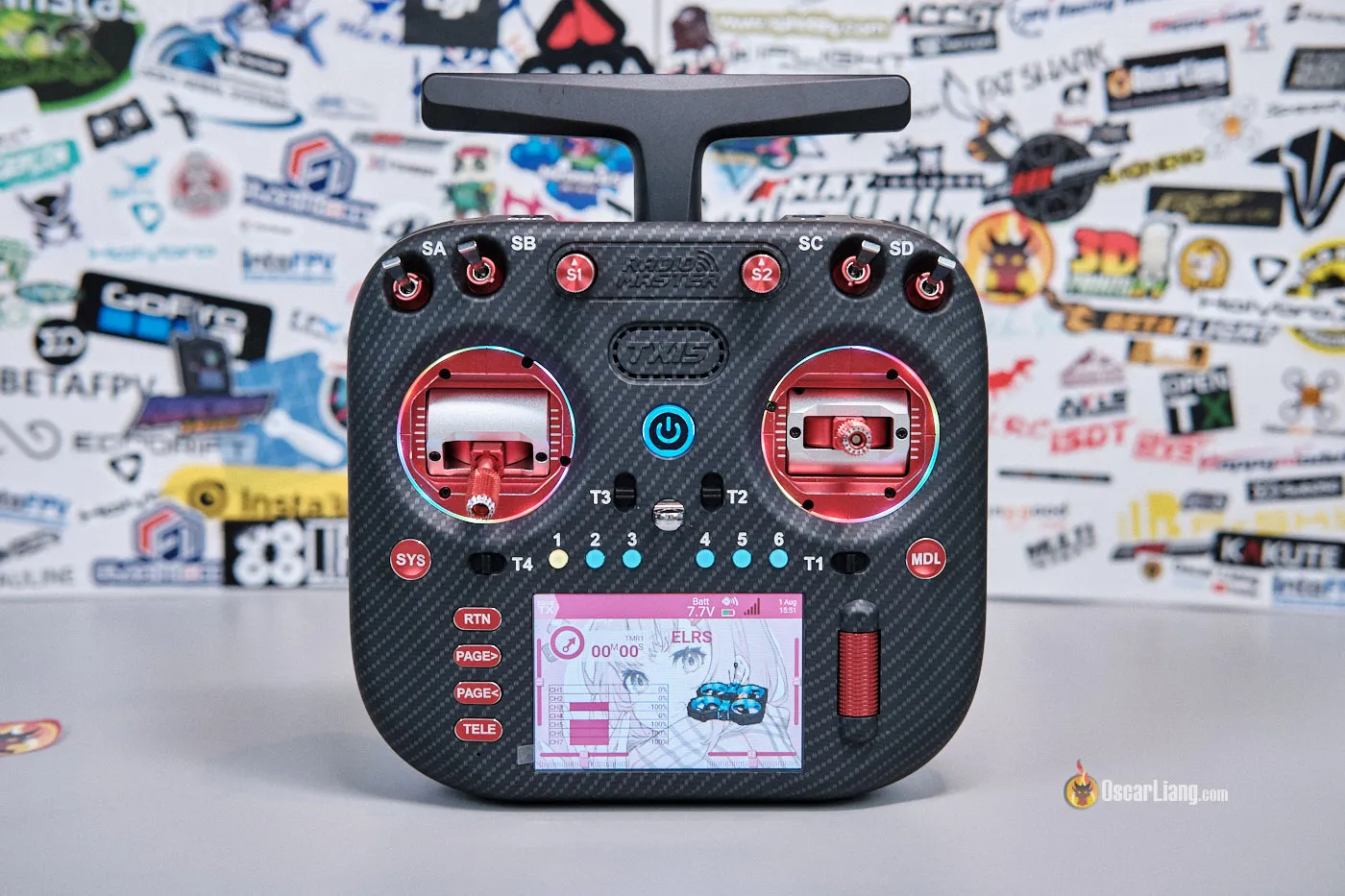
If everything goes well, you should be greeted by the radio’s default home page.
Radio Settings
The Radio Settings menu is where you adjust display, audio, and other system-related parameters.
To get there, press the SYS button. This will take you to the Apps page. Then press the PAGE> button twice to get to the Radio Settings page.

You can leave most radio settings at their default values, but here are a few I always change when setting up a new radio:
1. Set Date & Time.
2. Sound
- Mode: Choose All if you want to hear beeps when navigating the menu. Alternatively, choose Nokey if you prefer it quieter.
- Volume: Maximum. You can adjust the volume using the knob, and I’ll show you how to set that up later.
- Beep volume/length: Minimum

3. Alarm
- Battery low (this is the threshold for audio and haptic warnings):
- For Li-ion battery: 6.2V
- For LiPo battery: 7.2V
- If you fly long-range, you may want to set this higher so you have enough battery left to make it back home.
- Inactivity: 5 minutes (If the radio is left untouched for this long, you’ll hear the inactivity alarm reminder).

4. Backlight
- Mode: Keys
- Inactivity timeout: 5s (The backlight turns off after this amount of time if no buttons are pressed.)
- ON brightness: Maximum (You can adjust screen brightness using a knob, and I’ll show you how later in this guide.)
- OFF brightness: Minimum
- Alarm: Enabled (When you get a warning, the backlight turns on automatically.)
Why use Keys mode?
By default, both the sticks and buttons can activate the backlight, which is a bit unnecessary. You are not really looking at the screen while flying, so it just wastes battery. By setting it to Keys, only the menu buttons will activate the backlight, which helps save energy.

5. Other settings:
- Splash screen: 1s (This controls how long the startup screen stays on when you power on the radio.)
- Startup Sound: OFF (I don’t want to hear “Welcome to EdgeTX” every day.)
- Power Off Delay: 0.5s or 1s (You can quickly turn the radio off. It is best not to set it to 0s, in case you accidentally touch the power button during flight.)
- USB mode: Ask


Hardware Settings
Go to the Hardware page by pressing the PAGE> button four times.
1. Battery meter range:
- For Li-ion battery: 5.8V – 8.2V
- For LiPo battery: 6.6V – 8.2V
Why these ranges?
This setting controls the on-screen battery indicator, specifically when it shows as full or empty. When the radio powers on, there is some voltage sag, so you will realistically never see 8.4V even when the batteries are fully charged. That is why using 8.2V as the maximum voltage, instead of 8.4V, makes more sense.Note that this is not the low-voltage alarm threshold. You set the low battery warning separately in the Alarm section under Radio Settings, as mentioned earlier.
2. ADC Filter: OFF (Why? Read this section. Only enable it if you fly fixed-wing aircraft without flight controllers.)

3. Internal RF
This section should already be configured correctly by default, but it is always good to double-check.
For radios with an internal ExpressLRS RF module, use:
- Type: CRSF
- Baudrate: 5.25M
Faster baudrate = faster communication between the RF module and the radio. But that doesn’t mean every radio support higher baud rates, it depends on the RF module and radio capability. According to ExpressLRS Wiki, Radiomaster Internal ELRS module can handle 5.25M baudrate. If you’re experiencing constant Telemetry Lost/Recovered even with the receiver nearby and/or if the Lua Script fails to load properly after increasing baudrate, then it’s a sign your radio and/or module cannot work on the selected Baud Rate. Lower it down a notch and test again.
Battery Voltage Calibration
To make sure your radio shows an accurate battery reading, take a moment to check and calibrate the battery voltage.
Using a digital multimeter, measure the voltage of the Li-ion batteries inside your radio.
Important: Measure it while the radio is powered on.

Since the cells are connected in series, you should expect a reading somewhere between 6V and 8.4V. The goal is to make sure the voltage shown on your multimeter matches the voltage displayed on the radio.
If the reading is off by more than 0.05V, you should calibrate it.
To calibrate the voltage, go to the Hardware page, find Battery Calibration, and enter the voltage shown on your multimeter.

Display Battery Voltage On Home Screen
To see the exact battery voltage of your radio at a glance, add the voltage reading to the home screen.
To do this:
- Go to UI Setup by pressing the TELE button
- Click the first icon on the top bar, next to 1
- Click Setup widgets next to Top bar
- Click on a square in the top bar to add a widget
- Select Value, then choose Batt

Gimbal Tension Adjustments
To customize how stiff the sticks feel, you can adjust the gimbal spring tension from the outside of the radio without taking it apart. For these adjustments, you will need a 1.5mm hex screwdriver or Allen key.
Here is a breakdown diagram of the AG02 gimbals, showing the tension adjustment screws for roll, pitch, yaw, and throttle, as well as the stick travel adjustment points.
If you have the standard Hall gimbals, refer to the official guide for instructions.

Gimbal Calibration
Before flying with your brand-new radio, you should always calibrate the gimbals, especially after adjusting spring tension. You may also want to recalibrate them after updating EdgeTX firmware.
Go to the Radio Setup page, then press PAGE> a few times until you reach the Hardware page. Scroll down and find the Calibration option. This will start the calibration process for the sticks and sliders (knobs).
The on-screen instructions are clear, so just follow them carefully.

Make sure you only move the sticks as shown on screen. For the best results, avoid moving the sticks in circles. Be as gentle as possible when pushing the sticks to the end points, so the radio can read them accurately.

And don’t forget to calibrate the knobs too.
Creating Models
I have a separate guide that explains how to create a model profile for your quads step by step: https://oscarliang.com/create-new-model-profile-edgetx/
Personally, I prefer creating one profile for each radio link, and then binding that profile to all of my quads using that link. It is just easier that way when you have 10 or more quads that you fly regularly.

How to Access ExpressLRS LUA Script
In the ExpressLRS Lua script, you can configure your radio link parameters.
To access it:
- Press the SYS key
- Go to Apps
- Select ExpressLRS

You usually do not need to change these settings very often. For most people, it is a set-it-and-forget-it kind of thing. Still, it is useful to understand the key settings:
- Packet rate: Higher rates mean lower latency but less range. Lower rates mean more range but higher latency. I recommend 150Hz or 250Hz as a good balance.
- TX Power: This depends on how far you plan to fly. 100mW to 250mW is enough for most people and is capable of more than several miles.
- WiFi Connectivity: Lets you turn on the module’s WiFi so you can access its WebUI from your phone or laptop.
- Bind: Puts the module into bind mode.
If you want a deeper dive into every setting, check out my ExpressLRS tutorial: https://oscarliang.com/setup-expresslrs-2-4ghz/
Brightness & Volume Adjustment Using Knobs
In Special Functions, create a new function for backlight control:
- Trigger: ON
- Function: Backlight
- Source: S1
- Enable: checked
Then create another function for volume control:
- Trigger: ON
- Function: Volume
- Source: S2
- Enable: checked

RGB LED (Gimbal Rings and Customizable Switches)
You can customize the RGB LED rings around the gimbals with different lighting patterns and solid colors, or turn it off.

To do that, go to Global Functions. You can also use Special Functions if you want it to apply only to a particular model profile.
- Create a new function
- Trigger: ON
- Function: RGB leds
- Value: [any lighting effect you want]
- Repeat: On
- Enable: checked.
That’s it.
If you don’t want any LED at all, just don’t add this global function.

If you do not use the flight mode buttons — the 6 buttons above the screen — you can disable them and have them display the same lighting effect as the gimbal LED rings.
To do that, go to Model Settings → Customizable Switches, and set the Type of each switch to None.

Backup/Restore Settings and Models
Guide: https://oscarliang.com/backup-restore-models-radio-settings-edgetx/
EdgeTX Firmware Update
Guide: https://oscarliang.com/flash-edgetx/
Conclusion
I hope this guide has been helpful for setting up your Radiomaster TX15 radio. I will keep updating it if I discover more useful mods, settings, or upgrades for the TX15.