
To type Urdu in MS Word, add Urdu or an Urdu keyboard layout in Windows, switch to Urdu with the language indicator or Windows key + Spacebar, and choose Word’s Right-to-left paragraph command. You can keep Windows and Word menus in English; separate Urdu typing software is usually unnecessary for ordinary Word documents.
The reliable workflow is install, switch, set direction, type, and test. Windows controls which characters your keyboard enters, while Word controls paragraph direction and document formatting. A suitable Unicode Urdu font controls how the characters look.
Key takeaways
- Windows 11 adds Urdu from Start > Settings > Time & language > Language & region, while Windows 10 uses Start > Settings > Time & Language > Language.
- Windows key + Spacebar switches between installed keyboard layouts; selecting Urdu as a Windows language does not necessarily make Urdu the active keyboard.
- Word’s Home > Paragraph > Right-to-left paragraph command is different from simply clicking Align Right.
- The built-in Windows Urdu layout is not automatically phonetic; a phonetic layout is an optional alternative with its own key mapping.
- Unicode text and an Urdu-capable font are important when Urdu documents must be copied, reopened, shared, or printed on another computer.
What do you need to type Urdu in MS Word?
To type Urdu in MS Word, you need a Windows computer with an Urdu keyboard layout, a compatible desktop version of Word, and a font that can display Urdu characters. An English physical keyboard is sufficient because Windows assigns Urdu characters to the keys in the selected layout.
Microsoft lists Urdu as an available language for Windows 10 and Windows 11 in its Windows language-pack documentation. Installing Urdu does not automatically translate the Windows or Word interface. Windows and Office menus can remain in English while Urdu is used for typing.
#1 Best Overall
Urdu Keyboard Stickers with Yellow Lettering ON Transparent Background
- The Best GIFT for any occasion
- High-quality stickers for different keyboards Desktop, Laptop and Notebook
- The Urdu Alphabet is spread onto transparent – matt sticker, with yellow color lettering
- Stickers are made of high-quality transparent – matt vinyl, thickness – 80mkn, typographical method. Clear transparent background makes stickers invisible, and allows existing characters to show through.
- Applying possess doesn’t take more than 10-15min. English letters located underneath each sticker – will accurately indicate buttons on with you will apply corresponding stickers.
| Component | What it controls | What it does not control |
|---|---|---|
| Urdu keyboard layout | Which Urdu character appears when a key is pressed | The appearance, font, or paragraph direction |
| Windows language pack or language | Language features and, optionally, a Windows display language | Whether Urdu is currently selected for typing |
| Microsoft Word | Document editing, paragraph direction, formatting, saving, and printing | The physical key mapping of the Windows keyboard |
| Font | How Urdu characters are shaped and displayed | Which character a key enters |
An internet connection may be required when Windows downloads language features. Depending on the Windows edition and selected options, language installation may offer features such as handwriting or text-to-speech; those features are separate from keyboard input.
How do you add Urdu in Windows 11?
Windows 11 adds Urdu through the Language & region page in Settings. The labels can vary slightly by Windows build or edition, but the current Microsoft path is as follows.
- Select Start > Settings.
- Open Time & language > Language & region.
- Under Preferred languages, select Add a language.
- Search for Urdu or Urdu (Pakistan), depending on the options shown by Windows.
- Select Next.
- Choose the language features you need and select Install.
Do not select an option that changes the Windows display language if you want the Windows interface to stay in English. Microsoft explains the Windows language and keyboard process in its language and keyboard input-layout instructions.
How do you add only an Urdu keyboard layout in Windows 11?
You can add only a keyboard layout when Urdu is already installed or when the required layout is available under an existing language.
- Open Start > Settings > Time & language > Language & region.
- Find the relevant language under Preferred languages.
- Select the three-dot menu beside that language and choose Language options.
- Under Keyboards, select Add a keyboard.
- Choose the Urdu keyboard layout shown in the list.
Windows may place a keyboard layout under the language that matches the layout rather than under the current display language. If Urdu is not listed, install Urdu first, then return to Language options > Keyboards > Add a keyboard.
How do you add Urdu in Windows 10?
Windows 10 uses a different Settings path: Start > Settings > Time & Language > Language. Windows 10 remains usable, but Microsoft ended free updates, technical assistance, and security fixes for ordinary supported Windows 10 installations on October 14, 2025. Windows 11 is the preferable current environment when the computer supports it.
- Open Start > Settings.
- Select Time & Language > Language.
- Under Preferred languages, select Add a language.
- Search for and select Urdu.
- Select Next, choose the language features you want, and select Install.
To add only the keyboard on Windows 10, select the installed language, choose Options, and select Add a keyboard. The Microsoft Windows input-layout guidance covers both the language and keyboard settings, although labels can vary by Windows version.
How do you switch from English to Urdu?
After installing the Urdu layout, switch to Urdu from the Windows input indicator near the clock or press Windows key + Spacebar and select Urdu. The taskbar indicator should change to show the active input layout.
- Click the language or input indicator near the clock and select Urdu, or press Windows key + Spacebar.
- Choose the Urdu layout explicitly if more than one Urdu layout is installed.
- Return to Word and type a few characters in a new paragraph.
- If English letters still appear, check the taskbar indicator again; Word uses the currently active Windows keyboard.
Windows key + Spacebar is Microsoft’s documented current shortcut for cycling through installed layouts. Older Office documentation may mention Alt + Shift, but that shortcut is better treated as a legacy or configuration-dependent alternative rather than the primary instruction.
Rank #2
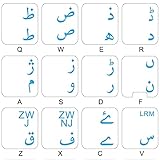
Urdu Keyboard Decals ON Transparent Background with Blue, RED OR Yellow Lettering (Blue)
- The Best GIFT for any occasion
- High-quality stickers for different keyboards Desktop, Laptop and Notebook
- The Urdu Alphabet is spread onto transparent – matt sticker, with blue color lettering
- Stickers are made of high-quality transparent – matt vinyl, thickness – 80mkn, typographical method
- Applying stickers on you keyboard properly once, and you can be aware that letters will stay for ever
Switching keyboards does not alter text that has already been typed. The keyboard selection affects new keystrokes only.
How do you make Word type Urdu from right to left?
In Word, select Home > Paragraph > Right-to-left paragraph before typing Urdu. The command sets the paragraph’s bidirectional text direction; it is not the same as ordinary right alignment.
- Open Word and create a blank document.
- Switch Windows to the Urdu keyboard.
- In Word, open the Home tab.
- In the Paragraph group, select Right-to-left paragraph.
- Click in the document and begin typing Urdu.
The right-to-left command may not appear until Windows has an enabled right-to-left language or keyboard. Microsoft’s explanation of right-to-left languages in Office distinguishes keyboard language, paragraph direction, and Office display language.
Right alignment alone is not a complete Urdu setup. The Align Right button controls where a paragraph sits on the page, while Right-to-left paragraph controls the direction in which bidirectional text is laid out. For Urdu, use the right-to-left paragraph command and then adjust alignment if necessary.
Why is the Right-to-left paragraph button missing?
If the Right-to-left paragraph button is missing, Urdu or another right-to-left language may not be enabled, Word may need to be restarted, or the command may be hidden by the current ribbon configuration.
- Confirm that Urdu is installed in Windows.
- Close and reopen Word.
- Check File > Options > Language and add Urdu as an Office authoring language if the Word installation requires it.
- Customize the ribbon or Quick Access Toolbar to add the paragraph-direction command if the command remains hidden.
How do you switch back to English in Word?
Press Windows key + Spacebar and select English or another Latin-script keyboard. For an English-only paragraph inside an Urdu document, select Word’s Left-to-right paragraph control.
Separate direction control is useful in documents containing Urdu and English names, URLs, email addresses, dates, numbers, or product codes. A paragraph can be Urdu right-to-left while an English-only paragraph or selected segment is left-to-right.
Which Urdu keyboard layout should a beginner use?
Begin with the built-in Windows Urdu keyboard unless you already know a different layout. The Windows keyboard determines character placement; it does not translate English sounds into Urdu automatically.
| Layout type | Best for | Important limitation |
|---|---|---|
| Standard Windows Urdu | Users learning or already familiar with a conventional Urdu keyboard arrangement | Key positions do not necessarily follow English phonetic pronunciation |
| Phonetic Urdu | Beginners who want keys to approximate Urdu sounds typed from an English keyboard | Different phonetic layouts use different mappings, so skills do not transfer perfectly between them |
Microsoft documents the built-in Urdu keyboard with keyboard identifier KLID 00000420 in its Urdu keyboard reference. The identifier is useful technical documentation, not a command that most beginners need to enter manually.
What is a phonetic Urdu keyboard?
A phonetic Urdu keyboard maps keys approximately according to pronunciation or a familiar transliteration convention. A user might prefer phonetic input when the user knows how Urdu words sound but does not know the standard Urdu key arrangement.
Phonetic layouts are not universally identical. The CRULP Urdu Phonetic Keyboard Layout v1.1 reference documents a Unicode-based Windows layout published in 2007. The reference is useful for understanding the layout, but its age does not establish that a current installer is required or that every modern Windows system uses the same mapping.
Avoid random “Urdu keyboard” download sites. If a third-party phonetic utility is genuinely needed, verify the vendor, current Windows compatibility, digital trustworthiness, maintenance status, and Unicode behavior before installing it.
How do you type a first Urdu sentence in Word?
Use a short test rather than starting with a long document. The test confirms the keyboard, paragraph direction, character shaping, and mixed-language behavior.
- Open a new Word document.
- Press Windows key + Spacebar and select Urdu.
- Select Home > Paragraph > Right-to-left paragraph.
- Type a short Urdu greeting.
- Press Enter and type a second Urdu line.
- Switch to English and type an English name or URL.
- Switch back to Urdu and continue typing.
- Save the document as a .docx file.
- Close and reopen the file to confirm that the characters, paragraph direction, and font remain correct.
Urdu should begin from the right side of the paragraph, and connected characters should shape normally when the keyboard and font are working correctly. An English name or URL inside an Urdu paragraph may need separate direction formatting because Word handles mixed-script text according to bidirectional-text rules.
How should you format Urdu text in Word?
Format Urdu after confirming that the text itself is correct. Changing fonts or alignment cannot repair an incorrectly selected keyboard layout or legacy-encoded text.
Which font should you use for Urdu?
Choose a readable Urdu-capable Unicode font already installed on the computer. If the default appearance is unsuitable, test another Urdu-capable font rather than downloading fonts from an untrusted site.
- Nastaliq-style fonts can look more familiar to Urdu readers and closer to traditional Urdu publishing, but they may require more vertical space and produce different line spacing.
- Simpler Arabic-script fonts can be easier to read on screens and can work well for forms, tables, and compact layouts.
- Compatibility matters: a font installed on one computer may not exist on another computer or printer.
For continued editing, save as .docx. For sharing or printing, export a PDF and inspect the exported file. Embed fonts when licensing permits, but do not assume that font embedding is available or permitted for every font.
What should you do if Urdu letters appear as boxes or disconnected symbols?
Boxes or disconnected Urdu symbols usually indicate a font, encoding, application, or keyboard problem rather than a need for a special Urdu program. Check the following in order:
Rank #4

Urdu Keyboard Decals with RED Lettering ON Transparent Background
- The Best GIFT for any occasion
- High-quality stickers for different keyboards Desktop, Laptop and Notebook
- The Urdu Alphabet is spread onto transparent – matt sticker, with red color lettering
- Stickers are made of high-quality transparent – matt vinyl, thickness – 80mkn, typographical method.
- Applying stickers on you keyboard properly once, and you can be aware that letters will stay for ever.
- Confirm that the Urdu keyboard is active by pressing Windows key + Spacebar.
- Check whether the text is genuine Unicode rather than an old legacy-font encoding.
- Select a font that supports Arabic-script Urdu characters.
- Open the document in a current version of Word.
- Copy a small sample into Notepad or another Unicode-aware editor and check whether the characters remain meaningful.
Text that looks correct only when a particular old font is installed may use legacy font encoding. Legacy text can become meaningless when copied to another computer, while Unicode Urdu is designed to remain portable between modern applications. A visually correct sample is not, by itself, proof that the text is Unicode.
How do you handle Urdu and English in the same document?
Keep Urdu paragraphs right-to-left and apply left-to-right formatting to English-only paragraphs or segments when mixed text becomes confusing. Urdu-English documents often expose bidirectional-text behavior through URLs, numbers, dates, email addresses, and punctuation.
Word can determine paragraph behavior from the first strong character entered. A paragraph beginning with an English letter may behave differently from a paragraph beginning with Urdu, so explicitly selecting Right-to-left paragraph is more reliable than allowing Word to infer the direction.
- Do not use repeated spaces to force URLs, dates, or numbers into position.
- Test mixed-language lines before printing or exporting to PDF.
- Use separate text boxes or table cells for complex bilingual layouts.
- Use Left-to-right paragraph for English-only paragraphs when the surrounding document is Urdu.
Microsoft describes this behavior in its Office guidance for right-to-left and bidirectional languages.
What are the most common Urdu typing problems in Word?
The most common problems are an inactive Urdu layout, a left-to-right paragraph, a missing direction command, an unsuitable font, or legacy-encoded copied text.
| Problem | Likely cause | Fix |
|---|---|---|
| English letters appear when you expect Urdu | The English layout is still active | Press Windows key + Spacebar, select Urdu, verify the taskbar indicator, and test in a new paragraph. |
| Urdu appears on the wrong side | The paragraph is left-to-right, or the first strong character was English | Select the affected paragraph and choose Right-to-left paragraph. Re-enter the first character if Word continues to infer the wrong direction. |
| The Right-to-left paragraph button is missing | Urdu is not enabled, Word has not refreshed its language settings, or the command is hidden | Add Urdu, restart Word, check File > Options > Language, and customize the ribbon or Quick Access Toolbar if needed. |
| Urdu characters appear as empty boxes | The selected font lacks Urdu glyphs | Choose an installed Urdu-capable Unicode font and reopen or retest the document. |
| Letters look disconnected | Font or shaping support is unsuitable, or the text is not genuine Unicode | Test another Urdu-capable font, check the text in a Unicode-aware editor, and identify whether the source uses legacy encoding. |
| Copied Urdu text becomes corrupted | The source uses legacy font encoding | Obtain a Unicode version or use a suitable conversion workflow before editing the text in Word. |
| URLs or numbers look scrambled | Bidirectional text behavior in a mixed Urdu-English line | Format English segments carefully, test the line, and use separate cells or text boxes for complex layouts. |
| The Urdu keyboard is not listed | The layout is under another language, or the matching language is not installed | Check the language options for the language that matches the layout. Install Urdu first if necessary, then add the keyboard. |
Should you use an online Urdu keyboard, Google Input Tools, or InPage?
The built-in Windows Urdu keyboard is the best starting point for ordinary Word documents. Online keyboards and phonetic utilities can be convenient, but they add privacy, compatibility, or maintenance trade-offs.
| Option | Useful when | Limitations |
|---|---|---|
| Built-in Windows Urdu keyboard | You need dependable Urdu input in Word, including offline work | The standard layout may not be phonetic and may require learning its key positions |
| Online Urdu keyboard | You need occasional, low-risk text entry without configuring Windows | Not ideal for confidential documents, long manuscripts, offline work, or controlled organizational data |
| Google Input Tools or another phonetic utility | You strongly prefer transliteration-style typing | Behavior may differ between Word and browsers; availability and maintenance can change |
| InPage | You need specialist Urdu publishing or established InPage production files | Not necessary for ordinary letters, assignments, forms, email text, or Word documents |
InPage can be relevant to newspapers, books, and traditional Nastaliq page-layout workflows, but InPage is not a prerequisite for typing Urdu in Word. The official InPage website did not provide enough verifiable pricing or edition detail for a current purchase recommendation in this guide.
Do you need to buy software to type Urdu in Word?
No paid Urdu typing product is required for the core workflow. Windows supplies the keyboard layout, and Word supplies document editing and formatting. The commercial question is whether you already have a compatible Word license.
If Word is not installed, Microsoft’s official Microsoft 365 and Office comparison page showed the following U.S. plan signals on August 18, 2026:
Best Value
Urdu Keyboard Labels Layout ON Transparent Background with Blue, RED OR Yellow Lettering (Yellow)
- The Best GIFT for any occasion
- High-quality stickers for different keyboards Desktop, Laptop and Notebook
- The Urdu Alphabet is spread onto transparent – matt sticker, with yellow color lettering
- Stickers are made of high-quality transparent – matt vinyl, thickness – 80mkn, typographical method
- Applying stickers on you keyboard properly once, and you can be aware that letters will stay for ever
| Product | Observed U.S. price and model | Who may prefer it | Why it may be unnecessary for Urdu alone |
|---|---|---|---|
| Microsoft 365 Personal | $9.99/month or $99.99/year; subscription | One person wanting current Word updates, use across multiple device types, and 1 TB of cloud storage | Unnecessary if you already have Word or only type Urdu occasionally |
| Microsoft 365 Family | $12.99/month or $129.99/year; subscription | Households or multiple users; supports one to six people with up to 1 TB per person | A poor value for one user buying it solely for Urdu input |
| Office Home 2024 | $179.99 one-time purchase for one PC or Mac | One user wanting classic desktop Office applications on one computer | Does not provide the multi-device, cloud-storage, or continuously added subscription benefits of Microsoft 365 |
Prices, availability, regional currency, taxes, and product terms can change. The Microsoft 365 plan does not improve the Windows Urdu keyboard itself; the relevant requirement is access to a compatible Word application, not a premium AI feature.
How should you save, share, and print an Urdu Word document?
Save the working document as .docx, reopen it, and verify the result before delivery. Use PDF when the recipient mainly needs a stable viewing or printing copy.
- Save the editable document as .docx.
- Close and reopen the file.
- Check that Urdu characters remain connected and readable.
- Check paragraph direction, headings, bullets, tables, URLs, and numbers.
- Export a PDF if the document is intended for sharing or printing.
- Inspect the PDF on the target computer or printer workflow.
A font installed on your computer may not be installed on the recipient’s computer. For a shared editable file, use a commonly available Urdu-capable font or embed the font where licensing permits. For a final printed or viewed copy, inspect the exported PDF rather than assuming that the page will look identical elsewhere.
Final Urdu typing checklist
- Urdu is installed in Windows, or the Urdu keyboard layout has been added.
- The taskbar input indicator shows Urdu before typing.
- Home > Paragraph > Right-to-left paragraph is enabled for Urdu paragraphs.
- The selected font supports Urdu Unicode characters.
- Mixed Urdu-English lines, URLs, names, dates, and numbers have been tested.
- The file has been saved as .docx and reopened.
- The PDF or printed version has been checked before sharing.
Frequently Asked Questions
Can I type Urdu in Word with an English keyboard?
Yes. An English physical keyboard is sufficient when Windows has an Urdu keyboard layout installed and selected. The Urdu layout determines which characters the English keys enter, so the user may need to learn the standard mapping or choose a compatible phonetic layout.
Do I need InPage to type Urdu in Microsoft Word?
No. InPage is not required for ordinary Urdu letters, assignments, forms, or Word documents. InPage may be useful for specialist Urdu publishing and established InPage production files, but Windows and Word are sufficient for the core typing workflow.
Why does Urdu appear on the wrong side in Word?
The paragraph is probably still left-to-right, or Word inferred direction from an English character entered first. Select the affected paragraph and choose Home > Paragraph > Right-to-left paragraph; do not rely on Align Right alone.
Why does Word show boxes instead of Urdu letters?
The selected font may not contain Urdu glyphs, or the source text may use a legacy font encoding. Confirm that the text is Unicode and select an installed font that supports Arabic-script Urdu characters.
Is Windows 10 still supported for Urdu typing?
Windows 10 can still provide the Urdu keyboard workflow, but Microsoft ended free updates, technical assistance, and security fixes for ordinary supported installations on October 14, 2025. Windows 11 is the preferable current platform when the computer supports it.
The Bottom Line
You usually do not need a separate Urdu typing program. Add Urdu in Windows, select the Urdu keyboard with Windows key + Spacebar, enable Word’s Right-to-left paragraph command, and use a Unicode-compatible Urdu font. Save and reopen a short test document before printing or sharing it.


