
At a glance
Expert’s Rating
Pros
- 4x Thunderbolt 5 ports
- 140W Power Delivery
- 16TB-capable SSD slot
Cons
- Only 10 ports
- Low device charging
- Screwdriver not included for SSD
Our Verdict
While this dock boasts the highest claimed capacity for its integrated SSD slot, 16TB SSDs are not a realistic proposition right now. Its basic set of ports may be all you need, but Consider alternatives if you want a broader expansion range.
Price When Reviewed
This value will show the geolocated pricing text for product undefined
Best Pricing Today
Price When Reviewed
$399.99
Best Prices Today: HyperDrive Next Thunderbolt 5 Dock

$323.99

$399.99
What is it? A Thunderbolt 5 dock with massive storage capacity but few other ports.
Who is it for? MacBook users who need fast storage and multiple monitors.
Who shouldn’t buy it? People looking for extra USB-C and fast-charging ports.
Docking stations with integrated SSD bays are becoming increasingly common, often paired with more expansion ports than most people will ever use.
If you want a fast dock with a built-in SSD enclosure the bulk of your options are bristling with ports aplenty. The Sonnet Echo 21 SuperDock has 20 ports as well as an SSD slot, the Kensington EQ Pro Dock has 19, the Ugreen Maxidock provides a still generous 17.
The HyperDrive Next Thunderbolt 5 Dock takes a different approach. The integrated SSD bay is the HyperDrive Next’s standout feature, supporting up to 16TB of ultra-fast Thunderbolt 5 storage. However, It includes just 10 ports, making it a simpler, more focused option that will suit users who prioritise storage over extensive connectivity.
What ports does the HyperDrive Next Thunderbolt 5 Dock have?
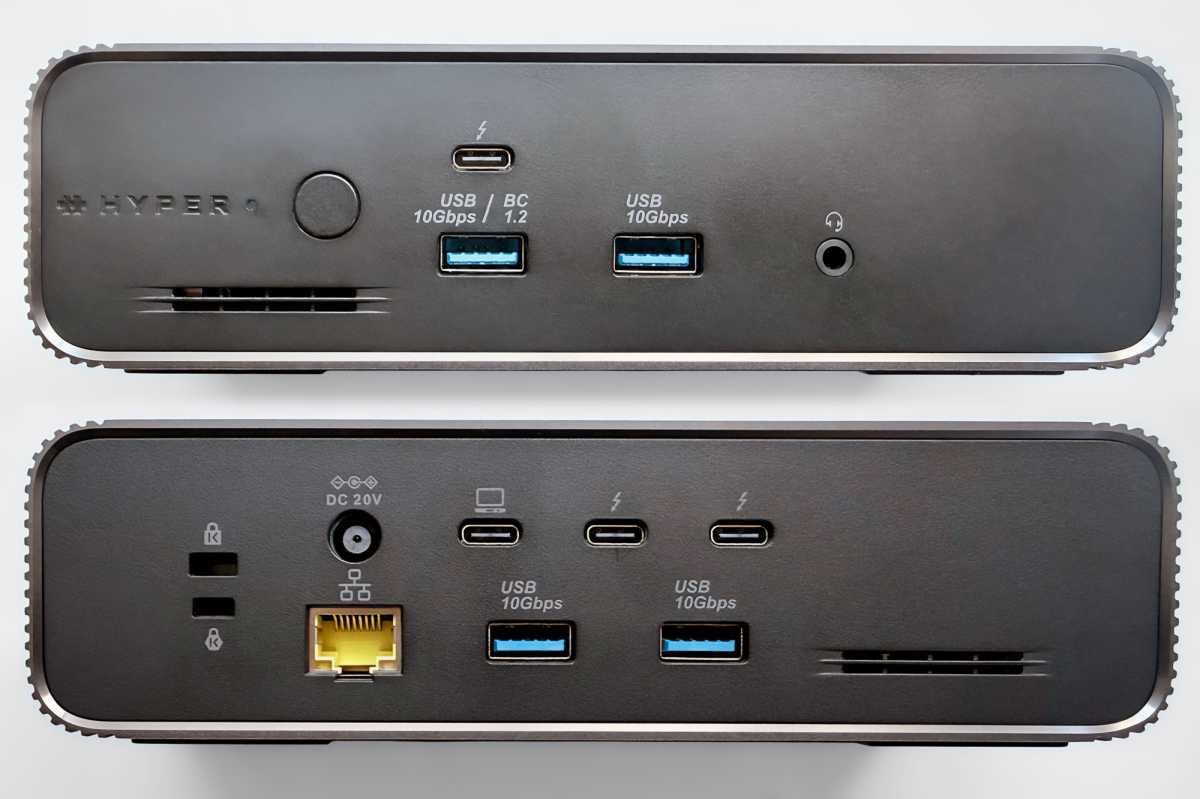
The HyperDrive Next includes four Thunderbolt 5 ports, two USB-A ports, 2.5Gb Ethernet, an SD card reader, a 3.5mm audio jack and 140W host charging. Missing are HDMI, DisplayPort, extra USB-C ports, microSD, and higher-power downstream charging for connected devices.
- One upstream Thunderbolt 5 port (80Gbps, 140W)
- Three downstream Thunderbolt 5 ports (80Gbps, 15W)
- 1x USB-A (10Gbps, 7.5W)
- 3x USB-A (10Gbps, 4.5W)
- M.2 SSD Enclosure (up to 16TB capacity)
- Ethernet (2.5Gb)
- 3.5mm combo audio jack (front)
- 180W power supply
Simon Jary
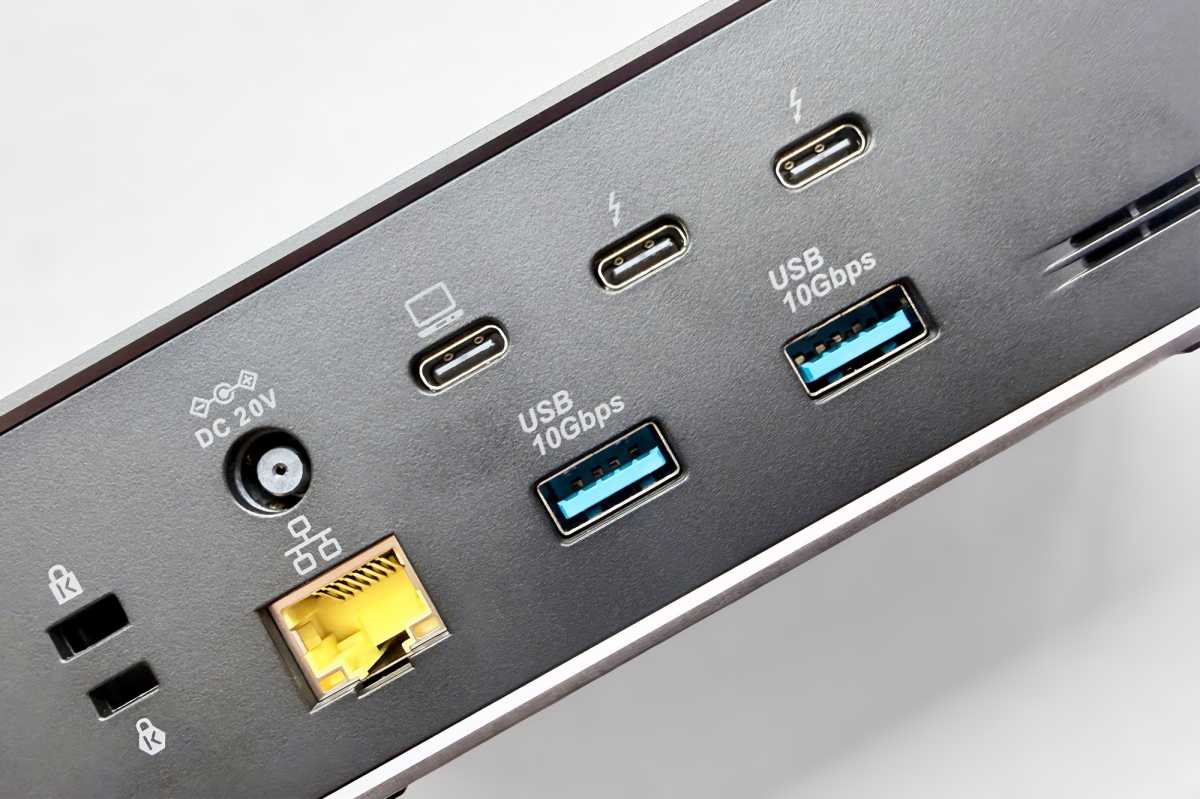
There are no dedicated ports so all displays will need to be via the three downstream Thunderbolt ports, which is a flexible approach with the proviso that you may have to add adapter cables if your monitor demands either DisplayPort or HDMI.
While a DisplayPort or HDMI port can be useful, leaving the choice up to the user means the Thunderbolt ports can be used for either video or other devices as required. An HDMI port when your display has a USB-C connection is probably a wasted one, and when there are only ten each port is going to count.
There are no extra USB-C ports, with Thunderbolt again the supplied equivalent. Rather than including four legacy USB-A ports we’d have much preferred dropping a couple for even one USB-C port rated at over 20W for fast iPhone or iPad charging. More on the dock’s power outputs later.
USB-A can be useful, but surely four is overkill these days when USB-C is the standard and anyone with a Thunderbolt 5 computer will surely have jettisoned the old rectangular connector on their latest kit.
Simon Jary
Fast 2.5Gb Ethernet is becoming the norm on top-end docking stations, and its inclusion here is appreciated. Even if your network remains trusty Gigabit Ethernet (1GbE), it will work with faster standards such as 2.5GbW and future-proof your investment when/if you do upgrade networks.
Likewise, the Thunderbolt 5 ports are fully backwards compatible even with the MacBook Neo as well as older Thunderbolt 3 or 4 MacBook Pro and Air models.
Without the Ethernet we’d class the HyperDrive Next Thunderbolt 5 Dock as more of a hub than a docking station. Ten is about the same number of ports as get on a high-end Thunderbolt hub—the CalDigit Element 5 has nine, including four TB5, two USB-C and three USB-A.
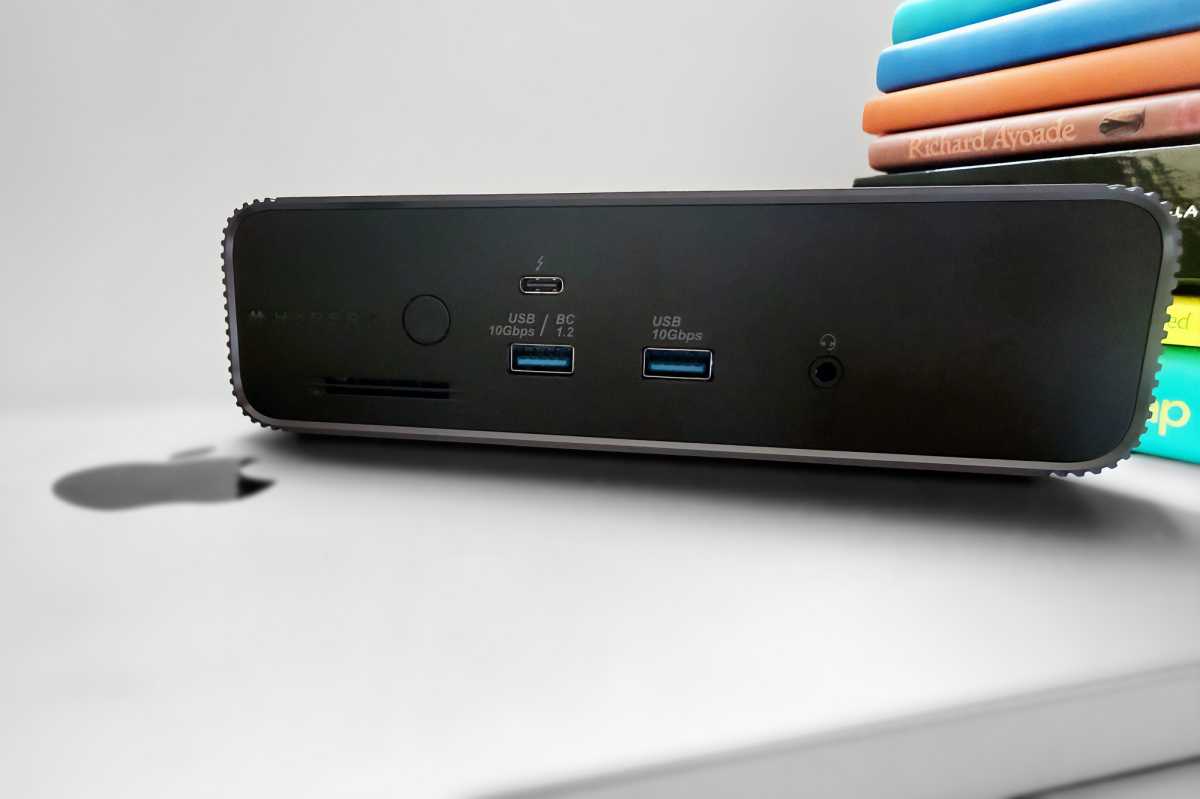
The HyperDrive doesn’t have either an SD or MicroSD card reader for easily accessible portable storage, although its air vents initially made me think it did. But it does have its integrated SSD slot.
How much storage do you really need?
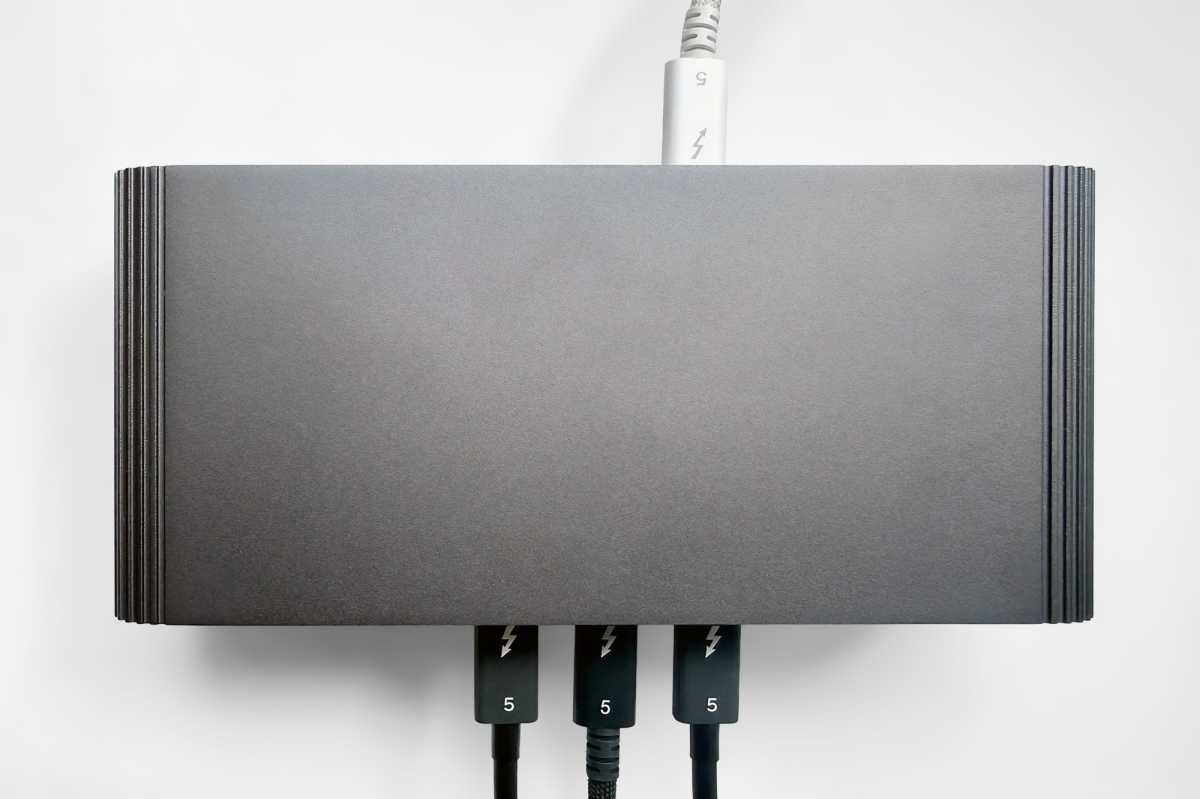
Turn the HyperDrive Next Dock over and you’ll see a hatch that covers the built-in SSD enclosure.
There was no little screwdriver in the box to open the hatch, but any PH1-type screwdriver will do the job. Every single other dock with SSD enclosure that we’ve tested came with a screwdriver, and if you don’t have a mini crosshead to hand, you’ll be frustrated.
The slot supports NVMe M.2 form factors 2230, 2242, 2260, and 2280 and can accommodate drives with a capacity of up to 16TB in total. The previous highest single-slot dock SSD we’ve seen supported is half that at 8TB. The reason is that 16TB SSDs are extremely rare and eye-wateringly expensive—you’ll be looking at around $20,000 to snag one. The cost of the screwdriver may be incidental to this.
While the dock supports up to a claimed 16TB SSD, drives that large remain prohibitively expensive for most buyers. A 2TB or 4TB SSD offers the best balance of price and capacity, while 8TB makes sense only for professionals with demanding storage requirements.
If you can afford 8TB, that’s a more palatable $1,500, with 4TB ($500), 2TB ($300) and 1TB ($195) options favoring most pockets. Note that storage is volatile to demand, and is at the expensive end at the time of writing.
There’s no doubt that a dock with an SSD enclosure is a flexible way of adding fast storage, especially compared with buying it at the point of purchase from Apple.
Hyper states that you can also use the M.2 slot to install a PCIe-based AI accelerator card, but to my knowledge none are compatible with Mac. (The same goes for the promised Thunderbolt Share software that enables direct PC-to-PC data transfers, screen sharing, and peripheral control using a single Thunderbolt cable, which is Windows only.)
Simon Jary
Connecting your monitors
While storage slots are becoming standard on docks, the main reason for buying one is usually the ease of adding multiple displays without using up all your MacBook’s available Thunderbolt ports.
If connecting to USB-C or Thunderbolt or monitors you need just a decent data cable, but if your chosen display requires HDMI or DisplayPort you’ll need to add an adapter cable at an extra cost. Most of the best monitors for Mac allow for direct USB-C connection.
What display setups can the Hyper Next handle?
With so many downstream Thunderbolt ports, you can connect up to three displays if your Mac supports it.
Macs with an M5 Pro or Max can handle up to three 4K displays at 60Hz with this dock. M1/M2/M3 Pro or Max, plus all M4/M5 variants, and MacBook Air M3 (with lid closed) support up to two 6K displays at 60Hz. Older MacBook Air models with a base M1/M2 chip support only a single 6K display, and the MacBook Neo one 4K monitor.
A single 8K display at 144Hz is also possible with the higher-end Macs.
Windows PCs support up to three 4K@60Hz displays, depending on the connected computer.
Simon Jary
How much power can the ports output?
The upstream Thunderbolt 5 port can supply up to 140W of power (PD 3.1) to your connected laptop, which is enough to fast-charge even the top-end 16-inch MacBook Pro.
The dock is less able, however, at outputting to other devices, which might be because of its now rather average 180W power supply. 180W was a decent total output when docks had to reach only 100W for maximum laptop power delivery but take that 140W out of the 180W total and there’s not a whole lot left for other devices, especially as the dock will require some of that power itself, as will the SSD enclosure when in use.
None of the Thunderbolt ports can deliver more than 15W of power, which is enough to charge a connected iPhone or iPad but not fast-charge them. Forget USB-A as it’s not up to fast-charging anyway.
If Hyper had included a 20W or 30W USB-C port or allowed for one of the Thunderbolt ports at that power output, and then boosted the power supply to 240W, this dock would become a lot more helpful on the average Mac user’s desk.
Simon Jary
Design and build
Despite having only 10 ports, the HyperDrive Next Thunderbolt 5 Dock is quite a chunky black slab, measuring 7.6 x 3.1 x 2.1 inches (194 x 78 x 52mm). It’s also surprisingly heavy at 4.13lbs (1.88kg). It’s not trying to call itself portable so this shouldn’t matter, and having some bulk and heft is no bad thing when placed on a desk.
Its darkness is more of an issue, with the port labelling difficult to read easily in even bright light. Again, once you know the layout, it’s less of a problem, and it’s easy to see which are USB-A and which are Thunderbolt. But it seems needlessly dark, in my view.
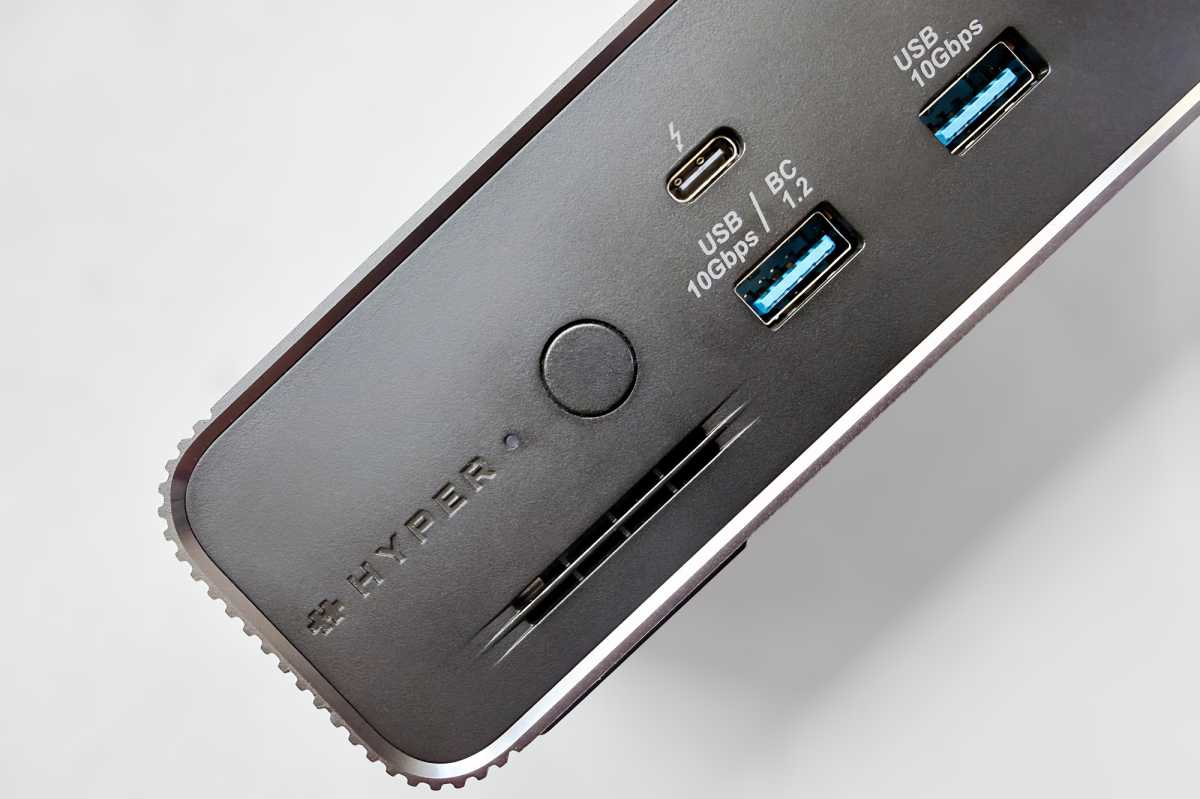
There’s a power button, which I do appreciate, as it gives me reassurance that no power is being drawn by my MacBook when it’s not in use.
Is the HyperDrive Next worth its $399 price?
The HyperDrive Next Thunderbolt 5 Dock is priced at $399.99, either direct or via Amazon. As I write, it is not available outside of North America.
It’s true that you can buy Thunderbolt 5 docking stations for around $300, but if you add a Thunderbolt 5 SSD enclosure, that will add another $200, so the $399 price of the HyperDrive Next is not as pricey as it first seems.
Comparing to docks with SSD slots, the Kensington EQ Pro Thunderbolt 5 Dock has an MSRP of $449 but comes packed with twice as many downstream ports as the HyperDrive, and the Ugreen Maxidock as 17 ports but costs $499—although both can be found a little cheaper online (as can the HyperDrive).
The Satechi CubeDock is priced at the same $399 as the HyperDrive Next and has 12 ports, including a 30W USB-C and card readers. If you own a Mac mini, this is an alternative you should consider as it will prettily sit on top of the Mac.
Read our in-depth reviews for all your choices for best Thunderbolt dock.
Should you buy the HyperDrive Next?
The HyperDrive Next Thunderbolt 5 Dock boasts the highest-ever claimed capacity for its integrated SSD slot, although 16TB SSDs are not a realistic proposition right now. Its basic set of ports may be all you need but consider alternatives if you want a broader expansion range.


