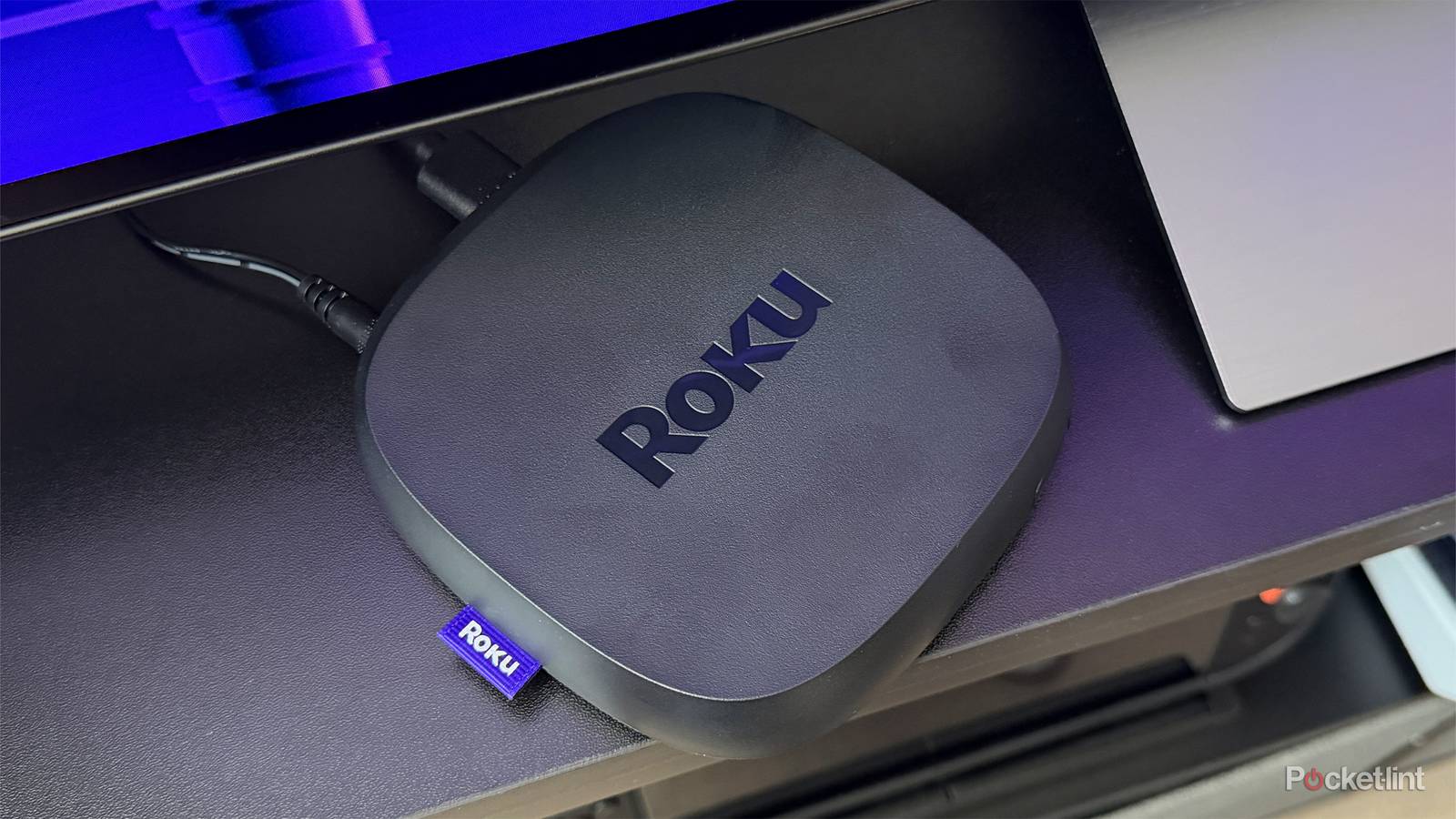
Over the past few months, I’ve been using a Roku Ultra as my primary streaming device, and I have to say, I’ve been enjoying it quite a bit. Before that, my go-to streamer was the Fire TV Stick 4K Max, but the Roku Ultra has won me over in several ways. I find the interface much faster to navigate, the home screen is less cluttered, and I really appreciate features like the ability to play local media through its USB port and Headphone Mode, which lets me listen to shows and movies with my AirPods through the Roku app.
That said, the Roku Ultra wasn’t perfect out of the box. There were a few settings I had to tweak to get the experience just right, especially after the latest home screen update. For example, I made the app tiles larger and hid the recommendations row to clean things up.
Even after making those changes though, there was one small thing that always annoyed me: the navigation sounds. Every time you move through menus on the home screen, Roku plays a series of clicks and beeps. I’ve never been a fan of these navigation sounds on any streaming device I’ve used, and I don’t want to hear them every time I’m just browsing for something to watch.
Fortunately, Roku makes it easy to turn them off. Whether you’re using a Roku Streaming Stick, Roku Ultra, or a Roku TV, you can disable navigation sounds in just a few seconds.
How to turn off navigation sounds on your Roku
You can lower the volume of them if you’d prefer that

To turn off navigation sounds on your Roku, start by heading to the home screen. From there, just follow these simple steps:
1. Go to Settings.
2. Select Audio > Menu Volume.
3. Set Menu Volume to Off.
If you’d rather keep navigation sounds enabled but make them less noticeable, you can also adjust their volume here. By default, the Menu Volume is set to Medium, but you can set it to Low, which makes it a lot quieter. Personally, I prefer to have navigation sounds disabled altogether, so I’ve turned them off.
Additionally, if you’re looking for better ways to listen to your Roku, you can go to Settings > Remotes & Devices to connect Bluetooth headphones or speakers. This makes it easy to listen to a show or movie through a pair of headphones, including AirPods, which is great if you’re watching by yourself, or you’re trying not to disturb others around you.
The Roku app offers another handy feature called Headphone Mode, which lets you listen to anything playing on your Roku through the headphones connected to your phone or tablet. So if you already have a pair of headphones connected to your phone, there’s no need to pair them with your Roku directly; you can just use the app. This is how I use my Roku Ultra with my iPhone and AirPods, and it works flawlessly. All you have to do is open the app, connect your Roku to it, and select the Headphone icon to activate it.
All in all, I found the navigation sounds on my Roku annoying, and I’m just glad Roku offers a way to turn them off in the settings. And if you’d also like to make your Roku easier to listen to, connecting Bluetooth headphones directly to it or using Headphone Mode in the app is a simple way to do that.

- Dimensions
-
4.9 x 5.0 x 1.0 inches
- Connective Technology
-
Bluetooth® streaming, 802.11ax dual-band MIMO Wi-Fi 6 (2.4 GHz / 5 GHz), 10/100 Base-T Ethernet
- Brand
-
Roku