When we built AWS Glue interactive sessions, our goal was to make AWS Glue as interactive as running local Python from a notebook. We mostly succeeded. With a straightforward Python package and a Jupyter notebook, you could execute remotely against the AWS Glue ephemeral Spark backend. The Livy-based approach was ahead of its time, but it had limitations from its REST-based protocol. Running local PySpark unlocked powerful integrated development environment (IDE) features such as debugging and linting, so your environment could understand the code and help you develop Spark applications more quickly. Customers would often split their development work. They used local Spark (or Docker containers) to develop in an IDE on a small amount of data, then switched to AWS Glue interactive sessions to validate scaling and tuning against the full dataset.
With modern PySpark releases came a new protocol: Apache Spark Connect. Spark Connect bridges the gap between these two worlds: you develop in local Python, but execute on AWS Glue against actual data. Today, AWS Glue interactive sessions support Spark Connect natively. You can connect from any environment that supports the PySpark remote() API, including VS Code, PyCharm, Amazon SageMaker Unified Studio notebooks, and standalone Python applications. You don’t need to install specialized kernels or manage cluster infrastructure.
What Spark Connect changes
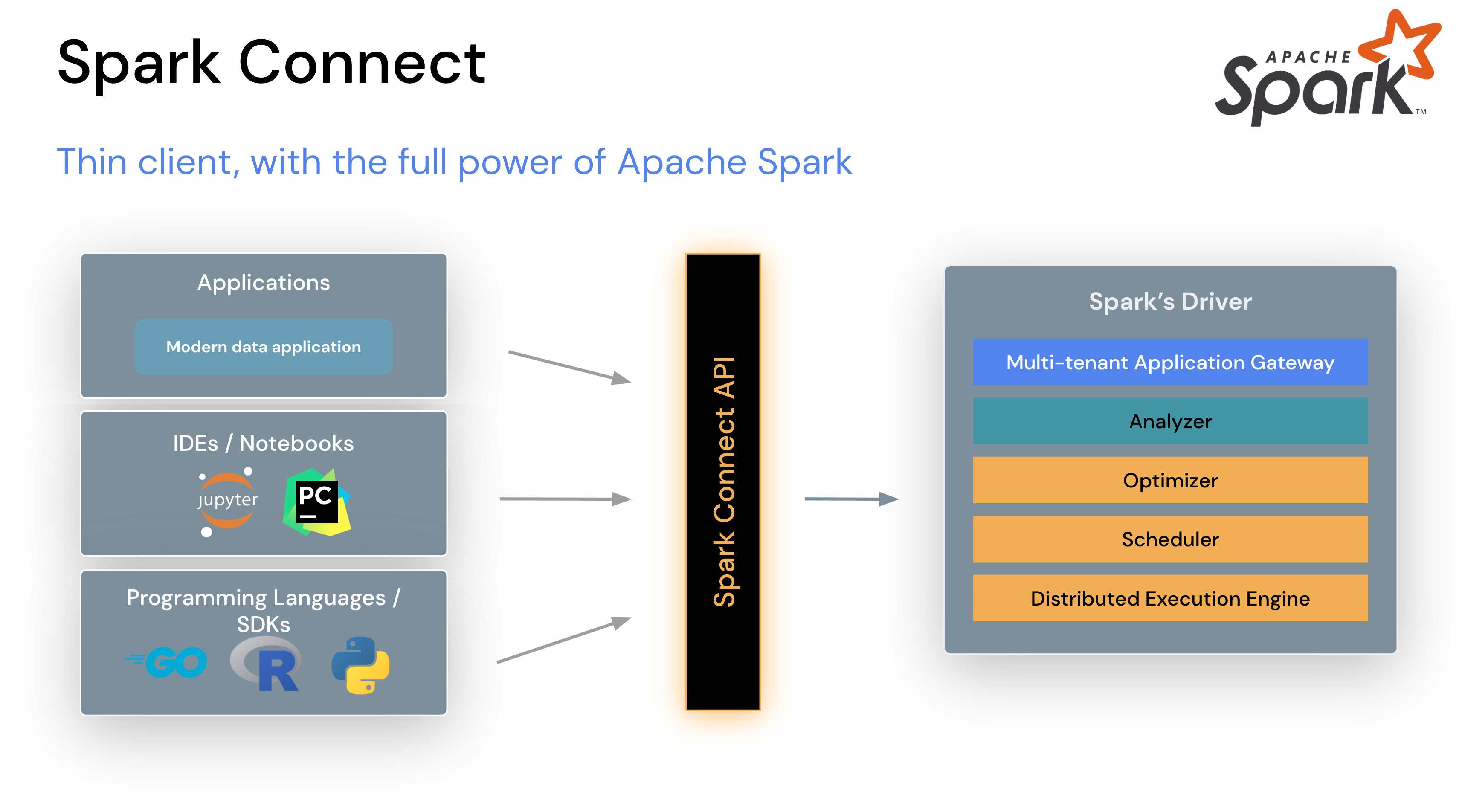
Spark Connect, introduced in Spark 3.4, decouples the Spark client from the server through a lightweight gRPC protocol. Instead of running your driver program on the cluster, your IDE communicates with a remote Spark server through a thin client layer. This architecture unlocks the key workflow improvement: you develop locally and execute remotely.
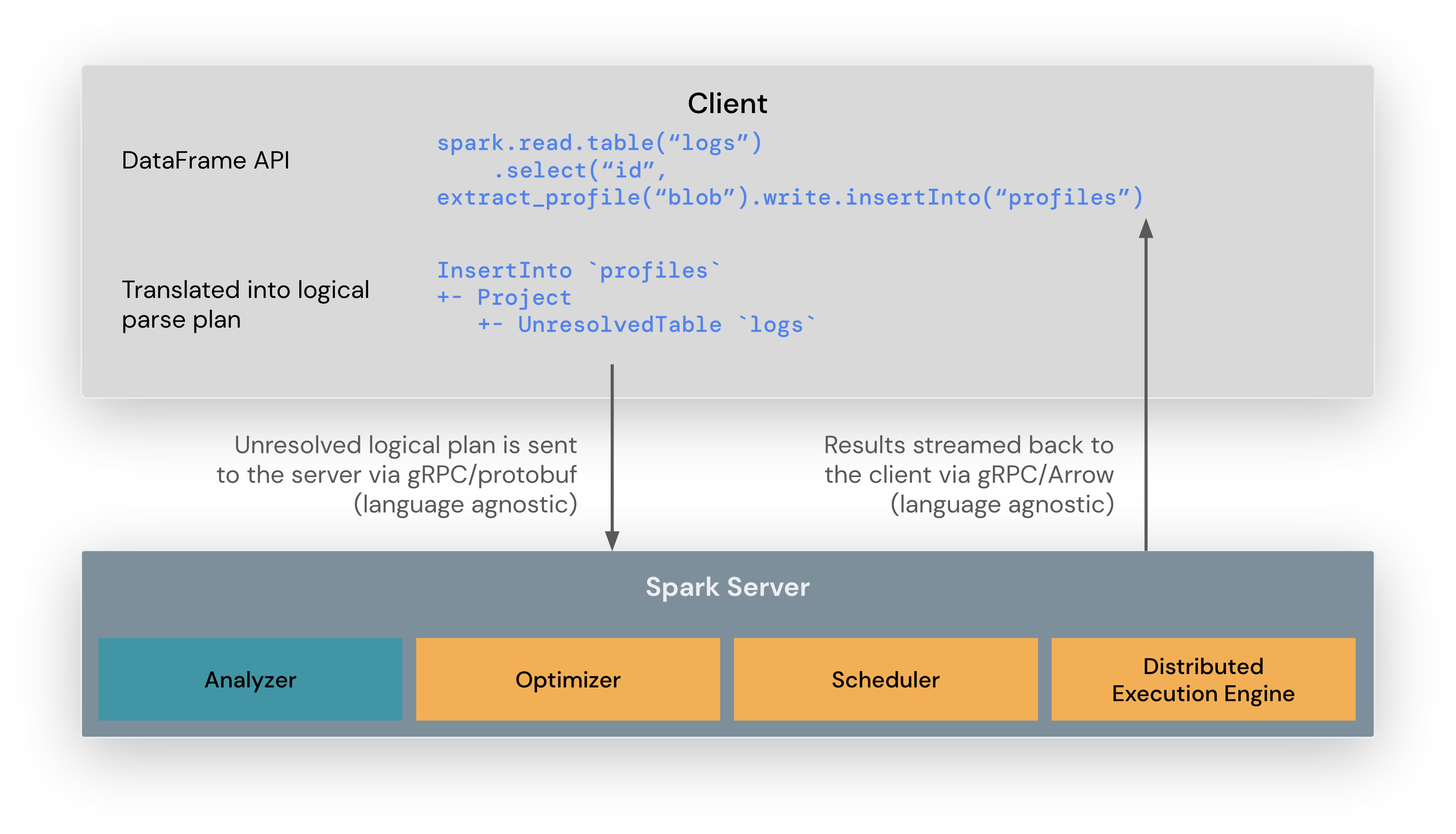
Spark Connect architecture — thin client with the full power of Apache Spark
With Spark Connect support in AWS Glue interactive sessions, you get:
- IDE freedom – Use VS Code, PyCharm, JupyterLab, or any Python environment. No kernel installation required.
- Programmatic access – Build Spark into your Python applications and automation scripts with a standard
SparkSession.builder.remote()call. - Serverless execution – AWS Glue provisions and manages the Spark cluster. You pay only for the data processing units (DPUs) consumed while your session is active.
- Spark Connect monitoring – The Spark Live UI now includes a dedicated Connect tab showing active Spark Connect sessions and operations alongside the existing Jobs, Stages, and Executors views.
Getting started with SageMaker Unified Studio
Amazon SageMaker Unified Studio provides the most direct path to Spark Connect on AWS Glue. The notebook environment handles session creation, endpoint retrieval, and token refresh automatically, so no connection boilerplate is required.
Prerequisite: You need an Amazon SageMaker Unified Studio project to use this workflow. If you don’t have one, create a project in your SageMaker Unified Studio domain first.
To connect to an AWS Glue Spark Connect session:
- Sign in to SageMaker Unified Studio, choose your project, and create or open a Notebook.
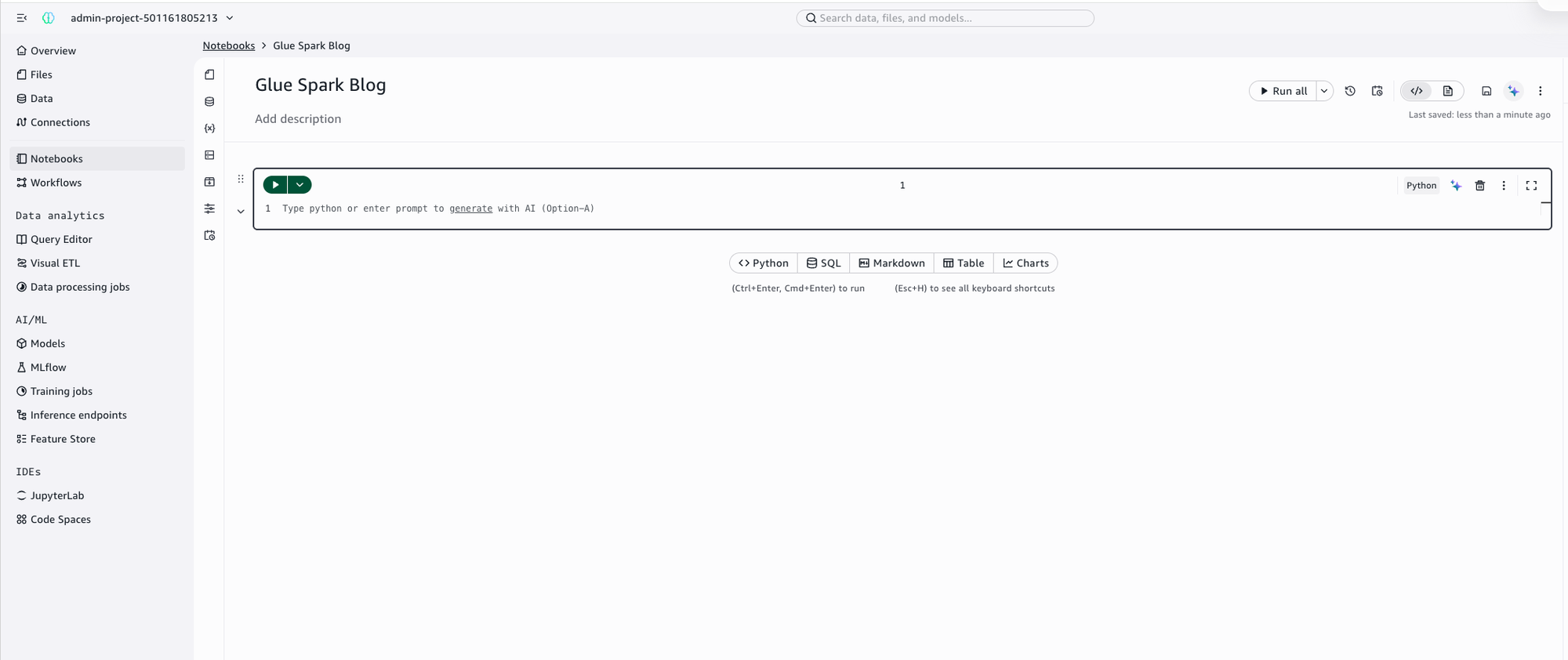
A notebook open in SageMaker Unified Studio
- Choose the compute icon in the left toolbar to open the Compute environment panel. Expand the Spark section.
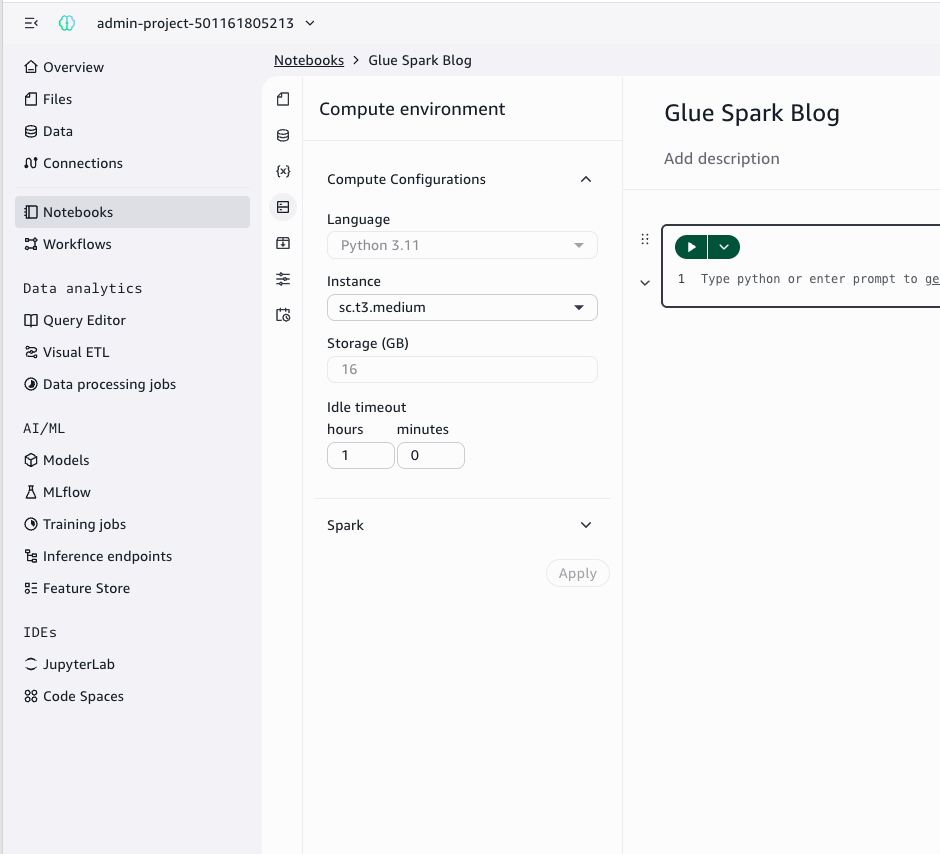
The Compute environment panel with the Spark dropdown list
- Select a Glue Spark connection. Depending on your SageMaker domain configuration, you will see either
default.sparkor named connections such asproject.spark.compatibility. Select the appropriate Glue (Spark) connection and choose Apply.
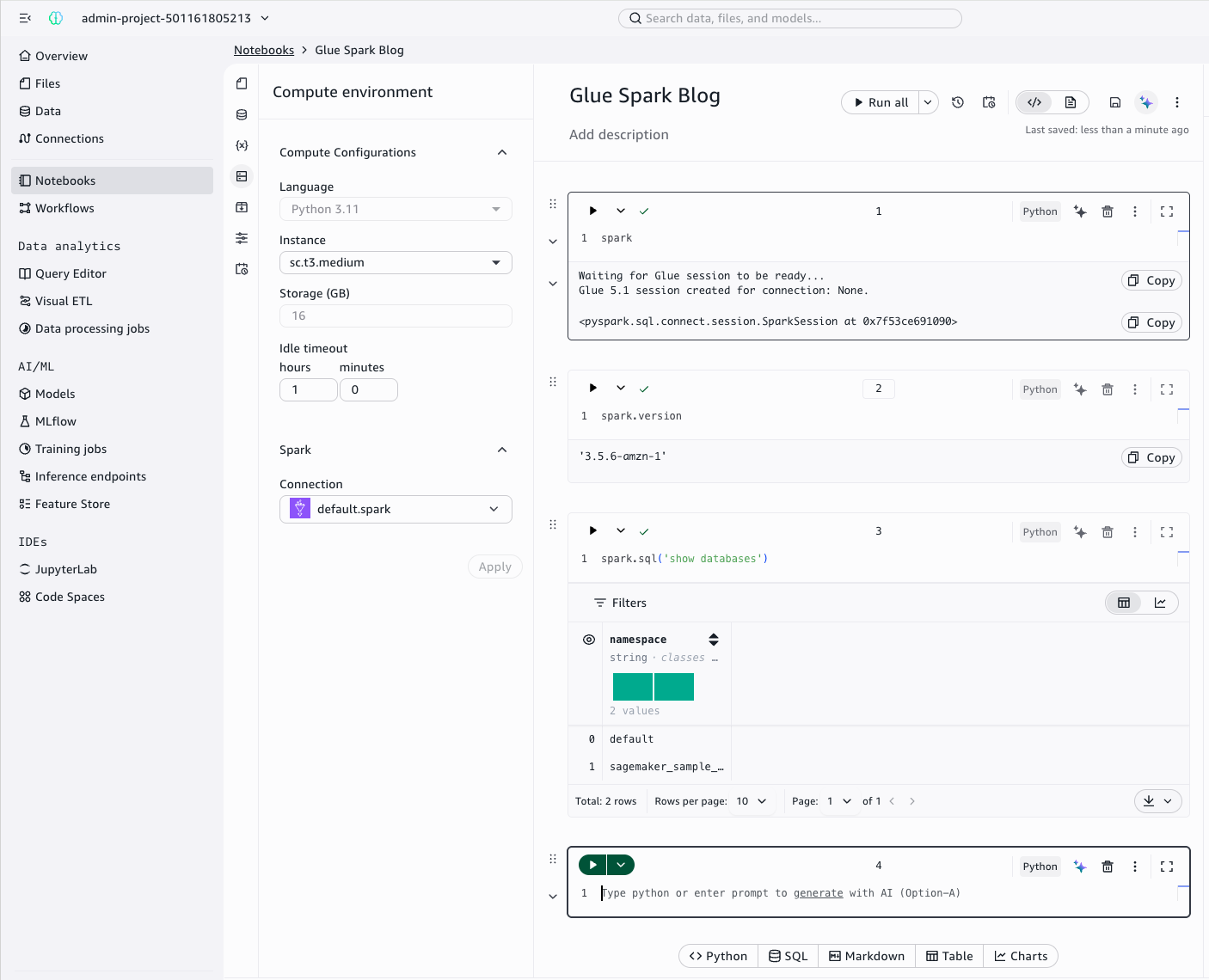
Connected to Glue Spark Connect — running spark.version returns ‘3.5.6-amzn-1’
After you make your selection, you’re connected. The spark session object is available natively. No imports or configuration are needed. Start running PySpark immediately:
The session manages itself in the background, including automatic token refresh.
Using the sagemaker_studio SDK
The sagemaker-studio Python package extends the Spark Connect experience beyond SageMaker Unified Studio notebooks into local IDEs, continuous integration and continuous delivery (CI/CD) pipelines, and any Python environment. The sparkutils module handles session initialization and connection configuration in a single call. You get the same streamlined experience as in the notebook, anywhere you run Python:
You can also use sparkutils.get_spark_options() to retrieve pre-configured Java Database Connectivity (JDBC) options for reading and writing to data sources through your project connections. Supported sources include Amazon Redshift, Amazon Aurora, and Amazon DocumentDB (with MongoDB compatibility):
Within SageMaker Unified Studio, the sagemaker-studio SDK is native to the environment. The spark session and sparkutils are available without installation. For local IDE use, install it with pip install sagemaker-studio and configure credentials through an AWS named profile or boto3 session.
How it works
Spark Connect sessions in AWS Glue use a three-step workflow:
- Create a session – Call the
CreateSessionAPI withSessionTypeset toSPARK_CONNECT. The session provisions in approximately 30 seconds. - Retrieve the endpoint – Call
GetSessionEndpointto receive asc://gRPC endpoint URL and a time-limited authentication token. - Connect with PySpark – Pass the endpoint and token to
SparkSession.builder.remote()and start running Spark operations.
Spark Connect protocol flow — DataFrame API translated to logical plan, sent via gRPC/protobuf, results streamed back via gRPC/Arrow
Connecting with the low-level API
Some environments don’t have the sagemaker-studio SDK, such as custom containers, AWS Lambda functions, or non-Python toolchains. In these environments, or if you’re not using SageMaker Unified Studio, you can use the AWS SDK (Boto3) to manage sessions directly. The following example demonstrates the full workflow:
Monitoring with Spark Live UI
When you enable the Spark Live UI at session creation, you gain access to a real-time dashboard showing:
- Jobs and Stages – Track active, completed, and failed jobs with stage-level metrics.
- Executors – Monitor memory usage, shuffle data, and executor health.
- SQL – Inspect query plans and execution details.
- Connect tab – View active Spark Connect sessions and operations (specific to Spark Connect).
Access the dashboard through the GetDashboardUrl API or directly from the AWS Glue console.
In SageMaker Unified Studio, no API call is needed. Choose Ready in the notebook status bar to open the kernel info popover. From there, open the Spark UI link for the live dashboard or Spark Driver Logs for real-time log output.
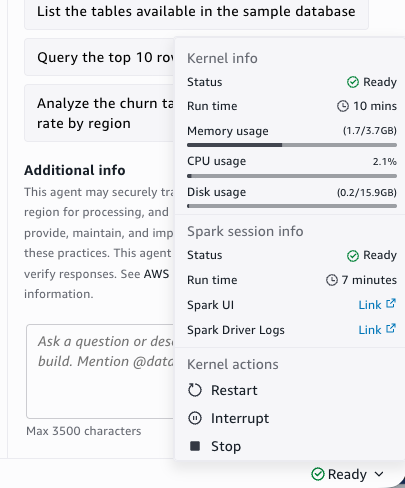
Image showing “Ready” in the status bar to access Spark UI and Driver Logs directly from the notebook
Token refresh
Authentication tokens expire after 30 minutes. In SageMaker Unified Studio, this is handled automatically. For programmatic use, you can use a background thread to keep the connection alive. The following helper reconnects transparently before the token expires:
The background thread sleeps until 5 minutes before token expiry, then transparently reconnects. Because the daemon thread exits when your script ends, there is no cleanup required.
Getting started
To start using Spark Connect with AWS Glue interactive sessions:
- Use AWS Glue version 5.1 (Apache Spark 3.5.6).
- Install PySpark 3.5.6 locally:
pip install pyspark==3.5.6. - Grant your AWS Identity and Access Management (IAM) identity permissions for
glue:CreateSession,glue:GetSession, andglue:GetSessionEndpoint. - Create a session with
--session-type SPARK_CONNECTand connect from your preferred environment.
VPC note: If you connect to AWS Glue interactive sessions through a virtual private cloud (VPC) endpoint, add the new Spark Connect endpoint (com.amazonaws.{region}.glue.sessions) to your VPC configuration. Existing AWS Glue VPC endpoints don’t cover Spark Connect traffic.
For detailed instructions, see Connecting to a Spark Connect session in the AWS Glue Developer Guide.
About the authors


