Have you tried turning it off and on again?
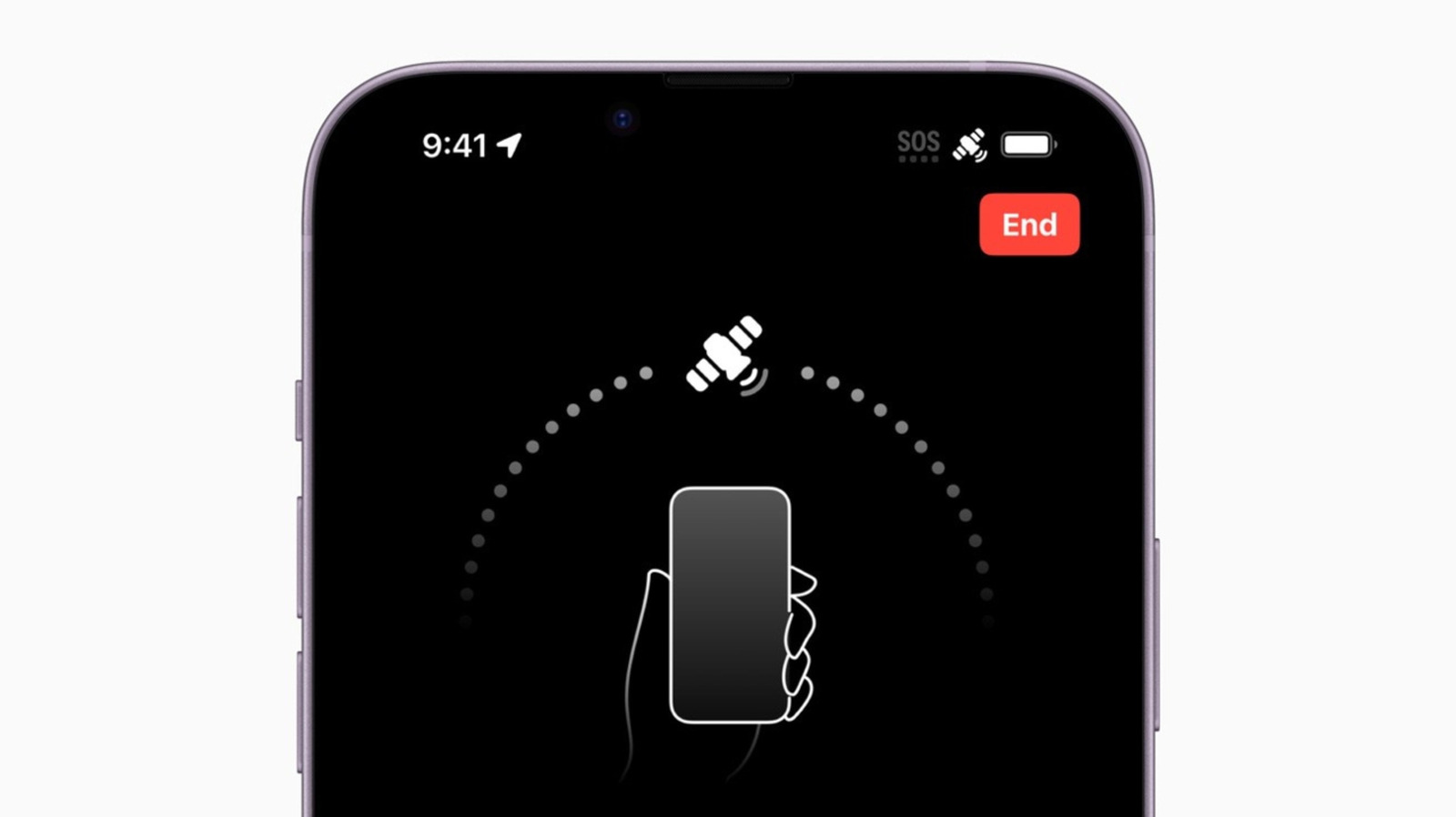
It’s an all too familiar scene: you’re exploring a new area, you take out your phone, and you see the dreaded SOS symbol in the top right corner. It feels like a death knell in our phone addicted landscape. But it doesn’t mean that your phone is totally useless. If you see the SOS or SOS only symbol, you may be able to contact emergency services via other available cellular networks. For iPhone 14s and later models, users can also make emergency calls and texts via Apple’s satellite network.
SOS capabilities are a critical safety feature, particularly for those who are traveling off the grid. As it stands, Apple states that users can contact satellites in 18 countries worldwide, namely Australia, Austria, Belgium, Canada, France, Germany, Ireland, Italy, Japan, Luxembourg, Mexico, the Netherlands, New Zealand, Portugal, Spain, Switzerland, the UK and the US. Through these cellular and satellite connections, iPhone users can also send their location with their loved ones, share their medical ID with emergency personnel, request roadside assistance and notify loved ones of emergency situations. By contrast, users who see a No Service or Searching symbol at the top of their phone’s status bar are unconnected from any network and are unable to make any calls or texts.
If you plan on going off the grid, it may be wise to consult Apple’s guide on using its Emergency SOS satellites to your advantage. In it, you’ll not only learn how to connect to the company’s satellite network, but any preemptive steps one should take to maximize their satellite experience. Those looking to test their phone’s SOS connection can do so by following Apple’s guide to using its Connection Assistant.
But what happens if your phone is on SOS mode and you aren’t on a trek across untamed wilderness? Luckily, reclaiming your phone’s cellular access may be easier than you think.
What to do when you see the SOS icon
Apple’s support page offers several remedies for your SOS issues. The first is to try to connect to your available cellular network. To do so, Apple suggests you try flipping to Airplane Mode for a minimum of 15 seconds before returning to your regular cellular settings. If such a fix doesn’t solve your issue, Apple delivers the tried-and-true classic of turning your phone off and on again. The guys from The IT Crowd would be proud.
If these rudimentary solutions don’t solve your carrier issue, it may be that your iPhone or iPad needs an update. To do so, visit your device’s settings, hit the General tab and find the section titled Software Update to install the latest iOS to your device. Of course, this is also where can enable Automatic Updates to potentially heading off any software update issues in the future.
Now let’s check your SIM cards, as issues could also arise if you are using an iPhone with multiple SIM cards. To confirm that your cellular lines are working correctly, go to your phone’s Settings application and tap Cellular, where you should find a list of your available SIM cards and eSIMs. From there, choose the cellular line you’d like to use and click Turn On This Line if it is displayed as off. If using a physical SIM card, try removing and reinserting it.
If you’re still left on SOS, it’s time to double check your carrier settings. For one thing, users can manually check for and install available carrier settings updates by visiting the General tab in their settings. If your carrier settings are all updated, the issue may be with your carrier itself. Unfortunately, consumers need to contact their carriers directly to troubleshoot any issues of this kind –- a fact that is obviously difficult if you are only able to make emergency calls. If you can find a Wi-Fi connection, however, Apple suggests confirming that you are within your network’s service area, double-checking whether your device is blocked from receiving cellular service by your carrier and verifying your account “is active and in good standing.”
If your phone continues to have problems, it may be helpful to run a diagnostics check. If you are running iOS 18 or later, you can do so directly through the company’s Apple Support application. Available in the App Store, the application allows users to troubleshoot problems and run diagnostic checks directly on their phone.
Troubleshooting SOS issues when abroad
Some extenuating circumstances may cause your iPhone to be in SOS mode. As an avid globetrotter, I’ve often encountered the issue when traveling internationally. The most likely issue, in this instance, is that your phone’s Data Roaming settings are not enabled. Data Roaming allows your device to operate outside your network’s coverage area by using another carrier’s network. Typically, this is done through pre-established partnerships between your carrier and local cellular providers.
To solve this issue and turn on Data Roaming, visit your Settings app’s Cellular tab. From there, turn on your desired cellular data network, and click Cellular Data Options, where you may find and enable Data Roaming option. Do so with caution, however, as using Data Roaming may result in additional fees. As a rule, it is always best to confirm your plan’s international options before traveling.
If using an international eSIM, refer to the instructions above on handling dual SIM cards. To ensure your travel eSIM works correctly, its best to turn off your other carrier or enable data switching, which will enable you to use data from both plans to ensure you have the best possible coverage. Again, however, its important to note that using Data Switching abroad may expose you to extra fees. If you don’t mind the hit to your wallet, however, turn on the Allow Cellular Data Switching functionality in your cellular data settings tab to enjoy expanded cellular coverage.


