
You’ve heard “learn to build”, “ship your own tools”, “automate your busywork”, but nobody explains where to start.
Canva made this painfully clear: they gave 5,000 employees a full week to explore AI, and most couldn’t figure out how to start. No surprise there, most vibe-coding tools expect you to manage files, wrangle a terminal, and deploy to a server just like a developer would.
Good news, you don’t need any of this to build your own marketing tools and workflows.
I’ll walk you through the exact setup I use. It runs via Letaido in the browser, so you don’t need to install anything, manage files, or leave your laptop running overnight.
Recommendation
🔮 Letaido is an AI workspace that lives in your browser. It writes the code, stores the data, hosts the tools, and runs your automations on a schedule.
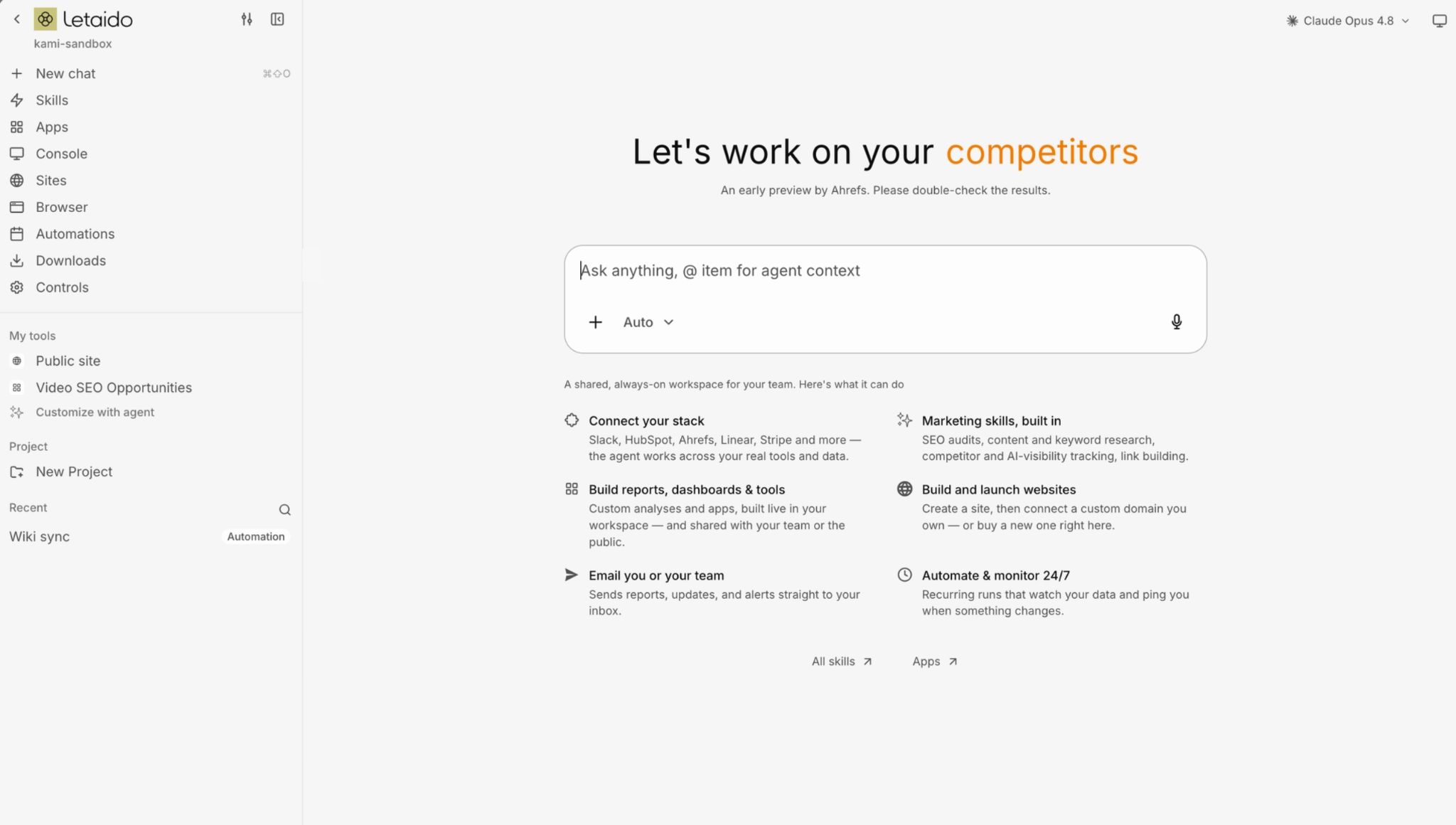
Vibe coding lets you build the reporting dashboards, competitor monitors, keyword-clustering tools, and content workflows you’d normally wait on a dev team (or a budget) for. You describe the workflow the way you’d explain it to a new hire, and the AI builds it.
Letaido is the AI marketing platform made for the job. You point it at your tools and data, describe the report or workflow you want, and it builds and runs it in the cloud for you.
You have two ways to create your builds.
There’s a private Console only your team can see (like internal tools and dashboards):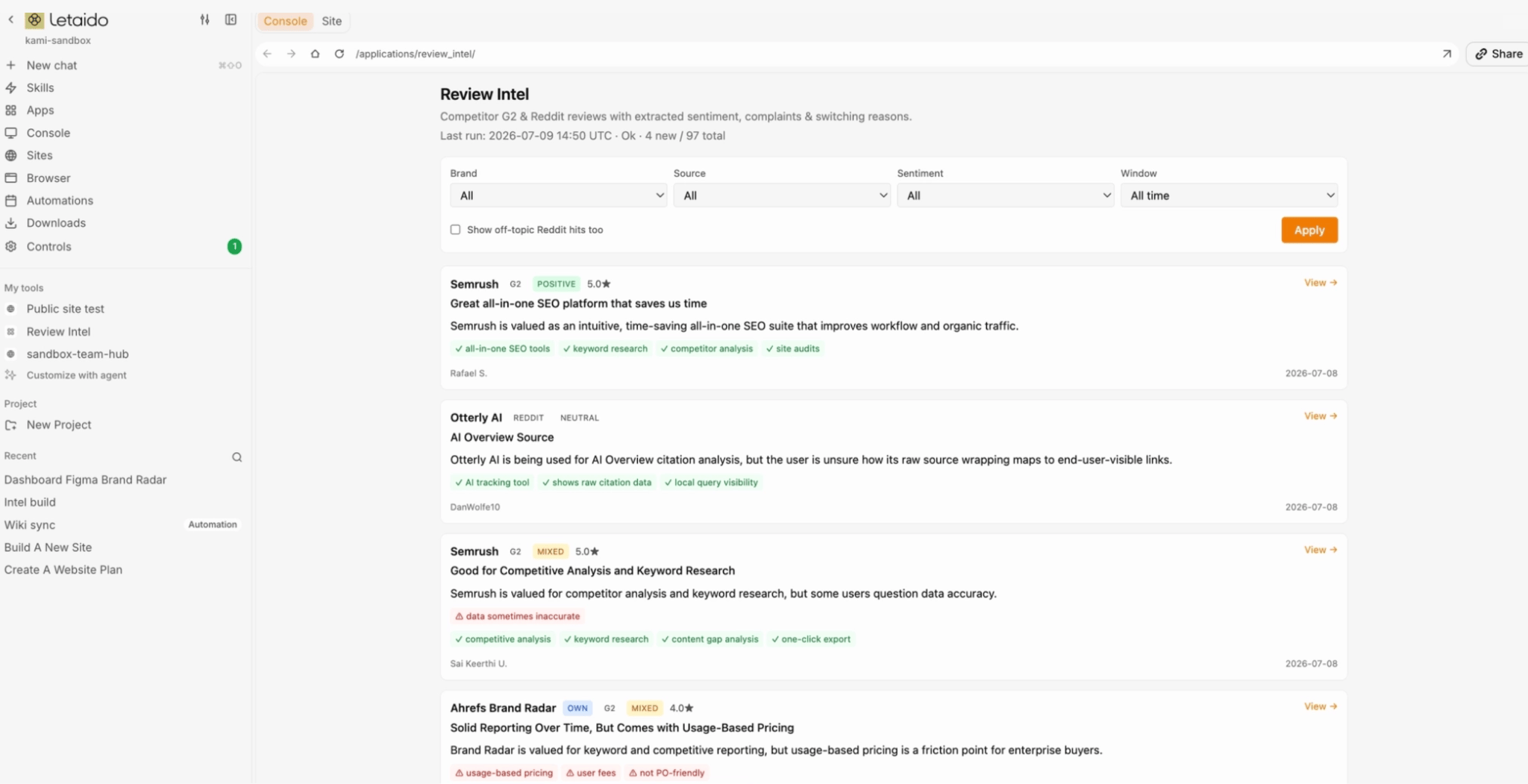
There’s also a public site (for pages you want to publicly share):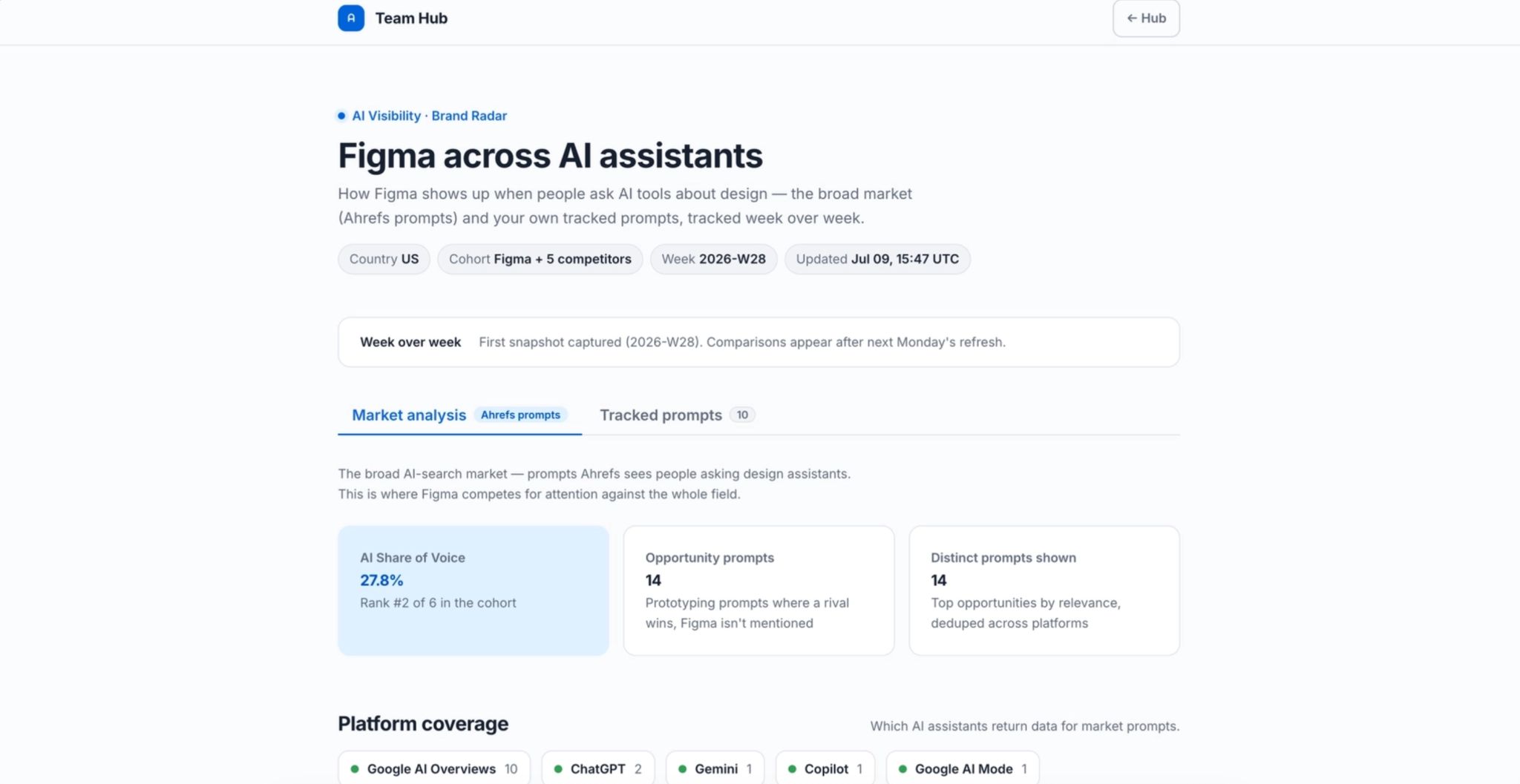
A few things worth knowing up front:
All models in one place. You can switch between Claude, GPT, Gemini, and others from a dropdown, per task. No need for separate subscriptions or API keys. 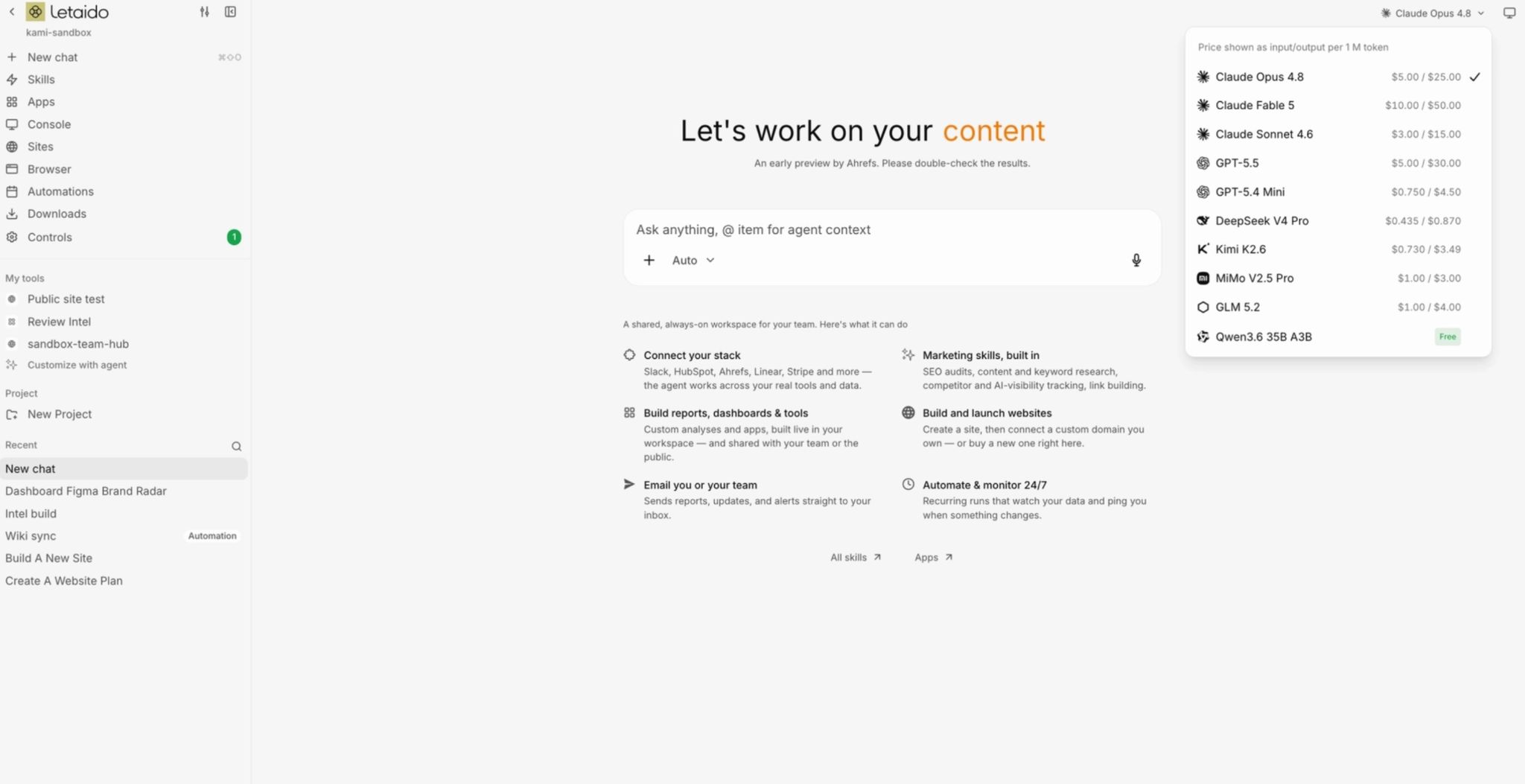
Native connectors. 35+ marketing tools like Slack, HubSpot, Notion, GitHub, Linear, Mailchimp, Stripe, WordPress, or Airtable already connected. 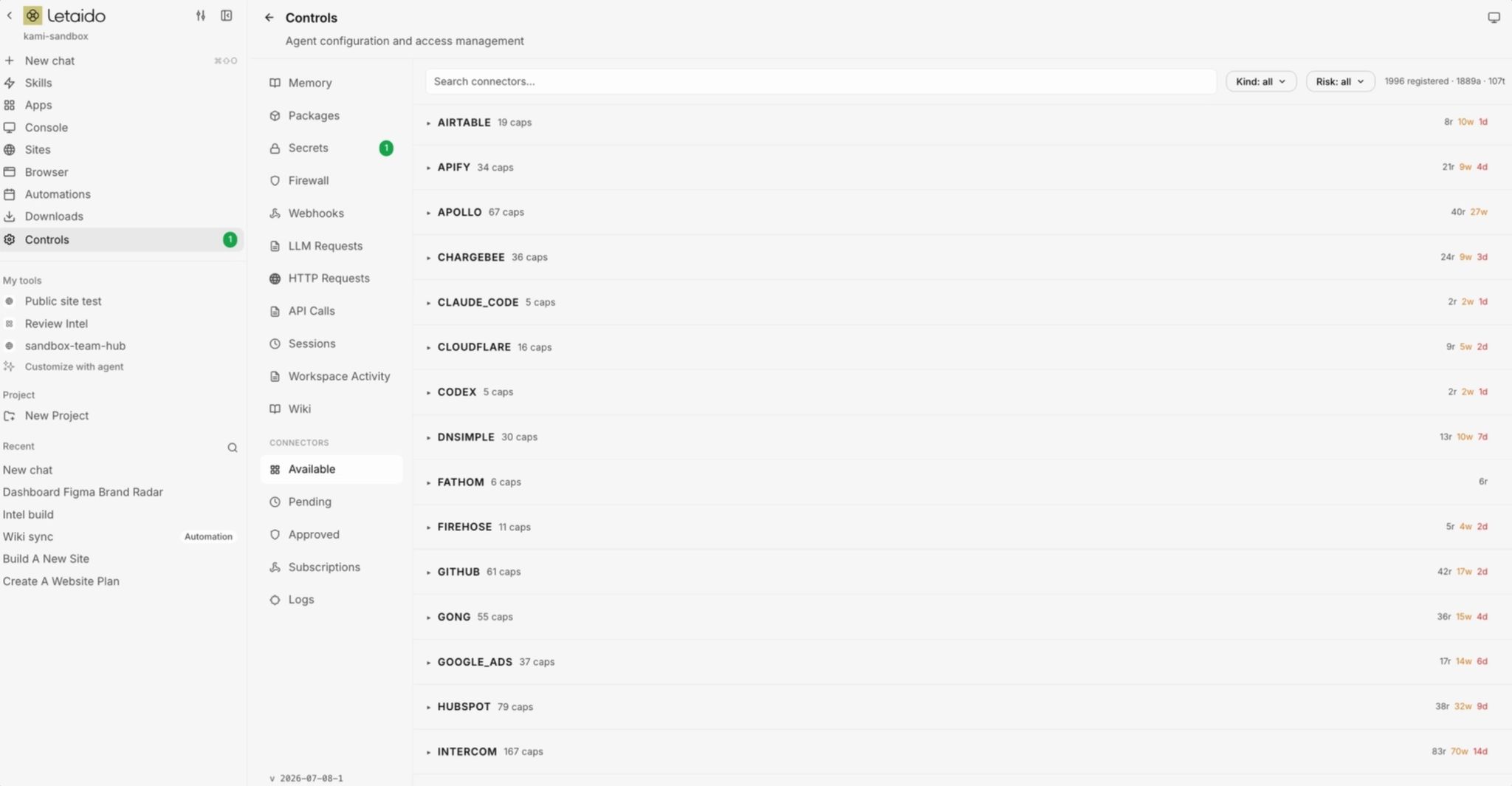
Pre-built marketing skills. An Ahrefs-maintained library of skills, a set of steps for your AI agent to follow, based on real best practices, so you’re not starting from a blank prompt. 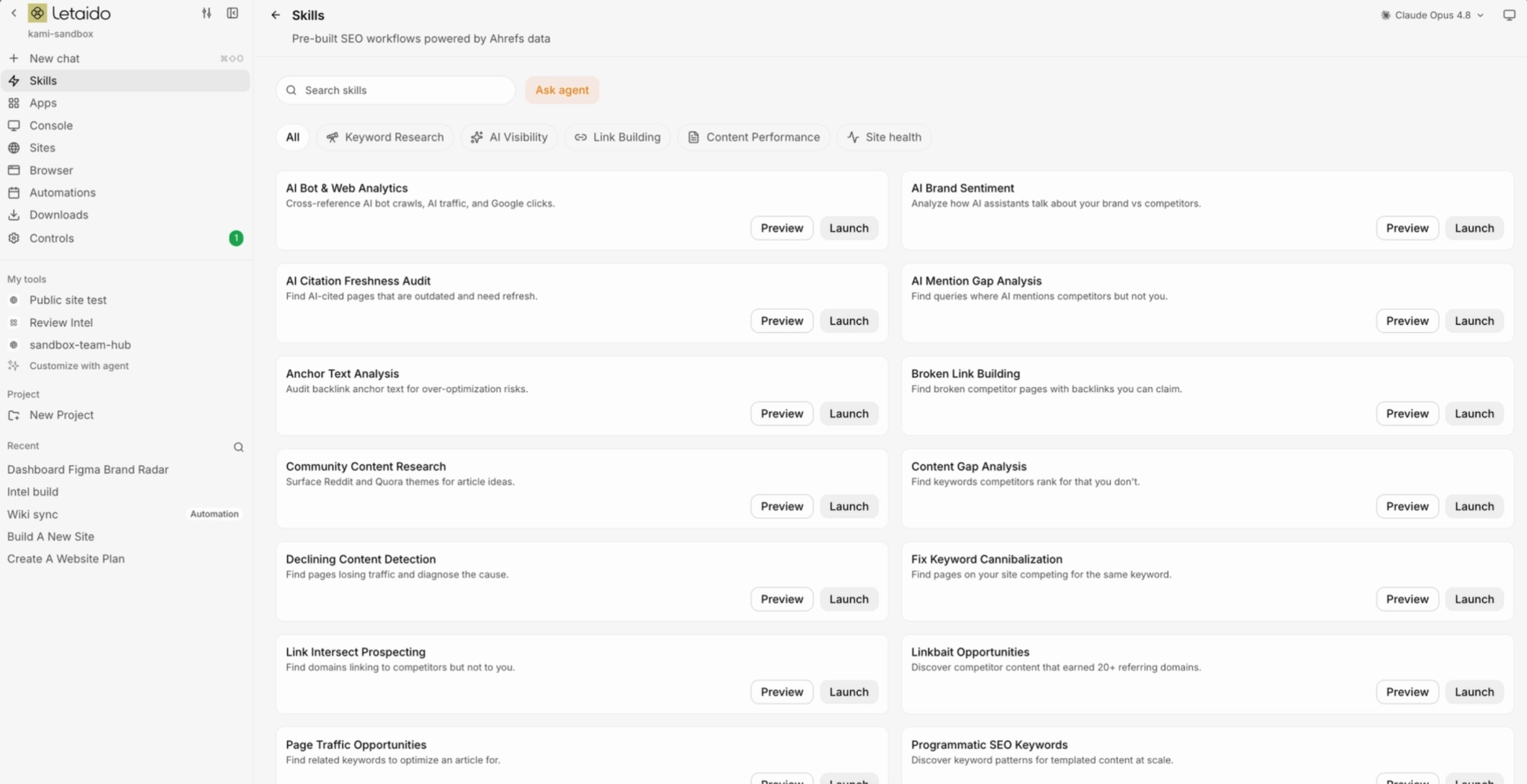
Built for teams. Whatever one person sets up (skills, connectors, memory, apps) is there for everyone, so the team compounds each other’s work instead of rebuilding it. Seats are free (the $99/month is per workspace, not per person), so you can invite everyone, and roles keep it safe: members can chat and build, owners and admins approve new connectors or handle secrets. 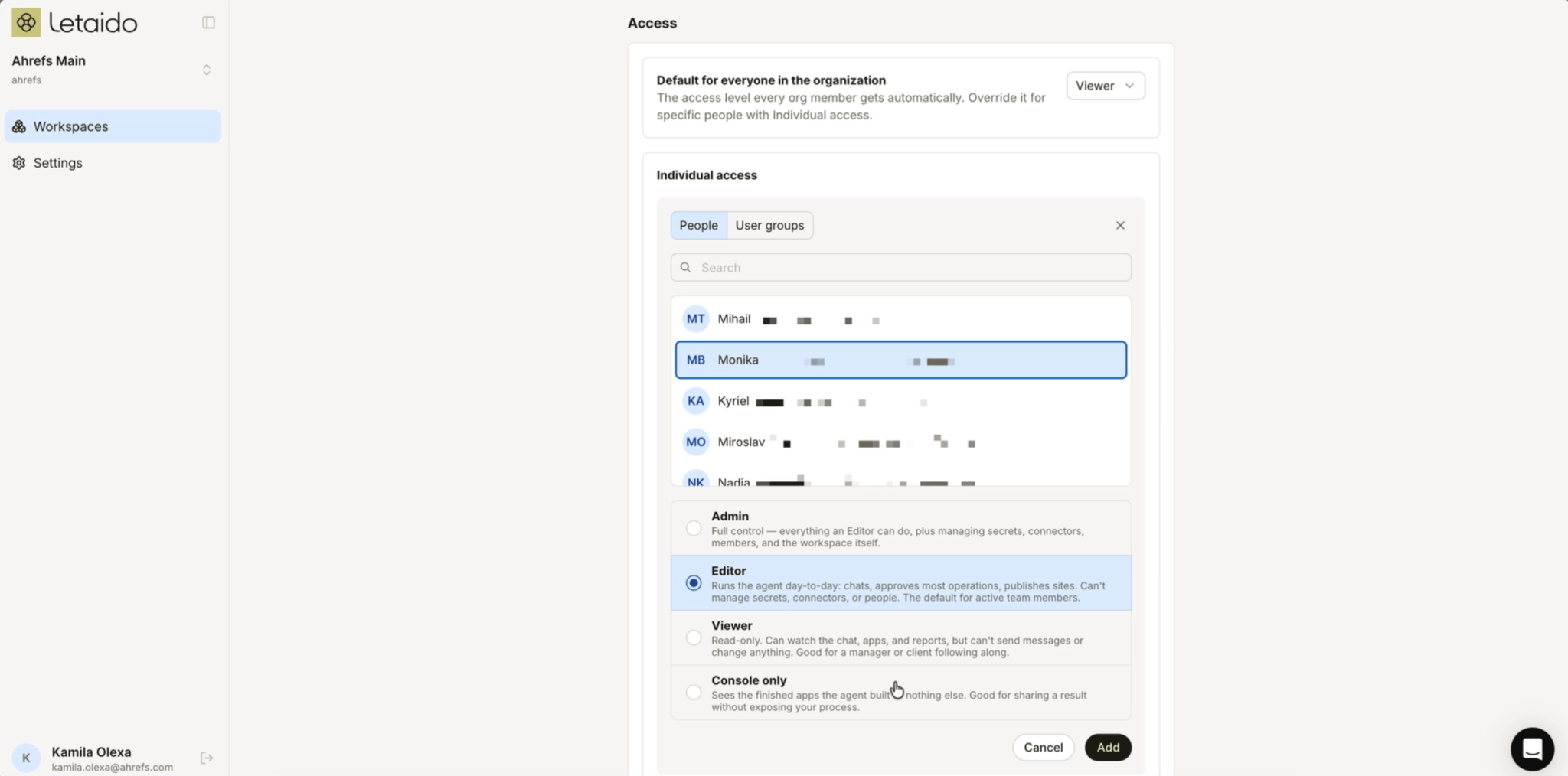
Share outside the team. For a one-off like a client report, ask the agent to create a guest link for your app or report, and it creates a public site with a default Letaido domain. You can also change the domain to one you already own, or buy a new one inside Letaido, and it will sort out the security certificate for you as well. 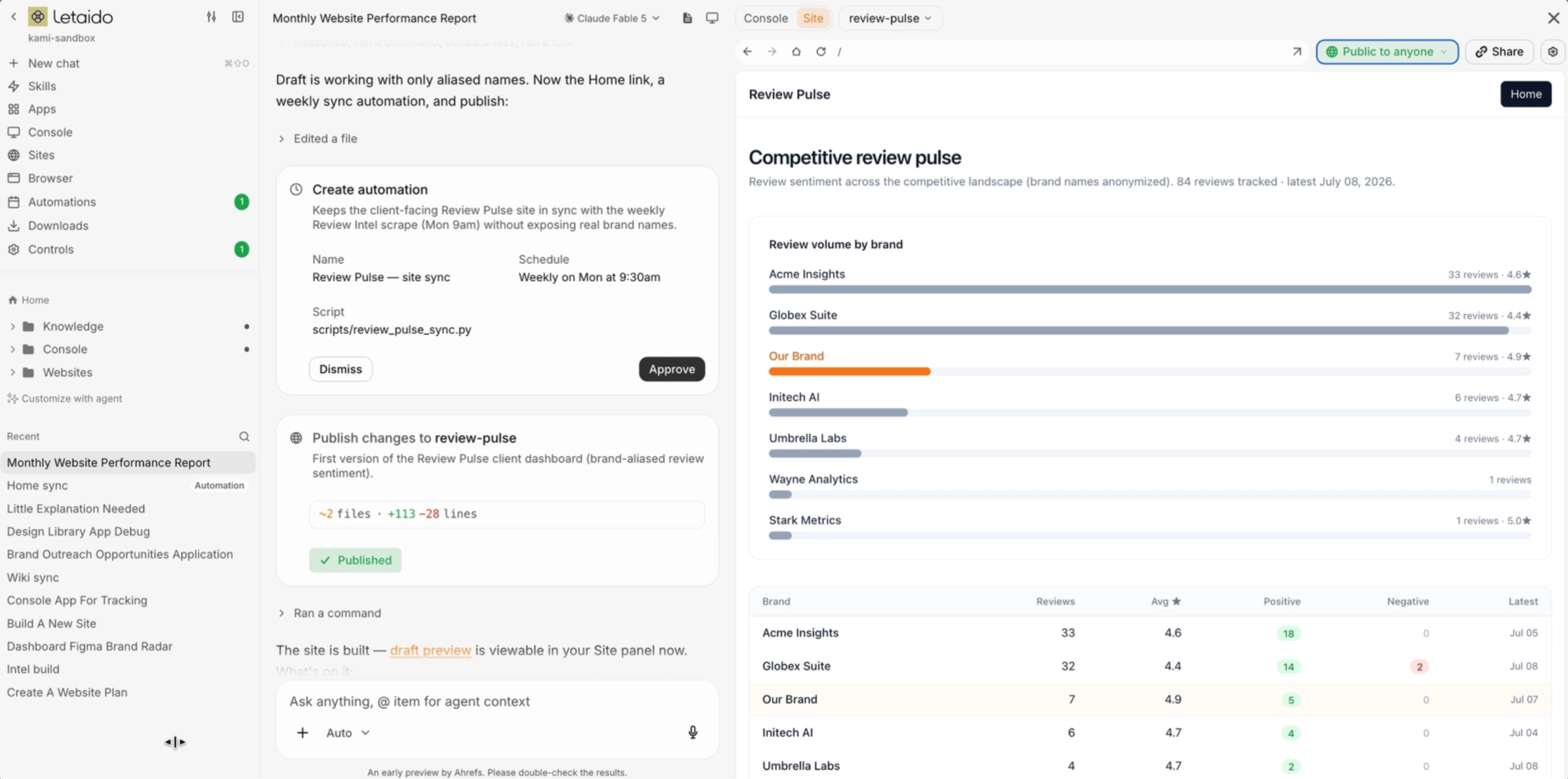
Hosting and secrets are handled for you. This removes the two biggest beginner risks: exposed API keys pushed to GitHub and accidental public reports. You only need to think of where to publish your workflows – internal data belongs in the Console, while the public site is a URL anyone can find and Google can index, so double-check before it goes live.
Recommendation
⚠️ If you want to follow along with me, you’ll need Ahrefs. The $99/month covers the Letaido platform and your AI credits, but the agent reads your Ahrefs project data through your existing Ahrefs plan, so an active account is required, and your data limits (tracked keywords, projects, etc.) follow whatever plan you’re on.
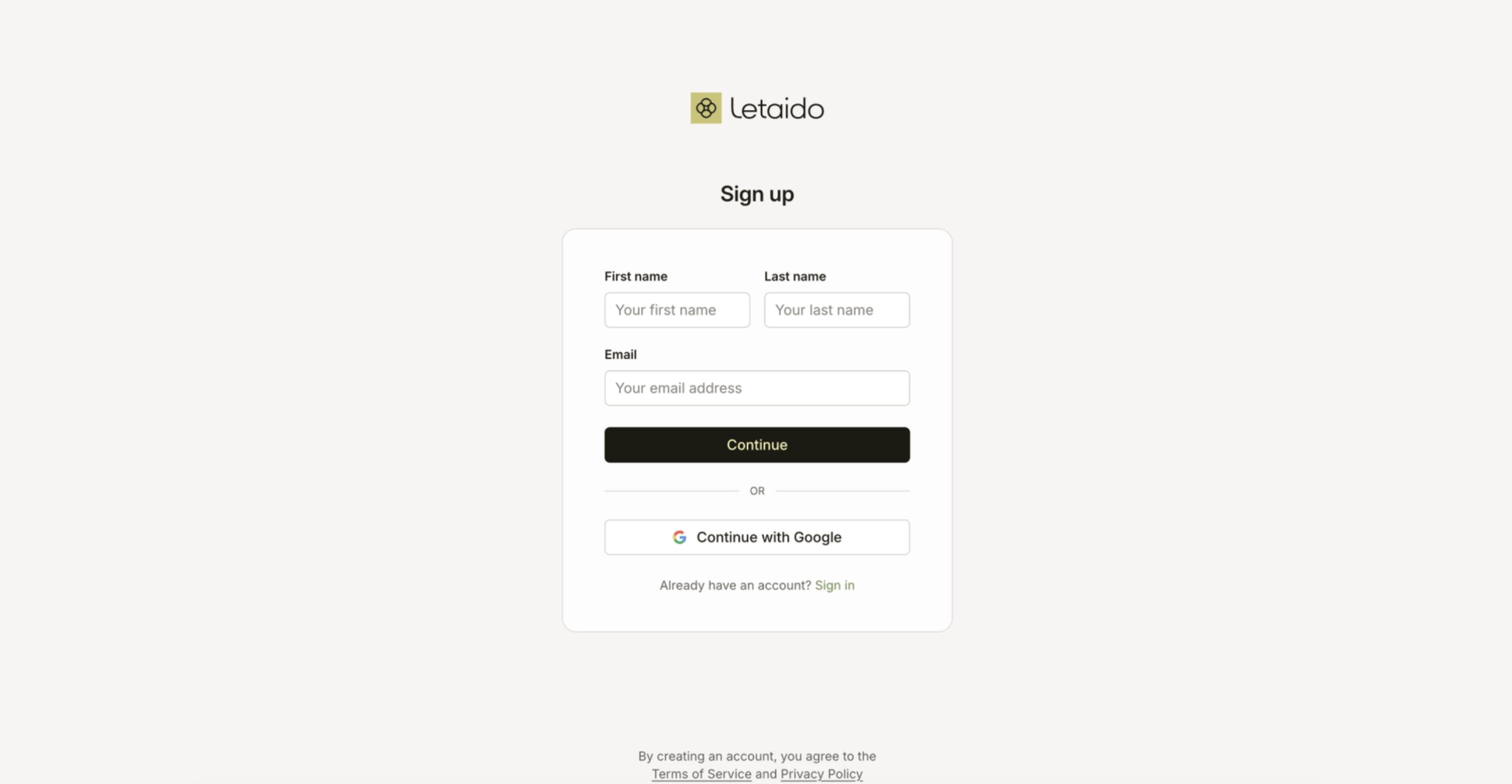
- Sign up at letaido.com – hit “Get started” and create an account.

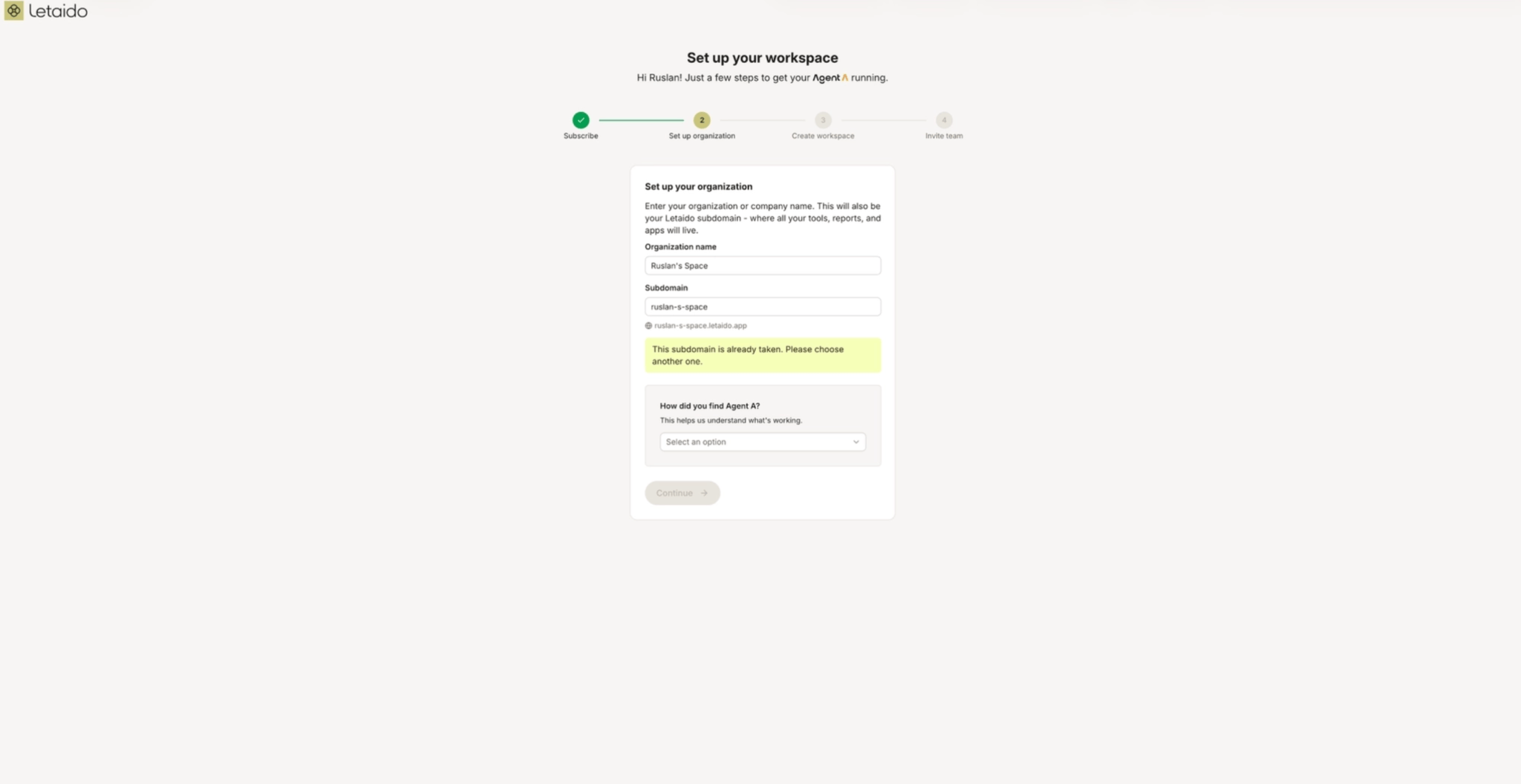
- Name your organization – the subdomain you pick becomes the URL where your workspace lives.

- Invite your team – seats are unlimited and free
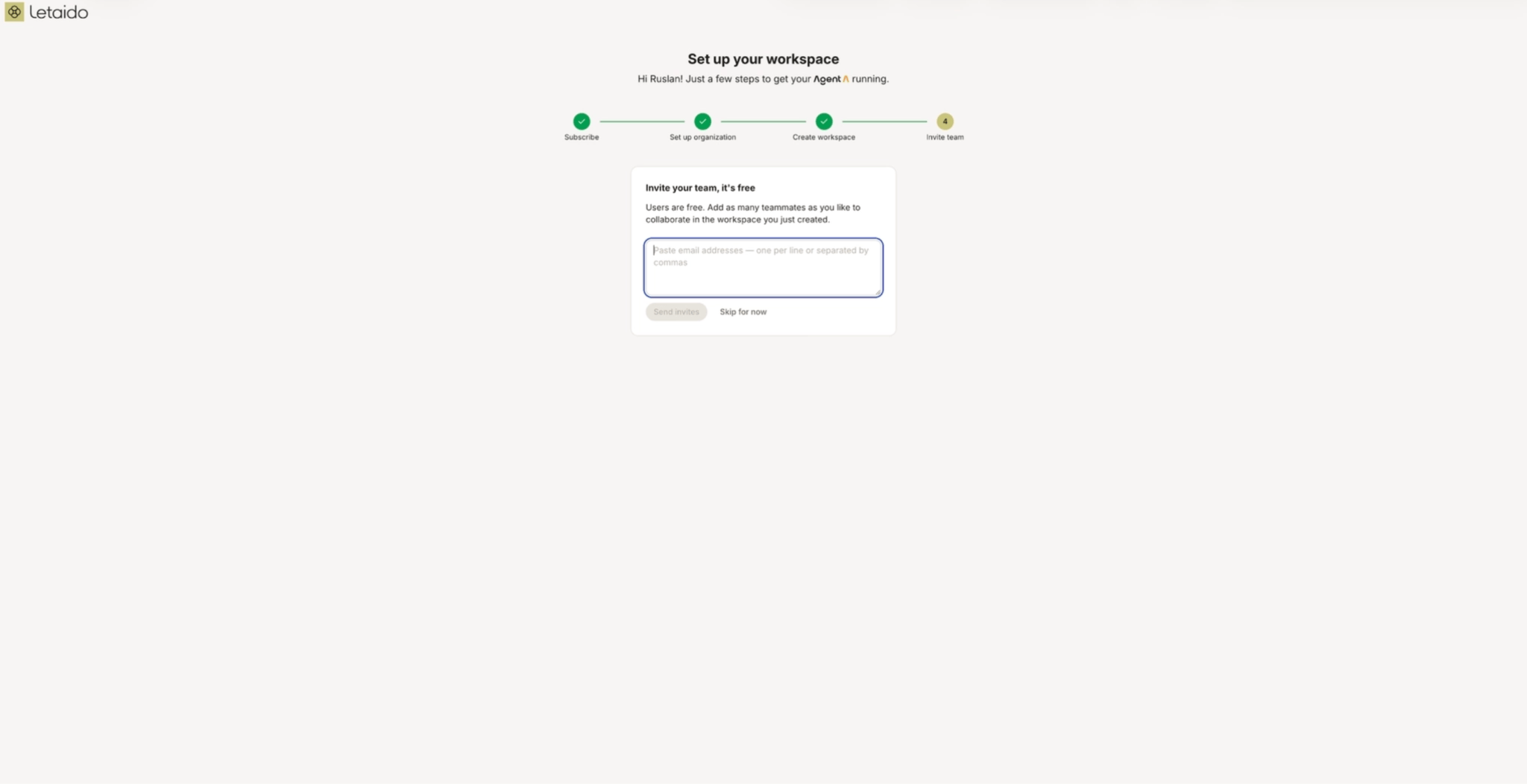

That’s it. No editor, no Git, no keys to paste.
Choose an AI model and mode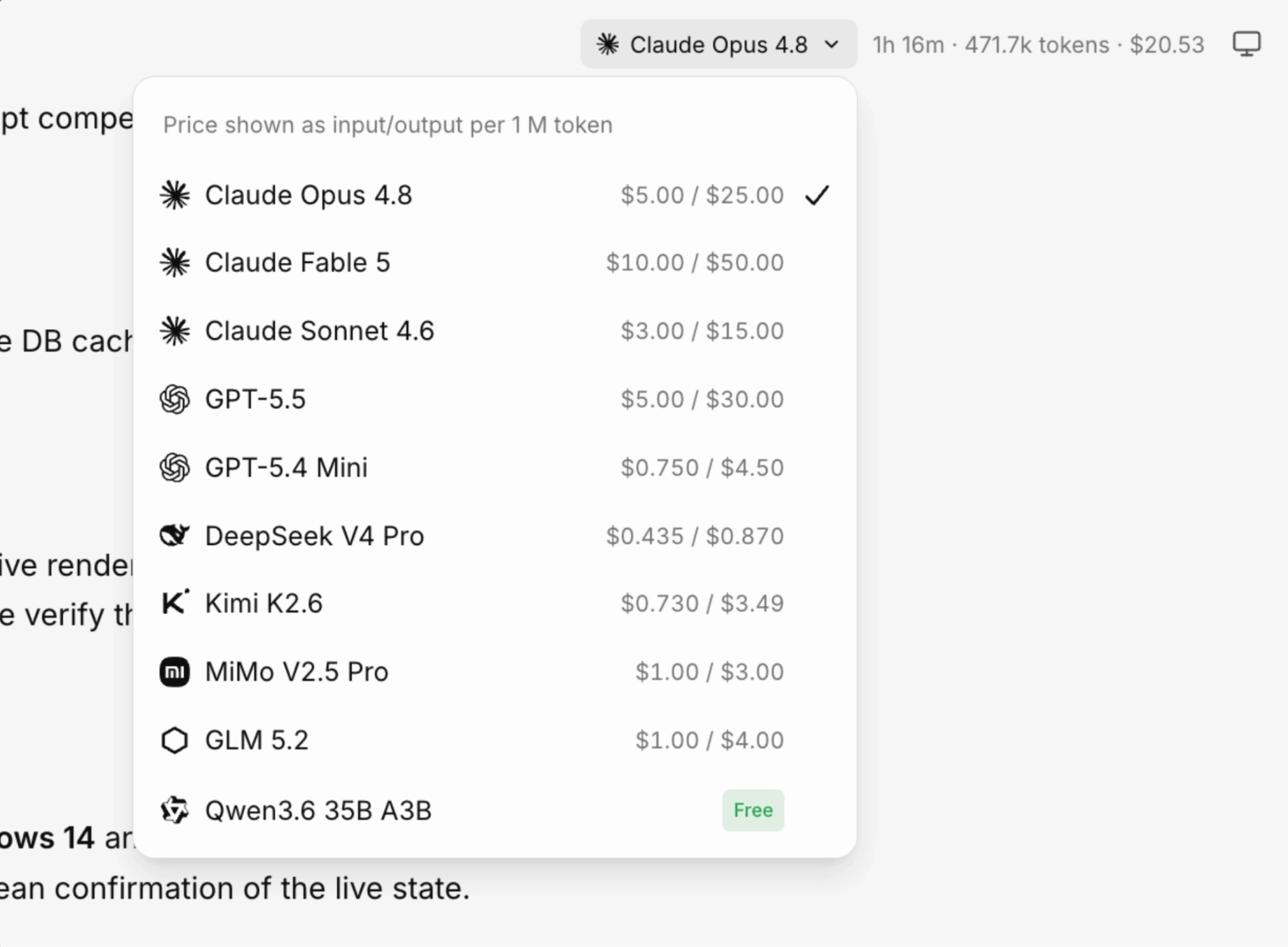

What’s great about Letaido is that you’re not locked into a single model. Your subscription includes $50 in AI credits, so you can switch models freely to match whatever the task calls for.
On the model itself, three factors matter, and they shift constantly as providers ship new versions: quality, speed, and price. Artificial Analysis plots all three across 500+ models if you want the live picture.
If you still worry about spending your $50 AI credits, let me give you an example with different types of AI models.
Let’s say you ask Letaido to look at your Ahrefs project, find keywords your top 3 competitors rank for that you don’t, cluster them by topic, and hand you a prioritized list of content ideas with target keyword, volume, difficulty, and a one-line angle for each, the spend can look like this: 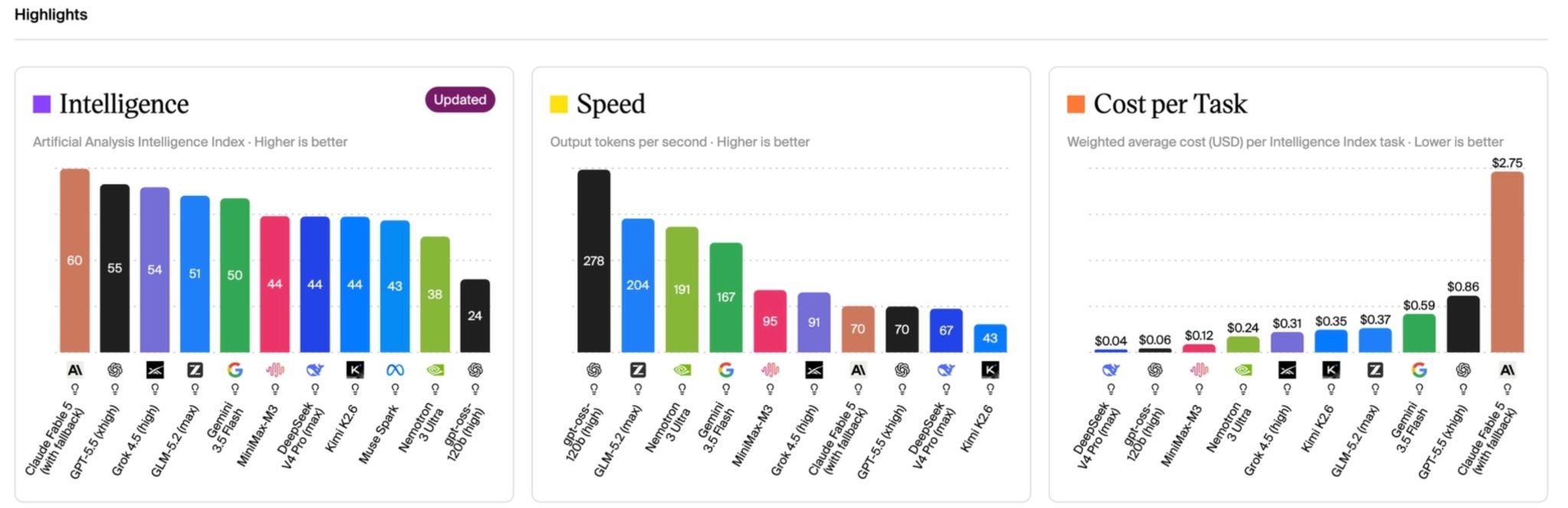
| Model | Tier | Cost per run | $50/month | When you’d pick it |
|---|---|---|---|---|
| GPT-5.4-mini | Cheap workhorse | 3¢ | ~1,600 runs | Fast, high-volume, simple reasoning |
| Claude Sonnet 4.6 | All-rounder | 24¢ | ~200 runs | Sharper clustering + more logical reasoning |
| Claude Fable 5 | Top-tier | 38¢ | ~130 runs | Highest-stakes strategic calls and proposals |
My default is Claude for anything where I describe intent loosely and want it to figure out the shape. I switch to a cheaper model for high-volume, mechanical work (reformatting, batch variations) to keep credit burn down.
Right next to it is a mode selector, which defines the build mode the agent adopts: 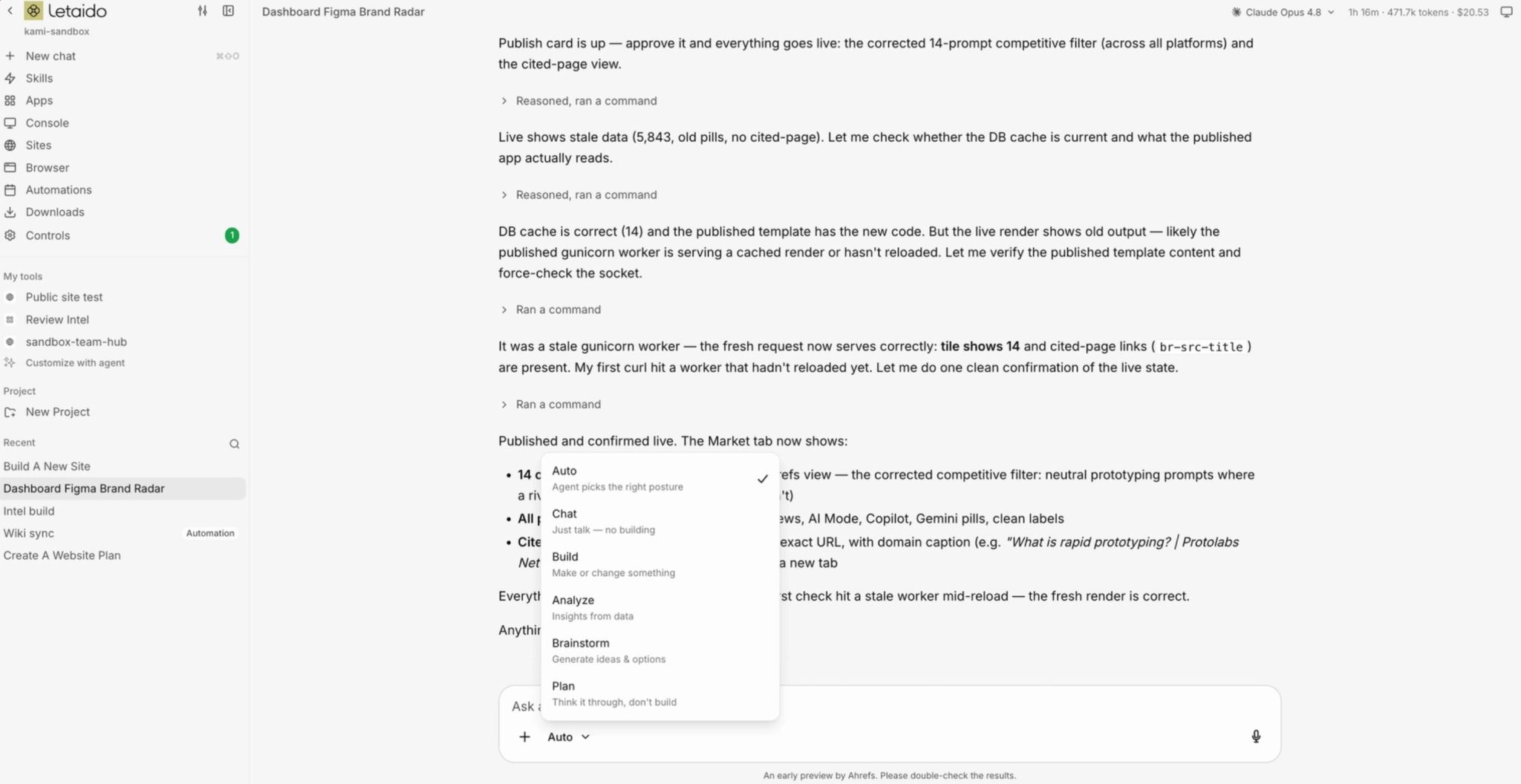
- Chat — talk it through. It answers and discusses, but won’t start building.
- Build — make or change something. It plans, then ships.
- Analyze — crunch data for insight, not to build new software.
- Plan — figure out what and how before doing it.
- Brainstorm — generate options and directions, no committing yet.
- Auto — it reads your intent and picks the right posture itself.
Auto is a fine default. For instance, if you’re in Chat mode and you want something built, it’ll offer you to switch.
Recommendation
💡What burns credits fast is running the heaviest model on light work, and dragging one giant chat across unrelated tasks. Start a fresh chat when a task is done (your memory persists, so you don’t lose context), and let cheaper models, like GPT-5.4 Mini, handle the grunt work.
Create a knowledge base
The context you write yourself beats any external source, because it holds details no model was trained on: your real features, positioning, and voice. Letaido gives you a few ways to store information about your company, so you’re not re-explaining it every chat:
- Memory. The agent reads ~/workspace/.memory.md at the start of every chat using a few tokens. I recommend adding only essential info the agent uses every run (e.g. recurring vocabulary or stylistic rules). Too much information stored = more tokens spent, keep it brief.
- A shared team wiki. Letaido keeps a workspace knowledge base where you can store loads of files you can refer the model to (decisions, competitor files, design files, specific projects, etc.).
| Category | Memory (.memory.md) | Team Wiki (wiki/) |
|---|---|---|
| What it is | Essential notes file | Workspace knowledge base |
| When Letaido reads it | Start of every chat (automatically) | Only for specific tasks |
| Token cost | Every session (scales with size) | Only when a page is read |
| Keep it | Short | Can be large |
| Best for | Recurring vocabulary; Stylistic/voice rules; A pointer to the wiki | Strategy docs; ICPs; Competitors; Product FAQ |
| Rule of thumb | Only what Letaido needs every time | What Letaido needs occasionally / in depth |
| Find it | controls -> memory | controls -> wiki |
Create skills, apps, reports, artifacts, or automations
Five words you’ll see everywhere in Letaido. It’s important to distinguish between them, as building the wrong type can influence the agent’s behavior and reusability.
A skill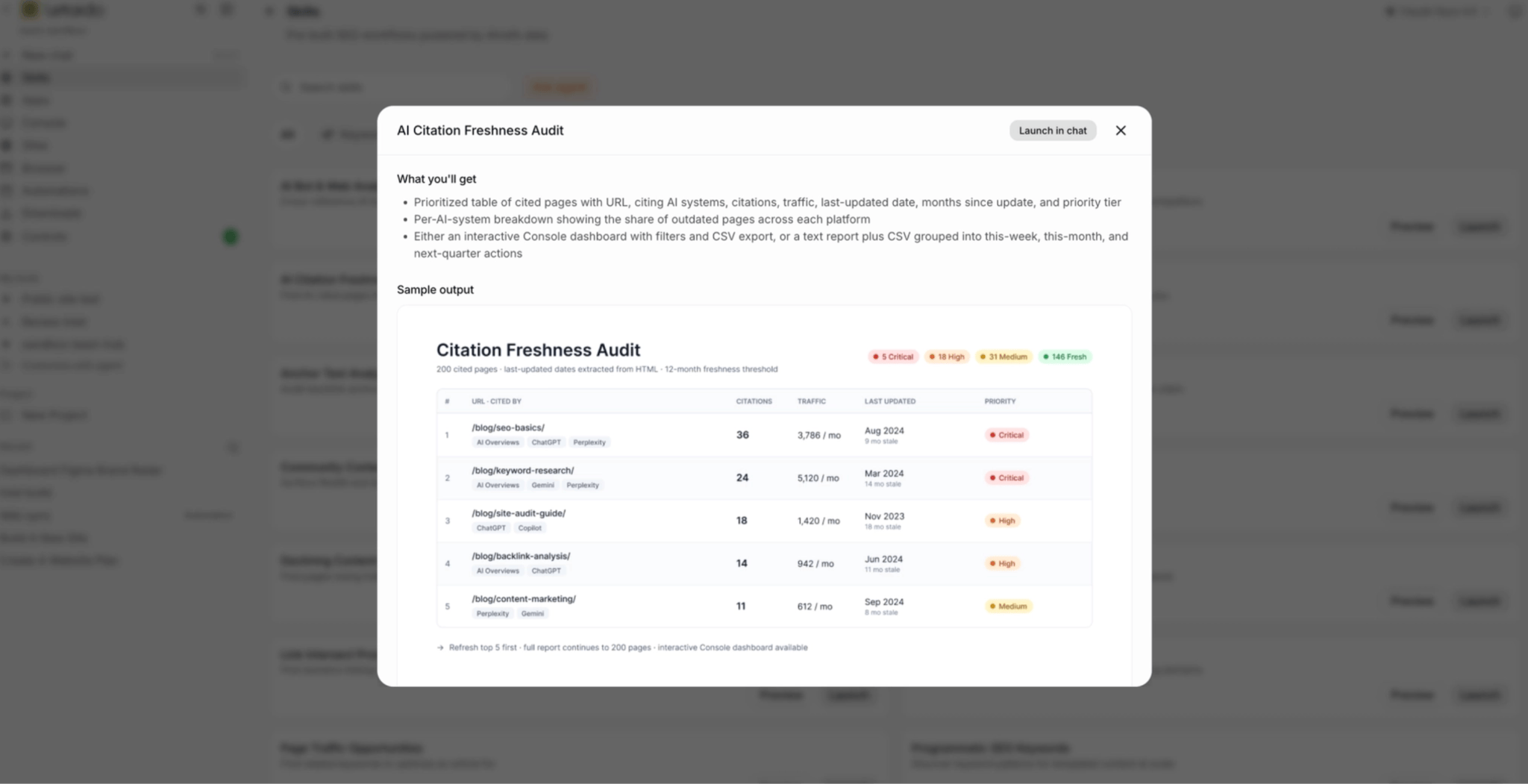

A skill is a reusable set of steps, an output format, and rules that the agent reads on demand whenever a request you say in plain language matches. The fastest way to start is to clone one from the Ahrefs library and customize it. 
You can also create your own via chat.
- Give the skill a name that will trigger it
- Describe the rules it should follow
- Reference the examples if necessary
An app
An app is an interactive tool the agent builds. It can read your databases, call your connectors, and show results. 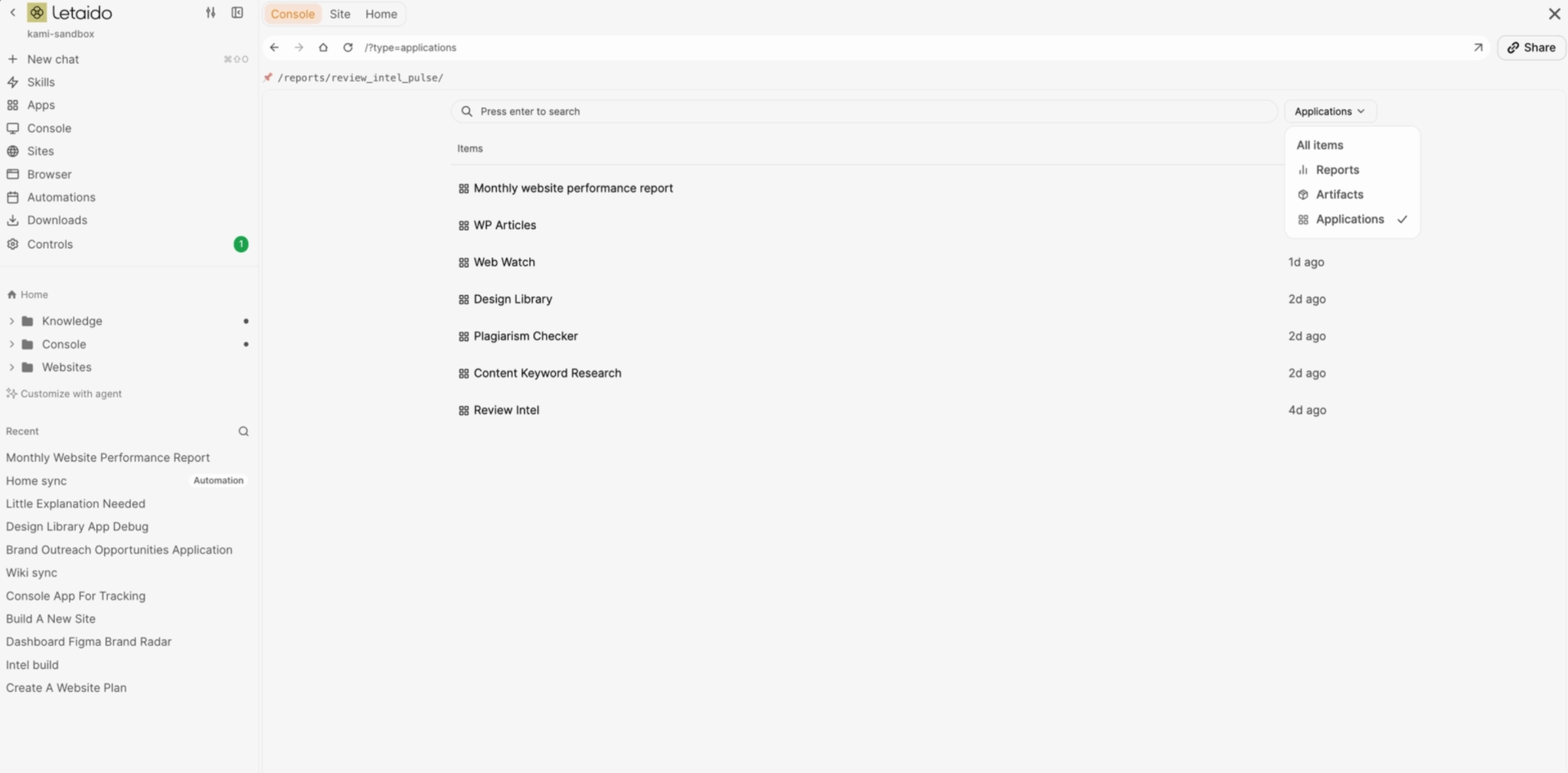
A monthly report you configure and check in the console is an app, so is a writing workflow that takes a keyword and hands back a draft. 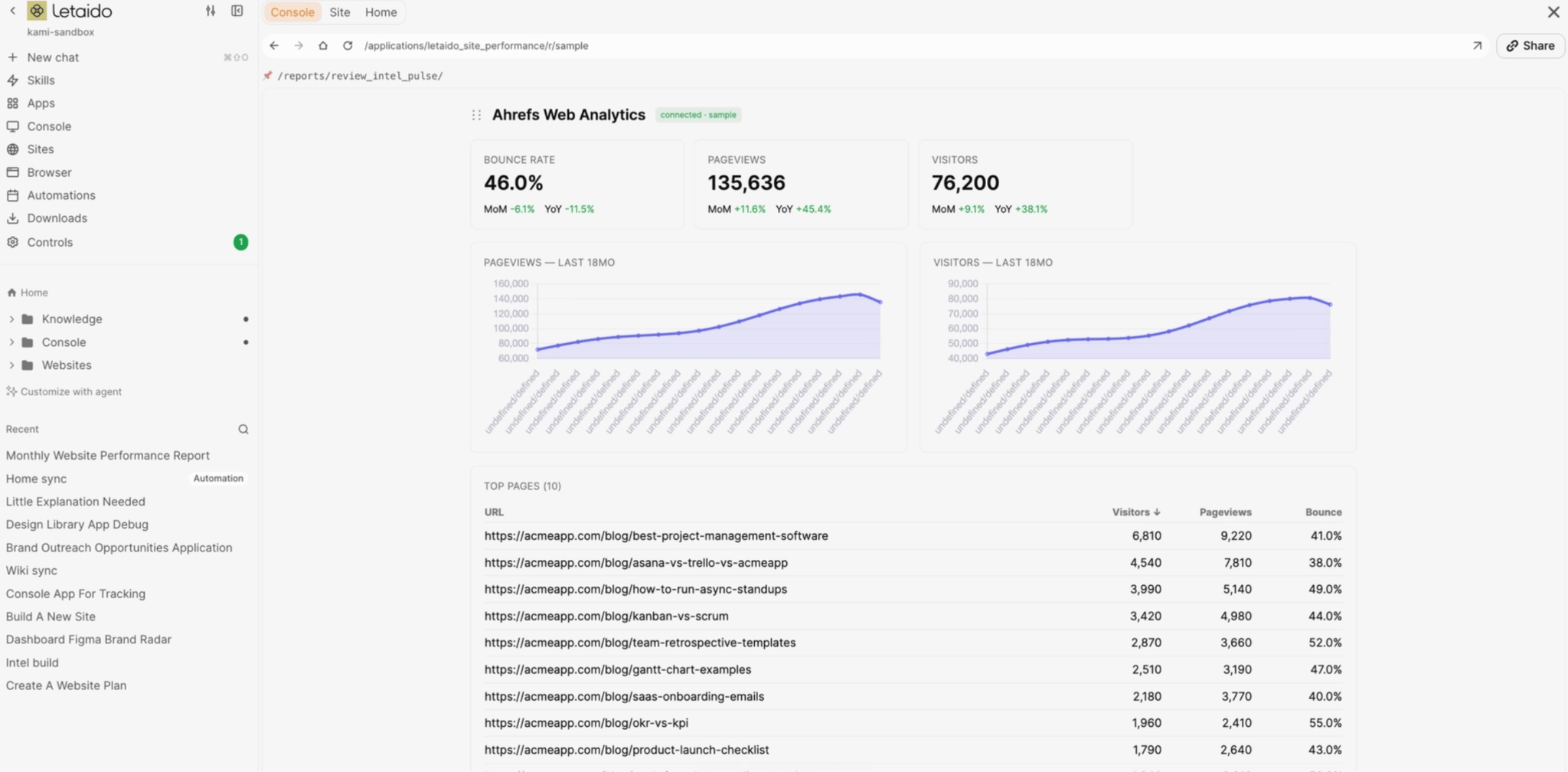
The moment you create, edit, or trigger things inside it, it’s an app.
A report
A report is a live, read-only view of your data. The agent builds it once, and every time you open it, it pulls fresh numbers and lays them out for you. 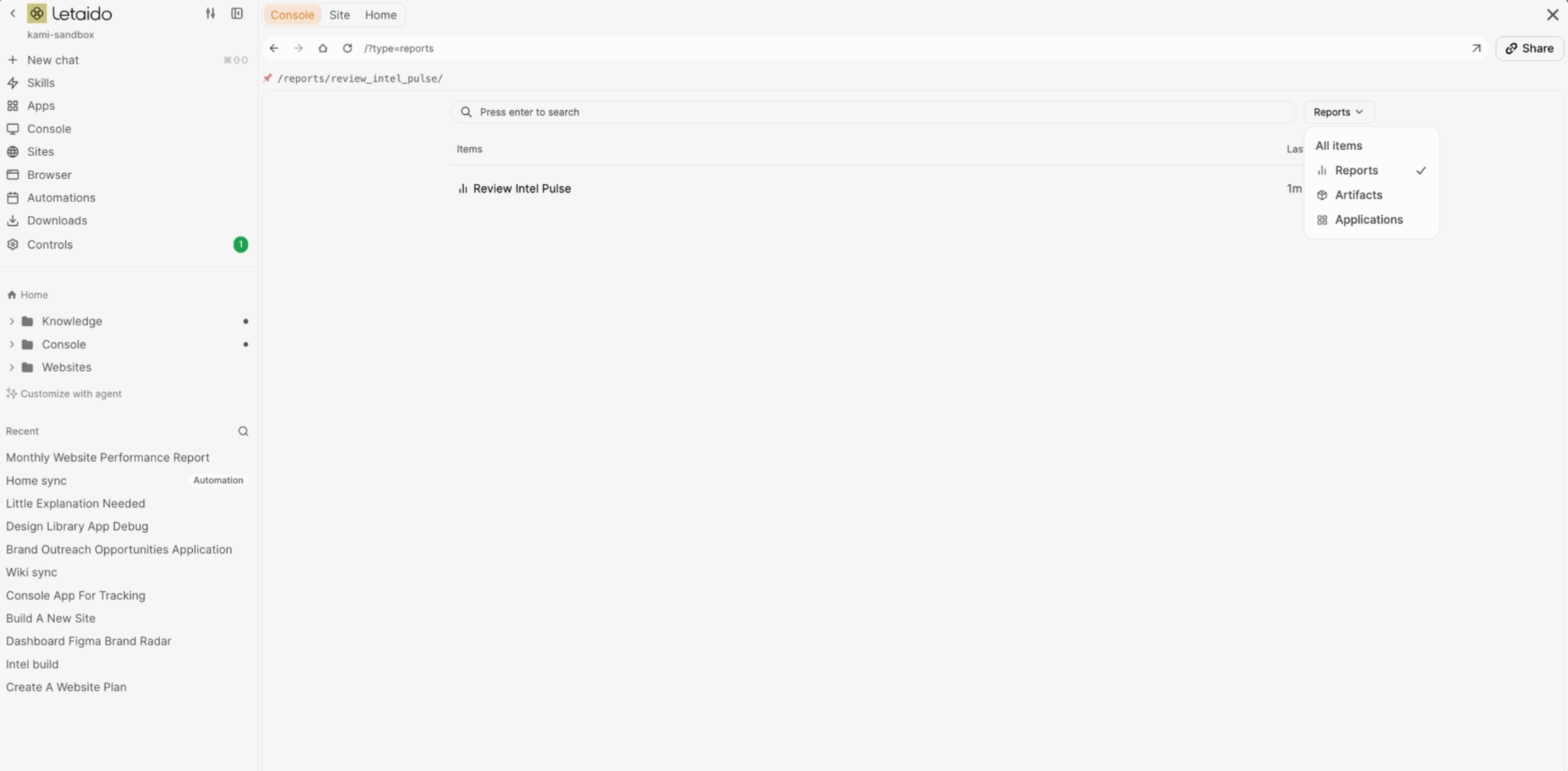
A sentiment overview that’s current whenever you look, a lead-quality breakdown pulled straight from your CRM, these are reports. You don’t configure or manage anything inside them, you just read. 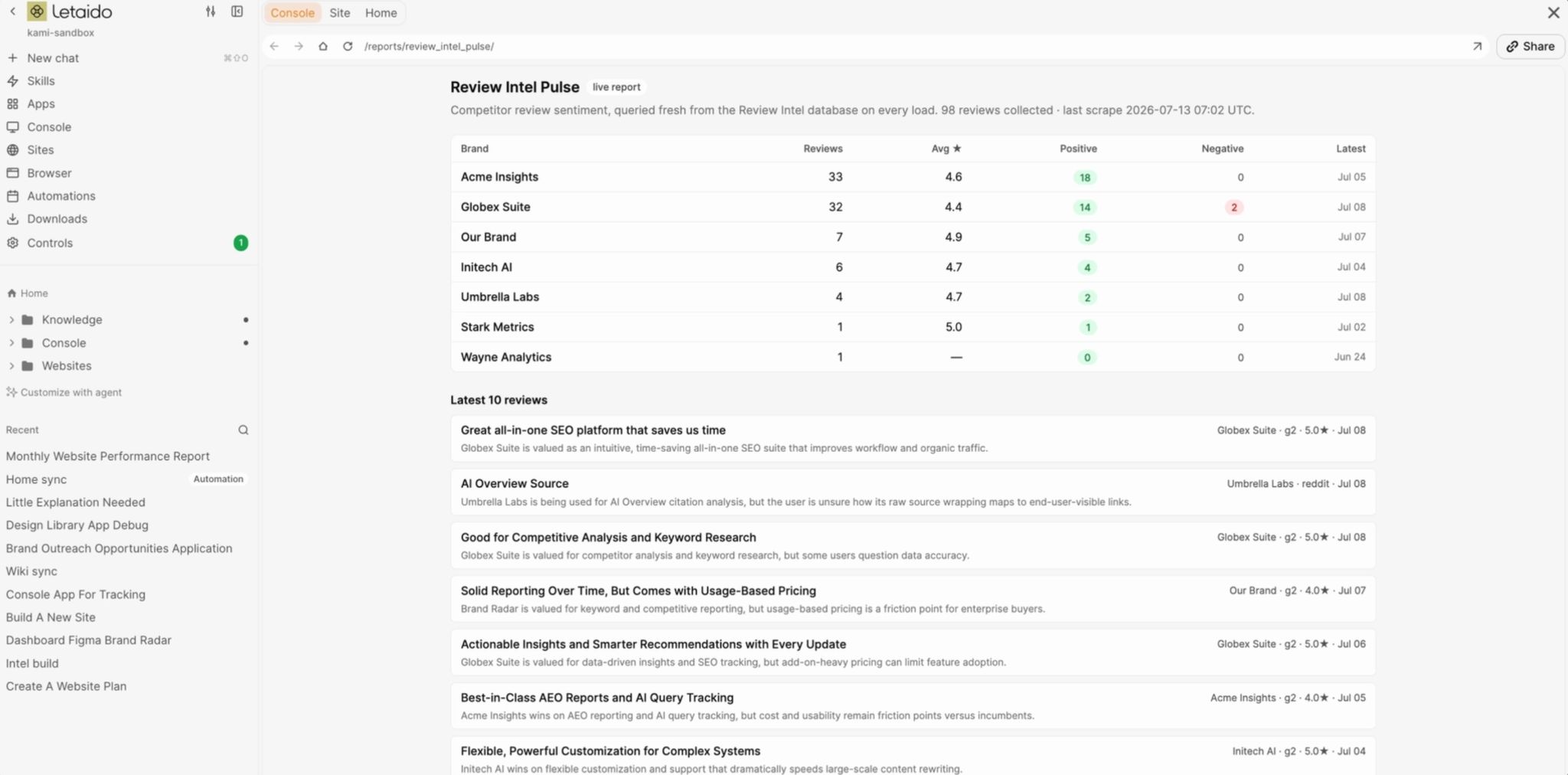
An artifact
An artifact is a frozen output, something the agent produced once that doesn’t change afterward. 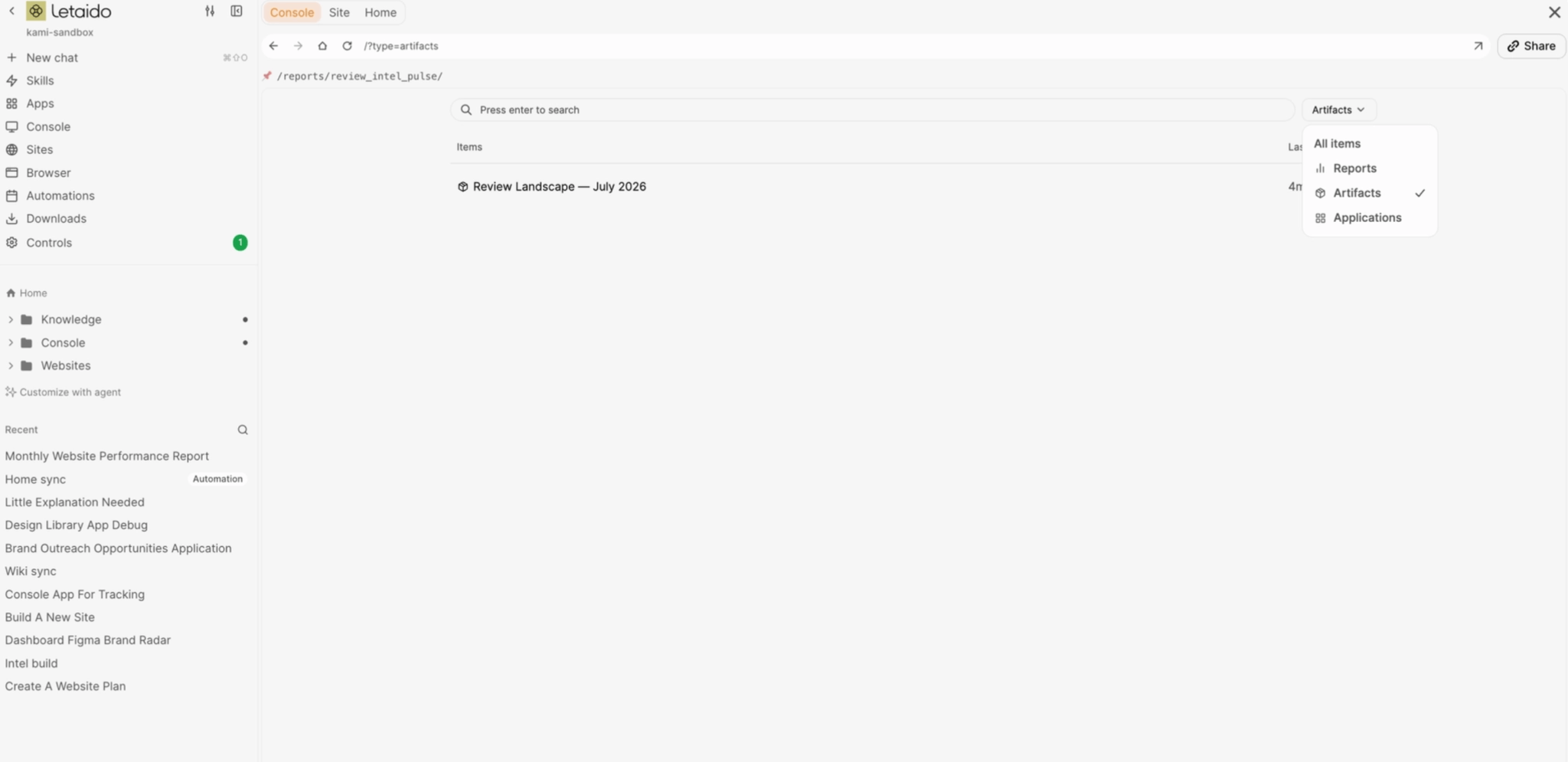
A chart from last month’s competitor G2 reviews, a one-off visualization. They’re snapshots: perfect for “here’s what we found”. 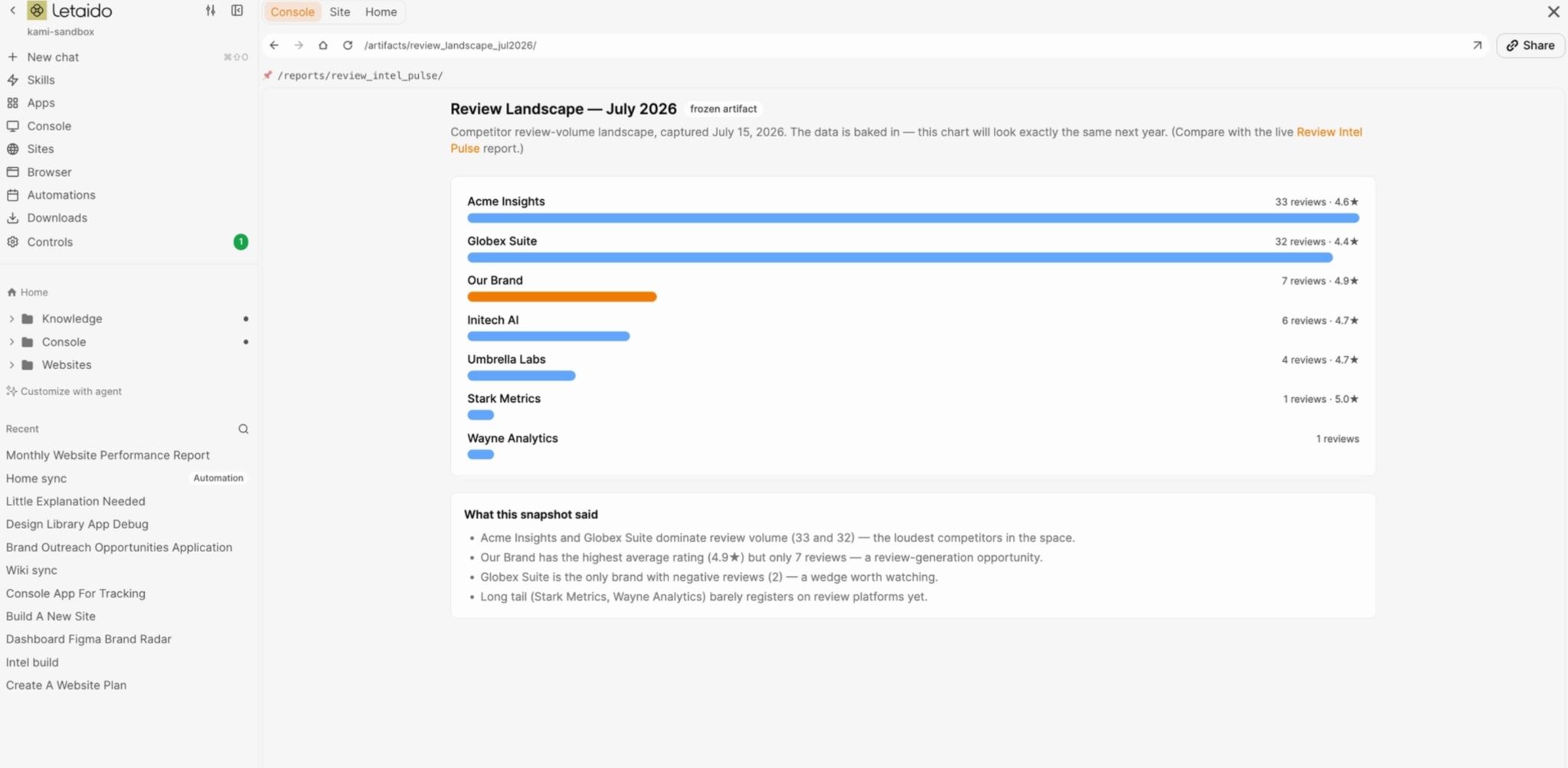
Recommendation
🔮 Apps, reports, and artifacts can live in your Console and be shared with your team only, or be published to your public site for anyone with a link to use.
An automation
Automation is a task that runs on its own, at a specific time, without you triggering it. There are two ways to create it:
With an agent – you describe what you want done and when, the agent writes it, and runs it from then on: 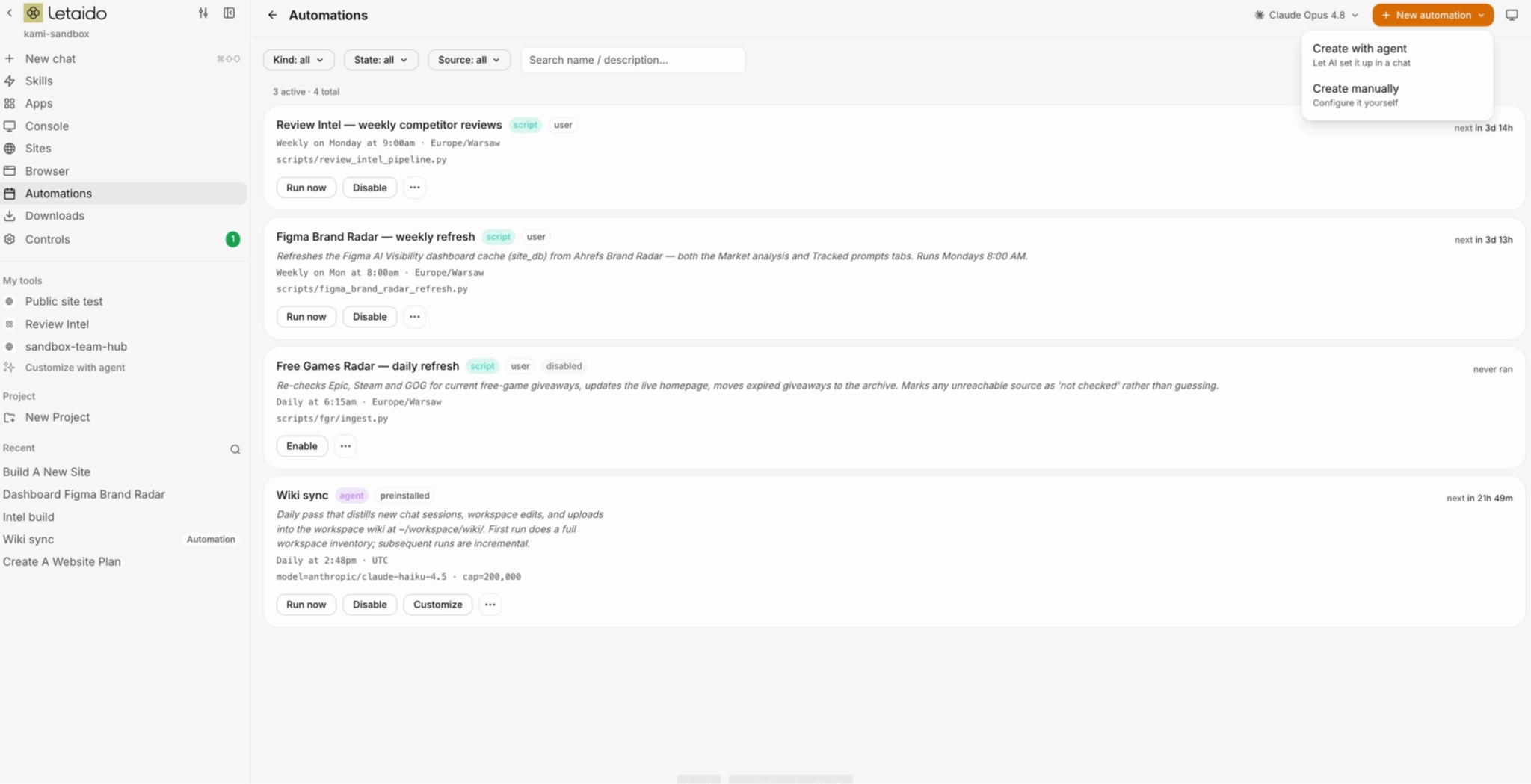
Or manually – automate an agent or a simple script to run with a set of limitations (schedule, max tokens used, etc.): 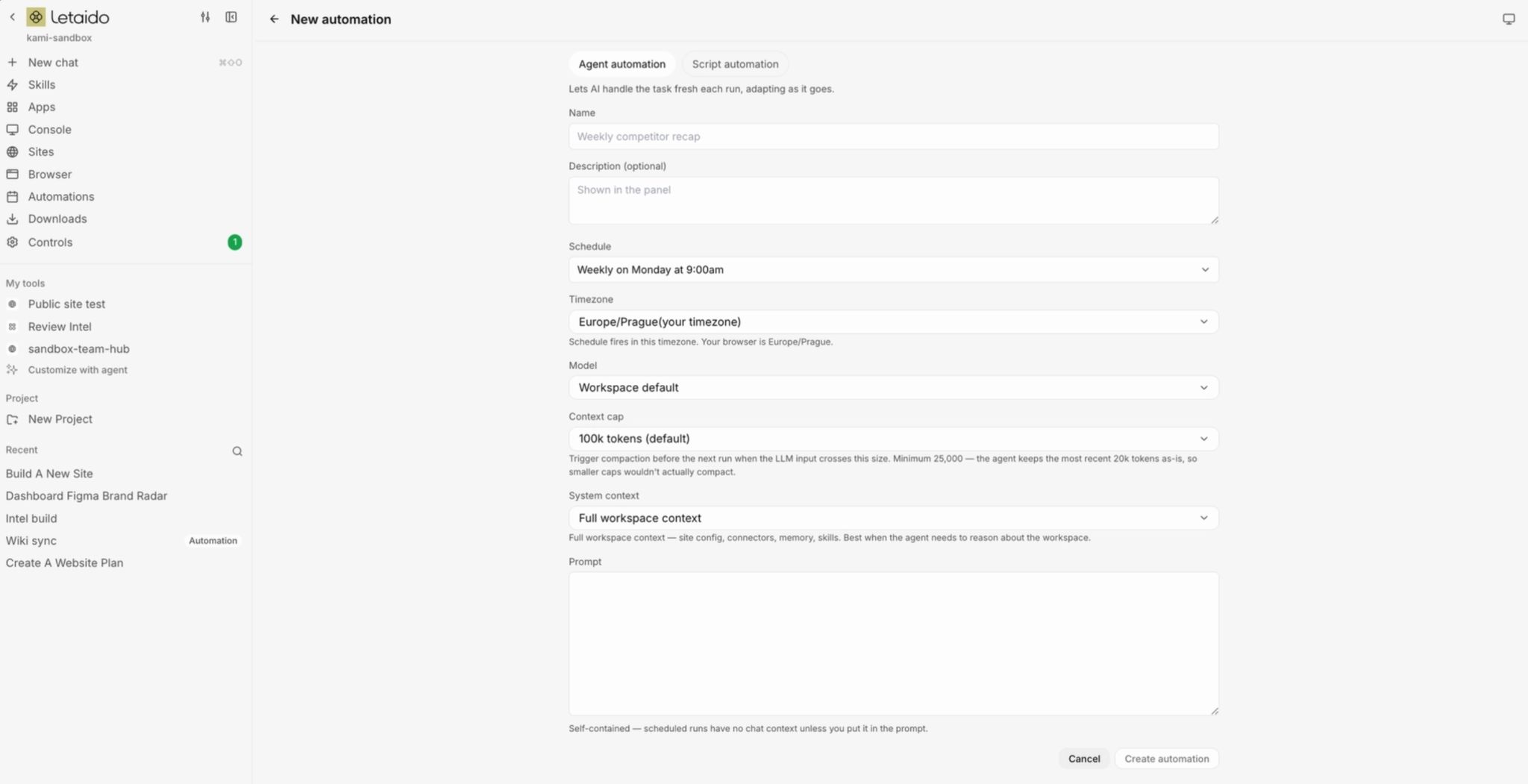
Recommendation
💡 Rule of thumb: package know-how you’d otherwise re-explain as a skill, build the thing you click into as an app, and put an automation on top when it should run without you. A single build can use all three, such as an automation that runs a skill on a schedule and writes the result into an app.
Add integrations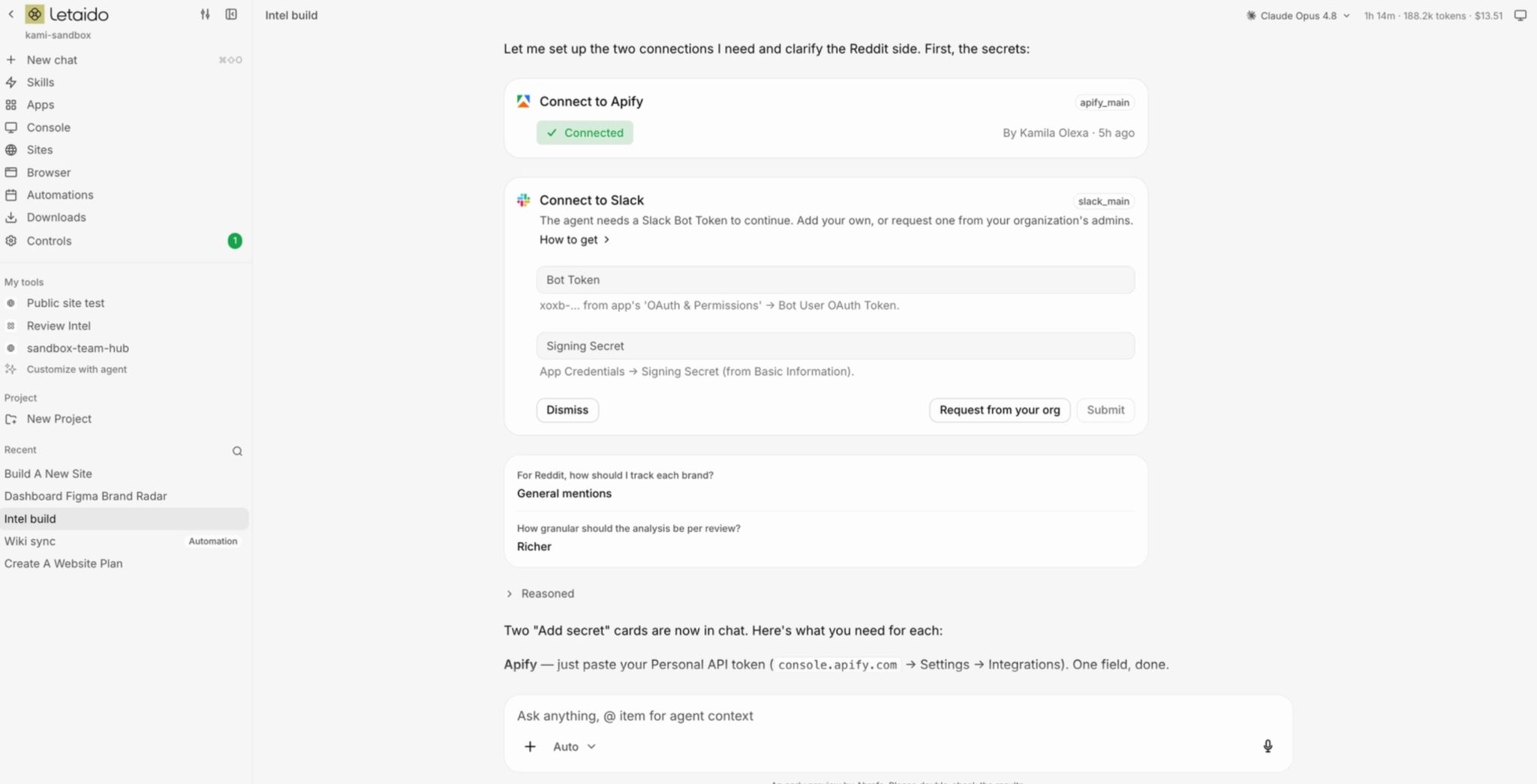

If you want to pull your HubSpot data, scrape social media with Apify, or use other external tools, the agent needs to use the connectors to handle the endpoints, parameters, and the authentication behind the scenes. For instance, you connect HubSpot once, and every time you say “pull this week’s deals from HubSpot”, the agent knows exactly what to do.
Connectors can read, but also take action via your tools – post a summary to Slack, publish a post to WordPress, open a Linear ticket, update a HubSpot deal, or send an email.
There are tons of common tools like Stripe, Fathom, or Mailchimp available – a full list of connectors can be found here.
To add access to your connector:
- Tell the agent via chat you want to add the specific connector
- Get the API keys (click “How to get” in the card if you need help locating it)
- Paste the keys and click “Submit”
- Your connector is added under “Controls” → “Approved”, you can revoke it at any time
Every good build comes down to the same four moves: write the prompt, point it at your data, share it with the team, and start with one workflow you already know.
Writing the prompt
Unlike a one-off chat message, this is the instruction the agent will execute again and again, which means anything vague or missing gets repeated on every run. Three things do most of the work:
- What output you want. Describe the finished thing. A Slack message, a table, a summary as concretely as you can.
- Where the data comes from. Name the exact source the agent should pull from, whether that’s a connector, a file, or a page to scrape, so it never has to guess.
- What the instructions and limiters are. Spell out the steps it should follow and, just as importantly, the boundaries it shouldn’t cross. What it should compare, ignore, and leave untouched.
A few examples: 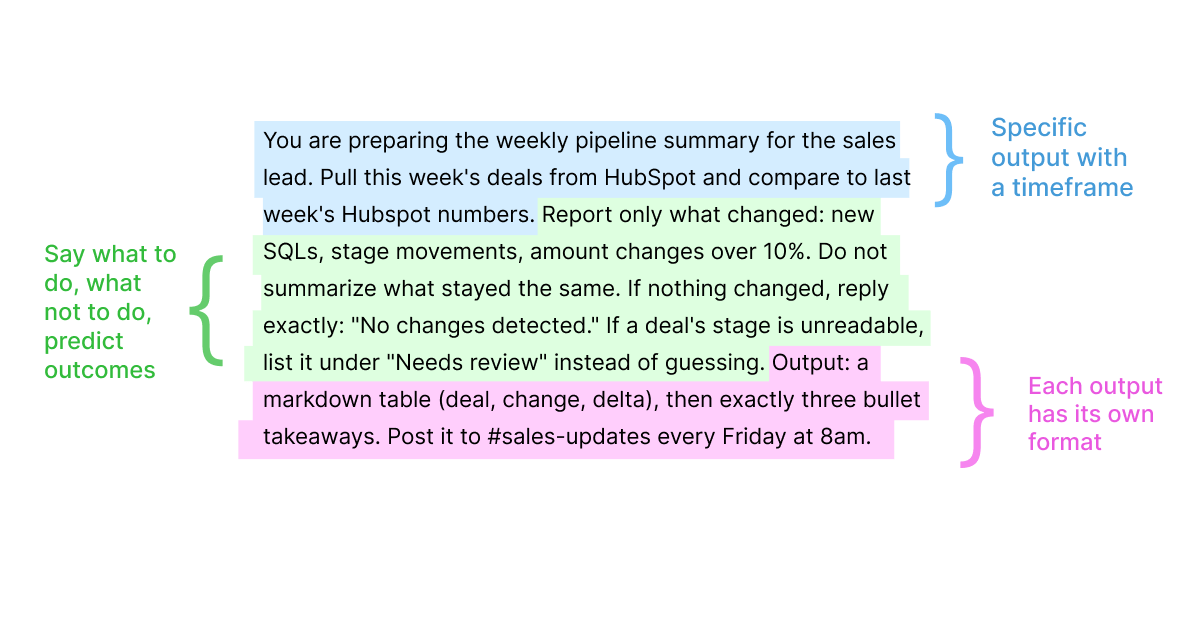
- Output = Slack updates about new and lost deals every week.
- Data = HubSpot deals (native connector).
- Instruction = compare this week to last, flag new deals vs deals lost, post to #sales-updates.
- Where it lives = runs every Friday at 8am on its own -> a scheduled job in Letaido.
The best practices boil down to:
- Be specific. Vague requests trigger a clarifying questionnaire. Not “help me with onboarding emails” but “draft a 4-email welcome sequence for new signups, one CTA each, under 120 words.”
- Specify the format. “Reply in a table,” “JSON only,” “markdown with headings.” Default outputs are conversational, so saying the shape up front saves edits.
- Say what not to do. “Do not summarize what stayed the same.”, “Reply exactly: No changes detected”.
- Ask for a plan when it’s fuzzy. If a build touches multiple systems or you’re not sure it’s feasible, ask for a plan.
- Feed facts, never recall them. Point it at the connector or file. It should reason over what you give it, never supply your metrics from memory.
Map where your data exists
Before you can build anything, you need to know what data you’re working with and where it lives. Good builds run on real data, and that data is already scattered across the tools you use every day.
1. List every tool, app, and site you touch for work
Your analytics platform, your CRM, your project tracker, the spreadsheets, the dashboards. For each one, write down the specific data points it holds. Don’t stop at “SEO data”; get down to “keyword positions, clicks by page, daily impressions.”
2. Connect it to Letaido
Once you know where your data lives, there are three ways to push it to Letaido:
Connectors – Check whether your tool is already in Letaido’s connectors list, if it is, ask to connect it via + New chat.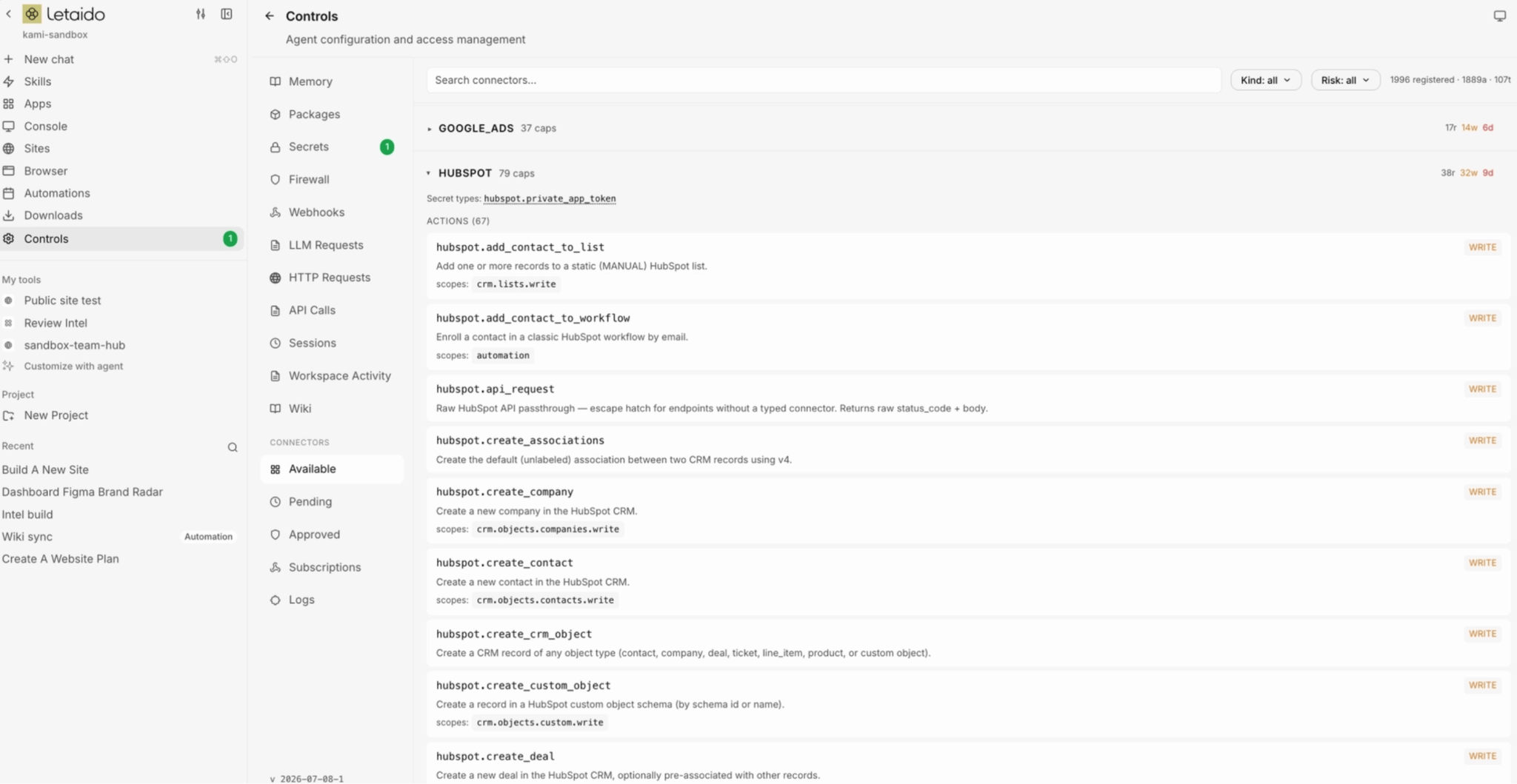
API keys – if your tool isn’t in the connectors list. Generate a standard API key from the tool, then ask the agent in the chat to connect it.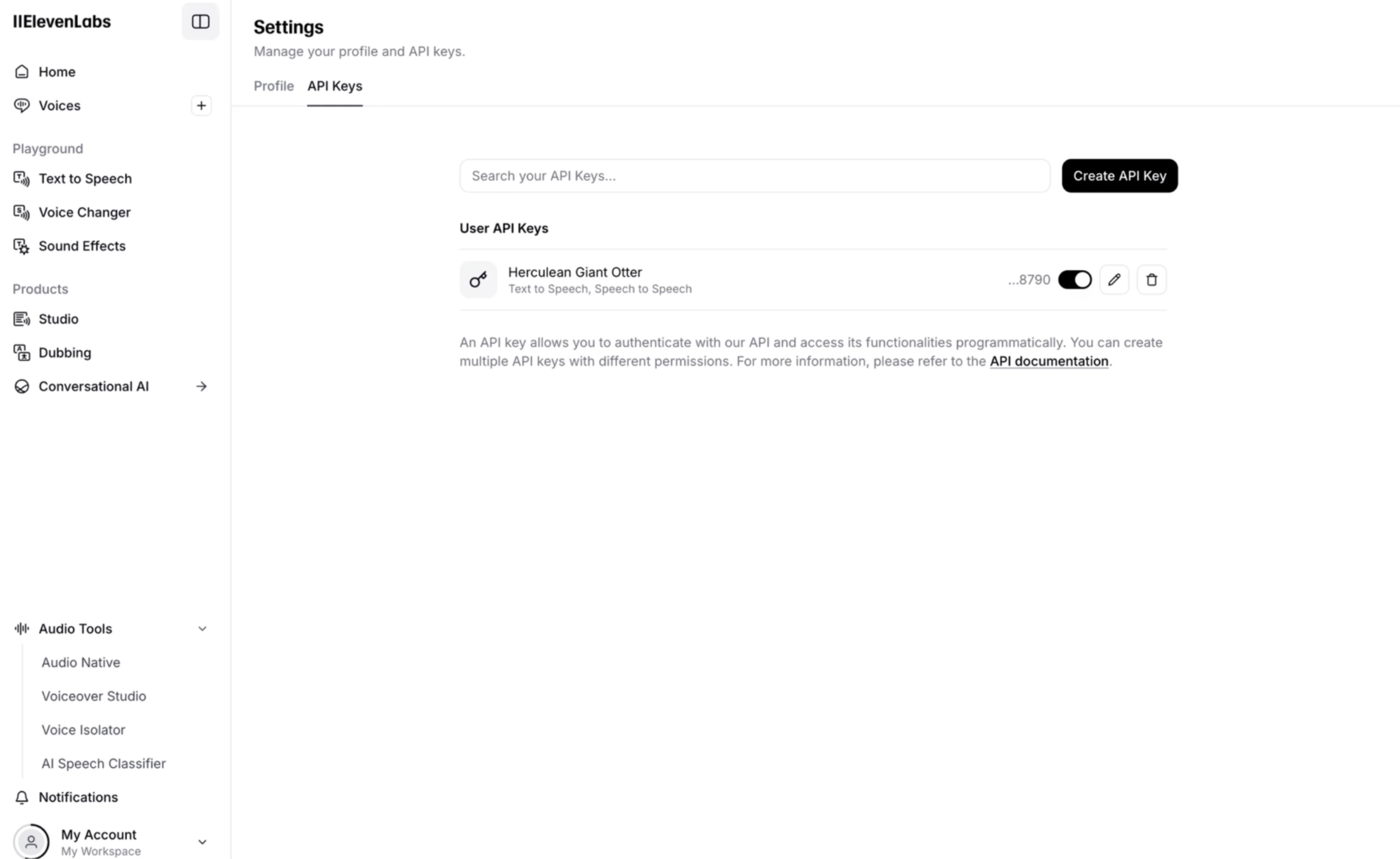
Web scrape – for anything on a public page, no login required. Think competitor pricing, review sites, or SERP. 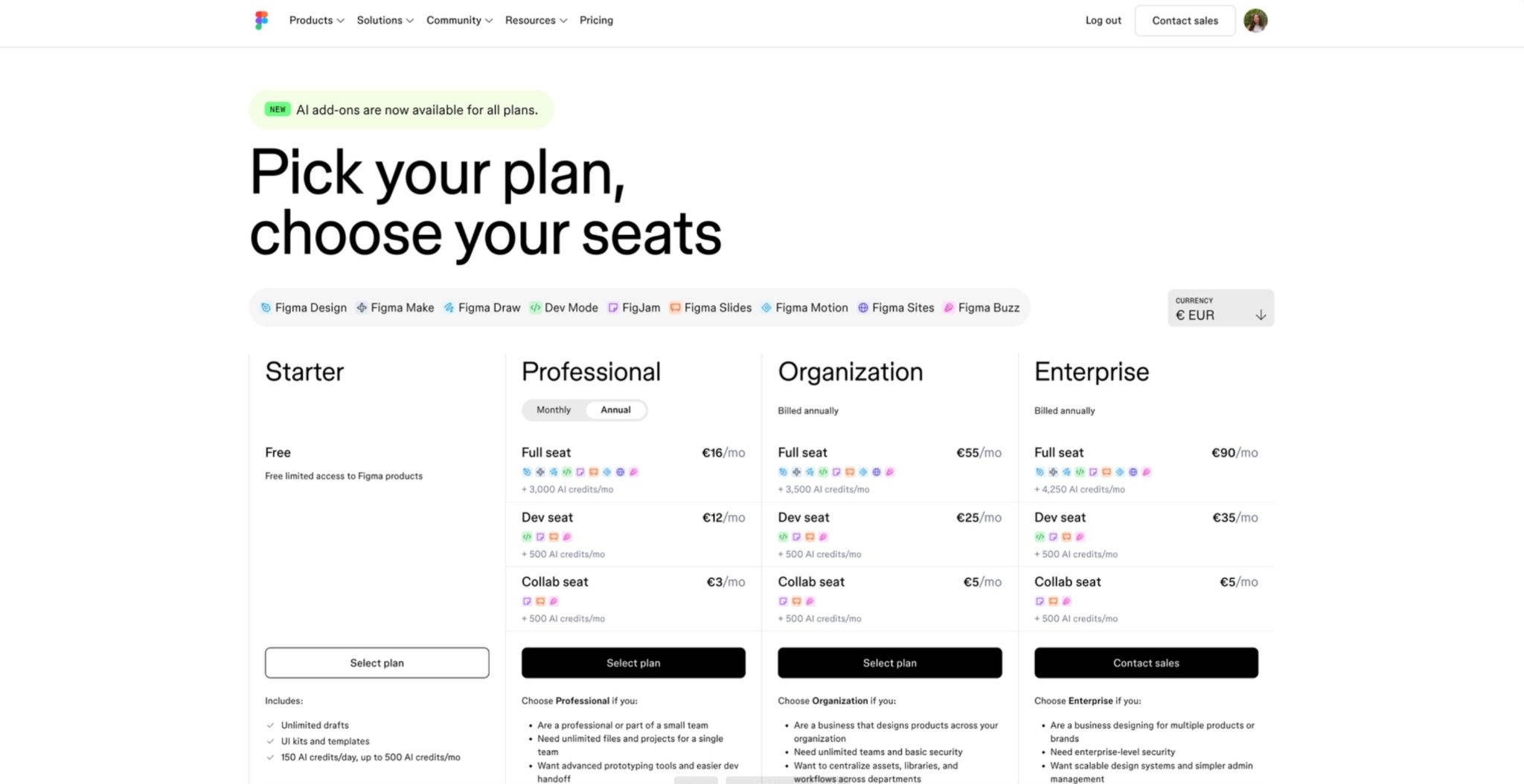
TLDR
- Sign up for Letaido and connect the one tool your work lives in most.
- Pick the workflow you do most often. For me, reporting was the easiest win because the steps never changed.
- Write it as plain steps, 1 through 5, the way you’d explain it to a new hire.
- Describe it to Letaido one step at a time, and let it build with you.
- Check the output, then put an automation on it.
What to build first
If your head feels fuzzy, get inspired by the builds my colleagues shared for automating SEO, product marketing, or content marketing.
You can run an end-to-end keyword research process – take your primary keywords, sort them into clusters, and create a content brief 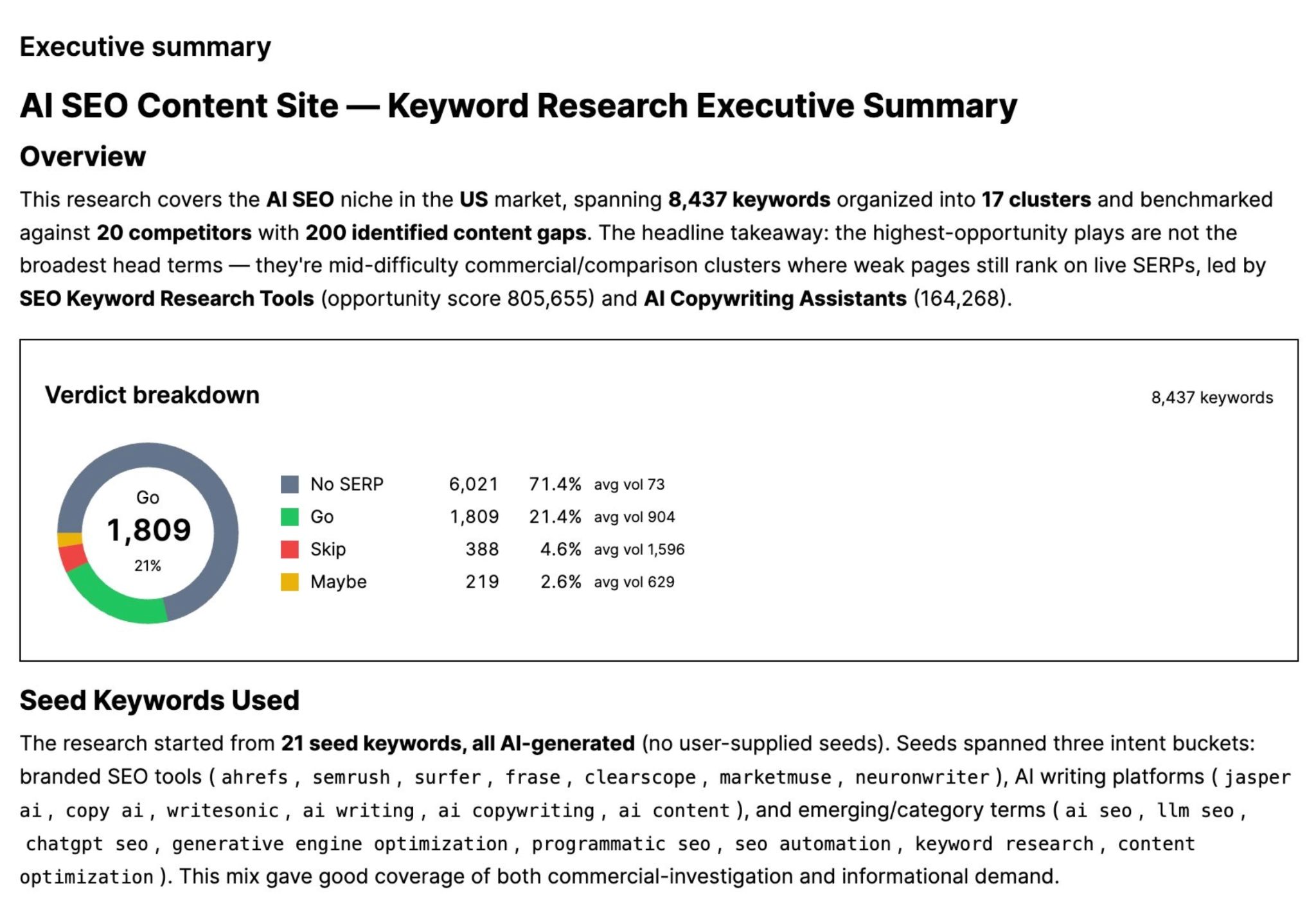
Create a paid ads campaign based on a competitor’s spend – find keywords competitor bids on, fetch and analyze their landing pages, generate creatives and multiple copy variations per ad group. 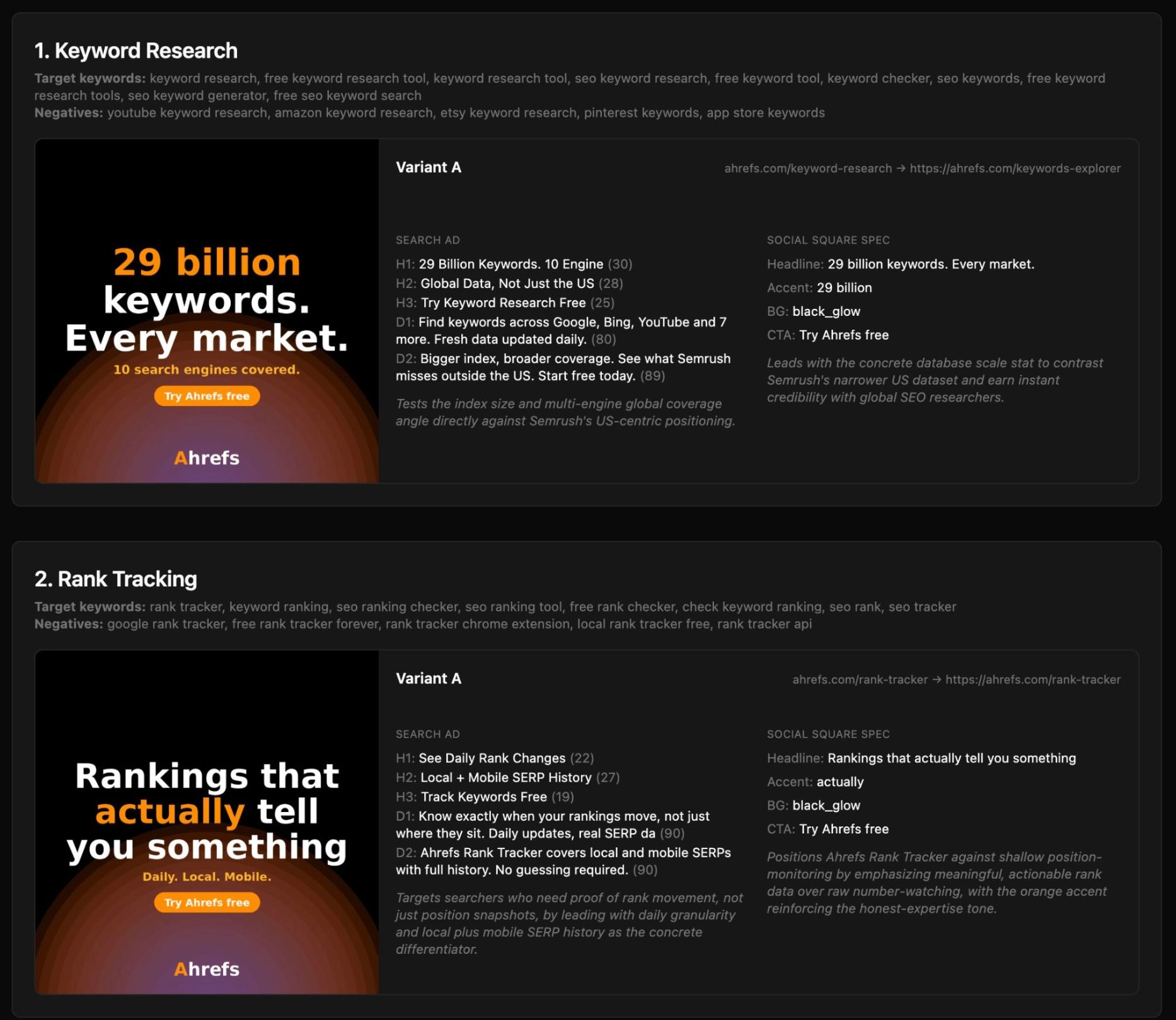
Update old articles and fight traffic decline – the pipeline fetches articles, extracts the page content, then runs diagnostics. 
You do not need a dozen builds. You need one, finished, from your own context.
Reality check
The hype is loud right now. These builds will not replace your strategy, your taste, or your relationships. They will not magically rank you number one. The first version of anything you build will be raw.
However, automating your work will take the repetitive 70% off your plate so you can spend your hours on the fun stuff. The leverage comes from wiring steps together so a workflow you used to do by hand now runs from one command – or, with Letaido, on its own every Monday at 9am.
You know your job better than any tool does. Start there, build one small thing, and iterate it to your quality bar.
When you give it a go, tag/DM me! I’d love to see your builds in action 🙂


