
A streaming stick that buffers, stutters, or reboots itself halfway through an episode is one of the more maddening things a living room can throw at you, not least because the obvious suspect is rarely the guilty one. The reflex is to blame the Wi-Fi, restart the router, and grumble about the broadband, and sometimes that’s fair.
Often, though, the stick isn’t struggling to pull data at all. It’s struggling to pull power, and the usual cause is the previously tidy-looking decision to run it from the USB port on the back of your TV rather than the wall. It sits beside plugging it into the wrong HDMI port as the sort of streaming stick mistake that hides in plain sight. It’s easy to get wrong — and, good news, a two-minute job to check.
Why a streaming stick runs out of power
Five watts, and a port that can’t always spare them

Fire TV Sticks, including the 4K models, ask for very little: 5V at 1A, which is all of five watts, delivered through the wall adapter in the box. The trouble is that the USB port on a television was never built to be a reliable power supply. Plenty of them top out at half an amp, and even the better ones hover around that 1A line with no headroom to spare.
Feed a 4K stick from one of those, and it works, mostly, right up until the moment it’s asked to do something more demanding like decode a 4K HDR stream, run a firmware update, or wake a dozen apps that never fully closed. The current isn’t there, and what you get is the messy kind of failure with stuttering, buffering that the Wi-Fi can’t account for, a picture that quietly drops resolution, or a stick that restarts itself and makes you sit through a cold boot. The 4K Max is the thirstiest of the lineup, so it’s the one I’d suspect first.
How to check whether power is the problem
Four quick checks, back-of-the-TV first

Work through these in order, as the first two cost you nothing but a glance.
- Trace the cable: follow the power lead from the stick. If it disappears into a USB port on the TV rather than into a wall plug, you’ve found your first suspect.
- Watch for the warning: an underpowered Fire TV tells you, if you let it, with an on-screen undervoltage or low-power symbol (usually top-right) and a prompt when you open 4K content or start an update. Roku does much the same, with a message that it isn’t getting enough power. If you’ve been dismissing one of those, that’s your answer.
- Read the label: if it’s running from the wall, check what’s printed on the adapter. The official one reads 5V, 1A. A spare phone charger you grabbed in a hurry might say 5V and 0.7A, which sits under the line — a 5V/2A adapter is fine, since the stick only ever draws what it needs.
- Note which stick: a 1080p stick sips power and rarely complains. A 4K one has more to do, so if the symptoms only show up on 4K content, that fits the pattern.
The fix, and the one stick it doesn’t apply to
Use the wall, unless you have the new HD

The fix is pretty boring, which is usually a good sign. Use the adapter it came with, plug it into a wall socket, and give the stick the full amp it was designed for. If the nearest outlet is genuinely out of reach, a powered USB cable is the tidy workaround, and the Mission USB Power Cable is the one most people reach for since it buffers the supply from the TV’s port rather than relying on it raw. If it were my setup and the cabling allowed it, though, I’d take the wall every time.
There’s one exception worth knowing about, because it flips the usual advice. Amazon’s newest entry-level stick, the Fire TV Stick HD, is built to run directly from the TV’s USB port, with no wall plug at all by design. So this isn’t a blanket rule against USB power, but is specific to the power-hungry 4K models. If you have the new HD, the USB port is fine, but if you have a 4K, 4K Plus or 4K Max that keeps stumbling, give it the wall.
When it isn’t the power
Heat, the Wi-Fi band, and a bloated cache
Power is the culprit people most often miss, but not the only cause. If the wall adapter’s already in place and the stick still misbehaves, work down this list before you blame anything else.
Heat: a stick jammed flush against a hot panel, packed into a dust trap behind the TV, can throttle or shut itself down to cool off. The bundled HDMI extender exists partly for this, so use it. It’s also the reason it’s worth knowing what happens when you leave a Fire TV plugged in 24/7.
Wi-Fi, properly this time: if it really is the network, the fix is usually the band rather than the router. Nudging the stick between the 2.4GHz and 5GHz bands (5GHz for speed, 2.4GHz for range) does more than any other reboot ever will.
Cache and stray apps: a stick bogged down by months of cached data and apps idling in the background will feel sluggish whatever it’s plugged into, and clearing them out is a five-minute reset. And if you’re on an Apple TV 4K rather than a stick, you can skip the power section entirely, as it’s a mains-powered box, which is one quiet point in its favor.
The two-minute version
Before you blame the broadband
Before you spend an evening at war with your router, spend two minutes at the back of the television. Follow the power lead, look for the low-power warning, and move the stick to the wall if it’s been sipping from a USB port. It fixes more buffering than any speed test will, and it costs nothing but the reach behind the set. If the stick still can’t keep up once it’s properly fed, that’s a different conversation, and the simple answer might be that the streamer itself is the weak link.
-
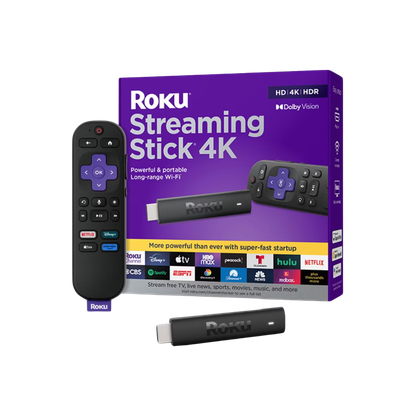
- Operating System
-
Roku OS
- Resolution
-
4K
- Ports
-
HDMI 2.0b, USB for Power & Long-range Wi-Fi receiver
- Connectivity
-
Wi-Fi
- Dimensions
-
3.7″ x 0.80″ x 0.45″
One of the most reliable plug-and-play streaming solutions on the market, the Roku Streaming Stick lets you pipe 4K entertainment from dozens of services to any HDMI-compatible set. With Dolby Vision support and a voice-controlled remote, it’s a great way to take your media from display to display.
-
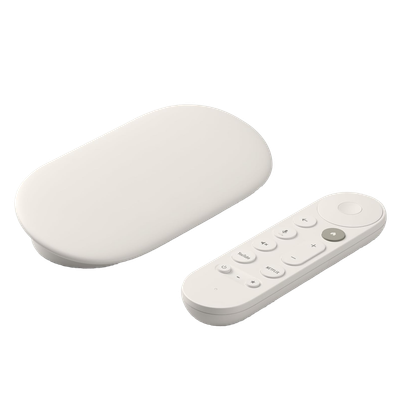
- Dimensions
-
6.4 x 3 x 1-inch
- Connective Technology
-
Wi-Fi, Bluetooth
- Brand
-
Google
- What’s Included
-
Remote
- Bluetooth codecs
-
Bluetooth® 5.1
The Google TV Streamer is a streaming device designed to support the latest video and audio technologies with AI integration and smart home control.
-
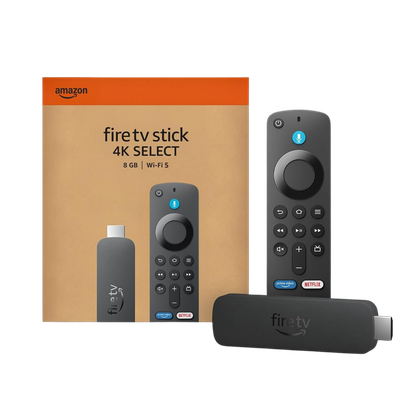
- Brand
-
Amazon
- Operating System
-
Fire OS
- Downloadable Apps
-
Thousands
- Resolution
-
4K, Dolby Vision, HDR10
- Ports
-
HDMI
The Amazon Fire TV Stick 4K can stream in 4K resolution. It offers millions of titles on a variety of streaming services.




