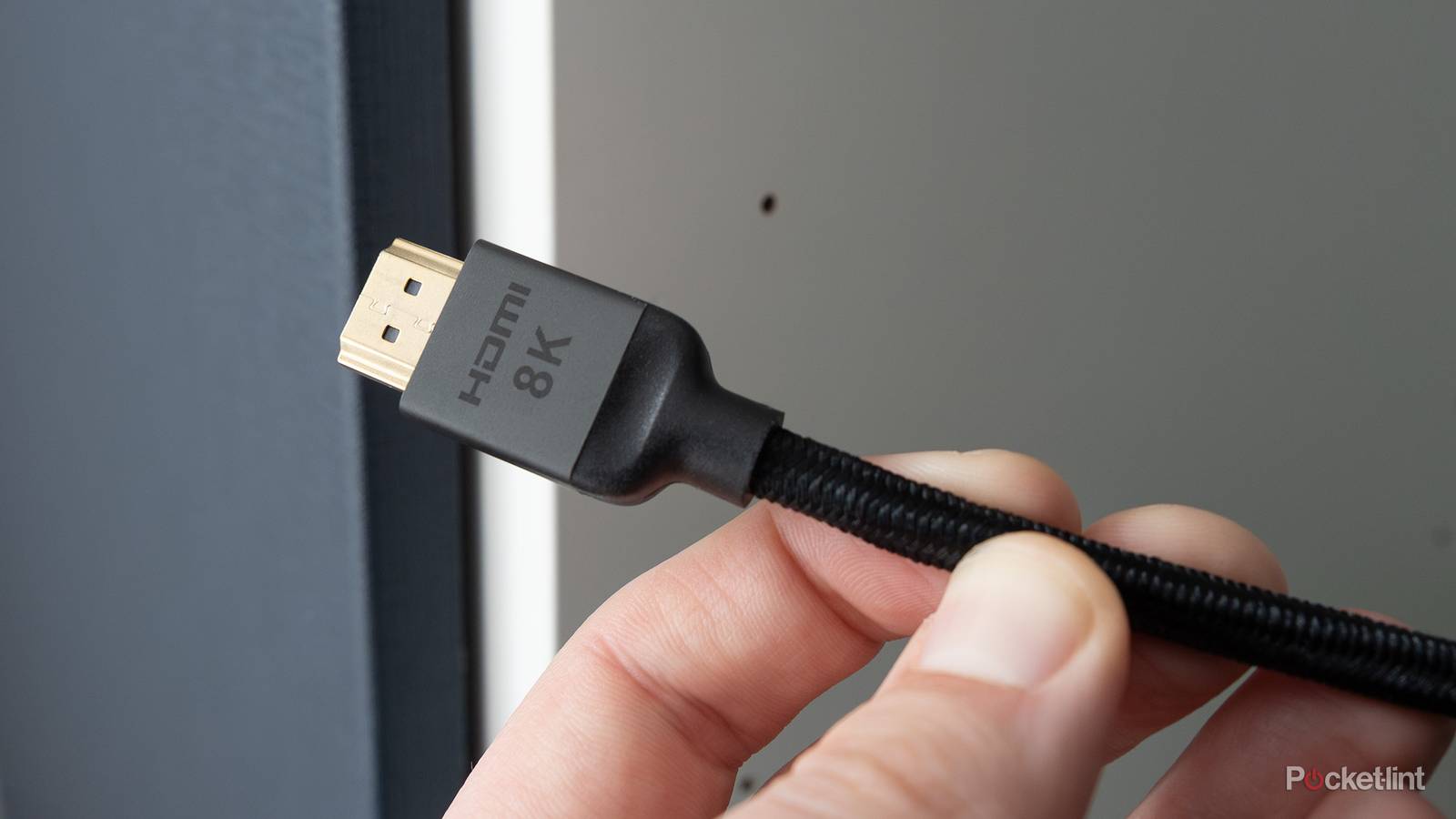
HDMI cables are very important, and you probably have several of them in your house. Most devices come with them these days, which means that I have more than I know what to do with. I’ve been here since the beginning of HDMI, and throughout the various console generations, I’ve collected a plethora of HDMI 1.4, 2.0, and 2.1 cables. While all of these look the same, which is a blessing and a curse, they don’t perform the same.
For picture quality, it’s actually not all that bad. Each of these cables output a 4K resolution, and if you’re just watching TV instead of console gaming, any of them will perform the same in terms of picture. For gaming, you’ll want to swap to a 2.1 cable, especially if you’re using a PS5 or Xbox Series X. This cable is needed for 120 FPS and variable refresh rate (VRR) — two things that are a big deal in this console generation.
What you might not realize is that your HDMI cable matters a lot for your audio and picture. It’s easy to ignore, especially if you’re just using mediocre TV speakers. However, if you have a soundbar or audio receiver, you need to upgrade to an HDMI 2.1 cable to get the best quality.
Your HDMI cable matters for audio and video
Don’t cheap out here

If you go through the trouble of upgrading your audio with a soundbar or a receiver, there’s no reason not to go the extra mile and get an HDMI cable to go with it. HDMI 2.1 cables are capable of 48 Mbps, a big step up from the 18 provided by HDMI 2.0. Having more bandwidth like great is actually great for audio, because you don’t want to deal with both compression and a low bitrate.
What you need to do is look at your current HDMI cables and figure out what they are. It’s hard to do if you don’t know what to look for. Take a look at your cable and see if it says Ultra High-Speed HDMI on it. If it does, then that means you have the 2.1 cable that you’re looking for. If you have a game console, it’ll also tell you if you have the correct cable plugged in by means of saying you get use VRR or get 120 FPS. In the case of your PS5 and Xbox, those came with an HDMI 2.1 cable bundled with them, so as long as you haven’t lost track of what came with what, you’re also in the clear.
On top of having the correct cable, you’ll need to make sure you’re plugged into the correct HDMI port on your TV. I know it sounds complicated, but once you learn all of this, it just becomes second nature. I used to be in the same boat, and now I’m glad that I know how everything works. It’s also very easy to move around cables, so it’s not like you’re doomed if you’re plugged into the wrong port.
Your TV port also matters
It’s a lot to keep track of

Smart TVs have a lot of ports on them, but we’re just going to focus on the HDMI ports here. What you need to be on the lookout for is an ARC port, but you should keep your fingers crossed and hope it’s an eARC port. This stands for Audio Return Channel, or Enhanced Audio Return Channel if you have the newer format. This port ensures you’re getting the best audio that you can get, and if you want to experience Dolby Atmos, DTS:X, or any other modern audio formats, this is what you need to use.
You need to pair this port with an HDMI 2.1 cable. Depending on your TV, you might have a color-coded version of this port. My Fire TV has it surrounded in orange, so it’s hard to miss. If you have something else plugged into this port currently that isn’t an audio device, unplug it and move it to another device. Your Blu-ray player or Xbox will work if it’s plugged into the eARC port, but you’re taking away value from things that could use it more.
It’s easy to fall into the trap of seeing the color and thinking it’s your best available HDMI port. That’s very well the case, but you get the most value from it when it gets to pass uncompressed audio along to your audio equipment. Your TV likely has other HDMI 2.1 ports that you can plug your devices into, so you should be able to maximize the value from all of your devices. Of course, if you have an audio receiver, you can just plug everything into that and just make sure the receiver is plugged into the eARC port. It’s how I do things, and it works out quite well for me.


